

In daily office work and document management, PDF files are widely used due to their security and cross-platform compatibility.
However, for users who need to sign contracts or reports, the ability to conveniently and quickly add a digital signature to a PDF is of particular importance.
So, what exactly is a digital signature? And how to add digital signature in PDF? This post will explain them all below.
What Is a Digital Signature?
A digital signature is a type of “electronic seal” used to guarantee that an electronic document or piece of information is authentic and has not been tampered with.
It can be attached to electronic documents (such as PDFs) to ensure their authenticity and integrity through cryptographic means.
Here are the benefits of using digital signatures in PDF documents:
- Identity verification: Digital signatures bind the signer’s identity information to the document, thereby confirming the signer’s identity.
- Document integrity: If the content of a PDF or contract is modified, the digital signature becomes invalid.
- Legal validity: In certain countries and regions, legally valid digital signatures carry specific legal weight.
- Verifiability: Users can employ specialized methods to verify the authenticity of both the document and the signature.
Well, compared to handwritten signatures, digital signatures are more secure, difficult to forge, and highly verifiable. The following will show you how to add a digital signature to PDF.
How to Add Digital Signature to PDF
This article introduces two tools for adding digital signatures: MiniTool PDF Editor and Adobe Acrobat.
Method 1: Add Digital Signature via MiniTool PDF Editor
As a comprehensive PDF editing tool, MiniTool PDF Editor not only supports basic PDF viewing and editing but also offers a wealth of advanced features, such as merging multiple PDFs, adding annotations, page management, and format conversion.
With these capabilities, you can also easily add digital signatures to your PDF documents, thereby enhancing both their security and professionalism.
Below, this post will outline the specific steps for adding a digital signature to a PDF file using MiniTool PDF Editor.
MiniTool PDF EditorClick to Download100%Clean & Safe
Step 1: Right-click a PDF file and choose Open with > MiniTool PDF Editor.
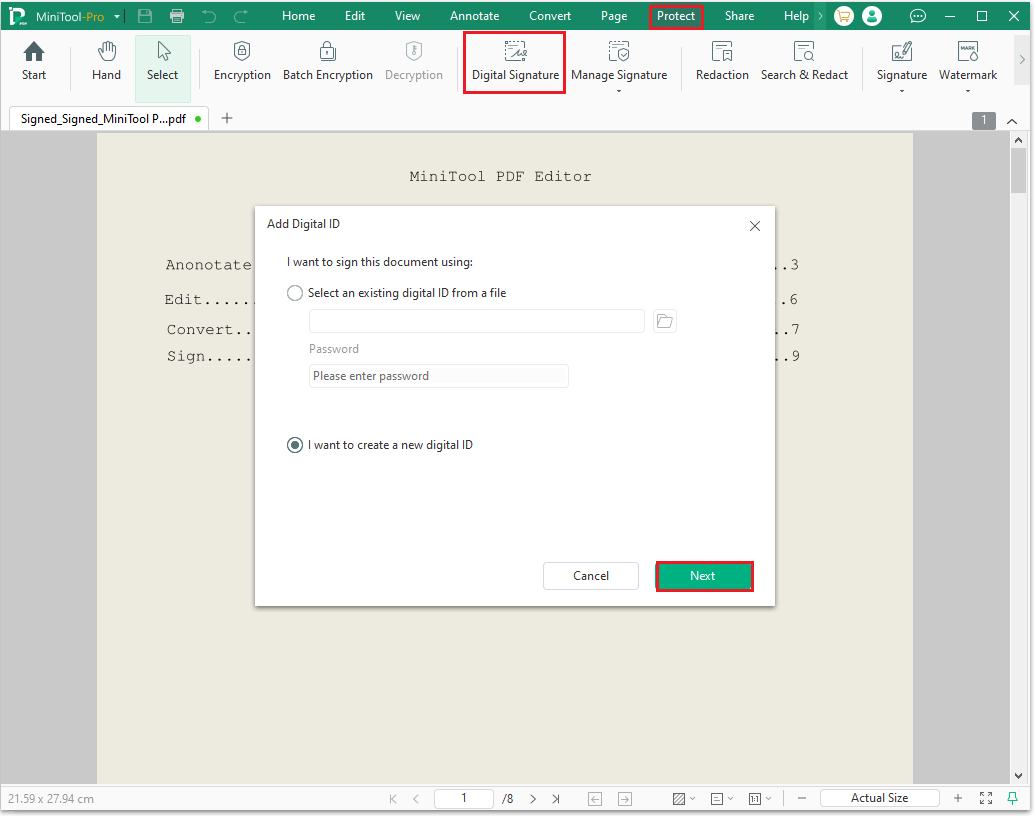
Step 2: Click Protect and then choose Digital Signature. In the area where a digital signature needs to be added, drag the mouse to draw a box. To adjust the size of the digital signature, you can drag the green border to resize it. Then, click I want to create a new digital ID and then Next.
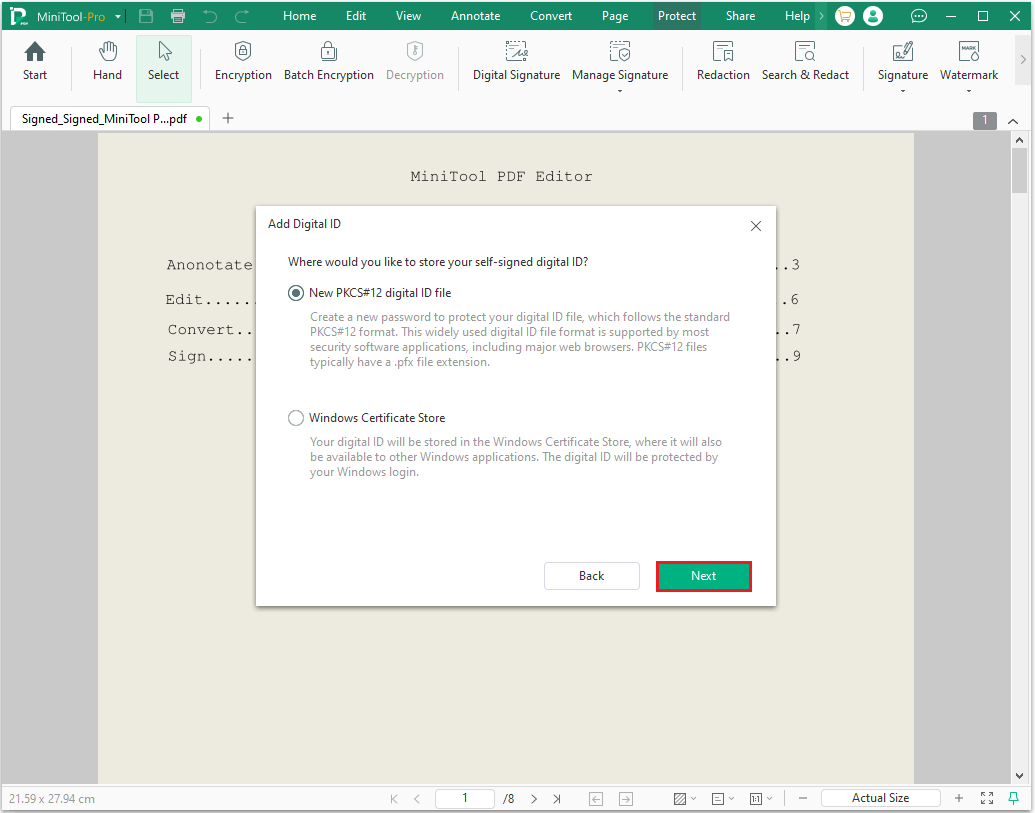
Step 3: There are two ways to store digital signatures. Typically, the default option is selected.
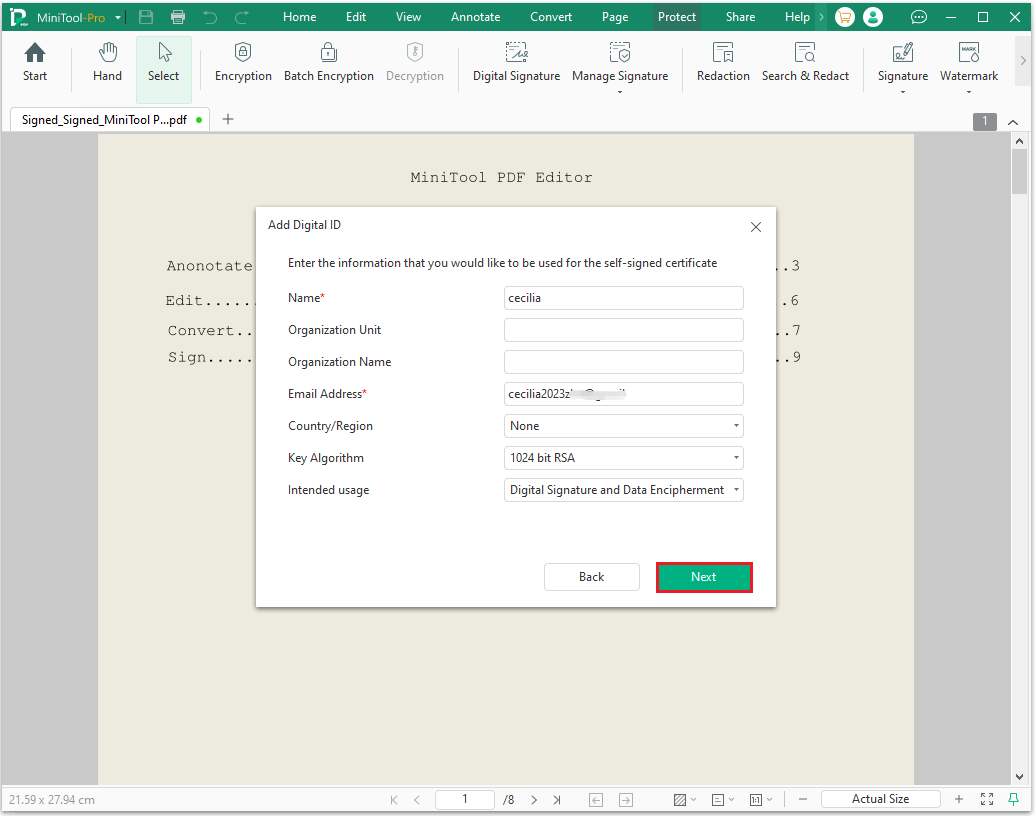
Step 4: In the new pop-up window, fields marked with a red asterisk are required. The remaining fields (such as Organization Unit, Country/Region, etc.) are optional. Once you have finished filling it out, click Next.
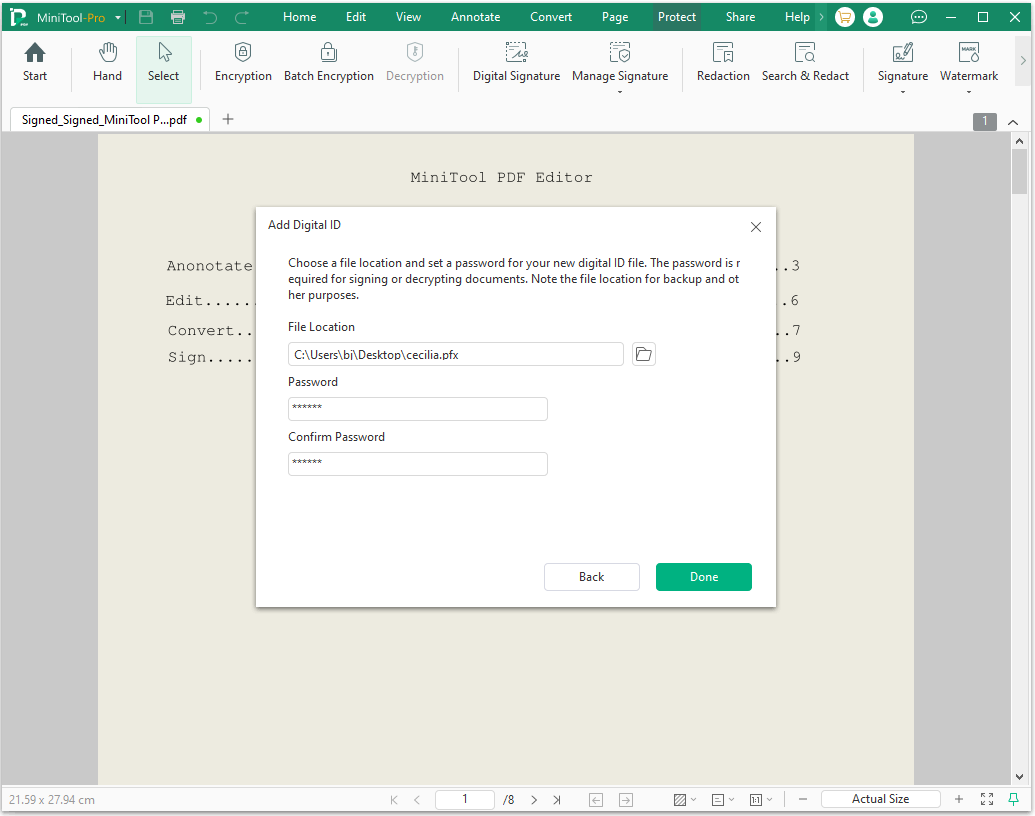
Step 5: Choose a file location and set a password for your new digital ID file. Then click Done.
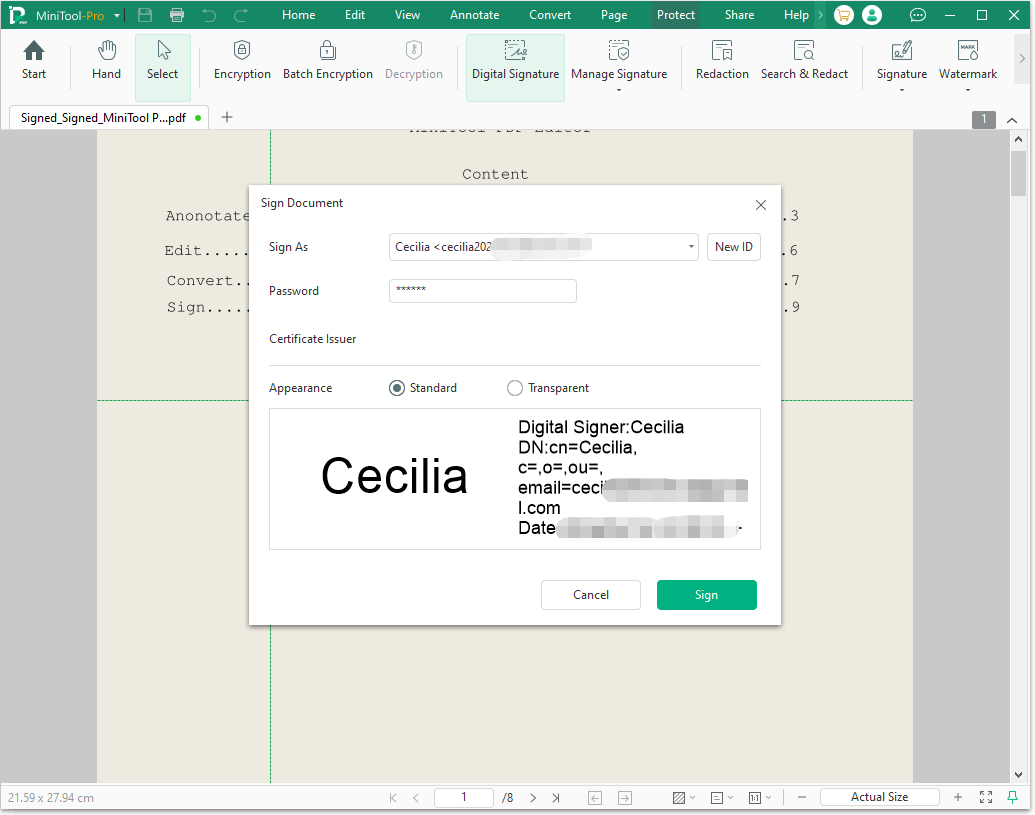
Step 6: In the new pop-up window, the default appearance is Standard. Finally, type the password and click Sign > Save.
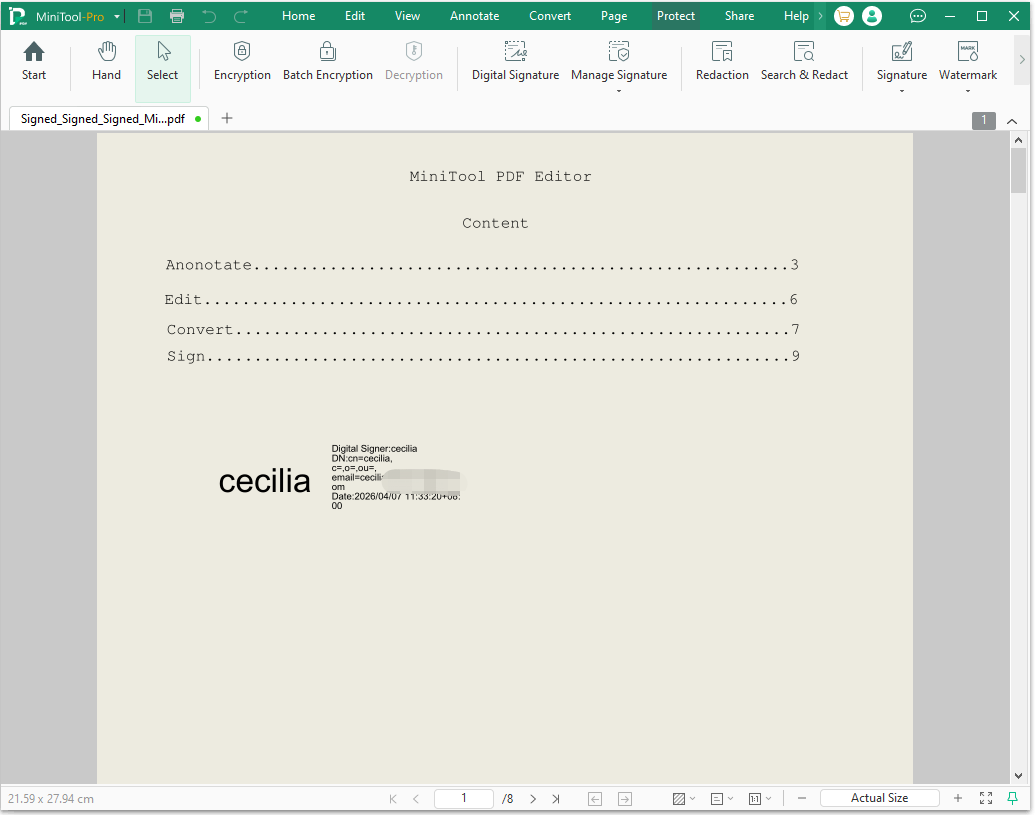
Step 7: Once the operation is complete, the digital signature will be successfully added to the PDF document.
Further reading:
If you wish for your digital signature to appear transparent, you can select Transparent within the Appearance options. A transparent digital signature does not obscure the content of the PDF document while still retaining full legal validity.
You can view transparent digital signatures in the left-hand panel of this software, and they will also display correctly when viewed in other PDF applications.
Method 2: Add Digital Signature via Adobe Acrobat
In daily office work, using Adobe Acrobat to add a digital signature is an efficient and secure method.
The following guide explains how to use this approach to quickly insert a digital signature to PDF.
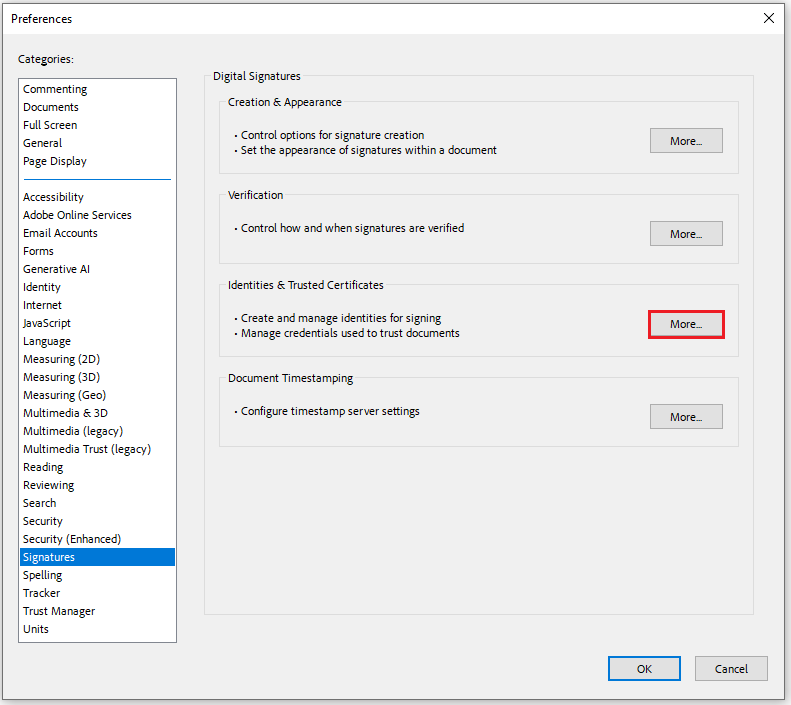
Step 1: Open your PDF file in Adobe Acrobat. Click Menu > Preferences> Signatures, click More next to the Identities & Trusted Certificates section.
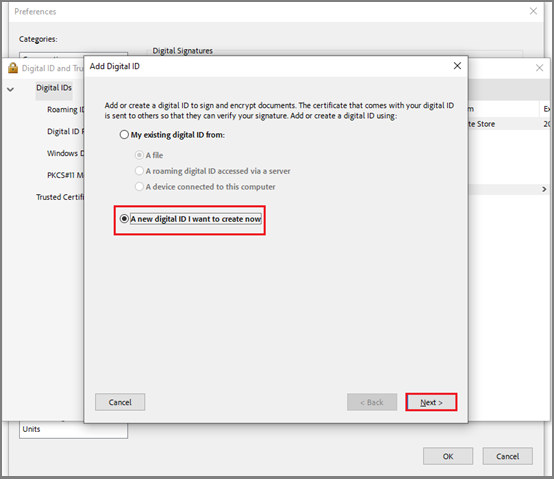
Step 2: Click the + icon and select A new digital ID I want to create now. Then, click Next.
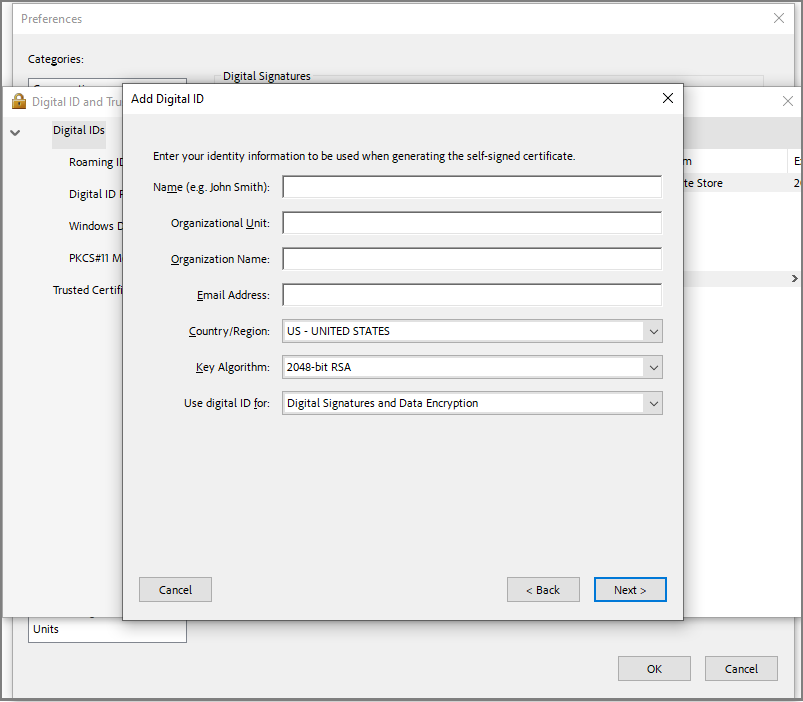
Step 3: Enter the relevant information, such as Name, Email Address, etc., then follow the instructions to create a digital ID.
Step 4: After finishing the creation of the digital ID, click Tools and select Certificates. Click Digitally Sign in the top toolbar.
Step 5: Find the place where you want to add a digital signature, and click and drag to create a signature box.
Step 6: In the Sign with a Digital ID dialog box, select the digital ID you have already created.
Step 7: Click Continue, enter your password if prompted, and click Sign.
Step 8: To finish, save the document and complete the signature.
Bottom Line
By following the methods above, you can easily add a digital signature to your PDF. If you have any questions or suggestions while using the MiniTool PDF Editor, you can contact us via support@minitool.com to get a quick reply.