
If you need a free PDF merger for large files, this article has you covered. It will walk you through some of the best PDF merger for large files, including MiniTool PDF Editor, Adobe Acrobat, and PDFsam.
Sometimes, you may need to merge large PDF files into a single document for easier management and sharing.
This article will explain how to choose the best PDF merging tool for large files. It will also introduce some of the best tools currently available for merging large PDF files efficiently.
How to Choose the Best PDF Merger for Large Files
When choosing a PDF merging tool for large files, you should consider the following factors:
- File size support: Ensure the tool can handle large PDF files.
- Merge speed: The PDF merging tool should be able to merge files quickly.
- Batch merging: The software should have a batch merging function for PDF documents.
- Security and privacy: If your files contain important information, choose an offline or secure tool to protect your data.
Best PDF Merger for Large Files
The following article compiles a list of the best PDF mergers for large files, with both online and desktop versions available.
#1. MiniTool PDF Editor
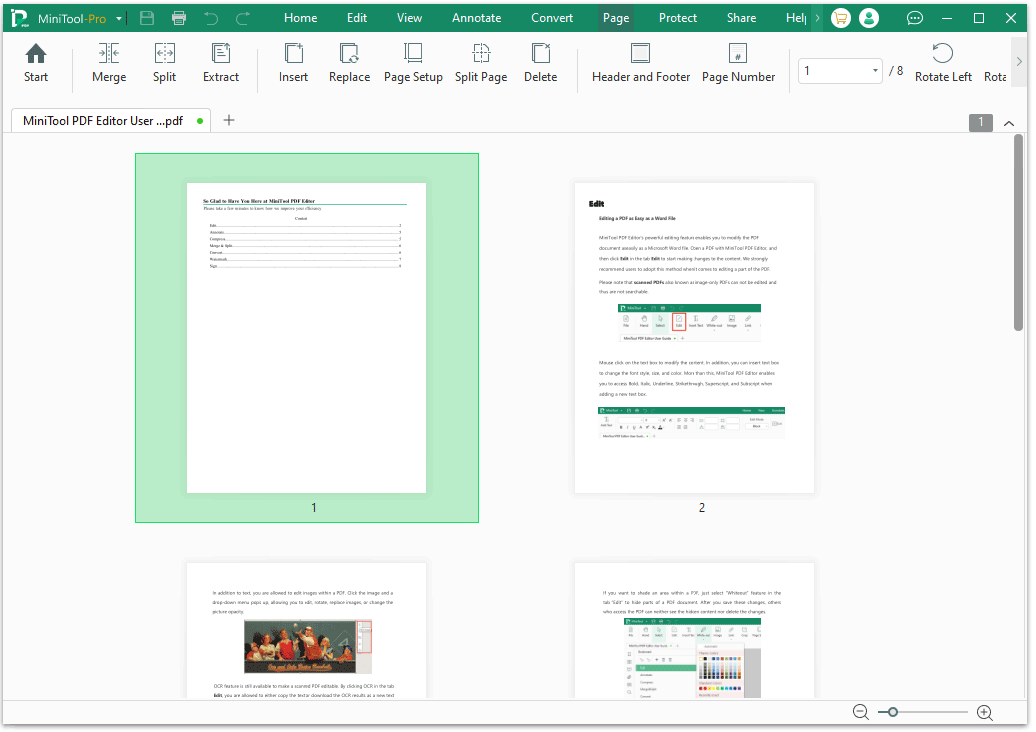
If you are looking for a PDF merger capable of handling large files, MiniTool PDF Editor is a highly recommended choice.
Not only does it effortlessly merge multiple large PDF files, but it also maintains smooth and stable performance without lagging, even when processing high-resolution documents and scanned images.
Unlike many online PDF merging tools, it does not require you to upload your files to the cloud, offering distinct advantages in terms of privacy protection and file security.
Click the button below to experience this powerful Windows PDF editor right now!
MiniTool PDF EditorClick to Download100%Clean & Safe
Advantages:
- Supports merging large files with virtually no size limit.
- The batch processing function improves efficiency.
- Preserves original document format and quality.
- The user interface is intuitive, making it easy for beginners to get started.
- Comprehensive in functionality. It serves not only as a PDF merger but also offers features such as editing, conversion, compression, etc.
Disadvantages:
- Limited functionality in the free version.
- Advanced features require purchasing the full software.
- Only the conversion function has an online version. There is no online version for the merging function.
- Supports Windows only.
#2. Adobe Acrobat
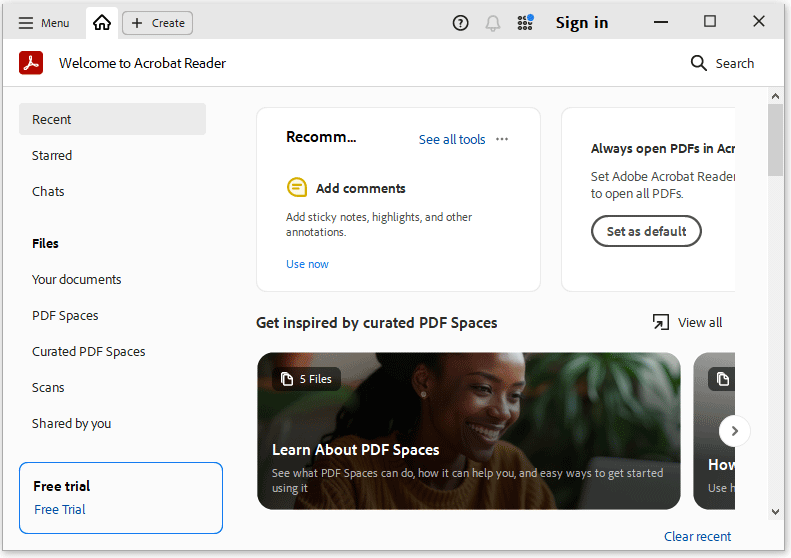
Adobe Acrobat is one of the earliest PDF software programs and is widely recognized by users. It is specifically designed for handling large and complex documents, and can quickly merge multiple large PDF files.
Advantages:
- Stable handling of large and complex documents.
- Preserves original layout, fonts, etc. in the merged document.
- Professional-grade software with comprehensive functions.
- Adobe Acrobat is a highly renowned PDF application, widely used by numerous companies and organizations.
- It supports not only Windows but also macOS, iOS, and Android, and offers web-based tools that can be used directly online.
Disadvantages:
- Relatively high price, requiring a paid subscription.
- May be overkill for occasional personal users.
- Large software size consumes a lot of memory on older computers or low-spec devices.
- It frequently displays pop-up windows encouraging users to upgrade the software or utilize Adobe’s cloud services.
#3. PDFsam
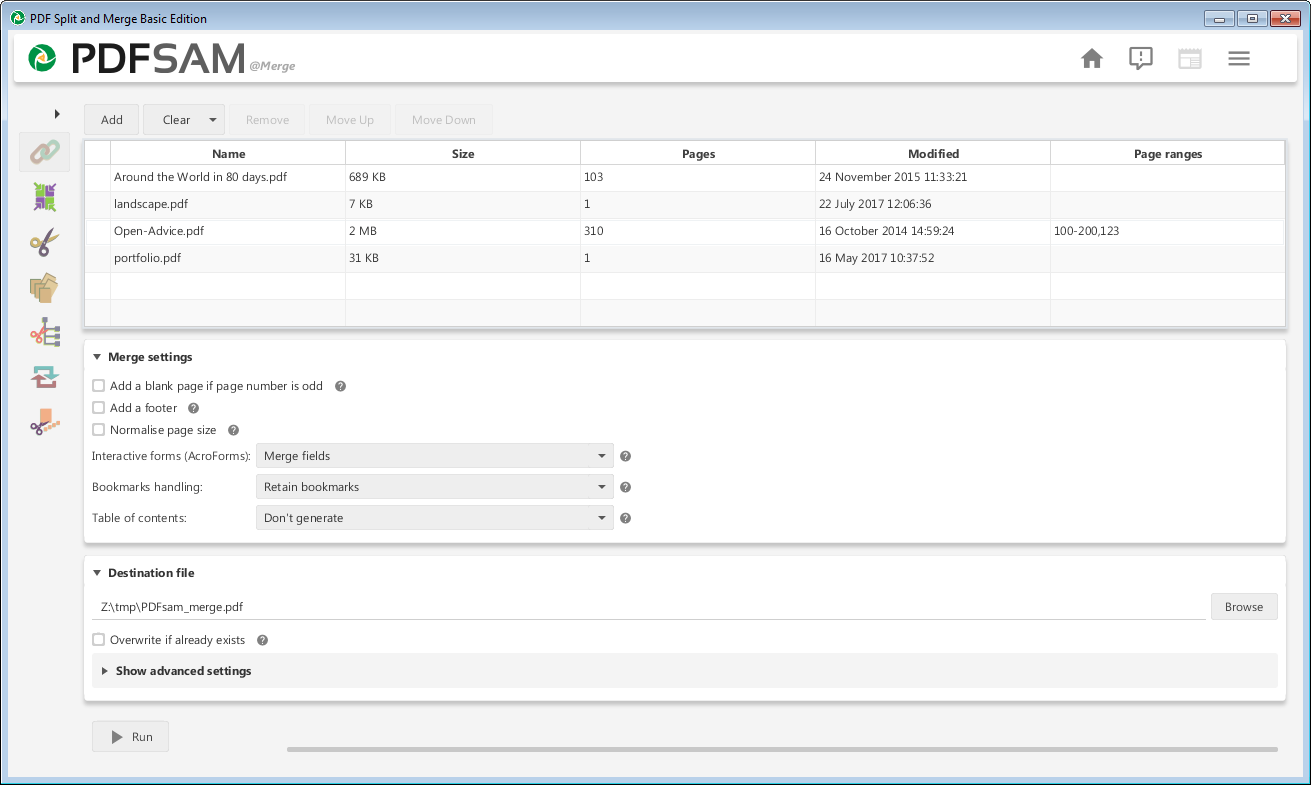
PDFsam is a desktop PDF merging tool that supports Windows, Mac, and Linux systems.
It’s simple and intuitive to use, and supports batch merging of multiple files, making it ideal for users who frequently process PDFs.
--image from pdfsam.com
Advantages:
- Free and open-source software.
- Simple and easy-to-use interface.
- Suitable for small tasks.
- Supports Windows, macOS, and Linux. Many PDF software programs do not support Linux.
Disadvantages:
- Limited free usage.
- Not suitable for merging large PDF files.
- Lacks advanced features (such as OCR and file conversion functions).
#4. PDF24 Creator
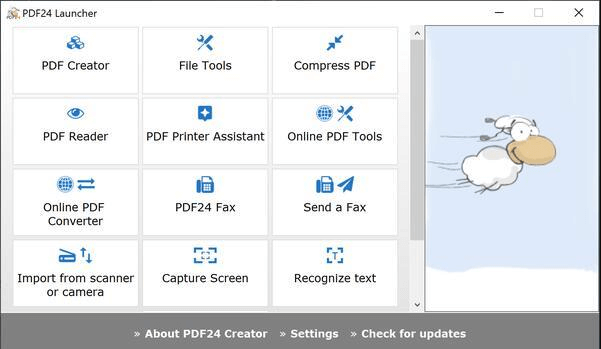
PDF24 Creator is a free PDF merger online for large files. Furthermore, it supports PDF merging, creation, compression, and other operations.
With its simple and intuitive interface, this tool lets you accomplish your tasks with ease.
Advantages:
- Completely free and unlimited.
- Simple interface.
- It features a built-in virtual printer function, allowing you to directly convert any printable file into a PDF.
- Suitable for low-end computers.
Disadvantages:
- Supports the Windows operating system only.
- When handling complex PDFs, its performance is slightly inferior to professional tools such as Adobe Acrobat.
#5. iLovePDF
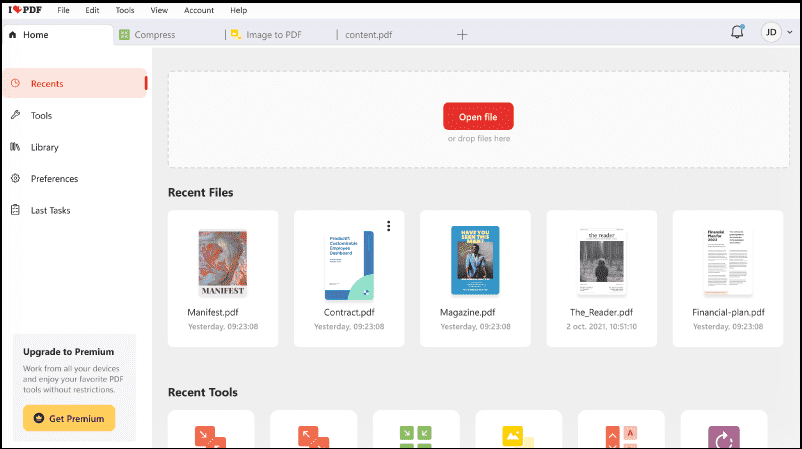
iLovePDF is a popular online PDF tool that allows you to process PDFs anytime without installation. Merging files is very simple: just upload the files, sort them, and merge.
--image from ilovepdf.com
Advantages:
- Online operation, no installation required.
- Preserves the original document's layout and content.
- Simple and intuitive interface, easy to use.
- Primarily cloud-based, offering highly convenient cross-device usage (accessible on both mobile phones and computers).
Disadvantages:
- File size limitations exist.
- Processing large PDF files can be relatively slow.
- It relies on an internet connection. The core functionalities cannot be utilized while offline.
#6. Foixt
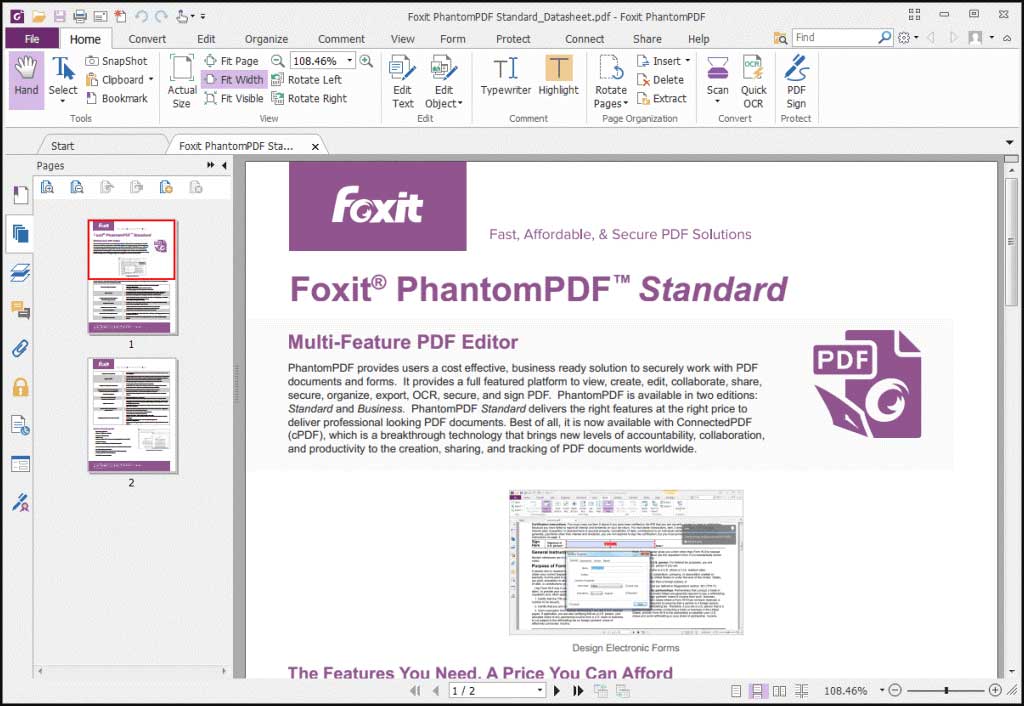
Foxit is a cross-platform, free PDF editor that supports Windows, macOS, iOS, and Android, and easily merges PDFs.
It also offers a variety of practical features such as adding watermarks, format conversion, and document encryption. Like Adobe, this software has been around for decades.
Advantages:
- Comprehensive functionality, supporting PDF creation, editing, and annotation.
- More affordable than Adobe Acrobat, offering better value for money.
- Fast startup and lightweight operation.
- It supports Windows, macOS, Linux, iOS, and Android.
Disadvantages:
- Free trial only available with paid plans.
- The interface is slightly complex. The beginners may find the numerous function buttons overwhelming.
Best PDF Merger for Large Files FAQ
Bottom Line
This guide presents six PDF mergers, summarizing their pros and cons, so you can easily evaluate and select the best option.
If you have any questions or suggestions while using the MiniTool PDF Editor, you can contact us via support@minitool.com to get a quick reply.