

If you’re looking for a PDF converter tool, this article will satisfy your needs. It will introduce the best PDF converter to you, such as MiniTool PDF Editor, Adobe Acrobat, PDFsam, LibreOffice, and Calibre.
In daily work or study, office workers, teachers, researchers, and students may need a PDF converter to convert PDF files to other formats or vice versa.
Whether processing contracts, reports, or simple notes and courseware, a PDF converter has become an indispensable tool.
Next, let’s explore why you need a PDF converter and what the best PDF converter is on the market.
Why Do You Need a PDF Converter?
Below are some reasons why you need a PDF converter.
Whether converting PDFs to other formats or vice versa, a PDF converter can bring many conveniences to your daily work and study.
Why convert other formats to PDF?
- Consistent formatting: PDF files lock the layout, fonts, and images, ensuring the document looks the same on any device.
- Universal access: PDF files can be opened on any platform without the original software.
- Enhanced security: PDF files support encryption and signing, ensuring document security.
- Read-Only format: PDF files are suitable for storing non-editable documents, preventing content modification.
- Archiving and long-term storage: PDF is a commonly used archiving format, suitable for long-term document storage and management.
Why convert PDF to other formats?
- Editing the content: PDF files are usually not editable. Converting them to Word format allows for easy content modification.
- Data extraction: Converting PDFs to Excel format can make tables or data easy to extract.
- File compatibility and sharing: Converting PDFs to other common formats facilitates sharing with users of different software.
- File size management: PDF files consisting entirely of images can be very large. Converting them to other formats (JPG) or compressing the PDF helps reduce file size.
Best PDF Converter
Currently, there are many types of PDF conversion tools on the market, differing significantly in terms of supported formats, user experience, and price.
Below are several common and practical PDF converters. Choose one according to your needs.
#1. MiniTool PDF Editor
Among numerous PDF conversion tools, MiniTool PDF Editor stands out as a top choice. It is highly recommended as the best PDF converter for small businesses.
It boasts a rich set of features, supporting the conversion of various common formats such as Word, DWG, Excel, and HTML to and from PDF, meeting the needs of both daily office work and professional scenarios.
Furthermore, MiniTool PDF Editor also supports image format conversion among PNG, BMP, and JPG files, and converts scanned documents into editable PDF documents using OCR technology.
In addition to format conversion, the software provides comprehensive PDF editing capabilities. It helps you delete or add text, links, watermarks, pages, themes, and signatures, as well as adjust page orientation, crop pages, etc.
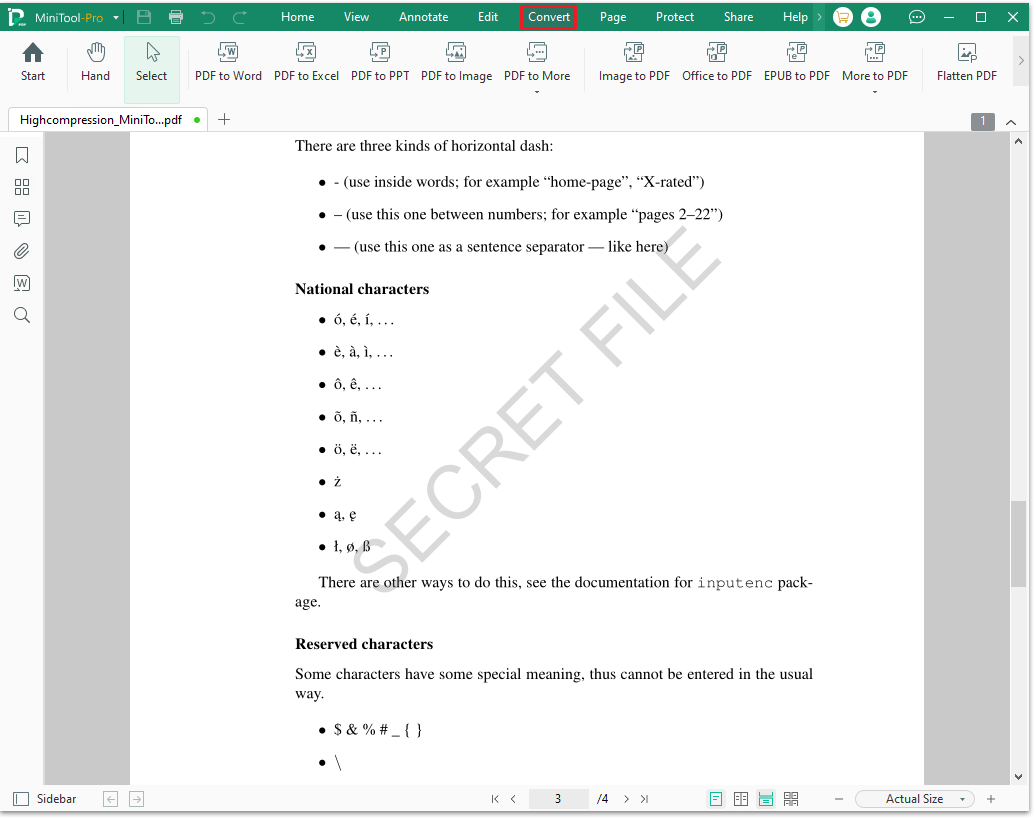
Below is an overview of the benefits and limitations of this software:
Advantages
- User-friendly interface: The easy-to-use interface makes converting PDFs quick and convenient.
- Online and Windows support: The software supports both online conversion and Windows-based operation, allowing you to flexibly choose your preferred method.
- Excellent conversion results: MiniTool PDF Editor performs stably in converting between various formats, such as PDF to Word, Excel, and PPT. It effectively preserves the original layout and font styles.
- Rich features: It includes a variety of PDF management tools, helping you compress files, encrypt them, translate PDF from English to Portuguese, and more.
- Lightweight and efficient: Compared to other PDF applications, MiniTool PDF Editor has a smaller installation package. This makes the download and installation process quick and easy, taking just a few seconds to complete.
Disadvantages
- Advanced features require payment: The software offers a 7-day free trial, during which you can experience all the features. After the trial period, you need to upgrade to the professional version to continue using the advanced features.
- Platform support: The software is currently only compatible with Windows systems. It does not support Mac or mobile versions.
#2. Adobe Acrobat
Adobe Acrobat is a well-known PDF editor with features ranging from basic to advanced operations, including creating, converting, editing, merging, and encrypting PDF files.
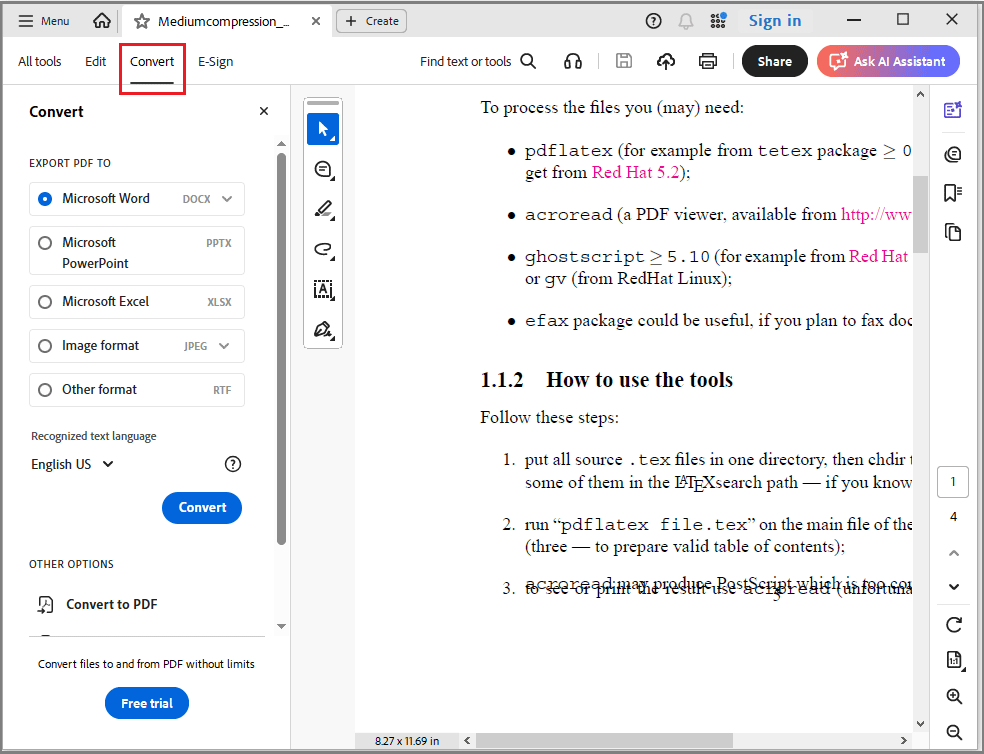
Here’s a summary of what’s good and not so good about this software:
Advantages
- Rich editing features: Complete text, image, watermark, signature, and page management functions to meet professional office needs.
- Comprehensive format support: Supports conversion between PDF and various formats, including Word, Excel, PowerPoint, HTML, and images.
- Cross-platform support: Available on multiple platforms (Windows, Mac, Android, etc.), allowing for convenient access and document processing anytime, anywhere.
Disadvantages
- Slightly complex interface: The somewhat complex and feature-rich interface may require some adaptation for beginners.
- High price: The professional version is expensive, making it costly for occasional users.
- Large files and batch conversions: When processing large files or performing batch conversion tasks, the software may take a considerable amount of time.
#3. PDFsam
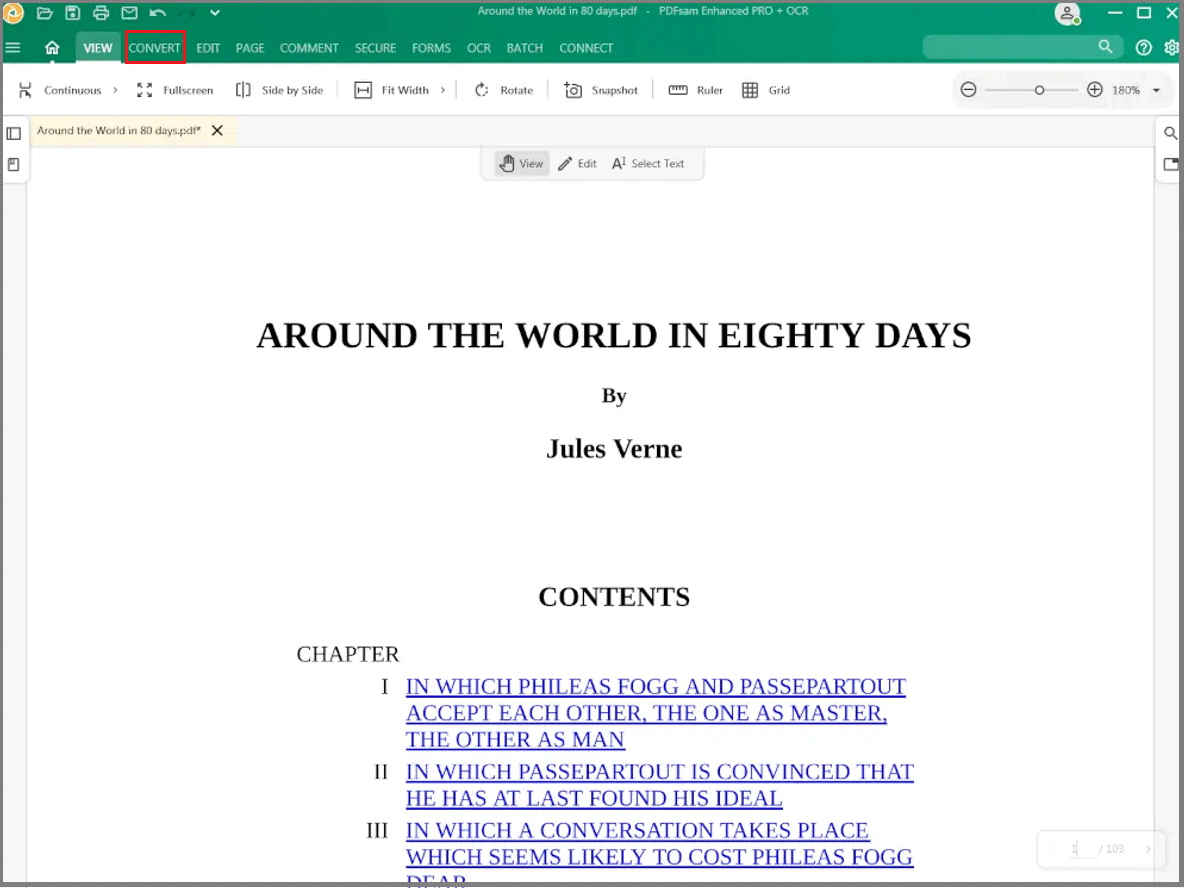
PDFsam (short for PDF Split and Merge) is a software application focused on processing PDF files. It excels at operations such as splitting, merging, and extracting pages from PDF files.
The basic version, PDFsam Basic, is open-source and free desktop software, suitable for simple PDF operations.
In addition to the basic version, PDFsam also offers more advanced commercial versions: PDFsam Enhanced and PDFsam Visual. The Enhanced version provides more comprehensive PDF processing capabilities, while the Visual version offers richer tools for visual page management.
PDFsam (especially PDFsam Visual) primarily supports converting various image formats (JPG, PNG, TIFF, BMP, etc.) to PDF files. While the PDFsam Enhanced version supports converting Office documents such as Word, Excel, and PowerPoint, as well as other formats, to PDF.
--image from pdfsam.org
Here are the pros and cons:
Advantages
- Free and open source: PDFsam Basic is free and open-source software.
- Offline processing: PDF operations can be performed without an internet connection.
- Simple and intuitive operation: The software has a user-friendly interface, making its functions easy to understand and quick to learn.
- Cross-platform support: Compatible with Windows, Mac, and Linux systems, making it widely applicable.
Disadvantages
- Not a professional editing tool: It lacks features for users who require advanced PDF editing (such as form filling, signatures, etc.).
- Limited conversion capabilities: PDFsam Basic is primarily used for basic splitting and merging. The advanced features (such as OCR and Office conversion) require a paid upgrade to PDFsam Enhanced.
#4. LibreOffice
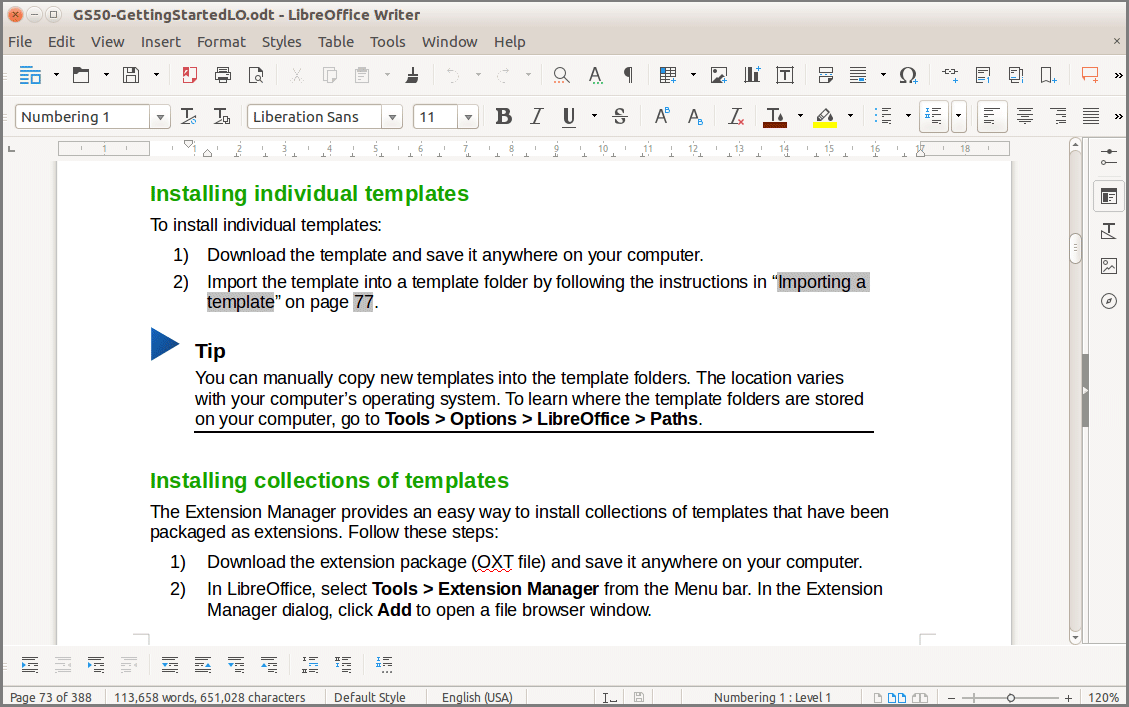
LibreOffice is a powerful, free, and open-source office suite that offers extensive PDF conversion capabilities.
It can not only convert DOCX files to PDF, but also supports converting PDFs to Word, TXT, and other formats. You can edit PDF files block by block and insert images, text, annotations, or flowcharts.
Furthermore, LibreOffice Draw provides OCR functionality when editing PDF text, which helps in recognizing and processing text in scanned documents.
--image from libreoffice.org
The following outlines the advantages and drawbacks of this software:
Advantages
- OCR functionality: LibreOffice Draw can recognize text in scanned documents, improving editability.
- Free and open source: This software is available for free and can be used by Windows, Mac, and Linux users.
Disadvantages
- Limited advanced conversion capabilities: It can be slow when processing large files or performing batch conversions.
- Steep learning curve: The interface is feature-rich, and first-time users may need some time to adapt.
#5. Calibre
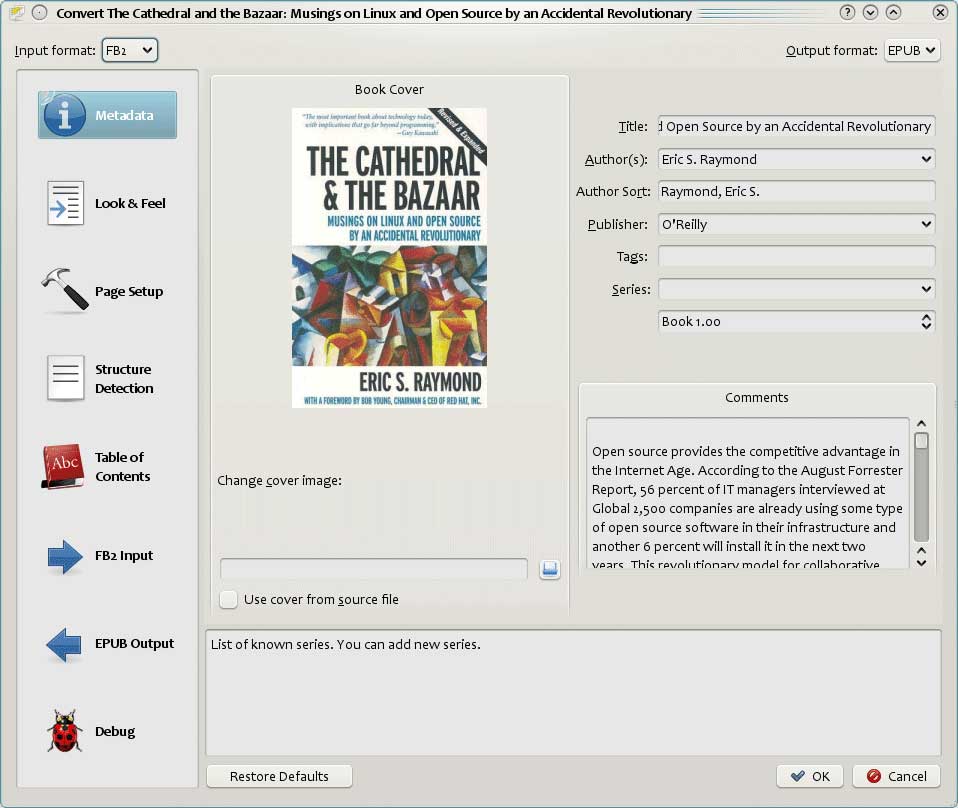
Calibre is a free and open-source e-book software developed by Kovid Goyal.
It supports most common e-book formats, helps you organize your e-books, convert formats, and can synchronize with e-readers such as Kindle and Nook.
--image from calibre.com
Below are the pros and cons of this software.
Advantages
- Comprehensive format support: It can convert PDFs to mainstream ebook formats such as EPUB, MOBI, and AZW3, and can also convert other formats to PDF.
- Batch conversion: Can process a large number of ebooks at once, saving management time.
- Free and open-source: The software is completely free and supports Windows, Mac, and Linux.
- Easy to use: Simply drag and drop documents into the designated area to add ebooks and start the conversion.
Disadvantages
- Limited PDF conversion: Conversion of complex PDFs with rich formatting, images, or tables may result in formatting errors.
- No mobile device support: The official application cannot be used directly on mobile phones or tablets.
Best PDF Converter FAQ
Desktop PDF software needs to be installed on your local computer and generally offers more comprehensive features. For example, it may support OCR text recognition, batch conversion, and file encryption.
1. Supported file types: Whether the software can convert various types of files, such as Word, Excel, images, and more.
2. Conversion quality: The converted documents should maintain the original layout and image quality.
3. Ease of use: Whether the software is easy to use, and the interface is intuitive.
4. Compatibility: It’s best that the software is compatible with Windows, Mac, mobile devices, and can also be used via a web browser.
5. Price: The software is reasonably priced.
Bottom Line
This article introduces the five best PDF to Word converters, and you can choose the one that best suits your needs. If you have any questions while using the MiniTool PDF Editor, contact us via support@minitool.com.