

Printing a selected area in a PDF file means printing only a portion of the PDF page, not the entire page.
Sometimes, PDF files contain a large amount of single-page information. However, in many cases, you only need to print a small portion of it, such as paragraphs, tables, or images. Printing the entire page is inconvenient and consumes unnecessary paper and ink.
Therefore, mastering how to print a selected area in a PDF file is a practical and useful skill that can help you save resources and improve efficiency.
How to print selected area in PDF online and offline? Here are the methods.
Method 1: Via MiniTool PDF Editor
MiniTool PDF Editor is a feature-rich, professional PDF tool with the Print PDF feature. It can help you print PDFs with just a few clicks.
As a comprehensive PDF tool, it meets most of your PDF needs. It allows you to easily create, split, merge, convert, edit, annotate, and manage PDFs.
For enhanced security, you can password-protect your PDFs. You can also add hyperlinks/watermarks/dynamic stamps/images to PDFs.
Download, install, and launch MiniTool PDF Editor on your computer. Then, follow the steps below to print selected area in PDF.
MiniTool PDF EditorClick to Download100%Clean & Safe
Option 1. Use the Crop Feature
To print a selected area in PDF, one method is to crop the PDF first and then print.
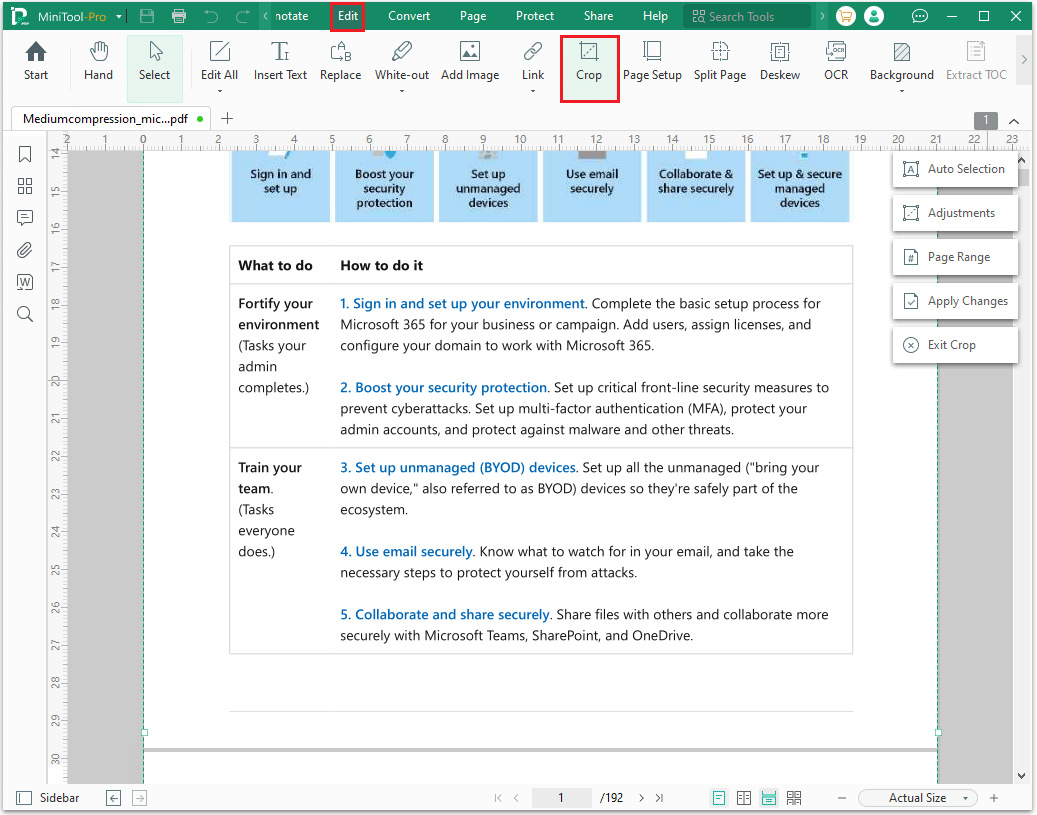
Step 1: Launch MiniTool PDF Editor, and then go to Edit > Crop. After that, a cropping box will appear.
- Auto Selection: It allows you to crop PDFs automatically or manually by moving and adjusting the crop box.
- Adjustments: Modifying the margins of the PDF.
- Page Range: If you need to crop multiple PDF pages using the same margins as the current page, select this option to choose which pages to apply the crop to.
- Apply Changes: Saving the pending changes.
- Exit Crop: Exit the cropping function.
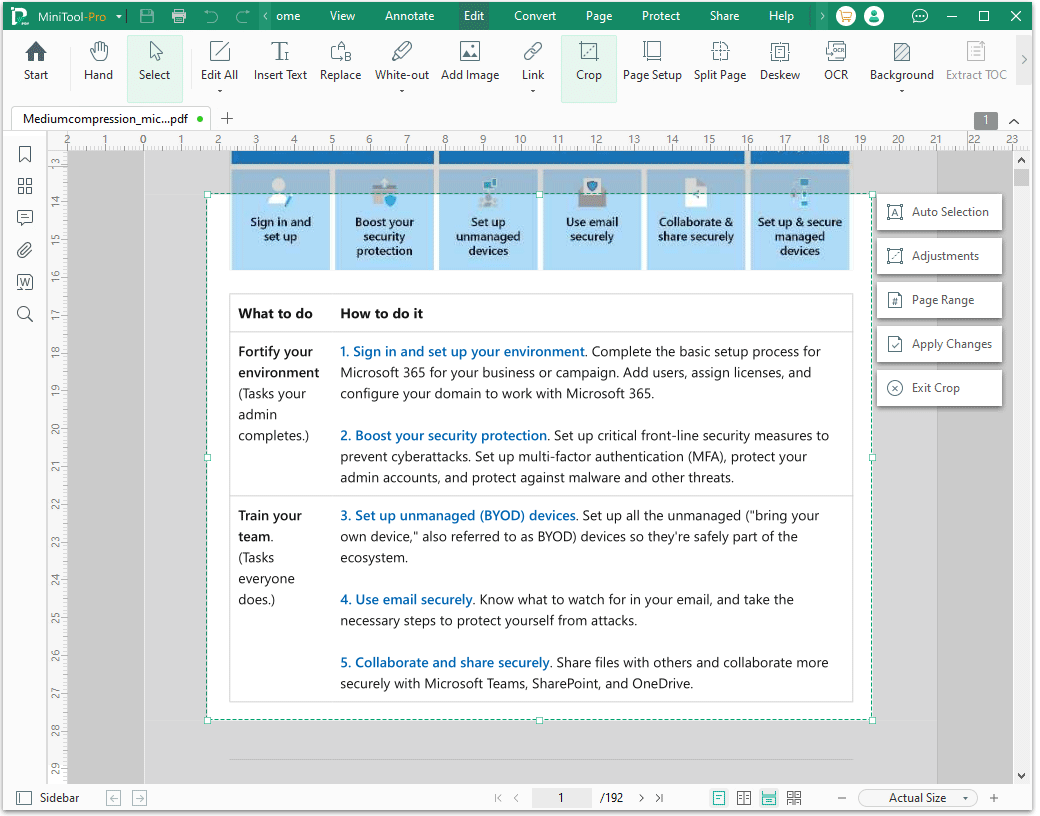
Step 2: Now, you can adjust the area you want to print and click Apply Changes to continue.
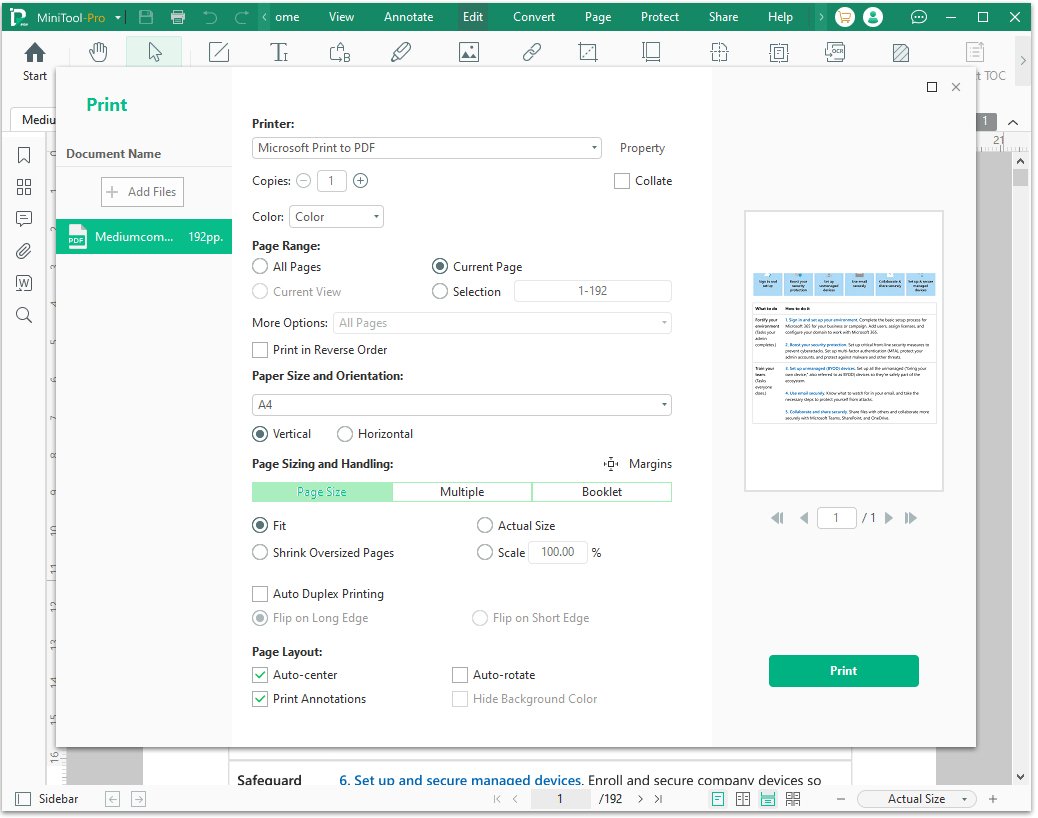
Step 3: Select the Print button in the top-left corner, verify the Printer, Page Range, and other settings, and then click Print to proceed.
Option 2: Use the Screenshot Feature
This software also has a Snapshot feature. With it, you can take a PDF screenshot easily, and then print selected area in PDF
Here are the steps:
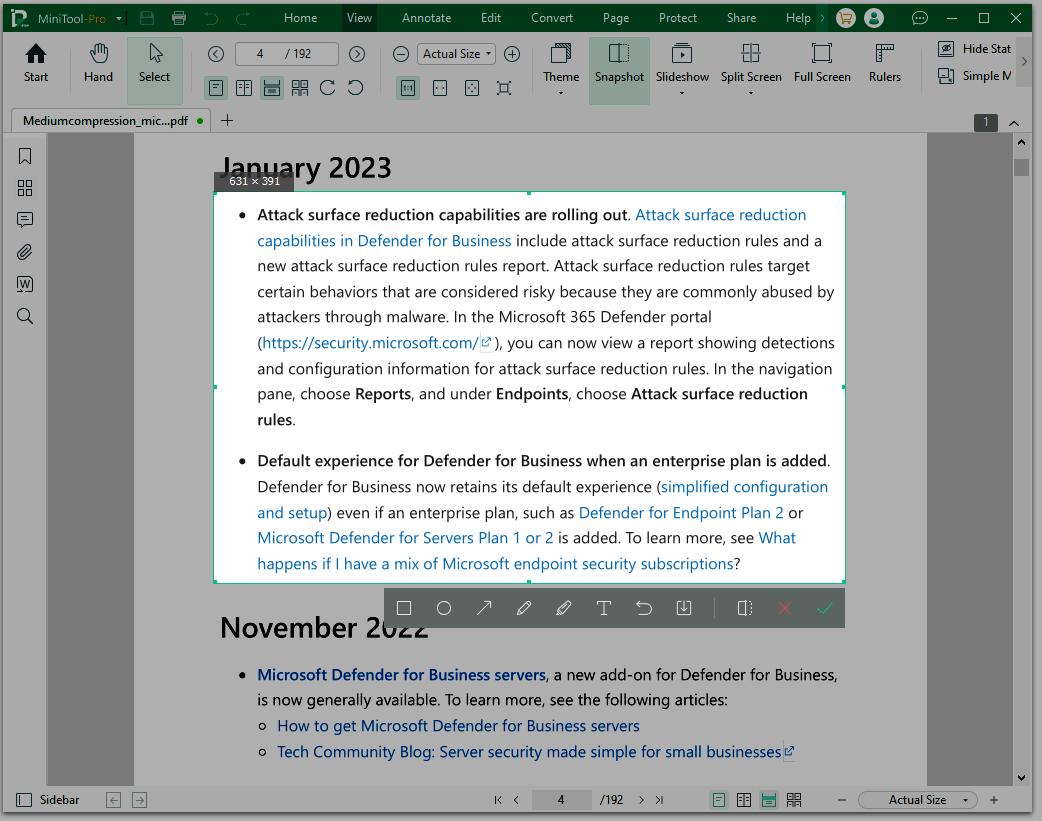
Step 1: Click View from the top and choose the Snapshot option. You can also press Alt + S to enable the PDF snapshot feature.
Step 2: Select the desired area and edit it.
- Use the cursor to select the area of the PDF you want to capture.
- If you want to edit the PDF screenshot, use the tools displayed below it, including: Rectangle, Oval, Arrow, Pencil, Highlighter, and Insert Text.
- After that, select the checkmark icon to copy to the clipboard.
Step 3: Click Save as PDF icon.
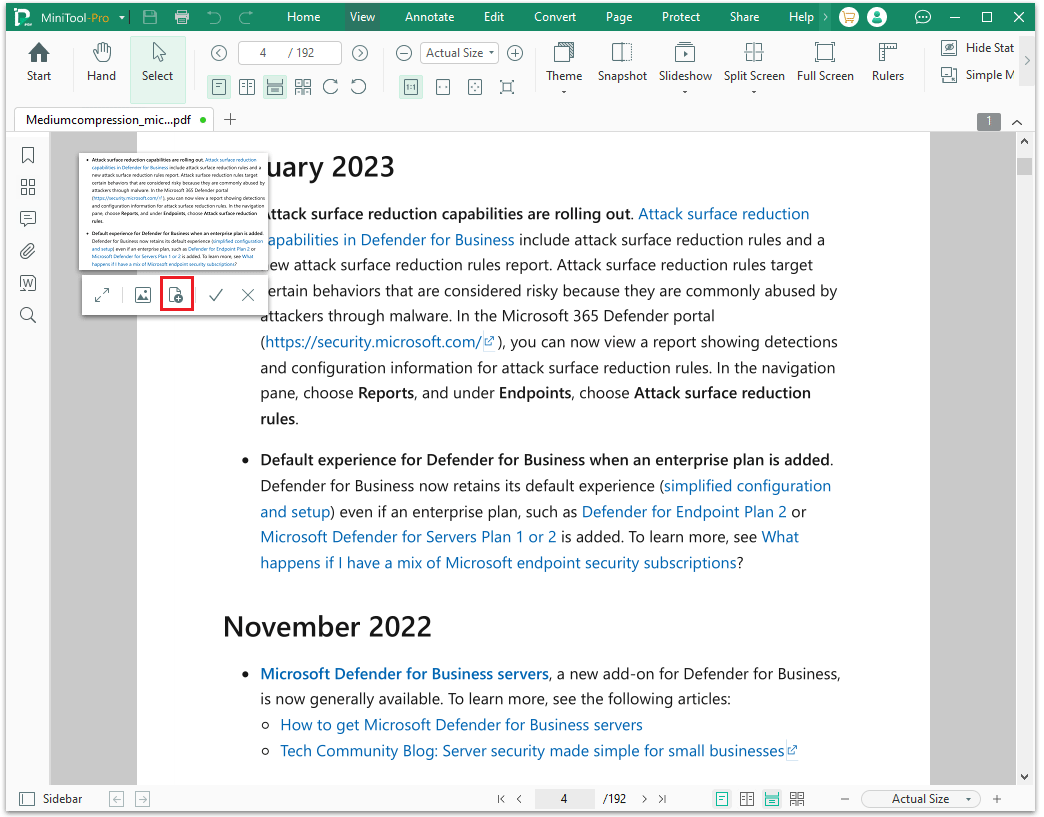
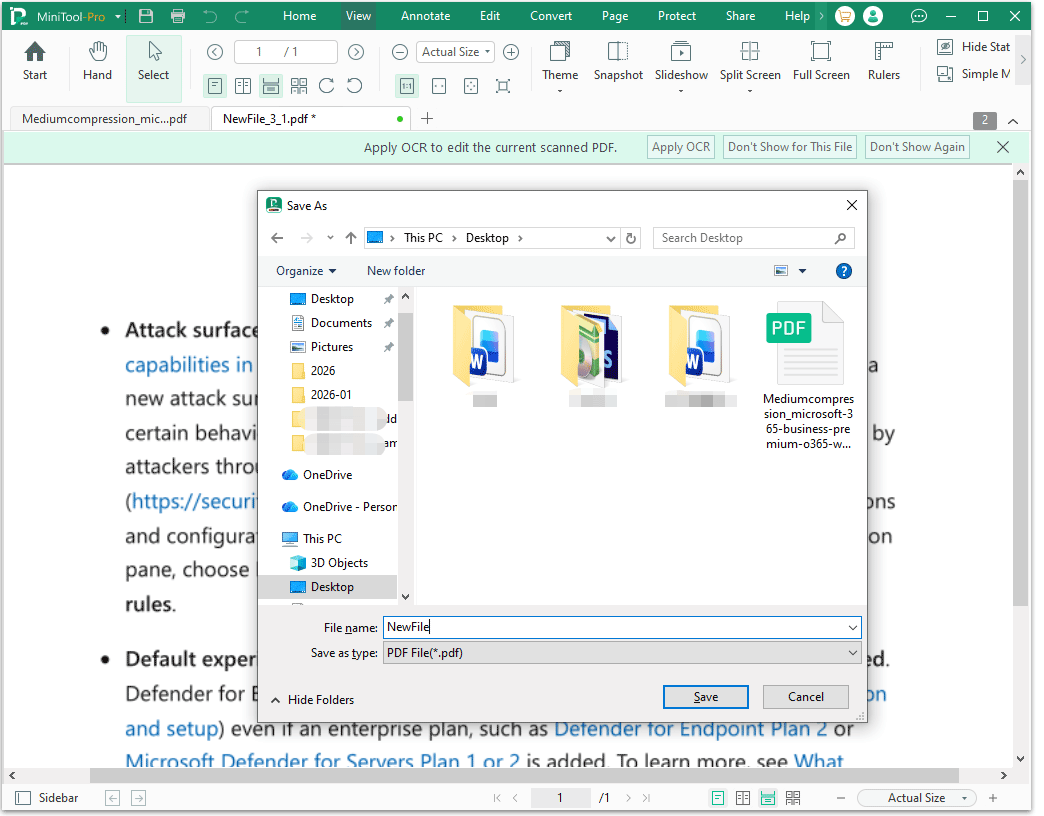
Step 4: Once the new file opens, click the Print button. The Save as window will pop up. Click Save to continue.
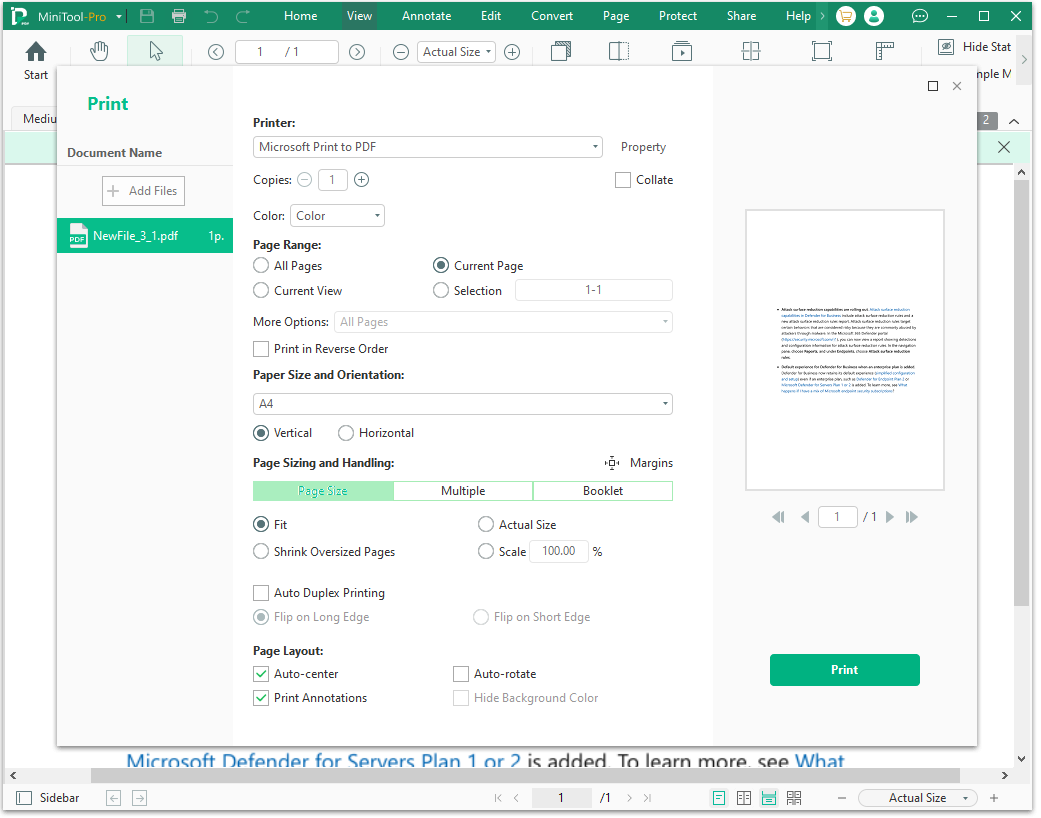
Step 5: Modify the settings according to your needs. When it’s saved, click the Print option.
Method 2: Adobe Acrobat
Adobe Acrobat is a popular PDF editing software used to view, create, edit, annotate, split, merge, and share PDF documents.
In addition, its screenshot feature helps you select and print specific portions of a page. Here’s how to print a specific area using Adobe Acrobat in PDF:
Step 1: Launch Adobe Acrobat to its main interface and click Open file to open a PDF file.
Step 2: Click Menu > Undo, Redo & more > Take a snapshot.
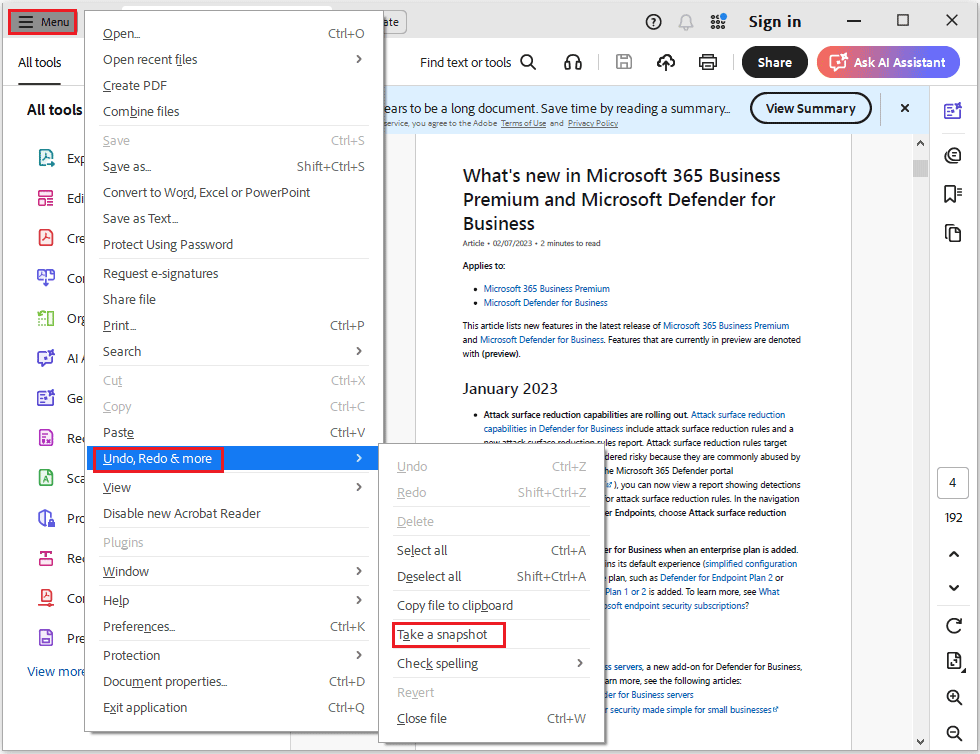
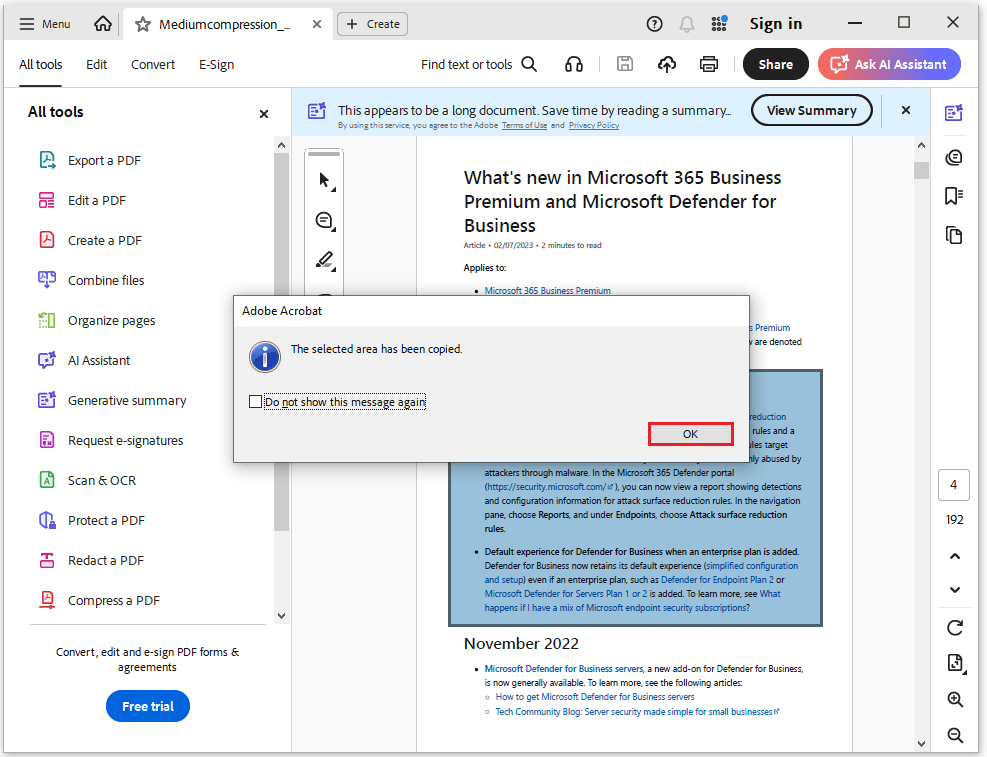
Step 3: Use your mouse to draw a box to select the content you want to print. After releasing the mouse button, Acrobat will display a message: “The selected area has been copied.” Click OK to move on.
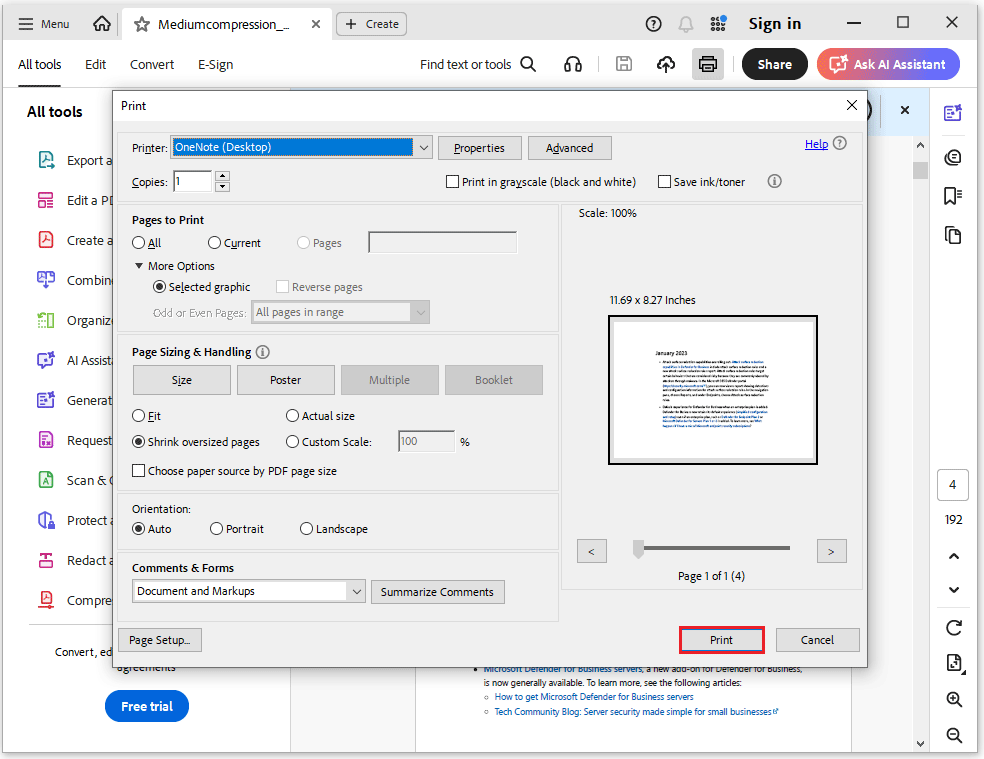
Step 4: Click the Print icon to open the print interface and click Print.
Method 3: Via Online Tools
What if you don’t want to install a desktop application? How to print a selected area in PDF online?
Most modern browsers, such as Chrome and Microsoft Edge, come with built-in PDF viewers. You can open a PDF in your browser, take a screenshot of the area you want to print, and then print it.
The steps are outlined below.
- Right-click the PDF > Choose Open with >Google Chrome.
- Press Windows + Shift + S to take a snapshot. A screenshot will then appear in the lower right corner.
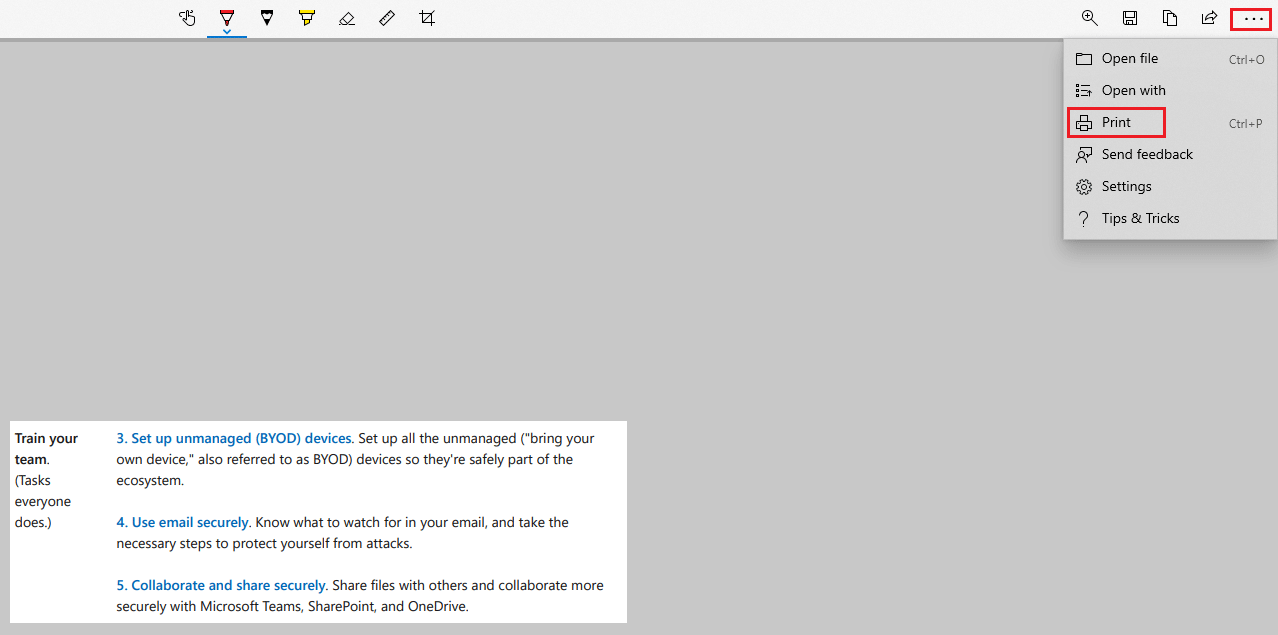
- Click the screenshot, and a new window will pop up, and then choose the three-dot icon and select Print to print the screenshot.
Bottom Line
This article tells you how to print a selected area in PDF, including MiniTool PDF Editor, Adobe, and online tools. If you have any questions while using the MiniTool PDF Editor, contact us via support@minitool.com.