

PDF files are widely used in daily work and study, but file size often becomes a problem. This article will help you fully understand and handle PDF file size issues from three aspects. Continue reading to find out the answer.
What Factors Affect the Size of a PDF File?
Understanding the main factors affecting PDF file size will help you manage and compress files more effectively.
- PDFs contain a large number of images: PDF files containing many high-resolution images are generally much larger than plain text PDFs.
- PDFs are scanned documents: Scanned PDFs are usually larger than plain text PDFs because each scanned page is an image, not text.
- PDFs contain embedded data: Additional content embedded in PDFs, such as annotations, forms, audio, or video, also increases file size.
- PDFs are in color mode: Color PDFs are generally larger than black-and-white or grayscale PDFs. This is because color images require recording data across multiple color channels, typically resulting in more than three times the data volume of grayscale images.
Why Do You Need to Resize PDF Under 100/200/300/500KB?
Large PDF files can be inconvenient in daily use, so in many cases it’s necessary to compress them to 100KB, 200KB, 300KB, or 500KB or less. The main reasons are:
- Email attachment limits: Most email services have size limits on attachments. For example, Gmail allows a maximum attachment size of 25MB. Excessively large PDF files may not be able to be sent or uploaded.
- Faster uploads and downloads: Large files take longer to upload to websites or cloud storage, and downloads also take longer.
- Storage limitations: For devices with limited storage capacity, large files can easily fill up storage space. Compressing PDF files can save storage space.
- Platform compatibility: Some online platforms, recruitment websites, or certain work environments have size limits on uploaded PDF files.
How to Do PDF Resize Under 200KB?
To do the PDF resize under 100KB, 300KB, 200 KB, or 500KB for easier use, there are three common methods: MiniTool PDF Editor, Adobe Acrobat, and Online tools.
Method 1: Via MiniTool PDF Editor
MiniTool PDF Editor is a reliable PDF management tool that lets you quickly compress, convert, merge, and annotate PDF documents. It also allows you to add text, stickers, themes, images, highlights, hyperlinks, etc.
Here’s a guide on how to do PDF resize under 300KB or any other size.
MiniTool PDF EditorClick to Download100%Clean & Safe
Download and install MiniTool PDF Editor on your computer by clicking the button above, then follow the instructions below.
Step 1: To do PDF resize under 500KB or any other size, right-click the file and choose Open with, then select MiniTool PDF Editor.
Step 2: Click the Edit and choose Compress.
Step 3: In the new interface, you can change the Compression Level and Output Path. Then, click the Start button.
- Compress Level: The default option is Medium. You can switch it to Low or High using the drop-down menu. If you want to make PDF resize under 300KB, Medium or High compression level is recommended.
- Output Path: By default, the file is stored in the document’s current folder. You can also choose the Desktop or click the three-dot icon to select another location.
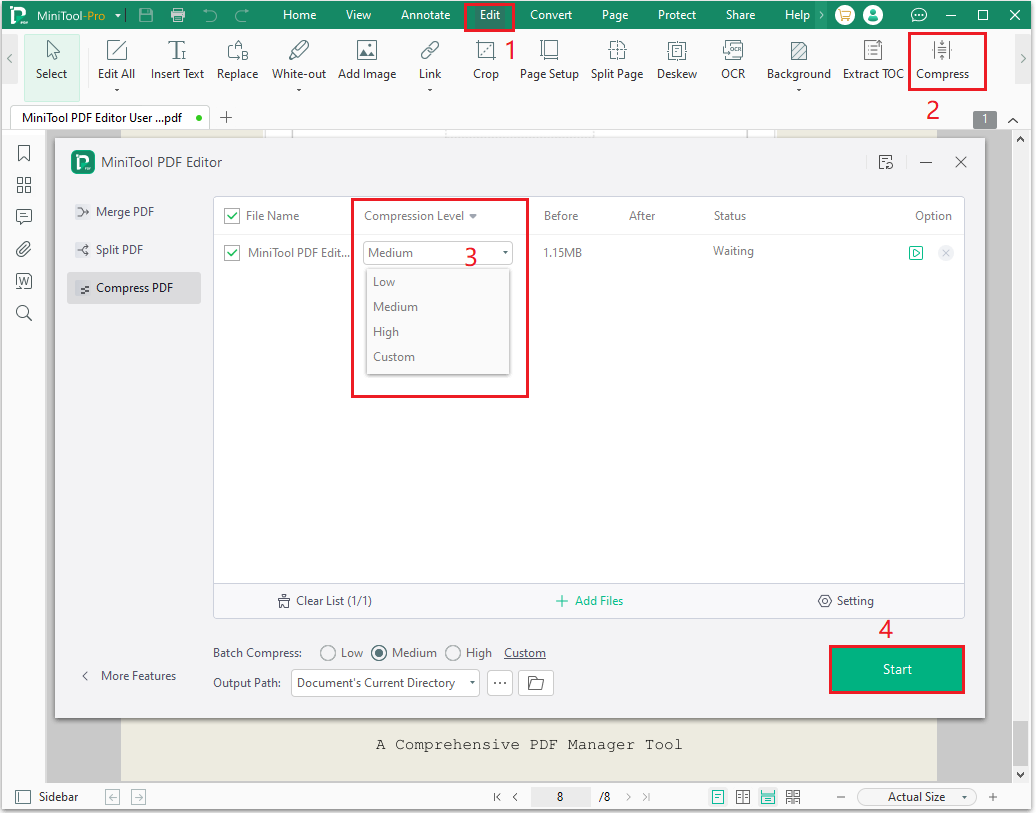
After compression, you will get a smaller PDF file, which you can then upload to wherever you need it without worrying about file size limitations.
Further reading:
How to Compress PDF Files in Batch:
- Launch MiniTool PDF Editor.
- Select the Compress PDF feature, which will open the MiniTool PDF compression window.
- Click the Add Files button. Then, you can select multiple PDF files that you want to compress.
- Change the Batch Compress level, and then click the Start button.
Method 2: Via Adobe Acrobat
Adobe Acrobat is a widely used PDF editor available on Windows, macOS, Android, and iOS. In addition to its advanced editing tools, it also allows you to compress PDF files and reduce their size.
Here are the steps to resize PDF files below 300KB or any other size.
Step 1: Launch Adobe Acrobat and open the PDF file you want to compress.
Step 2: Click All tools and select Compress a PDF.
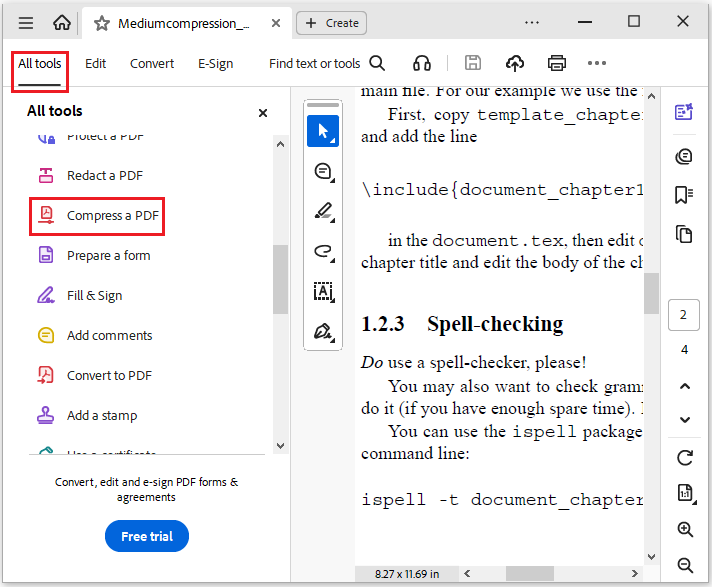
Step 3: In the new interface, choose a compression level, such as High, Medium, or Low. Then click Compress. After completing these steps, the selected PDF file will be compressed immediately.
Method 3: Via Online Tools
Besides the desktop software mentioned above that can help you resize PDF files to 100KB or any other size, you can also use online compression tools.
For example, if you want to compress a PDF file to below 200KB, simply search for relevant tools in your browser.
- pdfFiller: Upload your image, click the Start editing button, wait a few seconds for the compression to complete, and then save the file to your desired location.
- Other online tools: Adobe Acrobat, Smallpdf, Zamzar, etc. These tools can also help you compress files.
In summary, all three methods can be used to compress PDF files. If you don't want to take the risk of data leakage, you can choose MiniTool PDF Editor or Adobe Acrobat. If you value a clear interface and ease of use, MiniTool PDF Editor is your choice.
Bottom Line
This article introduces 3 methods for resizing PDF files below 100/200/300/500KB, of which I highly recommend MiniTool PDF Editor. If you have any questions while using the MiniTool PDF Editor, contact us via support@minitool.com.