

Modern finance is highly digitalized, with electronic payments dominating. For example, credit and debit cards are the most popular payment methods for both online and offline shopping. Digital wallets such as Apple Pay and Google Pay are rapidly gaining popularity.
On the other hand, ACH transfers and checks are also commonly used for payments between businesses and individuals.
When you engage in transactions using the methods described above, a bank statement will be generated.
A bank statement is an official monthly document issued by your financial institution that summarizes all activity on your account, including deposits, withdrawals, interest, and fees. Most banks now offer electronic statements (often in the PDF file format) by default, which you can view online or through a mobile application.
If you are in any of the following cases, you may need to convert bank statement PDF to Excel.
- You have a habit of managing your personal expenses for budgeting.
- You are an accountant/auditor who needs to quickly organize transactions for reconciliation and audit sampling.
- As a business owner, you need to streamline cash flow tracking and expense management.
In addition, the PDF bank statement to Excel conversion has the following advantages:
- Accuracy: Converting a bank statement PDF to Excel can significantly reduce manual entry errors, depending on PDF quality.
- Efficiency: The PDF bank statement to Excel conversion usually only takes a few seconds, which is much faster than entering data manually. Secondly, you can convert multiple PDF reports at once.
Once converted to Excel, you can import it into accounting software like QuickBooks or Xero, or use pivot tables to analyze spending by vendor or category, generate and create charts, forecasts, and trends.
How to convert a bank statement PDF to Excel? Try the following 4 approaches.
![How to Open SBI Bank Statement PDF Password Easily [Full Guide]](https://images.minitool.com/pdf.minitool.com/images/uploads/2024/10/open-sbi-bank-statement-pdf-password-thumbnail.png)
Method 1. Use Power Query in Excel
Power Query is a powerful data transformation and preparation engine developed by Microsoft, embedded in Excel 2016 and later versions. It allows you to import data into Excel from a wide variety of data sources, including files (Excel, Text, PDF, etc.), databases (SQL, Microsoft Access, etc.), Azure, online services, and other sources.
Here is how to import data from a PDF directly.
- Open Excel and go to the Data tab.
- Select Get Data > From File > From PDF.
- Select your bank statement PDF file, and then click Open. The Navigator dialog box will open the bank statement and display available tables.
- Select the tables you want to import, and then select Load > Load or to see the Import dialog box, select Load > Load To.
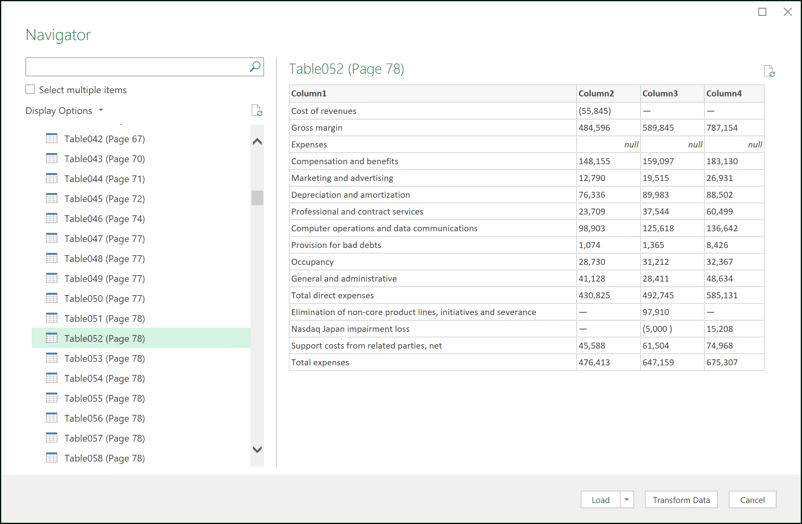
Image from Microsoft websites.
For some versions of Excel (like 2016/2019), the Power Query feature doesn’t offer the From PDF option. In this case, try the following method to import PDF data.
Step 1: Open a blank query.
- Open Excel and click the Data tab.
- In the Get & Transform section, click New Query > From Other Sources > Blank Query.
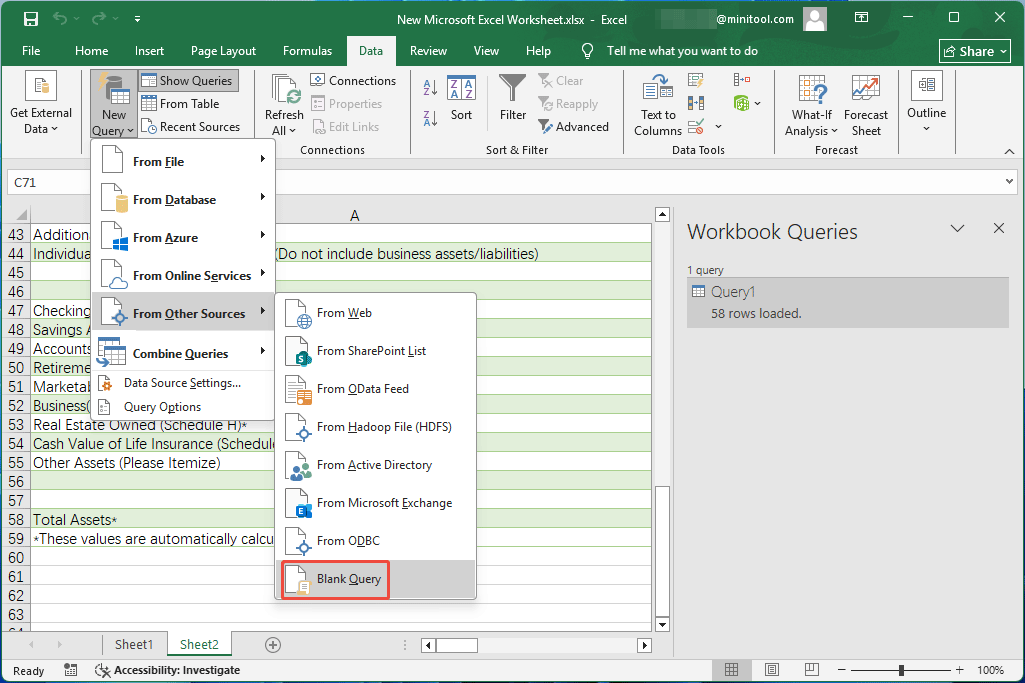
Step 2: Import the PDF bank statement file using a command.
- Once the Query window opens, in the formula bar, type the following command and press Enter: =Pdf.Tables(File.Contents("bank_statement_PDF_file_full_path")).
- Tables in the bank statement PDF file will be listed. Note that if your PDF file is image-based, the extraction will fail.
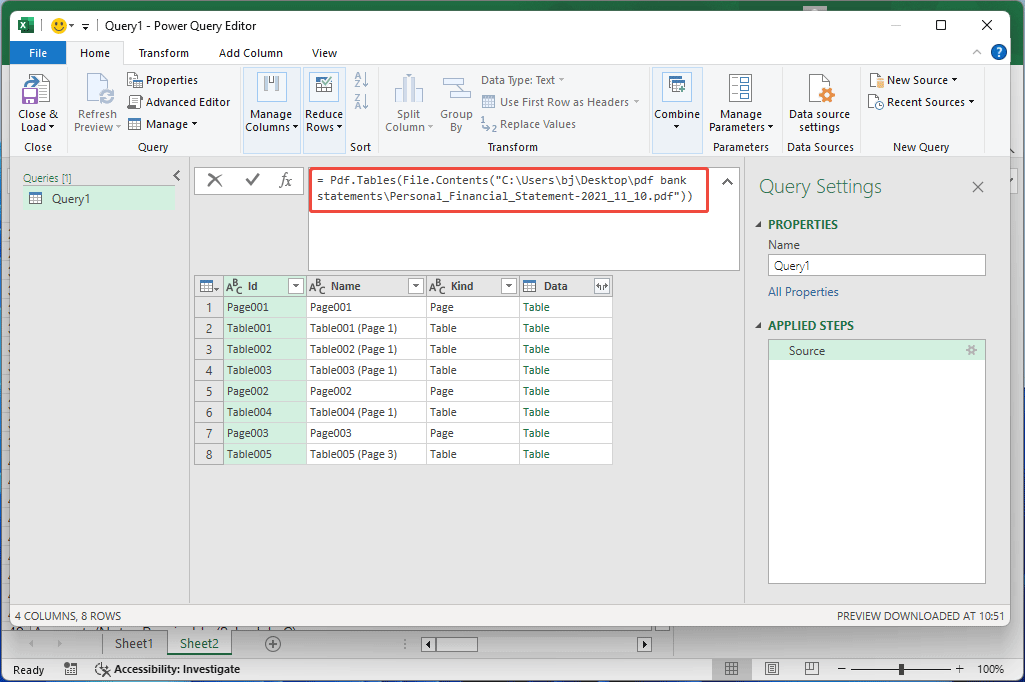
Step 3: Load the data into Excel.
- Click a Table to view its data. If the data is what you want, click Close & Load > Close & Load To.
- When it asks you where to load the data, New Worksheet is recommended. Then, click Load.
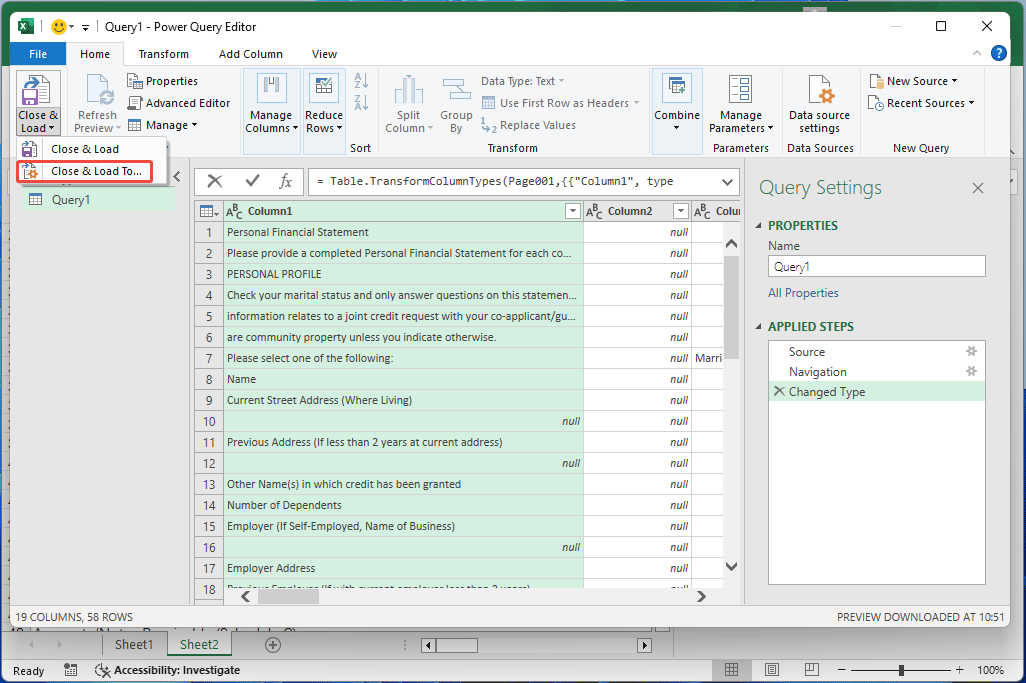
Method 2. Use MiniTool PDF Editor
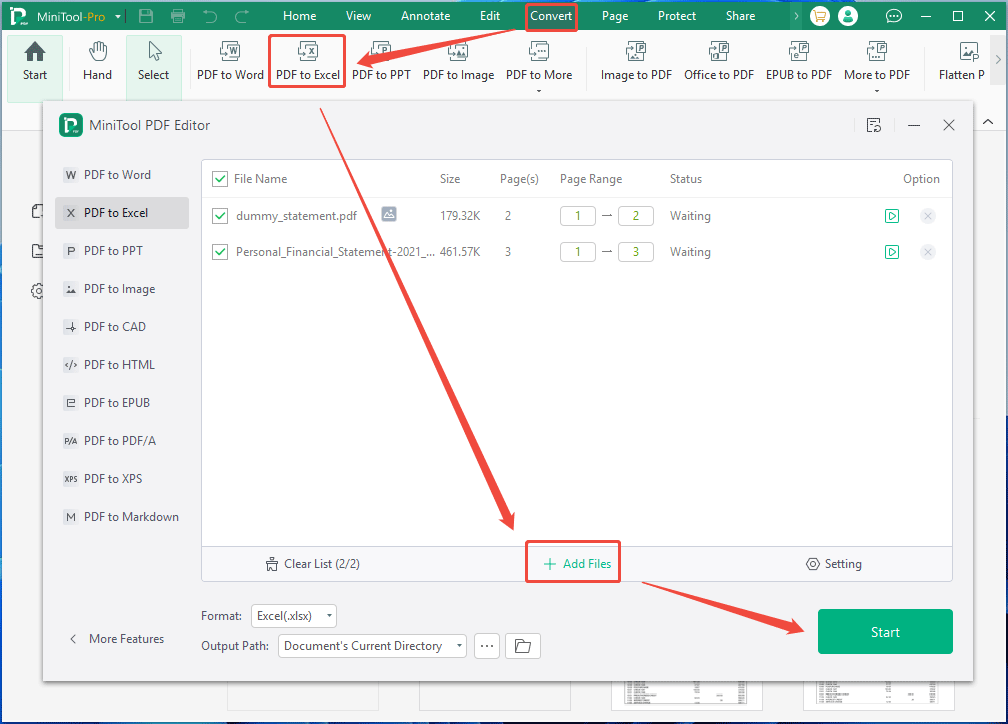
In addition to the above method, you can also use MiniTool PDF Editor to convert a bank statement PDF to Excel. This software can convert both text-based and image-based PDFs to Excel directly. Here is the guide:
MiniTool PDF EditorClick to Download100%Clean & Safe
- Open MiniTool PDF Editor.
- Go to the Convert tab and then click the PDF to Excel button.
- Once the conversion window opens, click Add Files.
- Navigate to the location of the bank statement PDF files and then select them. You can select multiple ones.
- Click Start to do the conversion.
Method 3. Use Adobe Acrobat
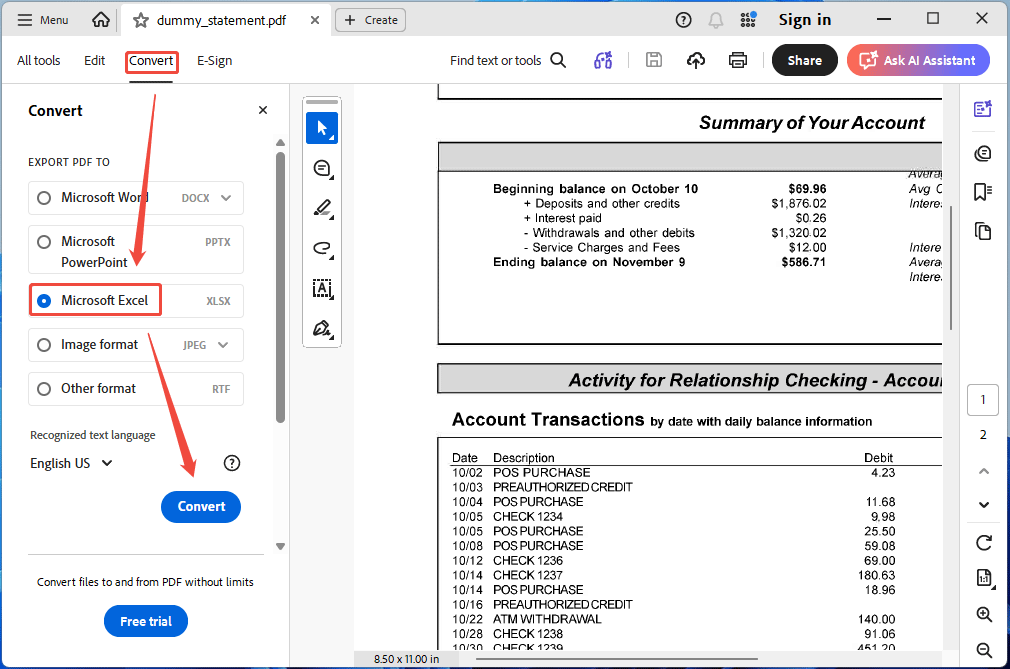
Adobe Acrobat can also convert a PDF bank statement to Excel. Here are the steps.
- Open a bank statement PDF file with Adobe Acrobat.
- Go to Convert and select the Microsoft Excel option.
- Click Convert. The current bank statement PDF file will be converted to Excel.
Method 4. Use Online Bank Statement PDF to Excel Converters
Some dedicated online bank statement PDF to Excel converters, like Bank Statement Converter or FinanceFileConverter, can also help you convert a PDF bank statement to Excel. However, online tools carry risks. Verify the website's credibility before uploading to avoid leaking company financial information.
Upload your bank statement PDF file to their websites. Then, they will give you the Excel file to download.
Do you want to convert a bank statement PDF to Excel? This post offers 4 solutions.Click to Tweet
Bottom Line
This post shows you how to convert a bank statement PDF to Excel in 4 methods. Among them, MiniTool PDF Editor can batch convert bank statement PDFs to Excel. However, if you encounter issues when using this software, contact us via support@minitool.com for assistance.
About The Author

Position: Columnist
Linda has been an editor at MiniTool for seven years. She continuously learns about computers and puts her knowledge into practice. Moreover, she is particularly knowledgeable in disk management, data recovery, system installation, and PDF editing. Her articles typically reference multiple examples or are based on her own experience, providing users with the most suitable solutions.