

Why Do You Need to Change the Highlight Color in PDF
Highlight is a colored, semi-transparent overlay used to mark, emphasize, or call attention to specific text or areas.
Highlighting in PDF is essential for improving focus, speeding up review processes, and boosting memory retention when studying or analyzing documents.
It allows users to quickly identify key points, collaborate effectively by making annotations, and easily reference important information later, enhancing overall productivity and digital efficiency.
You may want to change the highlight color in a PDF for the following reasons:
- Use different colors to represent specific types of information, such as topics, definitions, or questions.
- Assign colors to signify importance or priority levels (e.g., red for high priority, yellow for low).
- Use different colors to separate different, competing, or contradicting points within a document.
- Change colors to improve contrast against the document background, reducing eye strain.
- Switch to lighter, contrasting colors for better, clearer results when printing in black and white.
- Personalize the user interface to suit personal preferences in applications like PDFs or word processors.
Apparently, changing highlight colors helps improve organization, readability, and visual hierarchy when reviewing documents or notes.
![How to Highlight a PDF File Easily on Windows [Ultimate Guide]](https://images.minitool.com/pdf.minitool.com/images/uploads/2023/03/how-to-highlight-a-pdf-thumbnail-150x150.png)
How to Change Highlight Color in PDF
To make a PDF change highlight color, you can try the following 4 methods.
Method 1. MiniTool PDF Editor
MiniTool PDF Editor is a professional PDF editing, annotating, and compressing tool. It offers various features like text and image inserting and editing, page splitting and cropping, PDF and image converting, area and text highlighting, etc.
The highlight feature of MiniTool PDF Editor allows you to change the highlight color. Here is the guide.
MiniTool PDF EditorClick to Download100%Clean & Safe
Step 1: Click the highlighted text or area to change the color.
- Download and install MiniTool PDF Editor.
- Right-click a PDF file where the highlight color should be changed and then select Open with > MiniTool PDF Editor.
- Click the highlighted text or area. Several color options will appear. Click one of them to apply directly.
2. If you want to remove the highlight, right-click the highlighted text or area and select Delete.
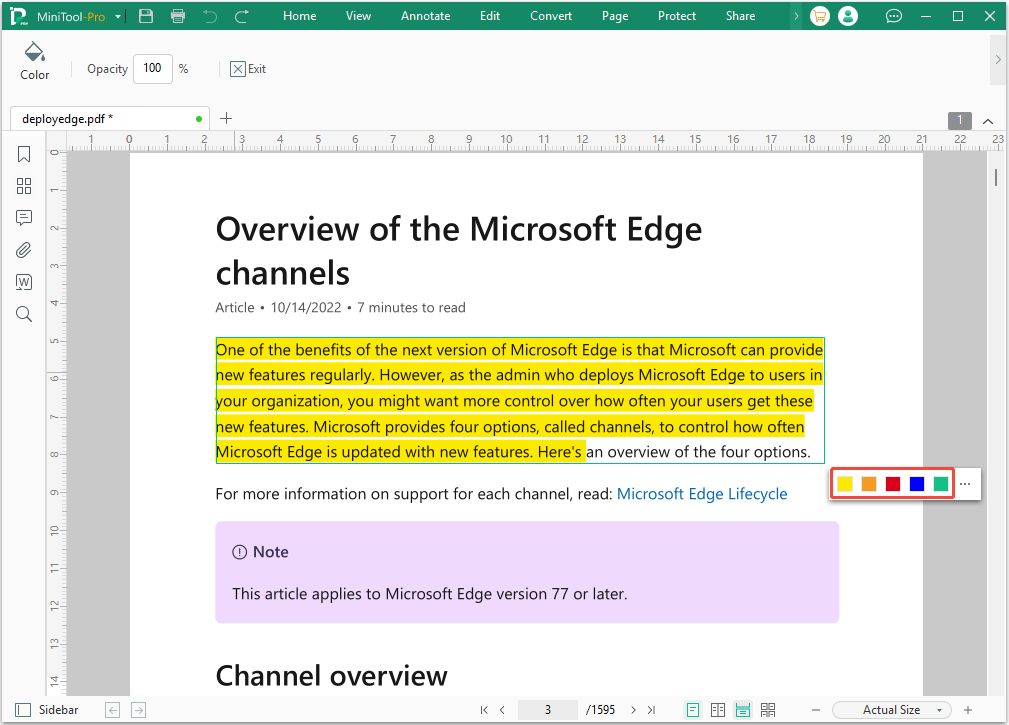
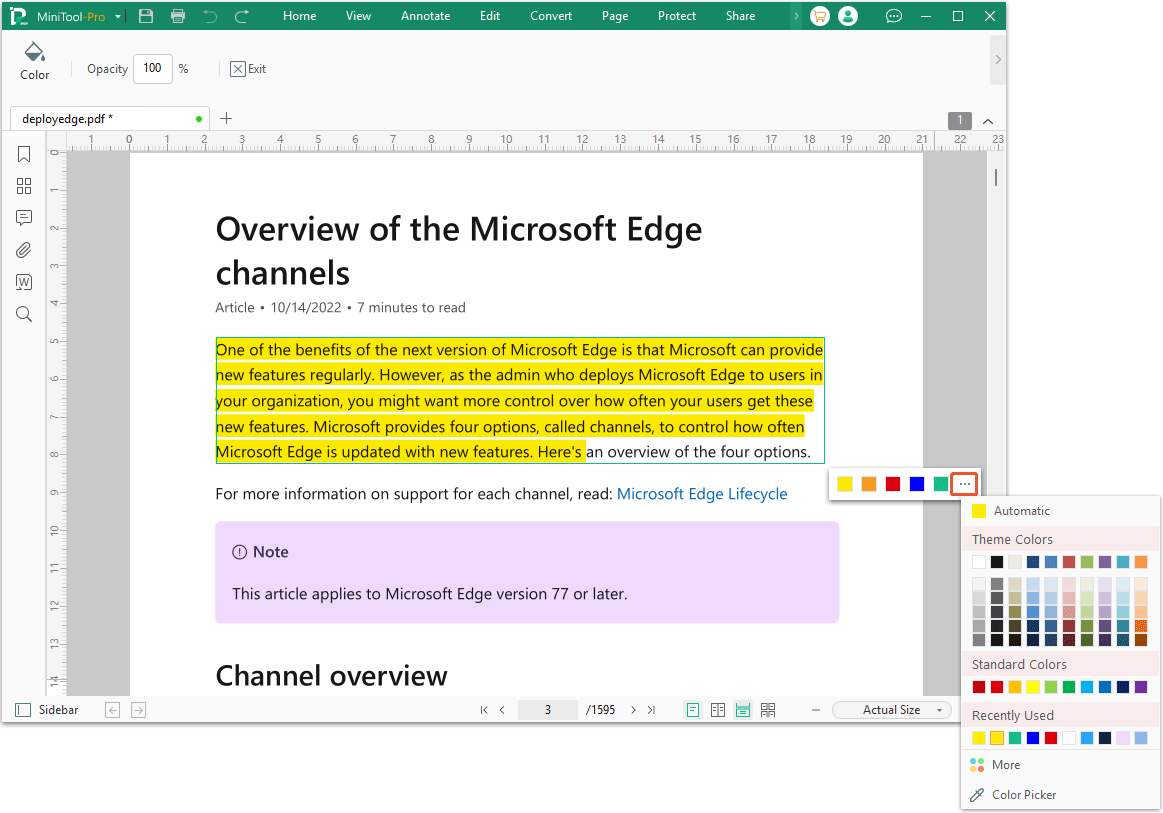
Step 2: If you want more color options, click the three-dot icon, and then pick a color from the Theme Colors, Standard Colors, or Recently Used colors.
- If these colors still don't satisfy you, you can use the More or Color Picker option. The More option offers a spectrum for you to pick a color, while the Color Picker tool allows you to pick any color from the PC screen.
- You can also adjust the opacity of the highlight in the top left corner.
Pros:
- Offers a wide range of color options and multiple selection methods.
- Allows users to highlight both text and an area, and then change the highlight color.
Cons:
- The subscription or purchase cost is relatively high.
- Requires downloading and installing software.
- Only available on Windows PCs.
Method 2. Adobe Acrobat
Adobe Acrobat is a comprehensive, industry-standard suite of software and cloud services used to create, edit, manage, sign, and annotate PDF documents.
It is available on desktop, web, and mobile, allowing you to edit or annotate a PDF file anywhere. It can also add highlights in PDF, and then you can change the color.
Here is how to change highlight color in Adobe:
- Open the PDF in Adobe Acrobat.
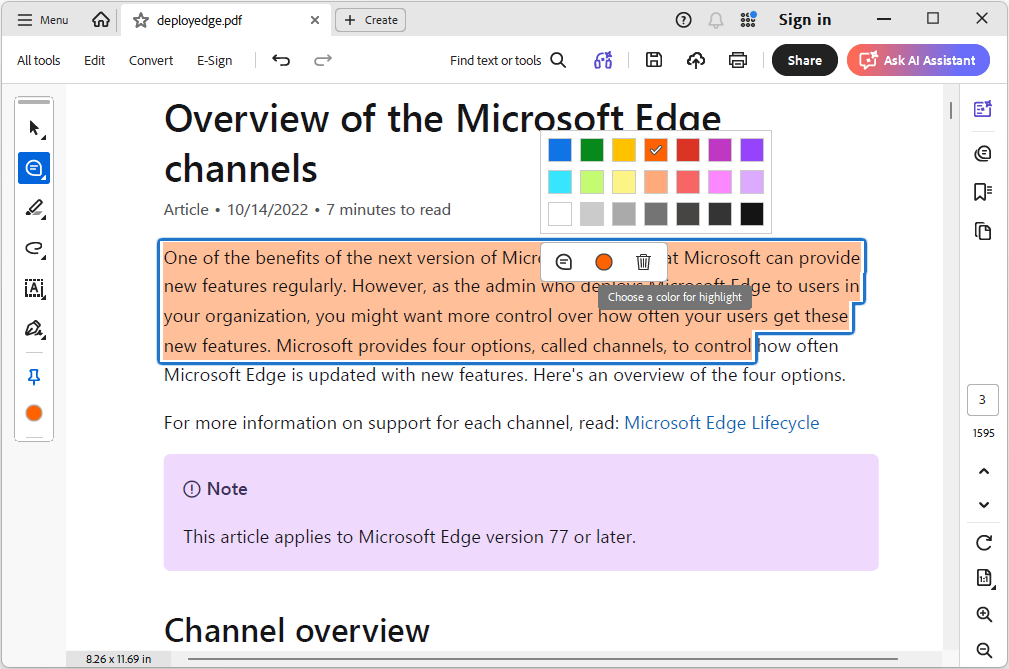
- Click the highlighted text and then select the color button in the menu.
- Select a color from the color panel to apply.
Pros:
- The highlight feature is free.
- Offers a relatively wide range of color options.
- Available on Windows and macOS PCs.
- Offers a web version, allowing you to change the highlight color online.
Con:
- There aren't many colors to choose from.
- The highlight may be interrupted (spaces appear between words) if there are different languages mixed (such as Chinese and English).
- No area highlight function.
Method 3. Microsoft Edge
Most browsers can open PDFs directly, but only some of them offer tools to edit and annotate PDFs. Fortunately, Microsoft Edge is such a browser. It allows you to highlight text and then select the highlight color.
Here is how to change the highlight color in a PDF using Microsoft Edge:
- Open the PDF file with Microsoft Edge.
- Click the highlighted text and then hover over the Highlight option. Several colors will appear. Pick one of them to apply.
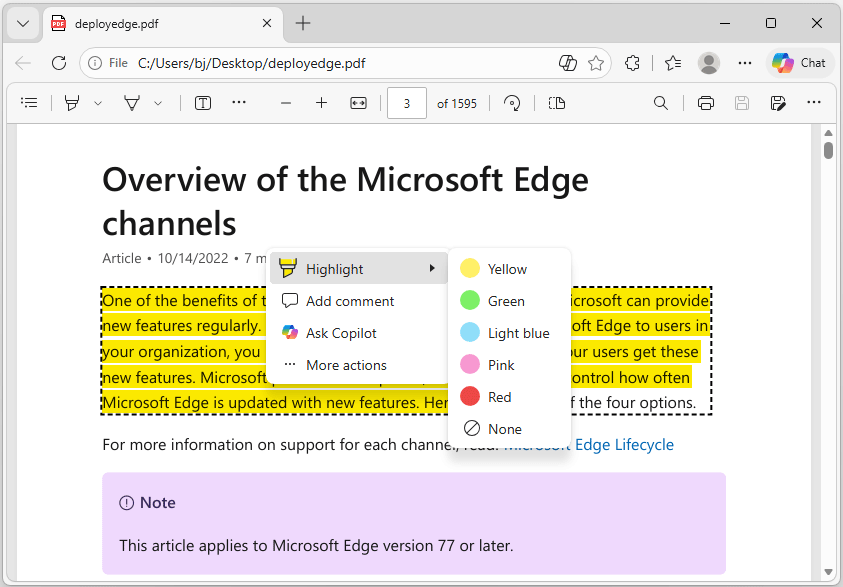
Pros: Free to use and no need to download software. After all, this browser is built into Windows PCs.
Cons: Limited color options.
Method 4. Other Online Tools
In addition to the above methods, you can also try changing the highlight color online with Smallpdf, pdfFiller, DocHub, etc.
You need to find a reliable website. Then, upload the PDF file to this website. Once the PDF file opens, use the highlight feature offered by the website to change the highlight color. After that, download the PDF file.
Pros: No software download or installation is required.
Cons:
- Uploading files to third-party websites may pose privacy risks.
- An internet connection is required.
Bottom Line
Highlighting text or images can attract attention, emphasize key points, and improve readability. Then, changing the highlight color can further enhance this advantage.
To change the highlight color in PDF, MiniTool PDF Editor is recommended for its wide range of color options. If you encounter issues when using MiniTool PDF Editor, contact our support team via support@minitool.com for assistance.
About The Author

Position: Columnist
Linda has been an editor at MiniTool for seven years. She continuously learns about computers and puts her knowledge into practice. Moreover, she is particularly knowledgeable in disk management, data recovery, system installation, and PDF editing. Her articles typically reference multiple examples or are based on her own experience, providing users with the most suitable solutions.