

PDF (Portable Document Format) is a popular file format. It's commonly used for exchanging documents without disrupting the original layout. PDF files can contain not only text and images, but also fonts, bitmap images, and more.
Highlighted text in PDF can make it more visually appealing and engaging, helping readers quickly grasp the main points.
Finding highlighted text in PDF files facilitates quick navigation to key information. It's extremely useful for reviewing, referencing, or summarizing large documents.
However, dealing with large PDF files can sometimes be cumbersome, especially when the file has hundreds of pages, and you need to find specific highlighted text. Manually scrolling through each page is both time-consuming and inefficient.
How to find highlighted text in PDF quickly? This article offers 2 effective methods. Continue to know the detailed steps.
How to Find Highlighted Text in PDF?
To find highlighted text in PDF, here are 2 tools:
- MiniTool PDF Editor
- Adobe Acrobat
You can pick one according to your preference.
Method 1. Use MiniTool PDF Editor
MiniTool PDF Editor, a professional PDF highlighter, can help you highlight your PDF file and quickly search for highlighted text in PDF. It has a simple and clear user interface, enabling you to use it effortlessly.
Moreover, it is a feature-rich PDF editor that can add/remove passwords, text, links, images, pages, backgrounds, and signatures to PDFs. It can also resize PDFs, merge PDFs, and translate PDFs.
MiniTool PDF Editor offers a 7-day free trial to access all features. Once the trial expires, you need to upgrade to the Pro edition if you want to continue using advanced features.
MiniTool PDF EditorClick to Download100%Clean & Safe
Below is how to find highlighted text in PDF with MiniTool PDF Editor:
Step 1. Right-click your PDF file and choose Open with > MiniTool PDF Editor.
Step 2. Once it opens, click the Annotation icon in the left sidebar.
Step 3. An Annotation panel will open.
- This panel displays a list of all annotations in the document, including highlights, sticky notes, underlines, text boxes, etc. By default, highlights are labeled with "Highlight" or “Area Highlight”.
- Clicking on any item in this list will immediately navigate to that highlighted location in the document.

Method 2. Use Adobe Acrobat
Adobe Acrobat is another tool to search for highlighted text in PDF. It offers powerful PDF annotation tools, allowing you to highlight text, add shapes, and add comments.
Here is how to search for highlighted text in PDF with Adobe Acrobat:
- Launch Adobe Acrobat and open your PDF document.
- Click the Comments icon on the right-hand side.
- The Comments panel will display all annotations in the PDF.
- To find a specific highlight, simply click on it. The PDF will automatically scroll to that page with the highlighted text in the document.

Why Can’t I Find Highlighted Text in PDF?
The inability to find highlighted text in a PDF file may be due to the following reasons:
Reason 1. The PDF Is Scanned.
Some PDFs are created from scanned documents and don’t have selectable text. So, you can't highlight it and then can’t find the highlighted text in a scanned PDF.
So, to highlight a scanned PDF, you need to perform the OCR (Optical Character Recognition) feature with MiniTool PDF Editor to make the scanned PDF selectable.
- When you first open the scanned PDF file, a tip will show “Apply OCR to edit the current scanned PDF.” Then click Apply OCR. If it doesn’t show a tip, just click Edit > OCR.
- In the pop-up Recognize Document window, adjust the settings like languages, output, page range, and then click Apply.

Reason 2. Your PDF Viewer Is Outdated.
An old version of a PDF reader can cause glitches. So, ensure your software is up to date.
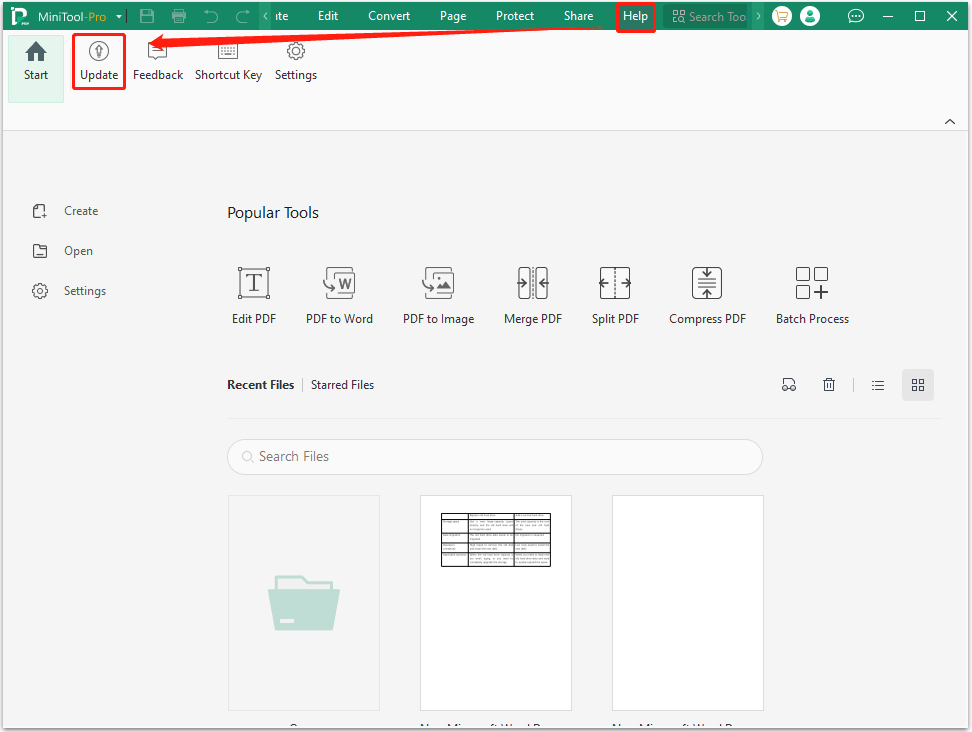
To update MiniTool PDF Editor:
- In the main interface, click Help on the top toolbar and click Update.
- Then this tool will check for any updates.
To update Adobe Acrobat:
- In its main interface, click Menu in the upper left corner, and then click Help > Check for updates.
- Then this tool will check for any updates.

Reason 3. You’re Using a Browser to View the PDF.
Browsers have limited PDF functionality. You can’t find highlighted text in PDF quickly. So, to find highlighted text in a PDF, use the tools above.
Reason 4. The PDF Document Has Security Restrictions.
The document's author may have set security permissions to prevent changes, including highlighting. If you are the author, you can remove these restrictions. If not, you may need to contact the author.
Bottom Line
Whether you’re a student, professional, or casual reader, the ability to quickly find highlighted text in PDF is helpful to get the target information. MiniTool PDF Editor and Adobe Acrobat can help you do that.
If you encounter issues when using MiniTool PDF Editor, contact us by sending an email to support@minitool.com. We’ll get back to you as soon as possible.