

You may need to make a multi-page PDF for organization, sharing, or printing. Here, we offer you 2 different tools to help you do that: MiniTool PDF Editor and Photoshop.
PDF (Portable Document Format) is a file format developed by Adobe in 1992 to present documents, including text and images, in a way that is independent of application software, hardware, and operating systems.
Therefore, many people prefer to use this file format to transfer important documents. Unlike single-page files with limited content, multi-page PDFs allow you to integrate a large amount of information into a single document.
Its key advantages are shown below.
- Simplified document management: A single file is easier to manage than multiple scattered documents, simplifying storage, searching, and retrieval.
- Efficient sharing: Sharing a multi-page PDF file via email or cloud storage is more convenient than sending multiple attachments.
- Simplified printing: Printing a single multi-page PDF file is faster and more economical than printing multiple separate documents.
How to Make a Multi-Page PDF?
To make a multi-page PDF, try the following 2 tools.
- Use MiniTool PDF Editor
- Use Photoshop
MiniTool PDF Editor is worth trying because it offers several options.
Method 1. Use MiniTool PDF Editor
MiniTool PDF Editor is a feature-rich, professional PDF tool. You can use this tool to create PDF files and edit them later. It offers four options to help you make a multiple page PDF file:
- Create a new multi-page PDF
- Insert pages into an existing PDF
- Merge multiple PDF pages into a single PDF file
In addition, it can also edit/compress/protect/flatten PDFs, add highlights/notes/attachments/images/watermarks/signatures to PDF, convert PDF to other file formats and vice versa, etc.
MiniTool PDF EditorClick to Download100%Clean & Safe
Click the button above to download and install MiniTool PDF Editor on your computer. Note that this tool has a 7-day free trial. After the trial expires, you need to upgrade to the Pro edition to access all the features.
Option 1. Create a New Multiple Page PDF
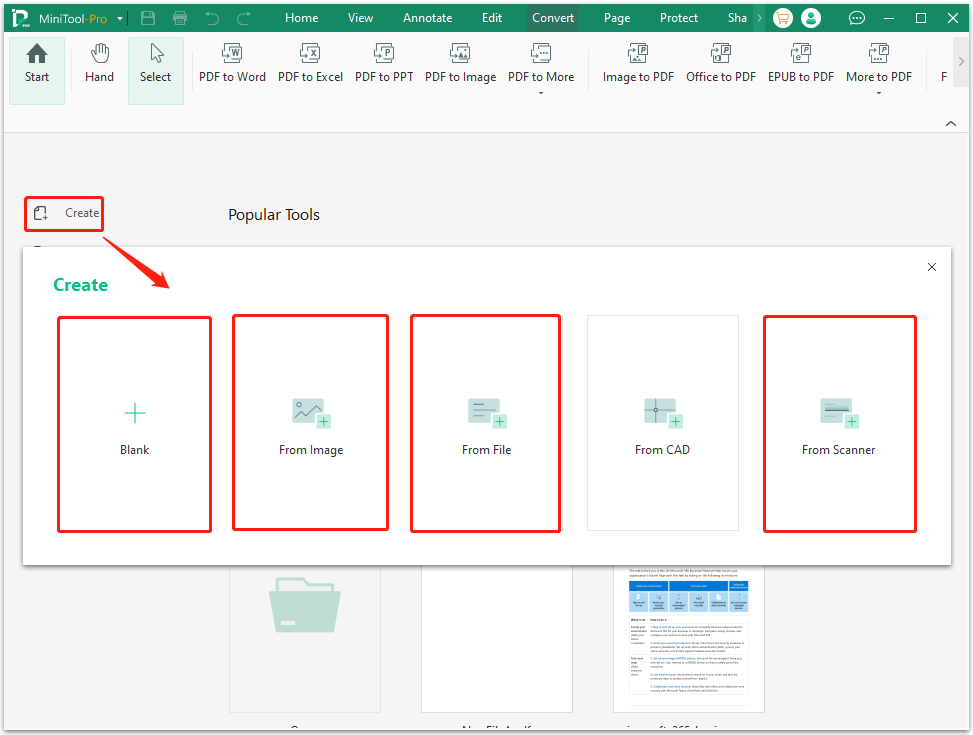
To create a multiple-page PDF file, open MiniTool PDF Editor to enter its main interface. Then click Create and choose one of the following options.
- Blank: Choose this option to create a blank multi-page PDF. On the Create New Page window, select the Number of Pages you want to create and adjust other settings. Then click Confirm.
- From Image: Choose this option to convert multiple images into a single PDF file, and each image becomes a separate PDF page. On the Open window, select multiple images by holding on the Ctrl key and selecting images. Then, click Open.
- From File: Choose this option to convert a multi-page document into a multi-page PDF file. On the Open window, select the file to be converted and click Open. Note that converting multiple files is not supported.
- From Scanner: Choose this option if a scanner is connected to the computer. It will convert a multi-page paper document to a multi-page digital PDF file. In the pop-up window, adjust some settings and click Scan.
Option 2. Create a Multiple Page PDF via Insert
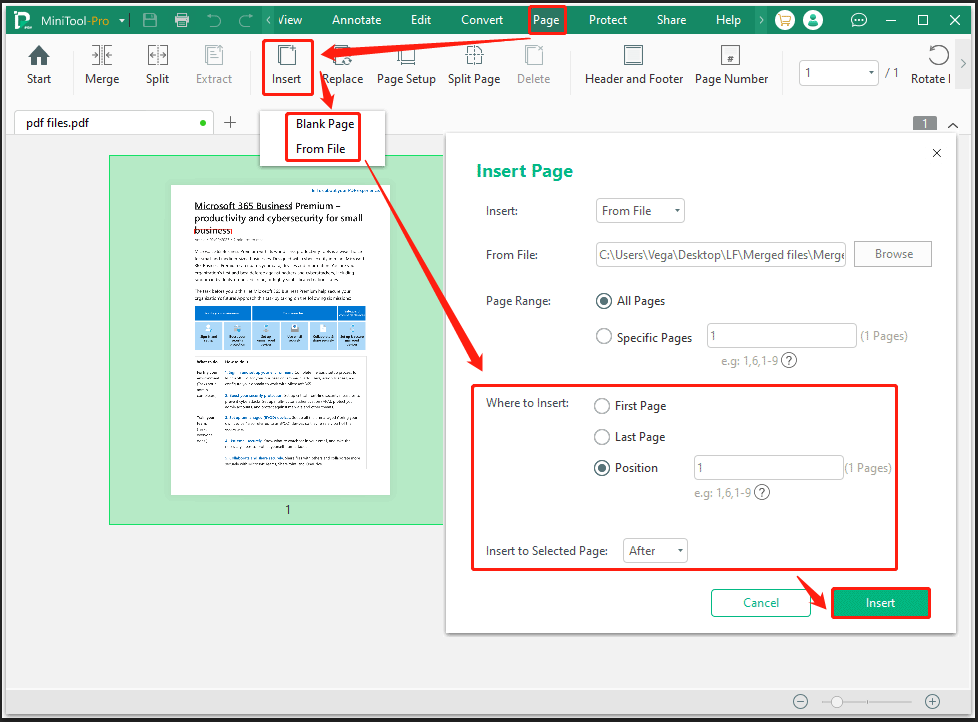
Another option to create a multiple page PDF is to add new pages to an existing file. The Inset feature can add blank pages or pages of another PDF file to the opened PDF file.
- In the MiniTool PDF Editor main interface, click Open and then select a PDF file to edit.
- Go to the Pages tab, click the Insert feature, and select Blank Page or From File according to your situation.
- On the Insert Page window, select Where to Insert the page (First Page, Last Page, or customize the Position) and decide to insert pages After or Before the selected page. Then click Insert. If you insert from file, you need to select the file and decide what Page Range to insert.
Option 3. Make a Multiple Page PDF by Merge
Try this option if you want to combine multiple single-page PDFs into a single multi-page PDF.
Single-page PDFs are typically used for finalized documents or designs that need to maintain the intended layout for sharing or printing. Common examples include receipts, invoices, flyers, brochures, and posters.
To combine single page PDFs into a multiple page PDF, here is the guide:
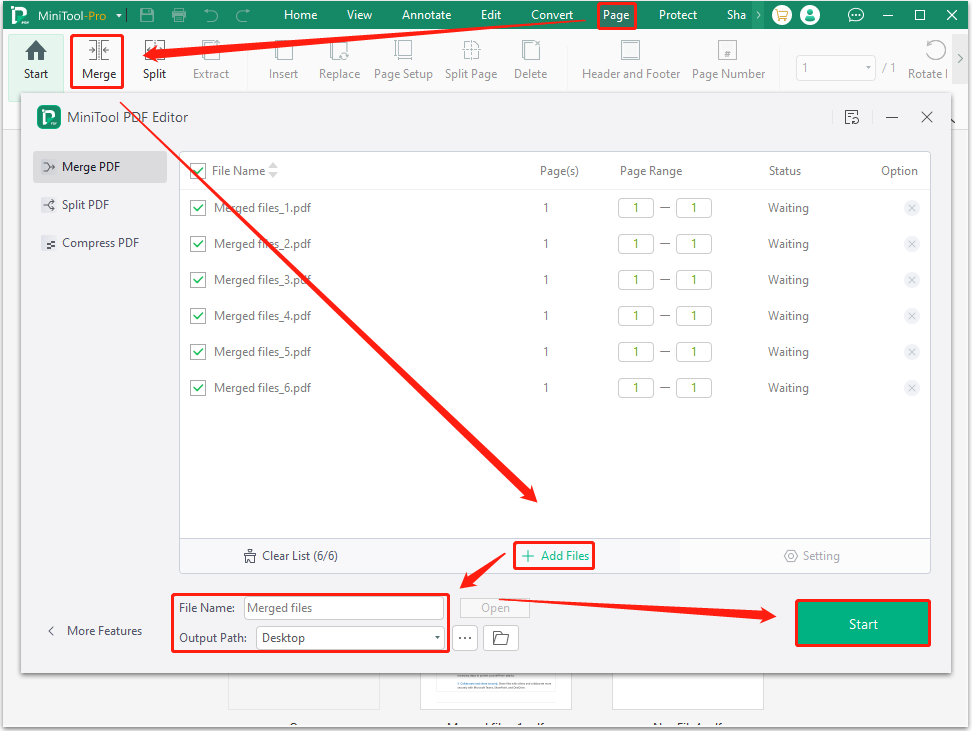
- In MiniTool PDF Editor’s main interface, go to Page and choose Merge.
- Click Add Files to add all single-page PDFs you want to combine.
- Type the File Name and select the Output Path. Then, click Start.
Method 2. Use Photoshop
Another tool to make a multi-page PDF is using Photoshop. Adobe Photoshop is the industry-standard software application for professional image editing, photo retouching, and graphic design.
How to make a multi-page PDF in Photoshop? Here are the steps:
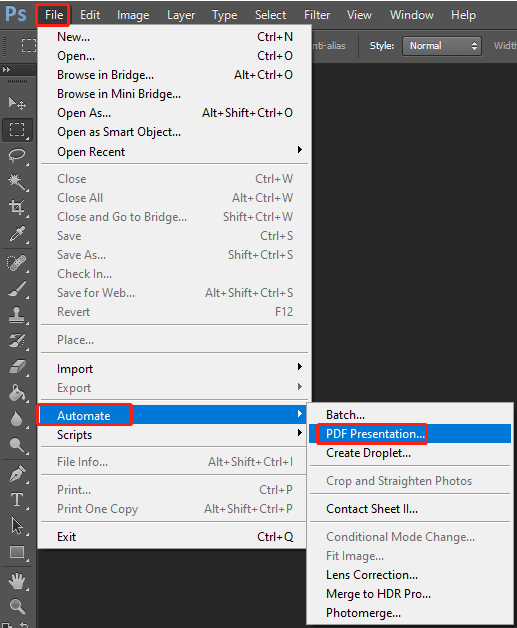
Step 1. Open Photoshop and go to Files > Automate > PDF Presentation.
Step 2. In the PDF Presentation window, click Browse to add all images you want to convert. Select Multi-Page Document next to Save as. Order the images and adjust other settings as needed.
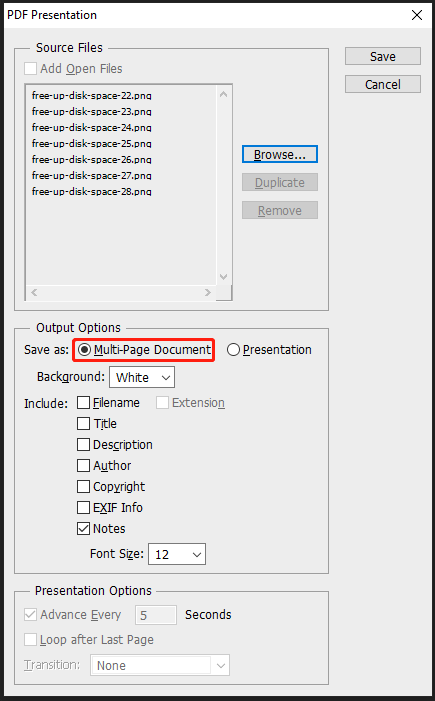
Step 3. Finally, click Save and then set the file a name and choose an output path.
How to make a multi-page PDF? This post shows you 2 tools.Click to Tweet
Bottom Line
This post shows you how to make a multi-page PDF using MiniTool PDF Editor and Photoshop.
If you want to continue editing the PDF, MiniTool PDF Editor is a good choice. This tool offers several methods for creating multi-page PDFs and comes equipped with a variety of editing tools.
If you encounter issues when using MiniTool PDF Editor, contact us by sending an email to [email protected]. We’ll get back to you as soon as possible.
About The Author

Position: Columnist
Vega enjoys helping people with computer problems, including disk management, data recovery, data bacckup, and more. She is constantly expanding her knowledge in related fields. And she will continue to bring more easy-to-understand professional articles to help people solve various problems on the PC.