

Measuring distance, area, or perimeter in PDFs is primarily used in fields requiring precise dimensional analysis of electronic drawings, including architecture, mechanical drawing, interior design, and urban planning.
However, most PDFs do not come with an accurate scale, so obtaining reliable measurement results requires the use of appropriate tools.
This article details how to accurately measure distance/area/perimeter in PDF using MiniTool PDF. The specific steps are as follows:
What Is PDF Measurement?
PDF measurement refers to the process of using the built-in tools of a PDF editor to measure the size, distances, area, or other dimensions of objects within a PDF document.
Unlike editable CAD files or design software files, most PDF files are static documents and do not inherently contain actual scale information.
Therefore, the dimensions seen on the screen alone cannot determine the actual size. Then, measurement tools are needed to obtain accurate results.
So, when is it generally necessary to use PDF measurement tools? Please read on to find out.

When Do You Need to Measure in PDF?
Generally, PDF dimensioning is necessary in any situation where the actual dimensions of objects in a PDF file are required. Relying solely on visual estimation without measurement can lead to errors.
For example, when working with PDF files such as architectural floor plans, CAD drawings, graphic designs, maps, and engineering documents, you need to measure dimensions to calculate distances, areas, or perimeters.
Other situations requiring dimensioning include estimating room dimensions and preparing documents for professional printing.
How to Measure in PDF with MiniTool PDF Editor
MiniTool PDF Editor is a professional PDF tool that allows you to add stamps, comments, signatures, or attachments, edit or delete content, split and merge PDFs, and convert files between PDF and other formats.
This section details how to use MiniTool PDF Editor to measure Area, Distance, and Perimeter in PDF.
Click the button below to download and install MiniTool PDF Editor on your computer. It supports both 32-bit and 64-bit versions of Windows XP/7/8/8.1/10/11.
MiniTool PDF EditorClick to Download100%Clean & Safe
How to Measure Distance in PDF
The Distance tool is used to accurately measure the straight-line distance between two points on a PDF page.
It is particularly suitable for scenarios where you need to obtain the dimensions of elements in drawings, tables, or reports.
Here are the steps:
Step 1: Launch MiniTool PDF Editor, click Open on the left panel, choose the PDF file you want, and then click Open in the prompt to load it.
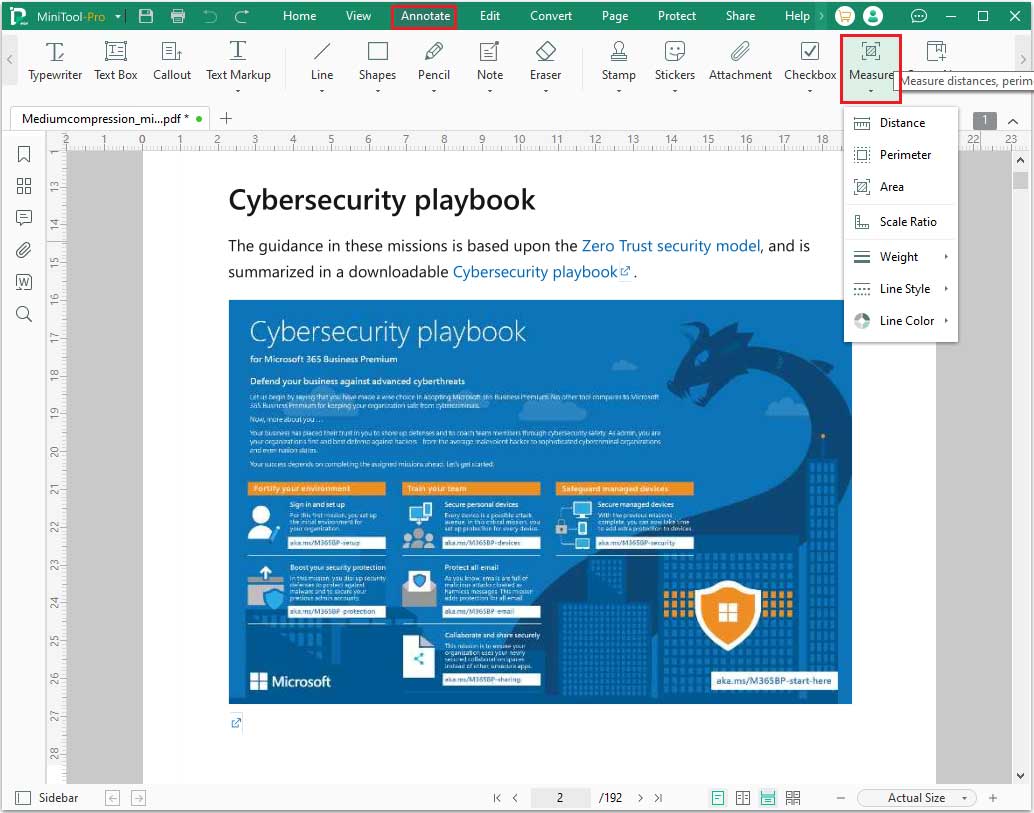
Step 2: When the PDF file is opened, go to the Annotate tab and then click Measure. Then choose Distance.
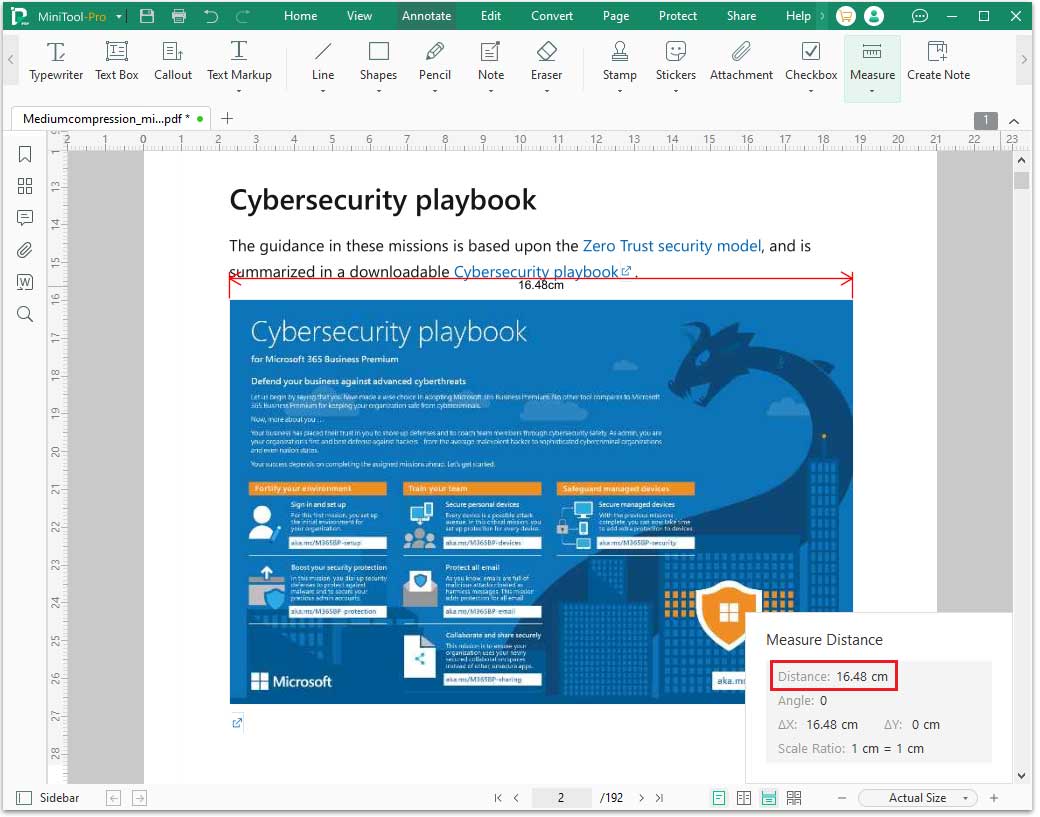
Step 3: Click the starting point where you want to measure the length, move the mouse to the ending point, and then click again. In the lower right corner, you can clearly see the detailed information of the line segment, such as its length, X/Y axis angles, etc.
How to Measure Perimeter in PDF
The Perimeter tool is used to measure the boundary length of closed areas or shapes.
It can accurately calculate the perimeter of complex shapes and is suitable for architectural drawings or PDF files where the boundary length of an area needs to be obtained.
Step 1: Click the Perimeter tool.
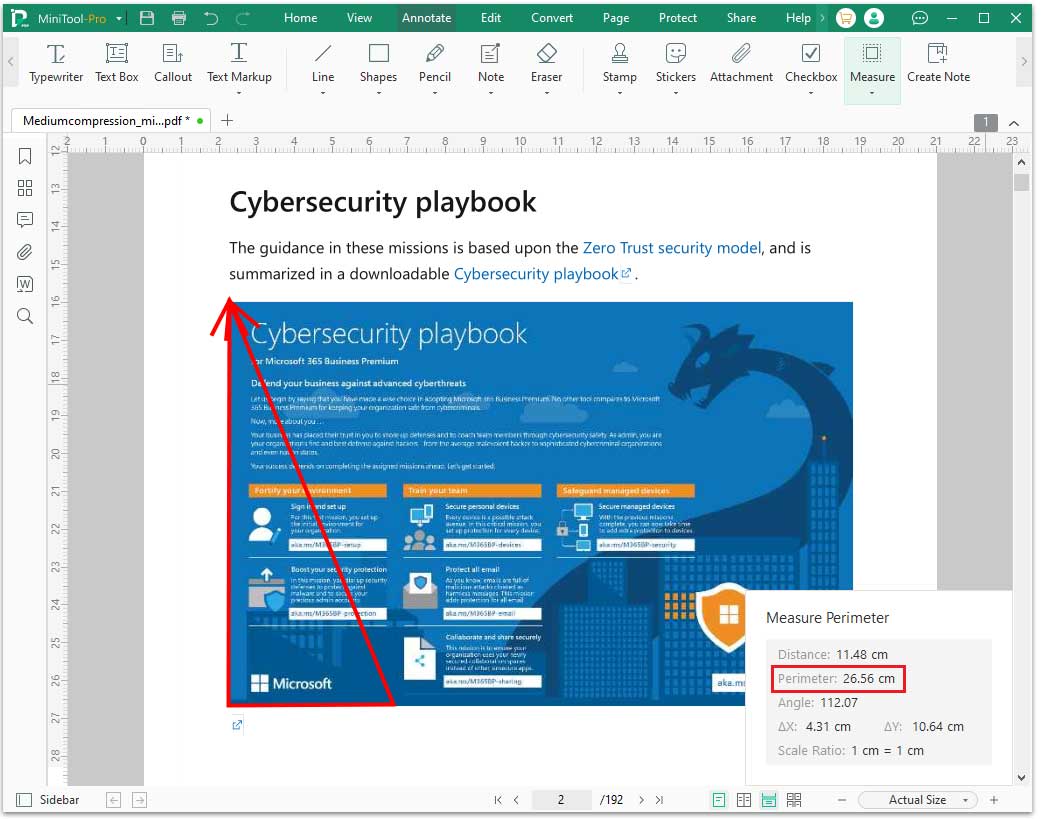
Step 2: Click on each vertex that makes up the closed region on the shape you want to measure. After double-clicking or returning to the starting point to complete the closure, the software will automatically display the perimeter of the region. In this way, you can get the perimeter of the shape.
How to Measure Area in PDF
The Area tool is used to calculate the area of enclosed regions on a PDF page. It is suitable for architectural drawings, engineering drawings, or other PDF files where precise area size is required.
Using the Area tool, you can quickly measure the area of any enclosed shape and display the results on the page.
Step 1: Click the Area tool.
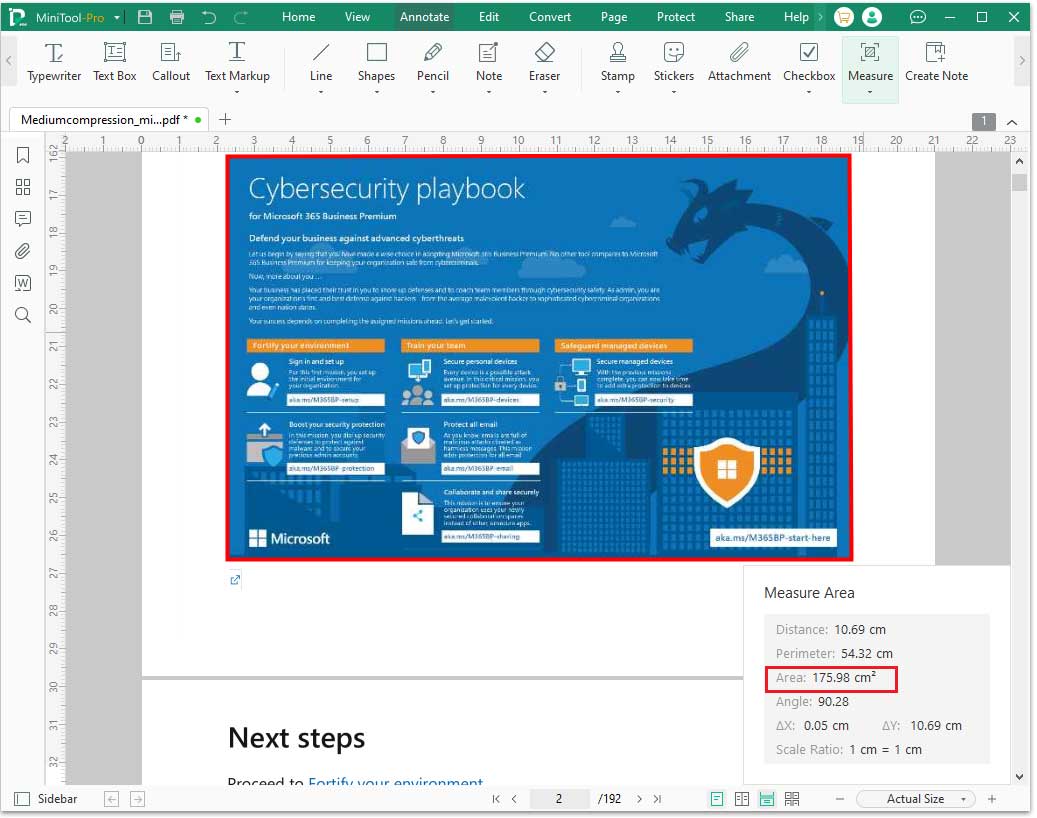
Step 2: Click on each vertex that forms the closed region in sequence. After selecting all vertices, double-click the last vertex to complete the closure. You will then obtain the area of the shape.
In the Measure function of MiniTool PDF Editor, in addition to measurement tools such as Distance, Area, and Perimeter, you can also customize the display effect of measurement lines, including Weight, Line Style, and Line Color.
These settings help you more clearly mark and distinguish different measurement objects during measurement.
- Weight: By setting different thicknesses, you can more clearly distinguish measurement lines on the PDF page.
- Line Style: Used to set the style of measurement lines, such as solid lines, dashed lines, dotted lines, etc.
- Line Color: You can choose a striking color as needed to make measurement results easier to identify.
How to Measure in PDF FAQ
Bottom Line
With MiniTool PDF Editor, you can quickly and accurately measure various dimensions in PDFs. Whether measuring distances, areas, or perimeter, it’s incredibly convenient.
If you have any questions while using the MiniTool PDF Editor, you can contact us via support@minitool.com.