

Printing a large image across multiple standard pages (often called “tiling” or “posterizing”) allows you to create wall art, signs, and scale templates at home without needing a large-format printer. It bridges the gap between what a basic printer can output and the large scale you desire.
How to print a large image on multiple pages? You can try the following 3 methods.
| Methods | Pros | Cons |
| Microsoft Paint | It's a free software that comes with Windows. The printed images do not require cropping. | Printing may require more paper. The preview function is not working properly. |
| MiniTool PDF Editor | The preview function is improved, making printing easier and more accurate. | This is paid software. You need to convert the image to a PDF file first. The edges need to be trimmed. |
| Adobe Acrobat | The preview function is improved, making printing easier and more accurate. | This is paid software. You need to convert the image to a PDF file first. The edges need to be trimmed. |
How to Print a Poster on Multiple Pages Using Microsoft Paint
Microsoft Paint is a classic raster graphics editor built into the Microsoft Windows operating system. It has an intuitive and easy-to-use interface and supports opening and saving common image formats (such as PNG, JPEG, BMP, GIF, etc.).
It is suitable for performing basic graphic operations such as quick image cropping, resizing, drawing basic shapes, doodling, adding text, and printing.
How to print an image on multiple pages using Paint? Here is the guide:
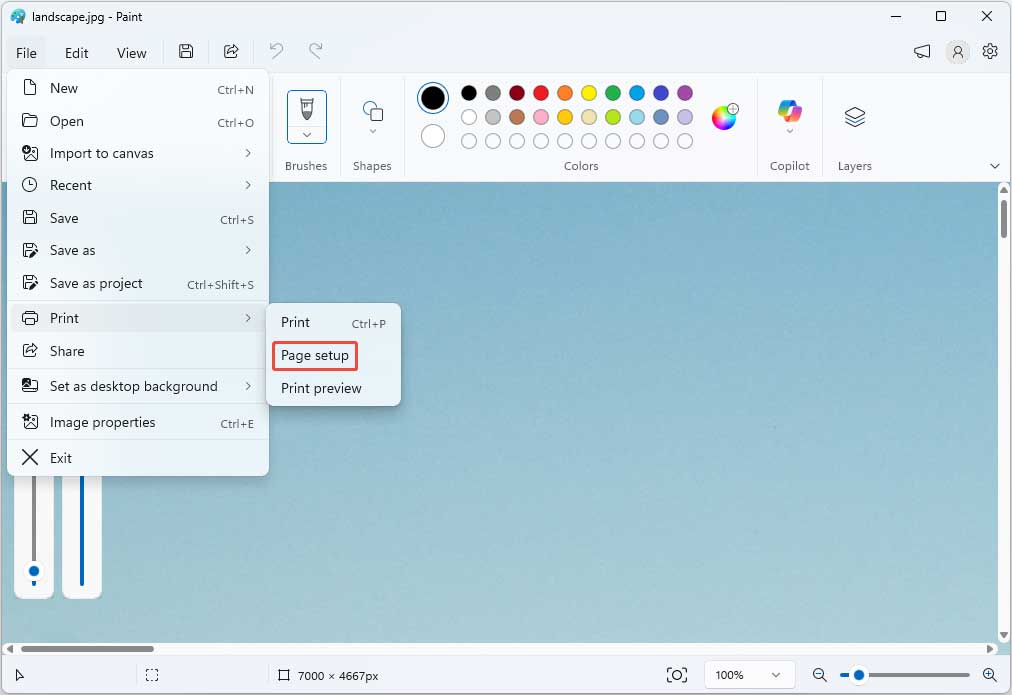
Step 1: Right-click the image and choose Open with > Paint. Once it opens, click File > Print > Page setup.
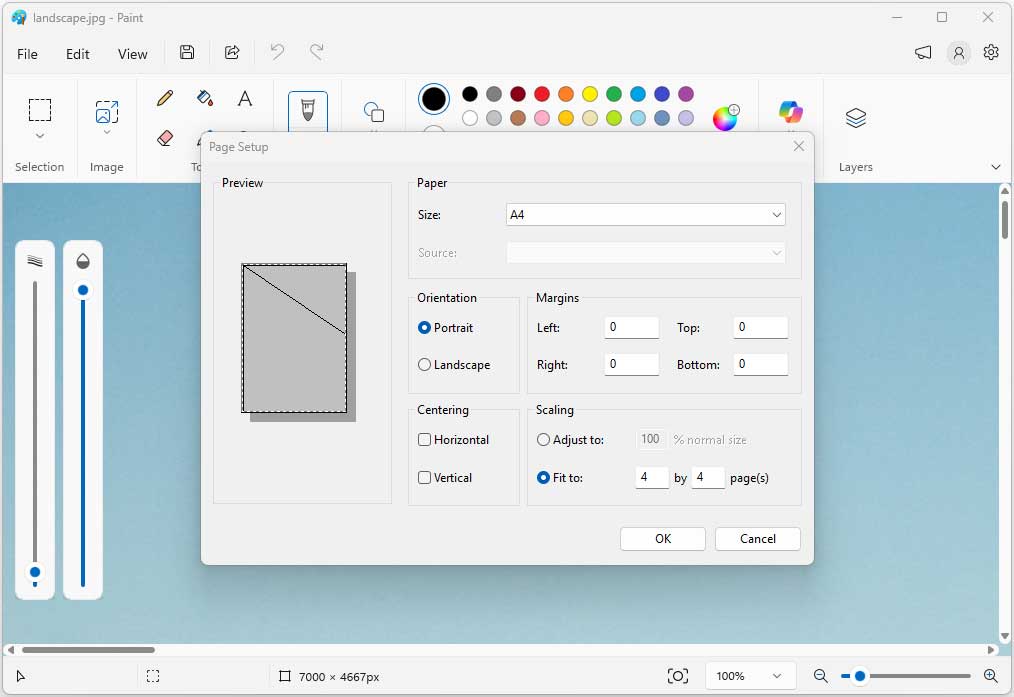
Step 2: Adjust the following print page setup settings and click OK.
- Paper Size: Various paper sizes are supported, but A4 is recommended for a basic printer.
- Orientation: Portrait or Landscape is OK, but observe the Preview area and try to select the option that makes the shadow area larger.
- Margins: Change them to 0. If you need margins, you can also enter the desired number.
- Centering: This will determine whether the printed image is centered vertically or horizontally.
- Scaling: Select the Fit to option. In addition, type the same number into the two boxes to decide how many parts to divide the image into. Wide images will be divided vertically, while long images will be divided horizontally.
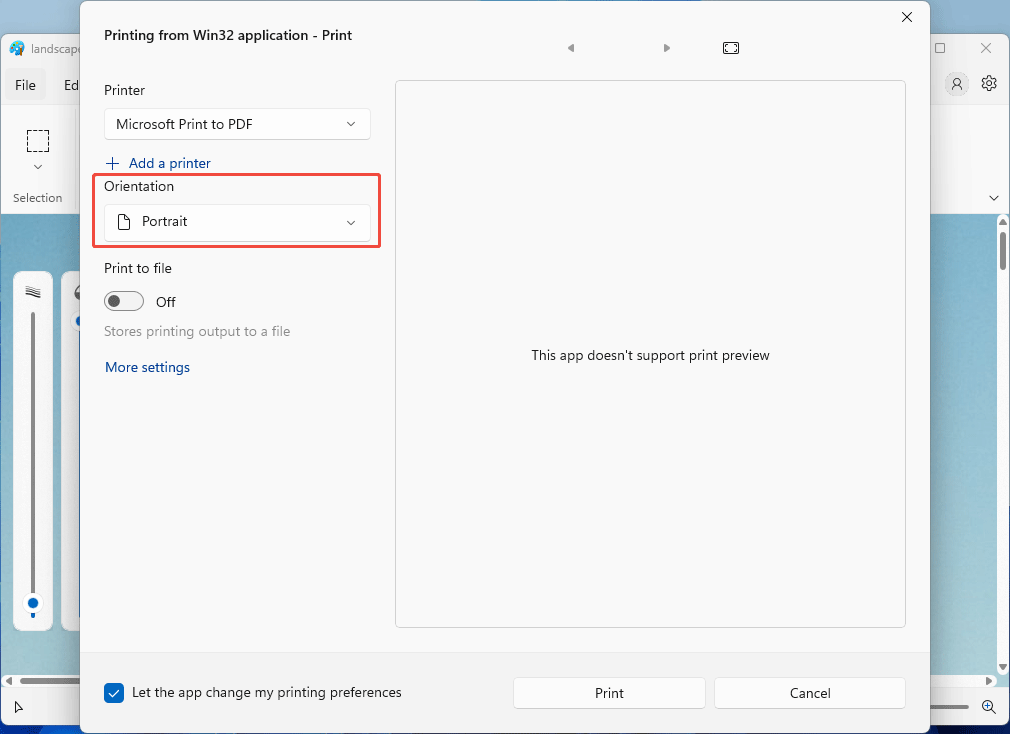
Step 3: Click File > Print > Print. On the pop-up window, select the printer, and then the Orientation again. After that, click Print.
How to Print a Poster on Multiple Pages Using MiniTool PDF Editor
MiniTool PDF Editor is a comprehensive, all-in-one PDF management solution developed by MiniTool. Designed primarily for Windows, it enables users to seamlessly view, edit, convert, merge, split, annotate, secure, and print PDF documents.
How to print a picture on multiple pages using this software? Here are the steps.
MiniTool PDF EditorClick to Download100%Clean & Safe
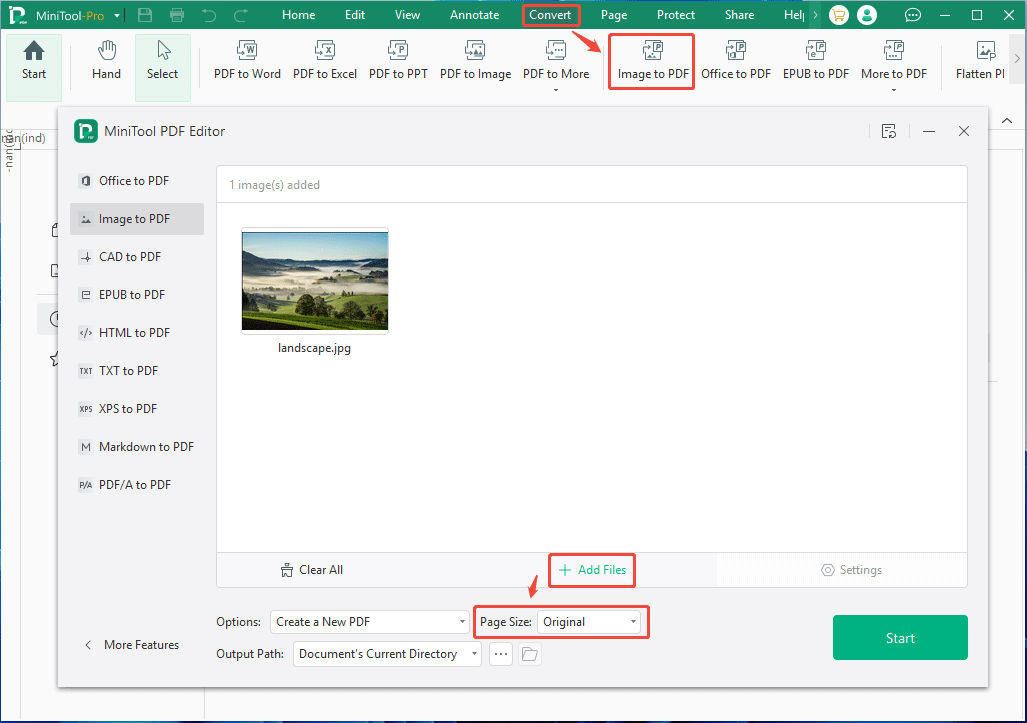
Step 1: Convert the image to a PDF file.
- Launch MiniTool PDF Editor.
- Go to the Convert tab and then click Image to PDF.
- On the pop-up window, click Add Files and then select the image you want to print.
- Change the Page Size to Original and then click Start.
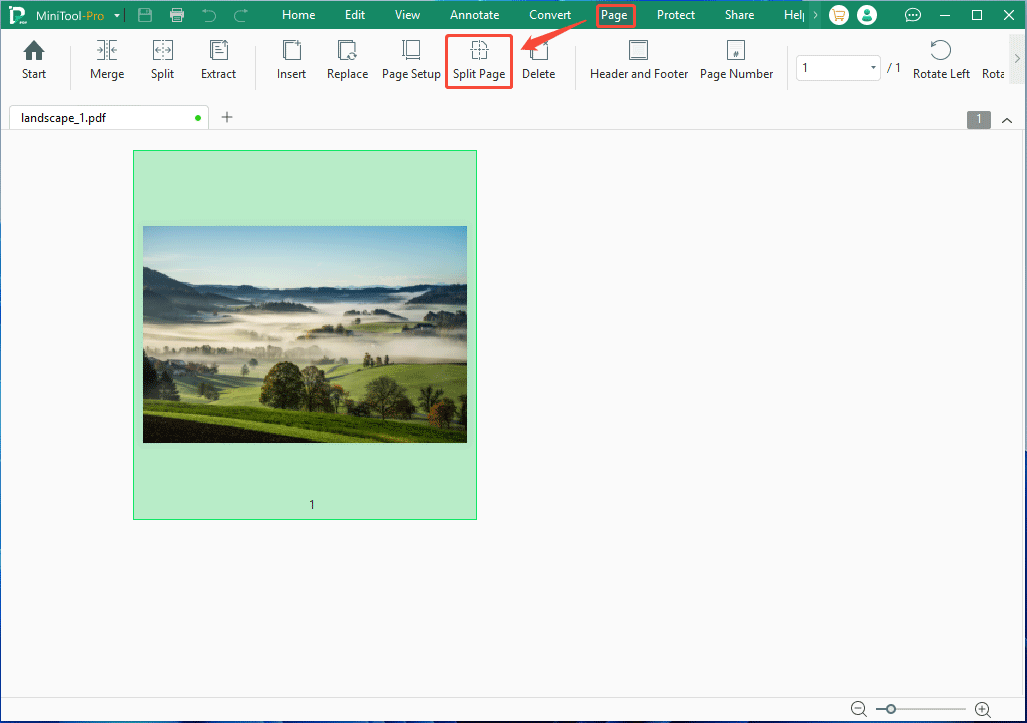
Step 2: Open the converted PDF file, go to the Page tab, and then select Split Page.
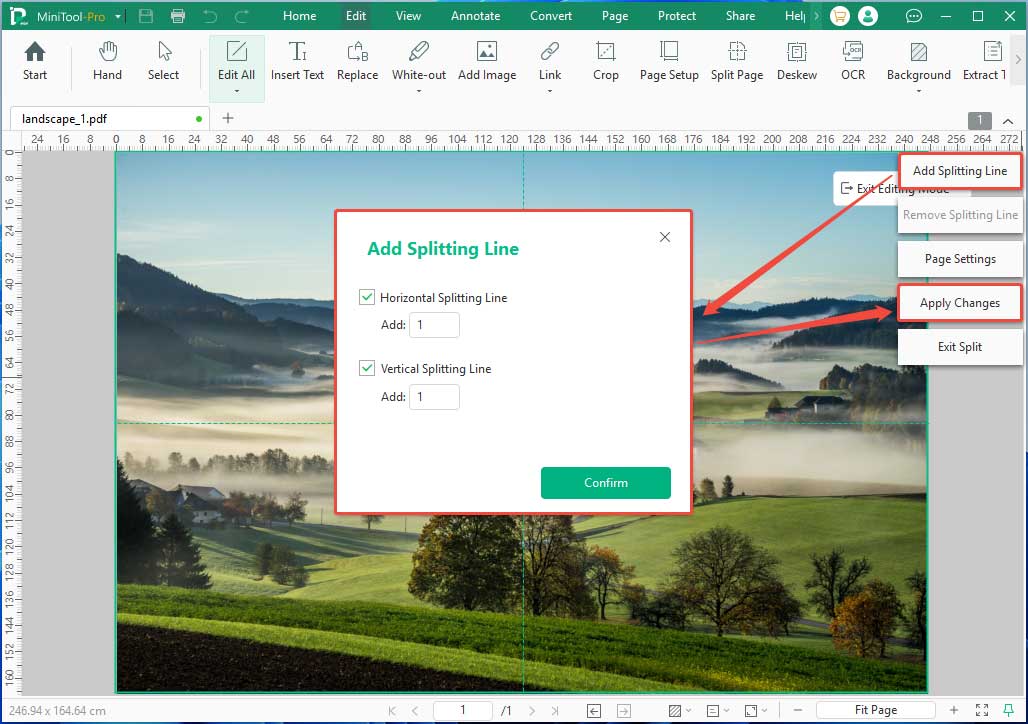
Step 3: Split the PDF page.
- Click Add Splitting Line.
- In the pop-up window, determine the vertical and horizontal splitting lines.
- Click Apply Changes.
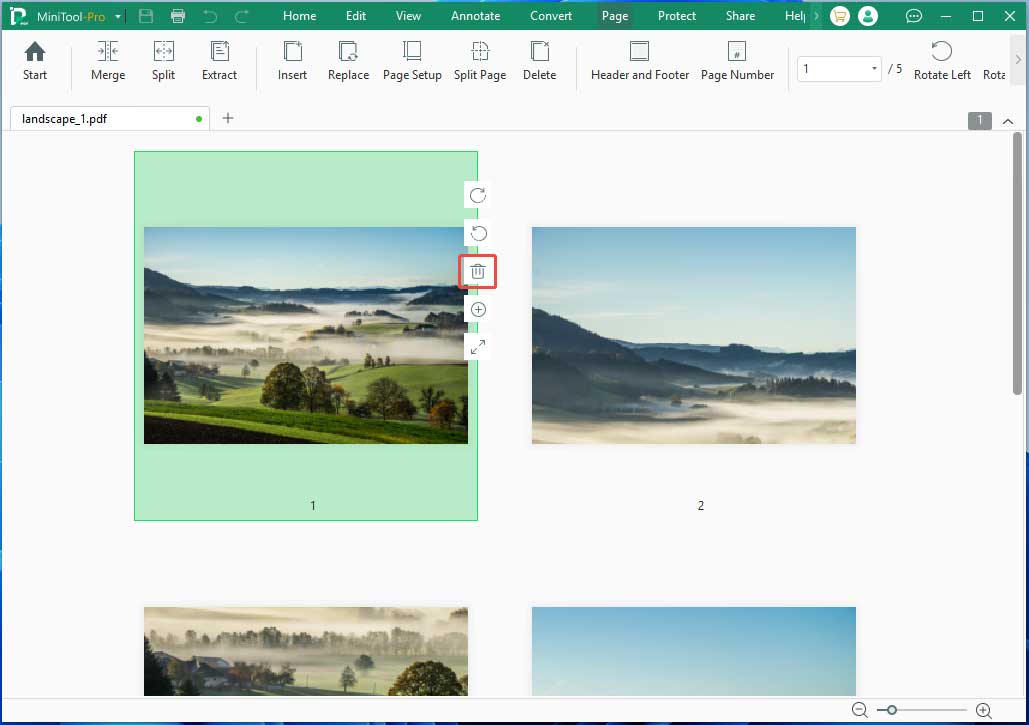
Step 4: Delete the original PDF page.
- Go to the Page tab again.
- Hover the cursor over the original PDF page and then click the trash icon.
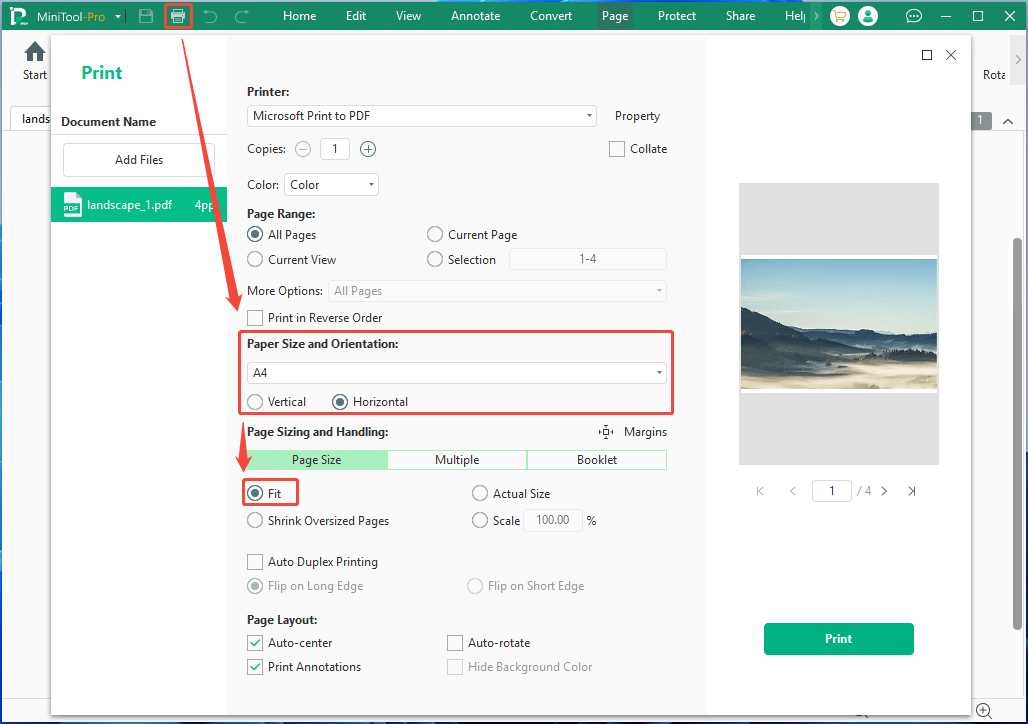
Step 5: Print these PDF pages.
- Click the printer icon in the top left corner.
- In the pop-up window, select the printer.
- Select the Paper Size and Orientation. You can preview the print result on the left.
- Choose Fit under Page Size.
- Click Print.
Step 6: After printing, there will be white borders on the left and right sides or top and bottom. At this point, you need to align the sheets of paper and trim the edges.
How to Print a Poster on Multiple Pages Using Adobe Acrobat
Adobe Acrobat is a comprehensive family of applications and cloud services developed by Adobe to create, edit, manage, and share PDF documents. It goes far beyond simply viewing files, offering advanced text editing, document conversion, and AI-powered tools.
This software can also print an image on multiple pages. The steps are as follows:
- Convert the image to a PDF file.
- Open the PDF file in Adobe Acrobat.
- Click File > Print.
- Look for the Page Sizing & Handling section and click the Poster button.
- Adjust the Tile Scale. This percentage dictates how large the final poster will be. As you change the percentage, the preview window will display how many pages are required.
- Set your Overlap. This adds a small amount of extra paper (e.g., 0.5 inches) between adjacent pages so they are easier to align and tape together.
- Check the Cut Marks and Labels boxes. Cut marks provide guides on where to trim the paper, while labels show the file name and page coordinates.
- Click Print to send the tiled pages to your printer.
How to Print a Poster on Multiple Pages FAQ
The simplest method is to use Microsoft Paint or a PDF print tool.
2. Upload your image via the Uploads tab and add it to your Canvas.
3. Go to the left-hand sidebar and click Apps. Search for Image Splitter and open it.
4. Inside the app, specify how many pages wide and tall you want your final image to be (e.g., 2 × 2 rows and columns for a 4-page poster).
5. Click Add images to new pages. The app will automatically slice your image and distribute each section onto its own individual page.
6. Go to Share > Download, select PDF Print, and click Download.
7. Print the downloaded PDF at home, and trim and tape the edges to assemble.
2. Click on the image and drag one of the corner handles to enlarge it. As you drag, watch the dashed lines on your screen—these represent your paper boundaries. Make sure the image crosses these lines into the adjacent columns/rows.
3. Go to the Page Layout tab, click the Page Setup dialogue launcher (the small arrow in the bottom-right corner of that section).
4. Under the Page tab, select Adjust to and set the percentage higher than 100% if you want it even larger.
5. Press Ctrl + P to view the Print Preview screen. You will see the image tiled across multiple pages.
6. Click Print to send the document to your physical printer.
Bottom Line
You may need to print a large image on multiple pages. This post shows you how to do that using Microsoft Paint, MiniTool PDF Editor, and Adobe Acrobat. If you encounter issues when using MiniTool PDF Editor, contact our support team via support@minitool.com for help.
About The Author
Position: Columnist
Linda has been an editor at MiniTool for seven years. She continuously learns about computers and puts her knowledge into practice. Moreover, she is particularly knowledgeable in disk management, data recovery, system installation, and PDF editing. Her articles typically reference multiple examples or are based on her own experience, providing users with the most suitable solutions.