

When Do You Need to Print Multiple Copies of a PDF on One Page?
PDF (Portable Document Format) is the global printing standard because its layout is stable, ensuring that documents look completely consistent on any device or printer.
In daily office work, study, and life, you may encounter the need to print multiple copies of a PDF on one page. This need stems from various practical applications, such as:
- Business promotional materials: Ideal for creating small items like vouchers, business cards, or postcards.
- Resource conservation: Printing on a single sheet of paper results in significant waste. Printing two, four, or even more copies on one page makes the most of paper space and reduces paper usage.
How to print multiple copies on one page of PDF? Keep reading to get the effective approaches.
Method 1. Use MiniTool PDF Editor
MiniTool PDF Editor is a full-featured PDF printing tool that allows you to print multiple copies on one page PDF. For example, you can print 2, 4, 6, 9, or 16 copies of a PDF file on one page. Even better, it supports printing PDF files of any number of pages and provides a print preview.
Additionally, it can help you do other tasks with the Print feature:
- Print multiple PDFs at once.
- Print odd or even pages in PDF.
- Print in color or grayscale.
- Print double-sided PDFs.
- Print PDFs as booklets.
- Print multiple pictures on one page.
Now, let’s see how to print 4 copies on one page PDF, or multiple copies using MiniTool PDF Editor.
MiniTool PDF EditorClick to Download100%Clean & Safe
Step 1. Download and install MiniTool PDF Editor. After that, right-click the PDF file you want to print, and then choose Open with > MiniTool PDF Editor.
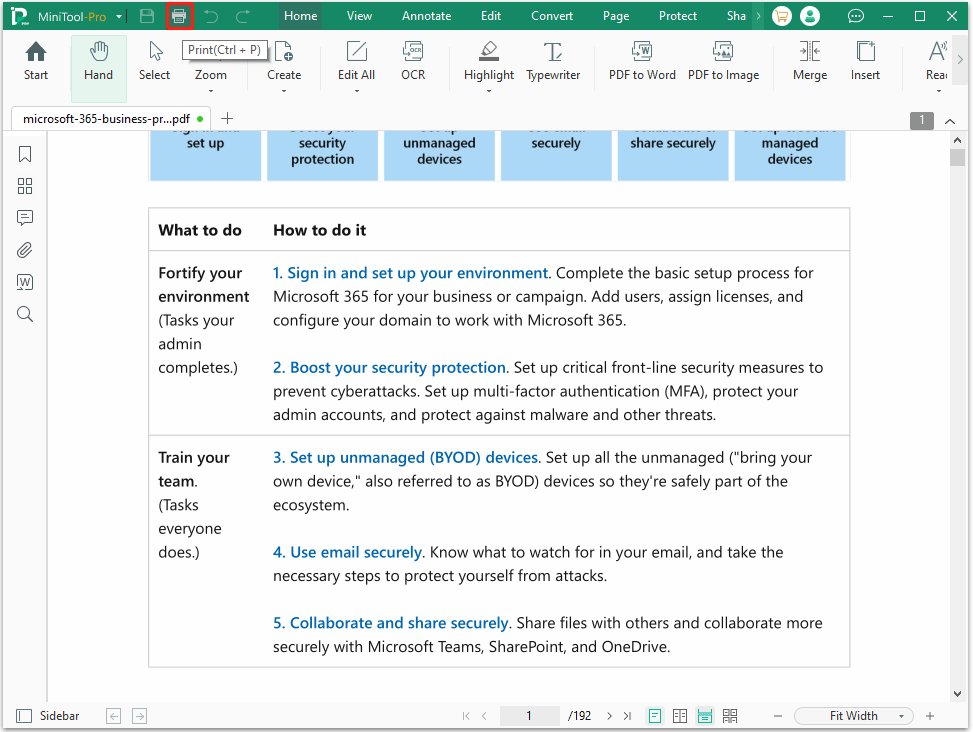
Step 2. Once the PDF file opens, click the Print icon in the top-left corner or press Ctrl + P.
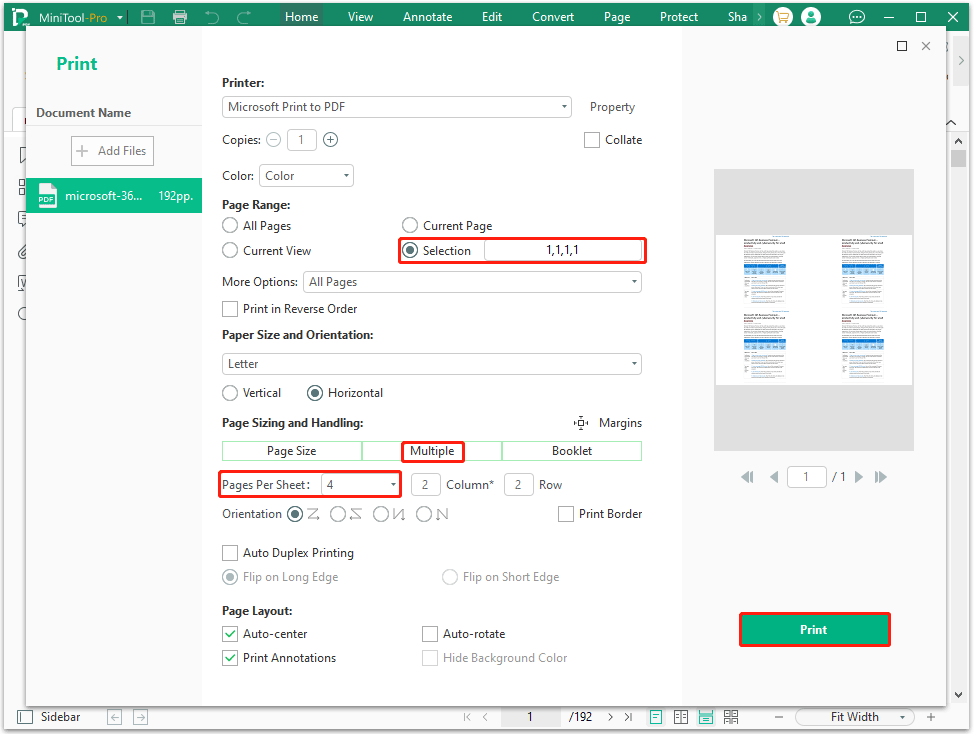
Step 3. In the pop-up window, under Printer, select your printer device.
Step 4. In the Page Range section, next to Selection, enter the page and copy numbers. For example, to print copies of page 1 on one sheet, type 1,1,1,1. Then select Multiple under Page Sizing and Handling and set the same copies for Page Per Sheet.
Step 5. Verify the layout in the preview pane if it is OK. If so, click Print and select a saving location to print multiple copies on one page of the PDF. You can also adjust some settings, like Vertical, Horizontal, and Print Border.
Method 2. Use Adobe Acrobat
For users with high requirements for printing layout, precision, and customization, Adobe Acrobat is the best choice. As the industry-standard PDF processing software, it has a more comprehensive function.
To print multiple copies of a PDF on one page, the steps are as follows:
- Open Adobe Acrobat, import the PDF file that needs to be printed.
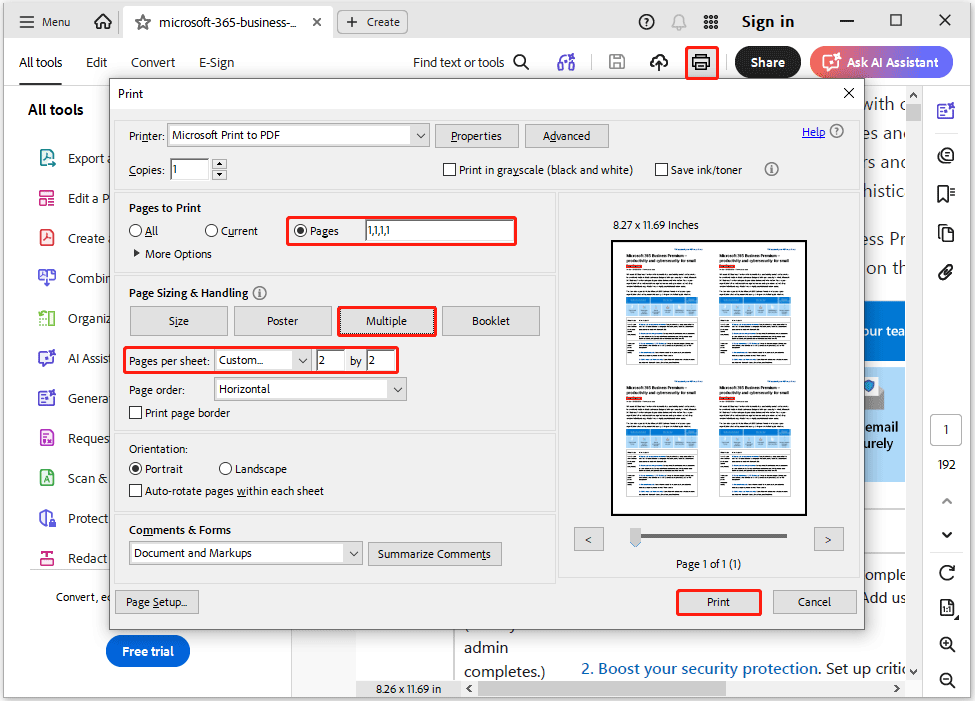
- Click the Print icon.
- In the pop-up Print window, under Pages to Print, next to Pages, enter the number like 1,1,1,1.
- In the Page Sizing & Handling section, select the Multiple option, and set Pages per sheet to your desired number (e.g., 4 or 2x2).
- Check the resulting printing view. If OK, click Print.
Print Multiple Copies of a PDF on One Page FAQ
Alternatively, you can use Windows' built-in printing function. Copy and paste the photo multiple times into a folder, select all photos, right-click, and select Print. Next, set the number of copies, select a layout for printing multiple copies on one sheet of paper, and then print.
Bottom Line
This post shows you how to print multiple copies of a PDF on one page with different methods. MiniTool PDF Editor is the better choice because it has a simple user interface and feature-rich tools.
If you encounter issues when using MiniTool PDF Editor, contact us by sending an email to support@minitool.com. We’ll get back to you as soon as possible.