

Why Remove Digital Signatures?
PDF is a widely used file format used to maintain consistency of document content and layout across different devices and platforms.
A digital signature is a technology used to verify the authenticity and integrity of documents; it confirms that the document has not been tampered with and identifies the signatory.
You may need to remove digital signatures from PDF files for the following reasons.
- Document needs editing or revision: If you need to update or modify content, such as adjusting contract terms or correcting formatting errors, you’ll need to remove the signature first.
- Document signature errors: Sometimes, signature information may be incorrect, such as the date or signatory being incorrect. In this case, you need to delete the erroneous signature to correct the information.
- Invalid or expired signatures: Digital signatures may become invalid or expire due to certificate issues or time limits. When a signature is no longer valid, it needs to be deleted or replaced.
How to Remove Digital Signature from PDF
To remove digital signatures, you can use either MiniTool PDF Editor or Adobe Acrobat.
Both programs can safely delete existing signatures without damaging the PDF file content.
MiniTool PDF Editor has a simple and user-friendly interface, suitable for quick file processing.
Adobe Acrobat, on the other hand, is a professional-grade PDF tool with comprehensive features but a relatively complex interface, making it more suitable for users with some basic knowledge.
You can choose either tool to remove digital signatures based on your needs.
Method 1: Remove Digital Signature via MiniTool PDF Editor
For removing digital signature from PDF, MiniTool PDF Editor is a great choice. It allows you to effortlessly add or delete digital signatures in PDFs.
Additionally, MiniTool PDF Editor is a reliable and versatile tool that allows you to add or remove passwords, as well as edit text, pages, links, images, watermarks, and backgrounds within PDF files, convert Word and other files to PDFs or vice versa.
Let’s see how to remove digital signature from PDF with the MiniTool PDF Editor program.
MiniTool PDF EditorClick to Download100%Clean & Safe
Step 1: Right-click on the PDF you want to delete digital signature and click Open with > MiniTool PDF Editor.
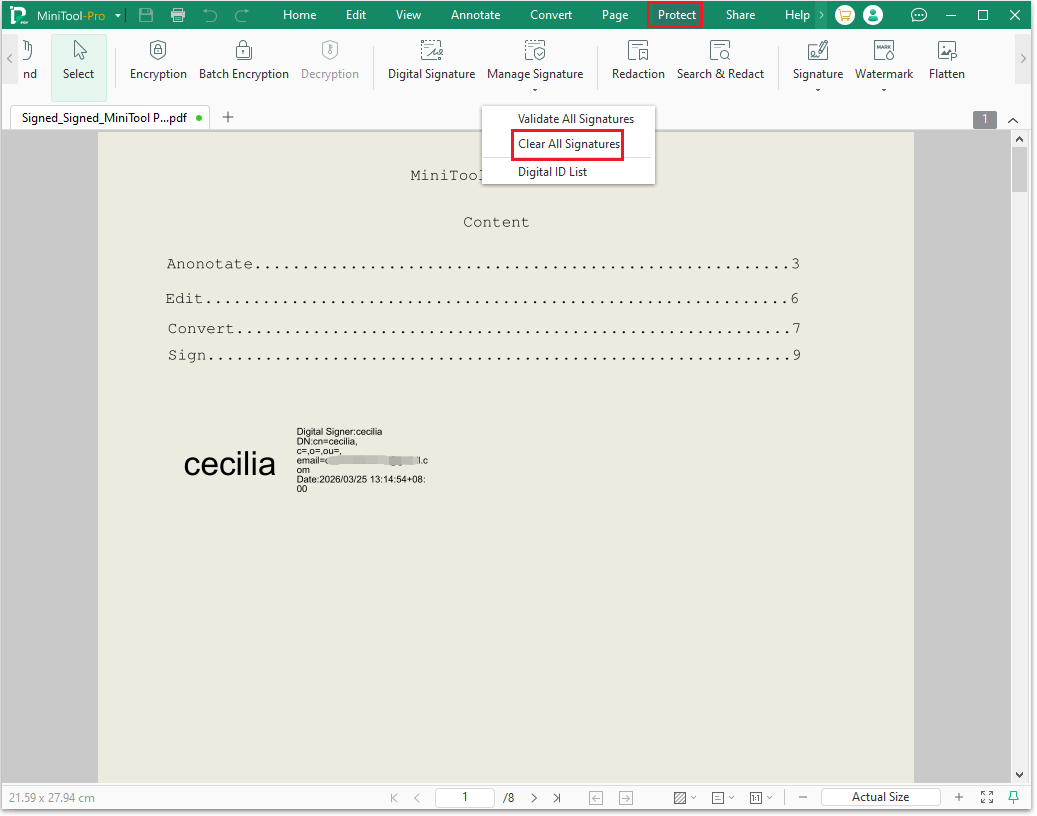
Step 2: Navigate to the Protect tab from the top ribbon menu. You will see 3 options: Validate All Signatures, Clear All Signatures, and Digital ID List. Click Clear All Signatures to move on.
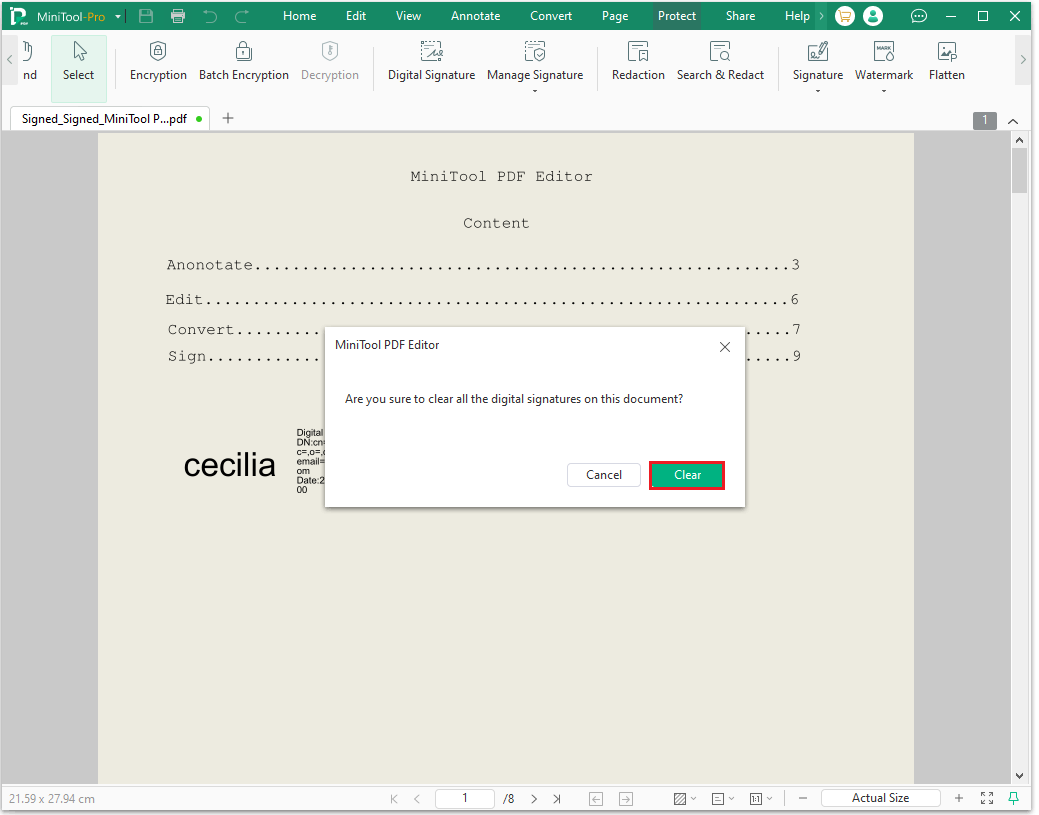
Step 3: In the pop-up window, click Clear to delete all digital signatures.
Method 2: Remove Digital Signature via Adobe Acrobat
As a widely used PDF tool, Adobe Acrobat offers numerous features to help you efficiently manage and modify digital signatures.
This section will walk you through step-by-step on how to use this software to easily remove digital signatures from PDF files.
Here are the steps:
Step 1: Right-click the PDF file you want to remove digital signature and choose Adobe Acrobat.
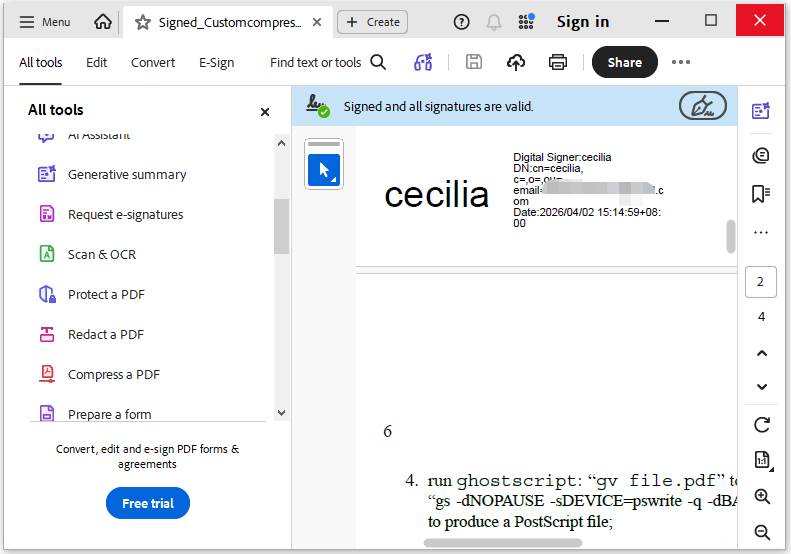
Step 2: Find the digital signature you want to remove, and right-click it to choose Clear Signature. Please note that this option is a paid feature and requires Acrobat Pro DC or Reader to use.
Further reading:
Common online tools such as pdfFiller and Smallpdf can be used to remove or process digital signatures within PDF files.
The process is quite simple. You do not need to download or install any software, as the entire task can be completed directly within your web browser.
However, it is important to be mindful of privacy and security concerns, as your PDF files must be uploaded to the website for processing.
If your files contain particularly important or sensitive information, it is advisable to select a reputable platform whenever possible, or to exercise caution when using such tools.
How to Remove Digital Signature from PDF FAQ
Bottom Line
In conclusion, this post presents 2 effective methods for deleting a digital signature from a PDF. You can select the one that best suits your needs to remove digital signature from PDF files.
If you have any questions or suggestions while using the MiniTool PDF Editor, you can contact us via support@minitool.com to get a quick reply.