

What Is an Email Link in a PDF?
An email link (often called a mailto: link) in a PDF is a clickable hyperlink. It is an interactive element and can be attached to text, images, or buttons.
When clicked by a user, automatically opens the user’s default email application (e.g., Outlook, Gmail) and populates the "To" field with a specific email address.
Adding an email link to a PDF makes it easy for readers to contact you instantly with one click, eliminating the need to copy and paste addresses. It enhances professionalism for resumes, invoices, or proposals and allows for direct communication from digital documents.
Why do you add an email link to PDF? Here are some key reasons:
- Better user experience: Readers don't need to manually copy and paste addresses. They can contact you with just one click.
- Professionalism: It adds a sophisticated, modern feel to resumes, brochures, and business plans.
- Direct Call to Action: Making "Contact Us" or "Inquire Now" simple and easy significantly increases the likelihood of readers taking action.
How to Add Email Link to PDF?
To add an email link to a PDF, here are 3 tools:
- MiniTool PDF Editor: A PDF editing tool with a simple user interface and feature-rich tools.
- Adobe Acrobat: A famous and professional PDF editor.
- An online tool: Add an email link to a PDF without downloading software.
You can pick one according to your preference.
Method 1. Use MiniTool PDF Editor
MiniTool PDF Editor lets you add email links to PDF files with just a few clicks. This lightweight software is designed to make PDF editing easy.
You can set the link as a rectangle around specific text or as an underline. By providing the correct link address, you can add a subject and body to the email.
It is a PDF link editor that supports editing and deleting links. It also supports all other PDF tasks, including editing the PDF content, annotating, converting, translating, and protecting PDF files.
To embed email link in PDF, follow the steps below:
Step 1. Download and install MiniTool PDF Editor on your computer. Then launch it to its main interface.
MiniTool PDF EditorClick to Download100%Clean & Safe
Step 2. Select Open from the left panel, choose the PDF that you want to add email links to, and click Open to move on.
Step 3. Go to the Edit tab, click the Link option, and choose Add or edit link.
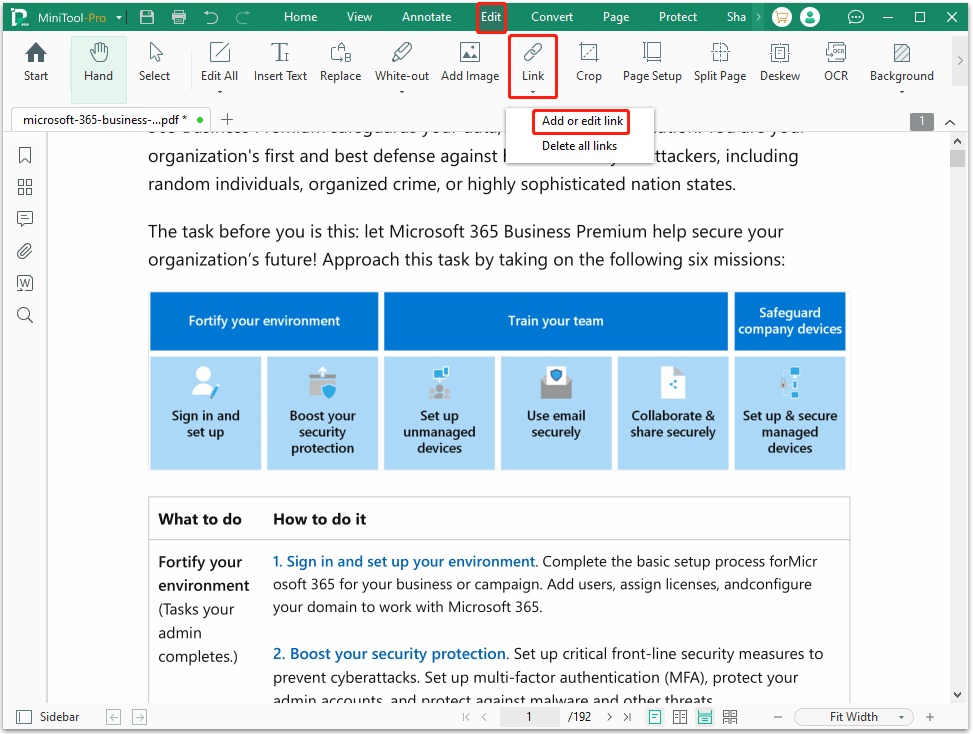
Step 4. Move your cursor to select the words/phrase/paragraphs that you want to add an email link to. Then, the Add Links window will pop up.
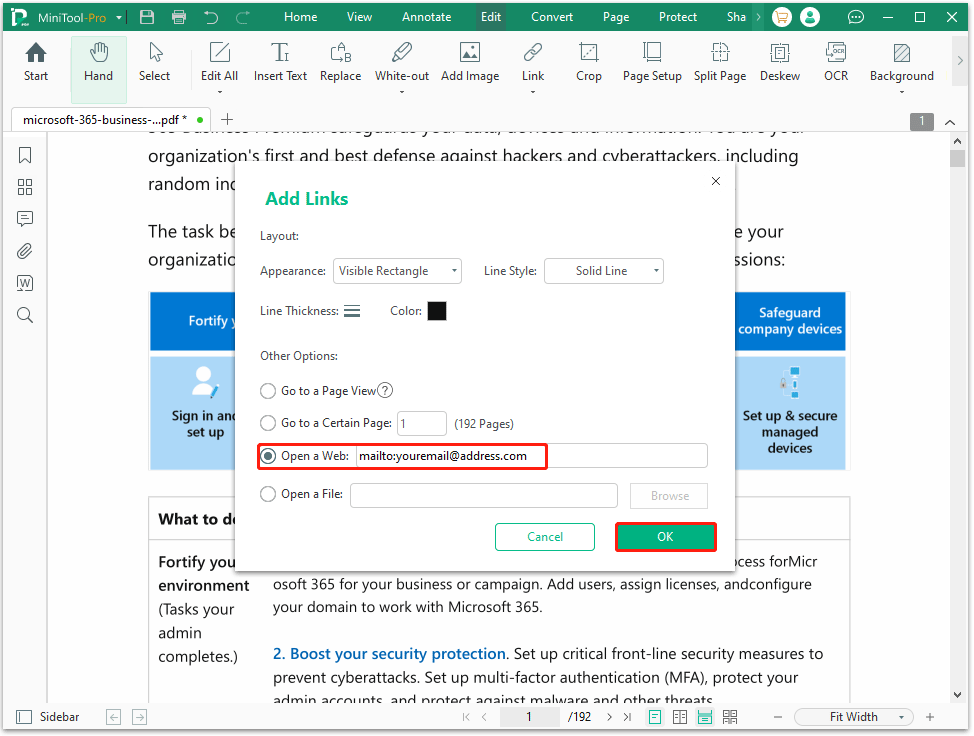
Step 5. Choose the Open a Web option. Then type or paste the email address in the URL box. Here, you can set the link layout, including Appearance (Visible/Invisible Rectangle), Line Style (Solid/Dotted/Underline), Line Thickness (1pt/2pt/3pt), and Color. Then click OK to add an email to the PDF.
Method 2. Use Adobe Acrobat
Adobe Acrobat is the industry-standard PDF editor, offering the most reliable and consistent link functionality. It can help you add email link to PDF with the Open a web page feature.
Here is how to add email link to PDF with Adobe Acrobat.
- Open your PDF file with Adobe Acrobat.
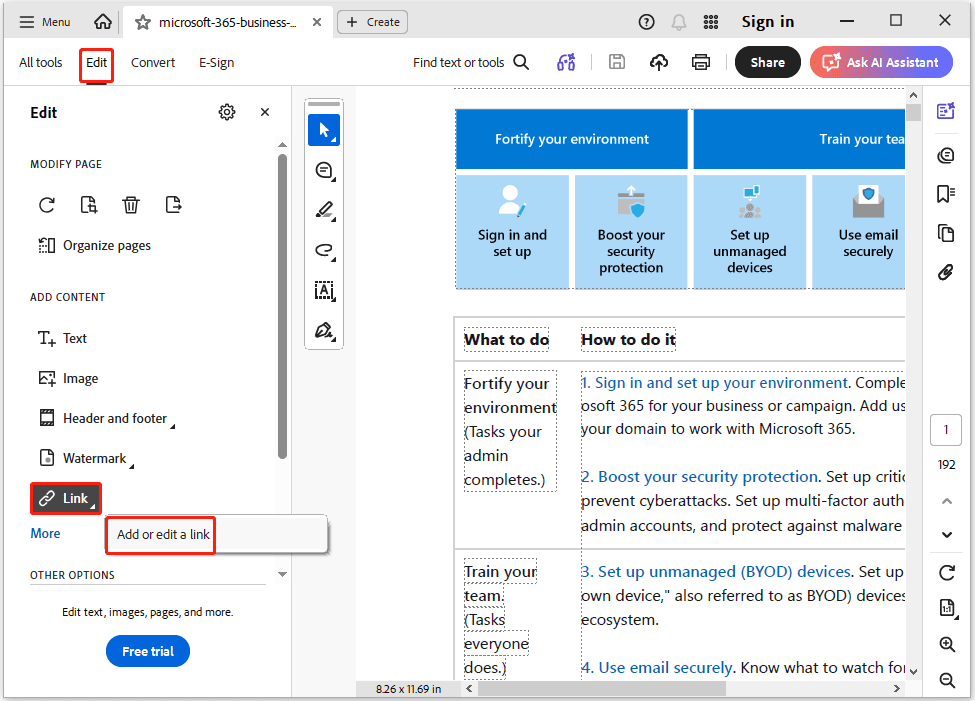
- Go to the Edit tab on the top toolbar, and choose Link > Add or Edit a link.
- In the pop-up Create Link window, select the Open a web page option, change other settings, and click Next.
- Hyperlink an email address in the blank box for the small window and click OK.
Method 3. Use Online Tools
To add an email link to a PDF, you can use an online tool. It doesn’t need to download the desktop software. However, using online tools to edit PDFs carries the risk of data leakage.
Here is the guide:
- Navigate to an online editor and click Upload PDF File.
- Locate the Link or Hyperlink button in the top menu bar.
- Use your cursor to draw a box or rectangle over the text or image you want to make clickable.
- A dialog box will appear. In the URL or Link field, type the email address.
- Click OK or Apply Changes, then download your updated PDF to your device.
What to Do If the Email Link Doesn’t Work?
If your email link isn't working, it is usually due to a formatting error or your PDF viewer. Try the following tips:
Tip 1. Check for Formatting Errors
The most common reason is a typo in the link's address.
- The mailto: prefix: Ensure the link starts with mailto: (e.g., mailto:name@example.com). It will not work if you only use the email address.
- No spaces: Ensure there are no spaces between mailto:, the colon, and the email address.
- Case sensitivity: While email addresses aren't case-sensitive, some older PDF viewers are. Try using all lowercase.
Tip 2. Use the PDF Viewer to View
Not all PDF viewers support interactive "mailto" links. Built-in PDF viewers in browser (Chrome, Firefox, or Safari) often block "mailto" links for security or lack the proper "Protocol Handler".
So, try downloading the PDF and opening it in a dedicated app like MiniTool PDF Editor.
Bottom line
This post offers 3 different methods to add email link to PDF. You can choose one of them to do that.
If you encounter issues when using MiniTool PDF Editor, contact us by sending an email to support@minitool.com. We’ll get back to you as soon as possible.