

PDF is widely used because it maintains a consistent format when shared across devices and platforms, offering advantages such as format stability and high security.
When using PDFs, you might need to add sticky notes to your documents. So how do you do that exactly? Read on to find out.
What Are Sticky Notes in PDF?
Sticky notes are a type of annotation tool used in PDF files. You can add a small sticky note anywhere on a PDF page to write notes, comments, tips, or suggestions for improvement.
After adding a sticky note, a small icon (usually a speech bubble) will appear in the PDF. Its main features include:
- No change to the original text: It doesn’t modify the PDF text. It only adds the annotation.
- Flexible placement: It can be placed anywhere on the page.
- Editable and deletable: The content of the sticky note can be modified at any time.
- Supports multiple colors: Facilitates collaboration among multiple users and helps distinguish different annotations.
- High compatibility: Most PDF readers support viewing and adding sticky notes.
Now that you understand what sticky notes in a PDF are, let’s look at how you can add them to your PDF documents.
How to Add Sticky Notes in PDF
Adding sticky notes to PDF documents can help you quickly annotate, jot down ideas, or suggest revisions.
Below, I’ll introduce several common methods to easily add notes to PDFs.
#1. Use MiniTool PDF Editor
To easily add sticky notes to a PDF, it’s best to use a PDF annotator that offers multiple tools. I highly recommend MiniTool PDF Editor, a reliable and feature-packed PDF program.
It allows you to highlight text, insert text, text boxes, and callouts, as well as add lines, shapes, dynamic stamps, stickers, and more to your PDF.
Here are the steps on how to add notes to PDF files:
Step 1: Click the button below to download and install MiniTool PDF Editor on your computer.
MiniTool PDF EditorClick to Download100%Clean & Safe
Step 2: Right-click your PDF file and click Open with, then choose MiniTool PDF Editor.
Step 3: In the pop-up window, click Annotate and select Note.
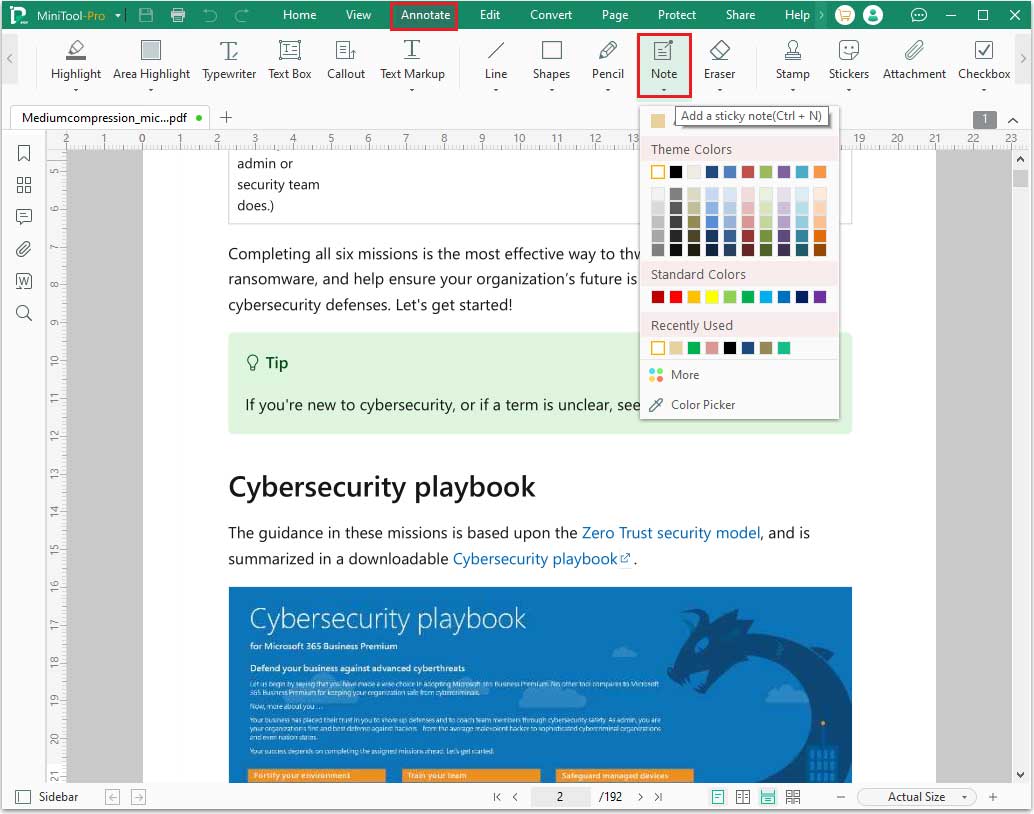
Step 4: Choose your desired color, and then click on the area where you want to add the sticky note. A box will pop up on the right. Double-click the small box (in this case, it’s purple), and you can then enter the annotation text you want to add on the right side.
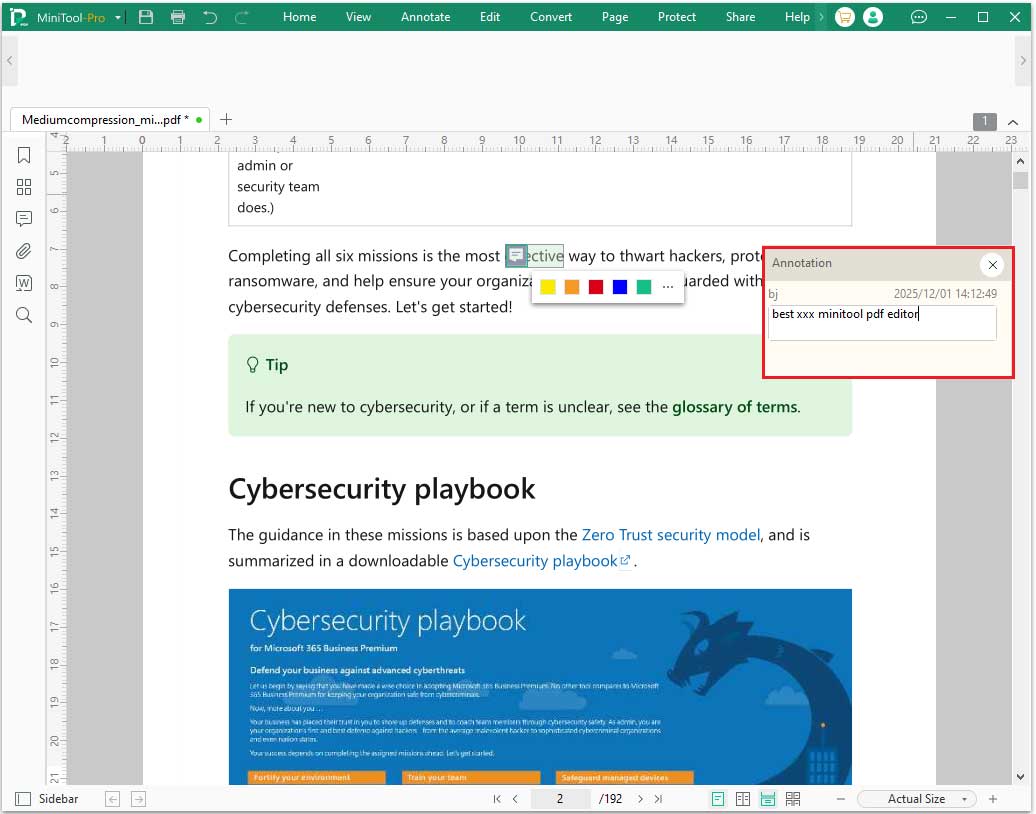
If you want to delete the note, right-click the small purple icon and select Delete.
#2: Use Adobe Acrobat
Adobe Acrobat, the software developed by the developer of the PDF format, is a leader in the PDF field. It offers the ability to create, view, and edit PDF documents.
To add notes in a PDF via Adobe Acrobat, follow these steps:
Step 1: Open Adobe Acrobat to its main interface.
Step 2: Click Open File and choose a PDF file to open.
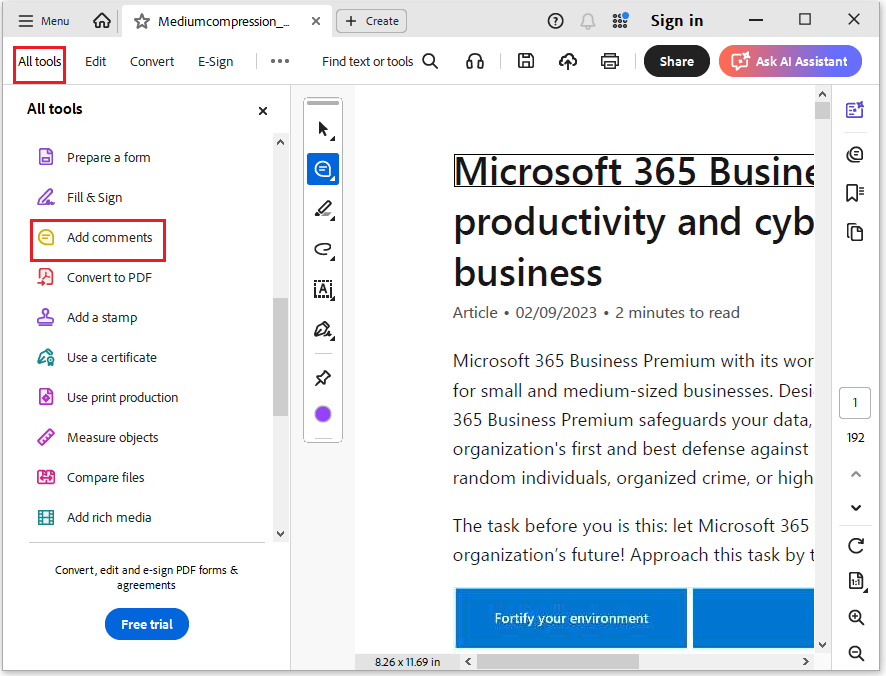
Step 3: Click the All Tools tab at the top, and in the left-hand panel, choose Add comments.
Step 4: Click on the area where you want to place the note. Then, type your comment in the pop-up text box that appears on the right side and click Post.
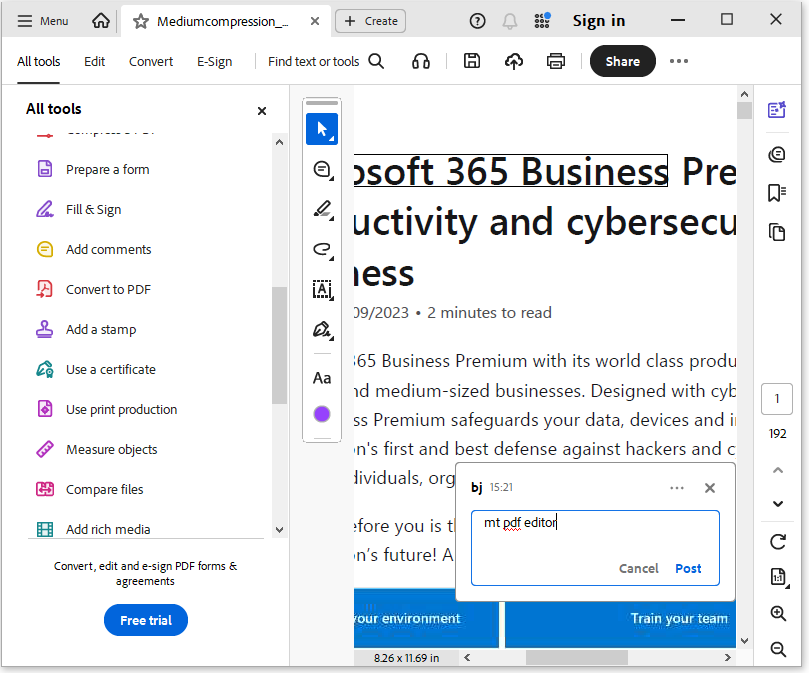
Save your PDF to keep the note. You will be prompted to save when you close the file.
#3. Use PDFgear
We’ve already introduced how to add notes to PDFs using MiniTool PDF Editor and Adobe. For users who prefer adding Post-it notes online, a web-based notes tool is a good option.
PDFgear is a full-featured online PDF platform that can help you achieve this.
Step 1: Visit the PDFgear official website. Then choose Annotate now and click Select PDF file to upload your PDF file.
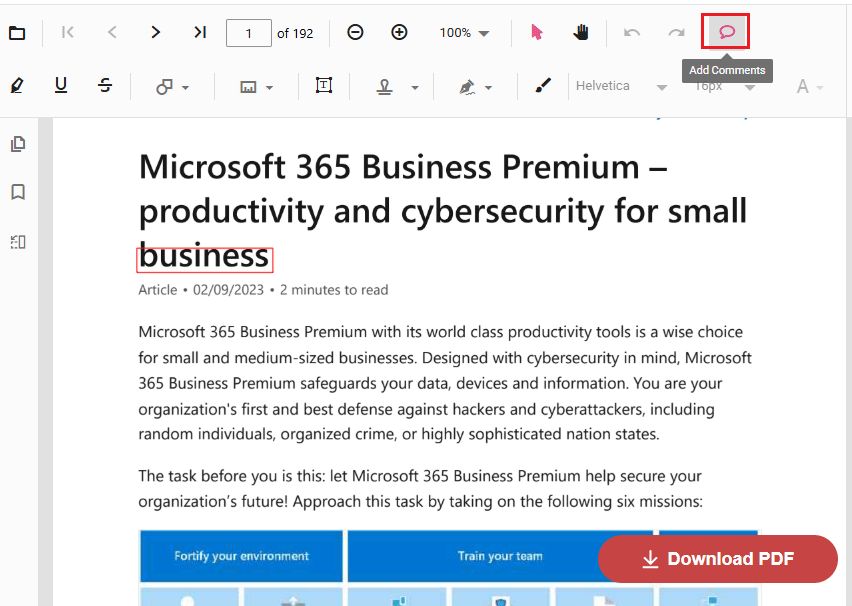
Step 2: Click the Add Comments button at the top, then click on the PDF to place the comment. Double-click the comment box, and you can start typing your notes.
Bonus Tip: Why Can’t I Add Notes to a PDF?
When adding sticky notes to a PDF, if you find that you cannot click the annotation tool or insert any sticky notes, it is usually due to the following reasons:
1. The PDF is encrypted or locked.
Some PDF files are password-protected or have access restrictions, and the editor may prevent others from editing, copying, or adding annotations. If the PDF is encrypted, you will find that the annotation tool is grayed out and unavailable.
2. The PDF is only in read-only mode.
Some PDF readers automatically enter read-only mode after opening a file. Editing and annotation are disabled by default in this mode.
3. Annotation permissions are not enabled on the PDF.
Some PDFs generated by professional software (such as some form files) may only allow filling or signing, and not adding annotations.
4. Your PDF reader does not support editing or annotation.
Some lightweight PDF readers only support viewing and do not support annotation functions.
Bottom Line
By using professional PDF annotation tools, adding sticky notes to PDFs is incredibly easy. This article introduces online and desktop tools to help you easily add sticky notes to your PDFs.
If you are a Windows user, I recommend trying MiniTool PDF Editor. It supports 32-bit and 64-bit Windows XP/7/8/8.1/10/11 systems. This all-in-one PDF editor can not only add notes but also perform various other PDF operations.
If you have any questions while using the MiniTool PDF Editor, contact us via support@minitool.com.