

If you want to save a ChatGPT conversation as a PDF for better presentation, this post is what you need. It offers 3 methods to help you convert ChatGPT to PDF and introduces MiniTool PDF Editor to help you modify the ChatGPT conversation PDF file.
ChatGPT is a powerful AI chatbot from OpenAI that generates human-like text and helps you with emails, code, blog posts, and more. Many users want to save their ChatGPT conversations as PDFs. Doing so provides several benefits:
- Read the chats without an internet connection, perfect for on-the-go use.
- Make the chats easy to share and present because PDFs look the same on any device.
- Keep structured records of brainstorms, research, code, or learning, preventing loss and making information searchable.
- Create a formal record for work, projects, or academic purposes.
- Find specific information more quickly by searching within the PDF, rather than scrolling through long chats.
How to convert ChatGPT to PDF? The following 3 methods can help you.
Method 1. Print ChatGPT Conversation to PDF
To convert ChatGPT to PDF, printing is the simplest method. In addition, this method works both on the ChatGPT app and web versions.
Here is how to print ChatGPT conversations to a PDF.
Step 1: Open ChatGPT conversation in a browser. You can skip this step if you are using the ChatGPT web version.
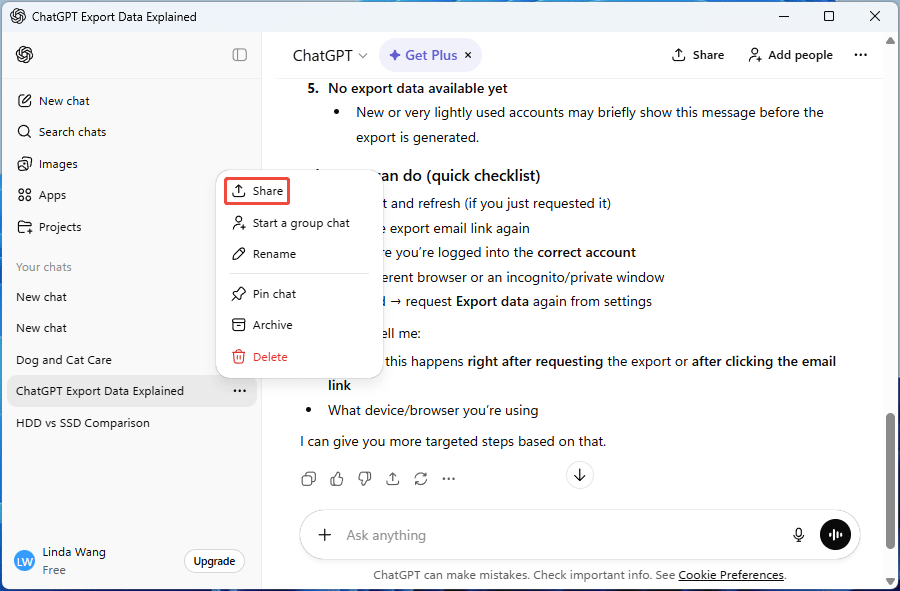
- On the left side bar, under Your chats, click the three-dot icon of a conversation.
- Select Share.
- In the pop-up window, click the link icon at the bottom. You will see the “Link copied” message.
- Now, open a browser, paste the link into the address bar, and press Enter to open the conversation.
Step 2: Print the conversation to PDF.
- On the conversation webpage, click Log in in the upper right corner and then follow the on-screen instructions to log in to ChatGPT. If you do not log in, you are unable to print the conversation.
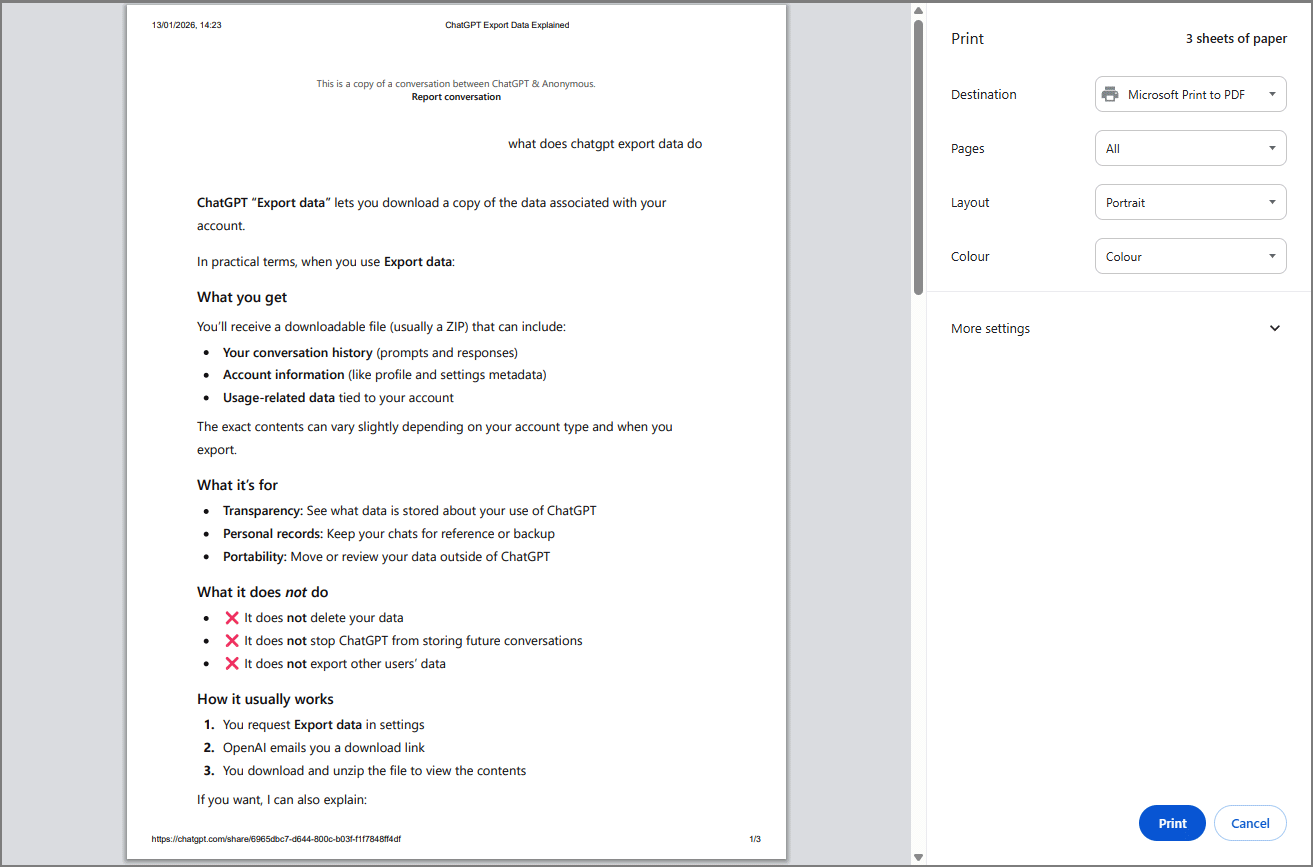
- Once done, right-click on the blank area of the conversation webpage and select Print.
- On the pop-up window, make sure Destination is Microsoft Print to PDF and then click Print.
- Type the file name and select a location to save the PDF file.
Method 2. Export ChatGPT Conversation to PDF
ChatGPT has a built-in Export Data option that allows you to download your conversation history as a ZIP file. Other account details and usage data are included as well, and you will receive the file via email.
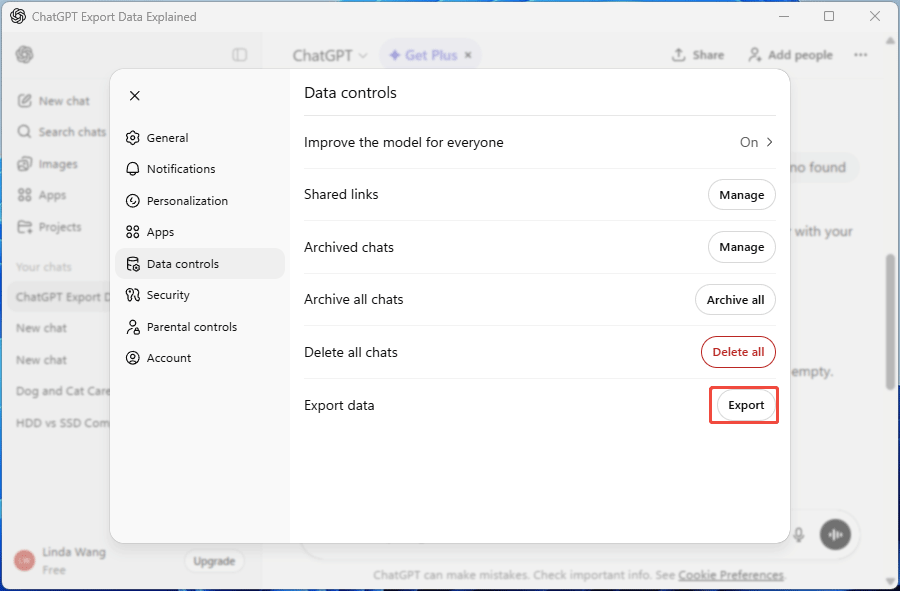
Step 1: Export the ChatGPT data.
- On the ChatGPT app, click your account in the bottom left corner, and then select Settings.
- Go to Data controls, find Export data, and click the Export button.
Step 2: Download the ChatGPT conversation.
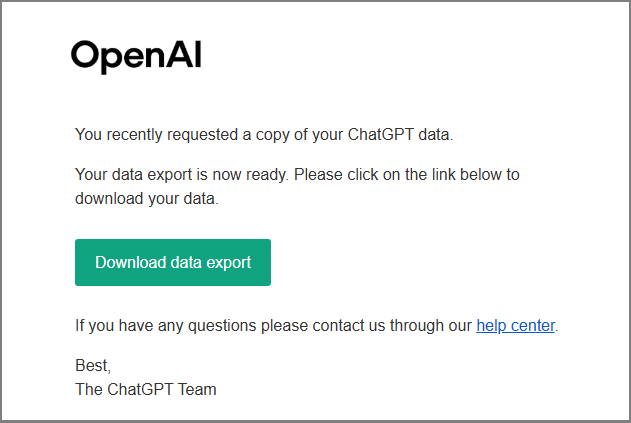
- Log in to your email account and open the email sent by OpenAI.
- Click the Download data export button to get a ZIP file.
Step 3: Print ChatGPT conversation history to PDF.
- Extract the ZIP file and then double-click the HTML file to open it.
- Right-click on the blank area of the webpage and select Print. This will convert all these ChatGPT conversations into a PDF file.
Method 3. Paste to Word or Google Docs
This simple method allows you to selectively save the most important parts of your ChatGPT conversation.
Here is how to save ChatGPT conversation as PDF via Word and Google Docs.
- Word: Open a blank Word file, copy the ChatGPT conversation, and then paste it into the Word file. After that, click File > Save As, select a location to save the file, change Save as type to PDF (*.pdf) on the Save As window, and click Save.
- Google Docs: Log in to Google Docs, and then click the plus button of the Blank document. Copy the ChatGPT conversation and paste it into the Google Docs file. Then, click File > Download > PDF Document (.pdf).
How to Modify Your ChatGPT PDF File
After saving ChatGPT conversations as PDF, you may find that the clickable links are missing, and the content needs to be modified or added. MiniTool PDF Editor is capable of these jobs. It can edit, insert, white-out text; add images, links, stickers, attachments, etc.; convert, protect, compress PDF; and so on.
MiniTool PDF EditorClick to Download100%Clean & Safe
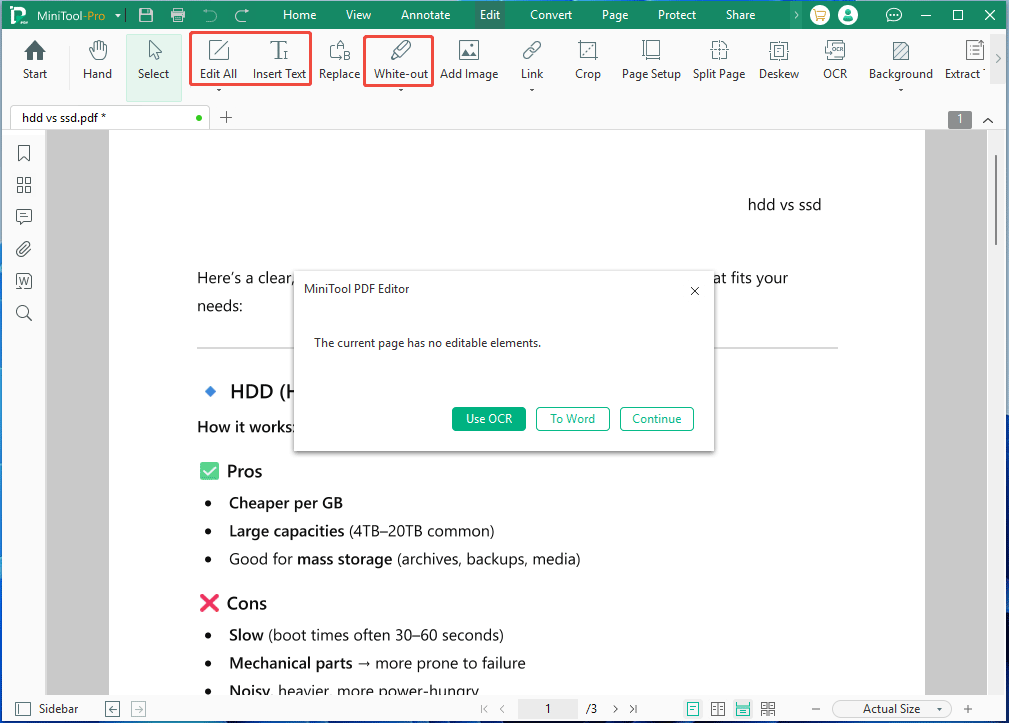
Here are three features you might use frequently for the ChatGPT conversation PDF file modification. To access the three features, open the PDF file in MiniTool PDF Editor and go to the Edit tab.
- White-out: It uses areas or lines to hide improper content. You can pick the line or area color according to your needs.
- Edit All: Clicking it will prompt you to Use OCR. Select this option to convert the image-based PDF to an editable one. Then, you can modify the text in Block, Paragraph, Line, or Object.
- Insert Text: This feature will also trigger the OCR feature. Then, you can insert text at your will.
Bottom Line
This post shows you how to save, print, export, or download ChatGPT conversations to a PDF file. Pick the method that works best for you, depending on whether you want a quick solution or full control. In addition, if you want to modify the ChatGPT conversation PDF file, MiniTool PDF Editor is useful.
If you encounter issues when using this software, contact our support team via support@minitool.com for solutions.
About The Author

Position: Columnist
Linda has been an editor at MiniTool for seven years. She continuously learns about computers and puts her knowledge into practice. Moreover, she is particularly knowledgeable in disk management, data recovery, system installation, and PDF editing. Her articles typically reference multiple examples or are based on her own experience, providing users with the most suitable solutions.