

Can You Merge Digitally Signed PDFs
Can digitally signed PDFs be merged? The answer is yes. However, it is worth noting that merging signed PDFs usually invalidates the signature.
The reason for this is that a PDF’s digital signature is generated based on a hash value derived from the file’s content.
Once the file is modified in any way, such as by adding, deleting, or rearranging pages, the original hash value no longer matches, causing the signature to appear as invalid.
Therefore, if you wish to combine signed PDFs without breaking signatures, you can do so by utilizing the two methods outlined below.
How to Combine Signed PDFs into One File
Combining signed PDFs into a single file can simplify file management. However, this merging process may cause existing digital signatures to become invalid.
The following sections introduce two practical and secure methods for merging signed PDFs: using MiniTool PDF Editor or Adobe Acrobat.
Depending on your needs, you can choose a suitable method to merge the signed PDF files. Below is a comparison table of the two methods:
| MiniTool PDF Editor | Adobe Acrobat | |
| Operation method | First, clear the signature, then merge it, and then re-sign | Use the PDF Portfolio feature |
| Signature reservation | The original signature is invalid, but the newly signed signature on the merged final document is valid. | Digital signature valid |
| Ease of use | Simple interface, easy to use | It has many features, but beginners need to learn them. |
| Price | $19/Month | $19.99/Month |
Method 1: Combine Signed PDFs via MiniTool PDF Editor
With MiniTool PDF Editor, you can easily merge digitally signed PDFs. This is a versatile PDF tool that allows you to clear all signatures, merge PDFs, sign PDFs, split documents, add images/watermarks, convert file formats, compress PDF files, and more.
MiniTool PDF EditorClick to Download100%Clean & Safe
Step 1: Right-click the PDF from which you want to combine signed PDFs with the digital signature, then choose Open with > MiniTool PDF Editor.
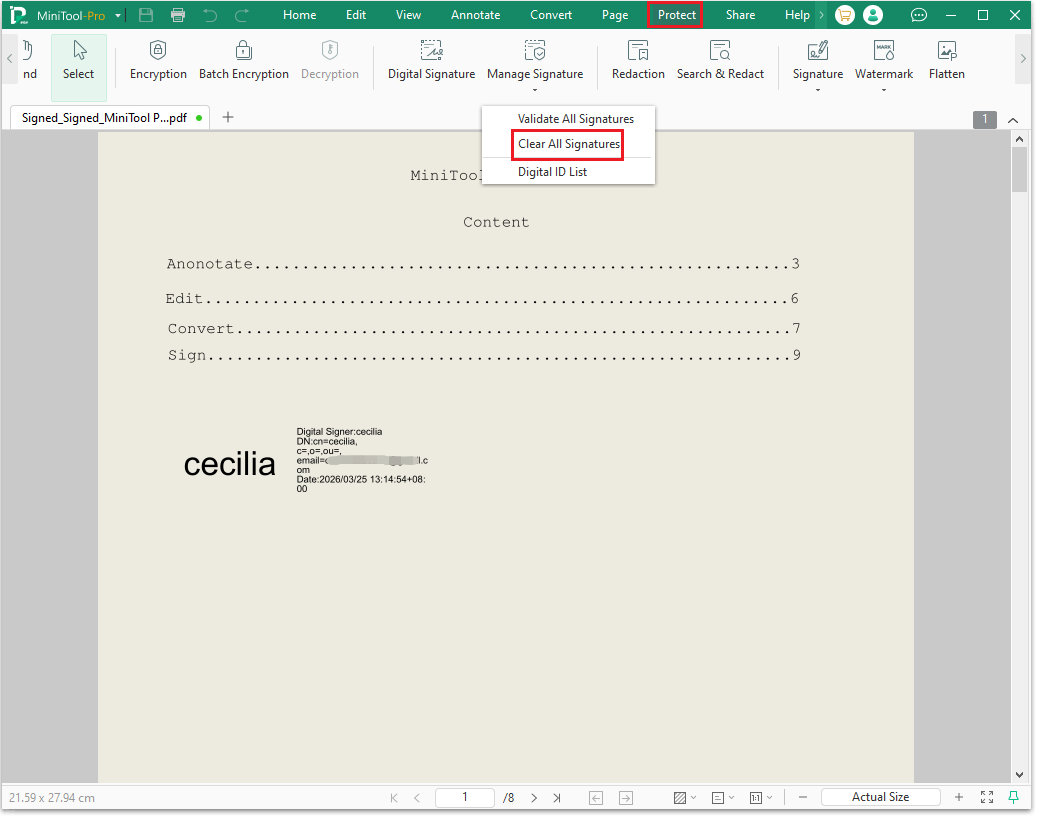
Step 2: From the top menu, open the Protect tab. Among the three options: Validate All Signatures, Clear All Signatures, and Digital ID List. Select Clear All Signatures to continue.
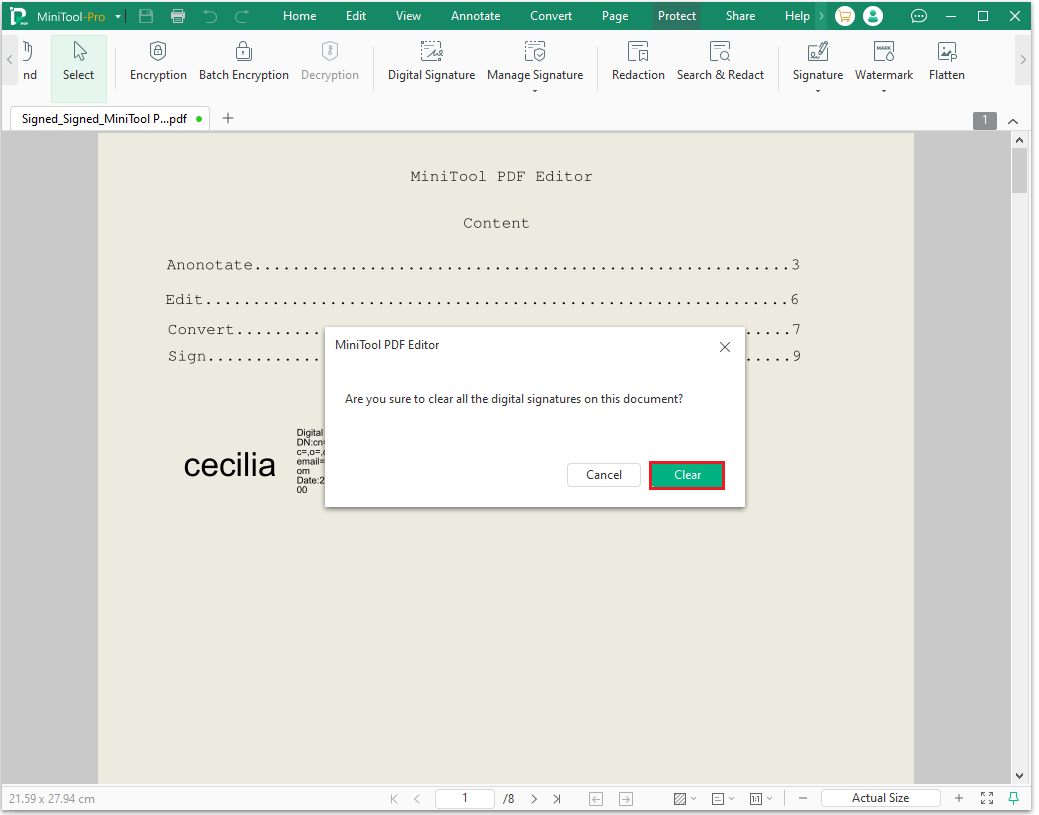
Step 3: When the pop-up appears, select Clear to delete all digital signatures.
Step 4: Navigate to the Home tab, click Merge. A new window will pop up.
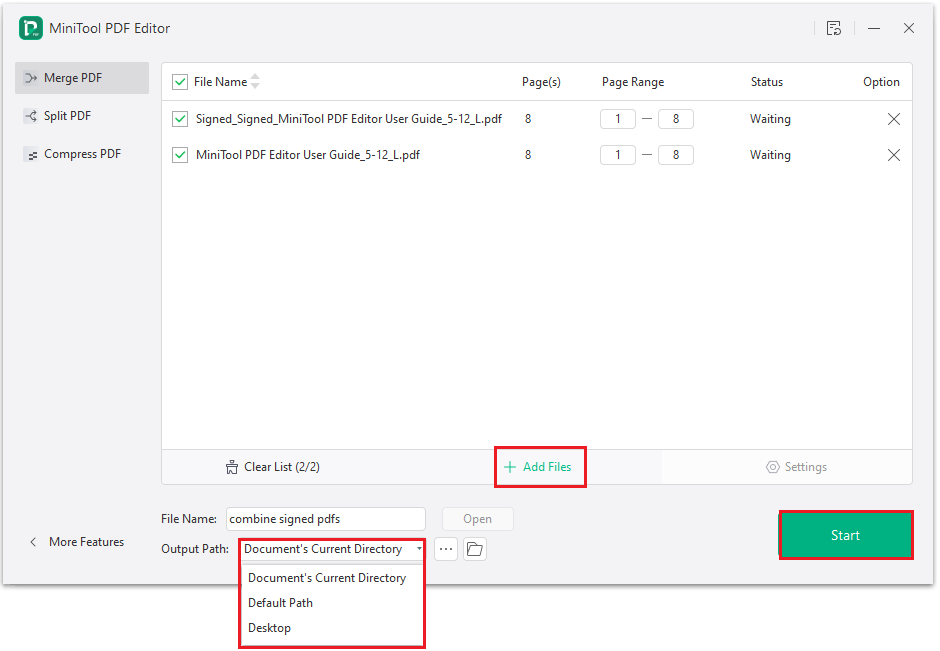
Step 5: In the pop-up window, click Add Files to choose a second PDF or multiple PDF files to merge. Then, under Page Range, you can choose the pages you want to include. Enter a File Name and select an Output Path, then click Start.
Step 6: A warning window will appear, then click OK to confirm.
Step 7: Once the merging process is complete, open the file you combined via MiniTool PDF Editor.
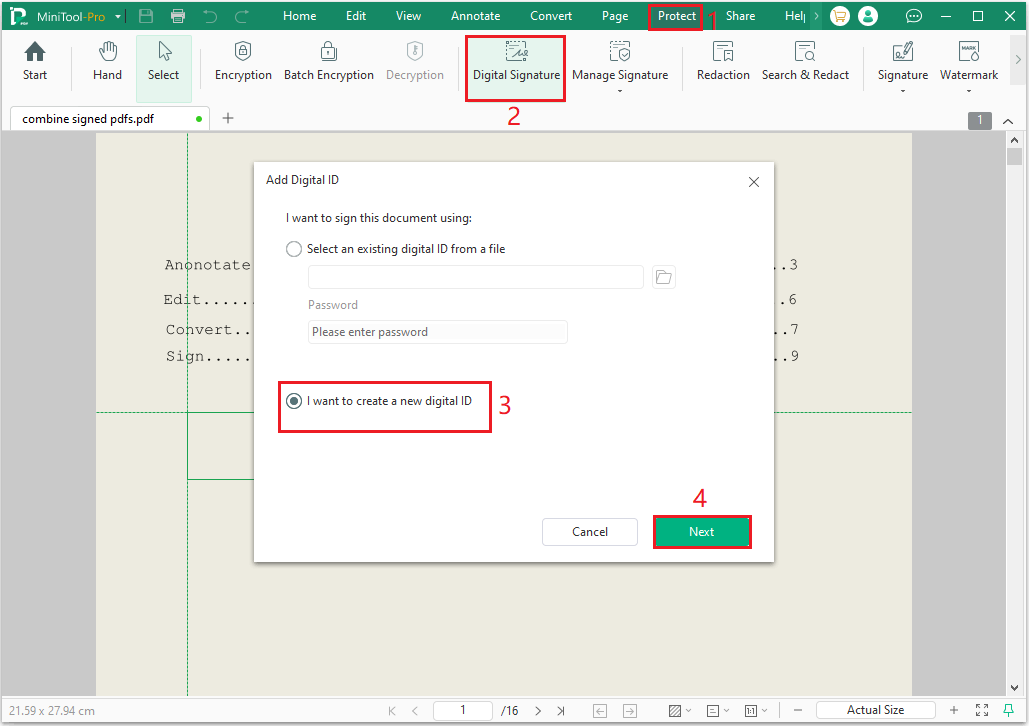
Step 8: Click Protect and then choose Digital Signature. Drag your mouse to draw a box where you want to insert a digital signature. You can resize it by dragging the green border. After that, select I want to create a new digital ID and hit Next.
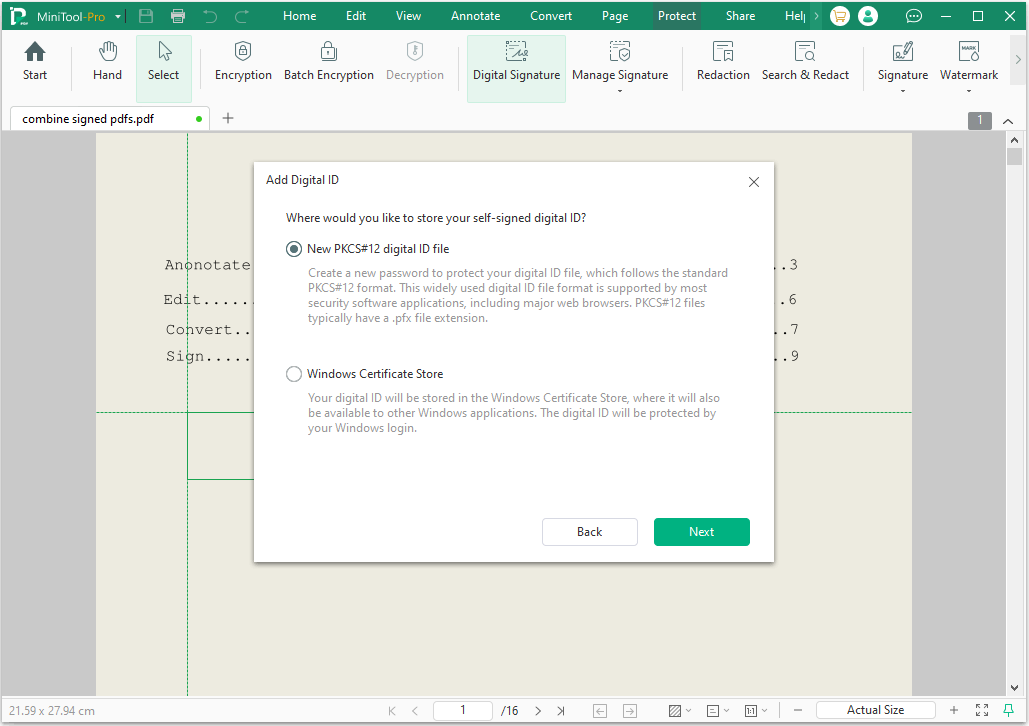
Step 9: Select the default option to store digital signatures and click Next.
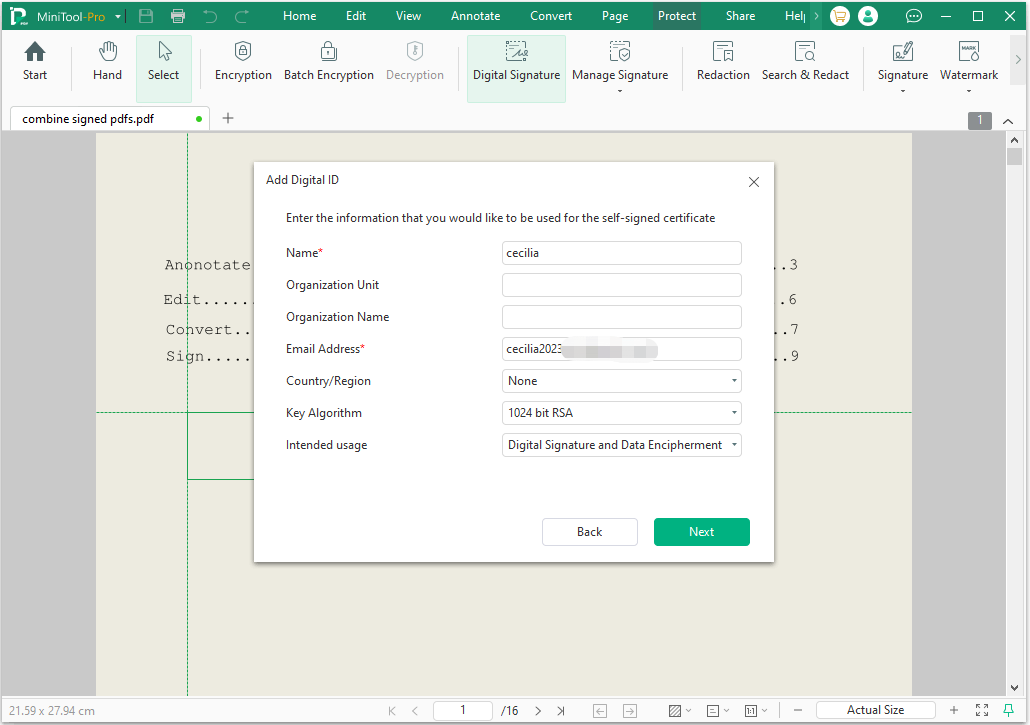
Step 10: Fields marked with a red asterisk are required. After completing the form, click Next.
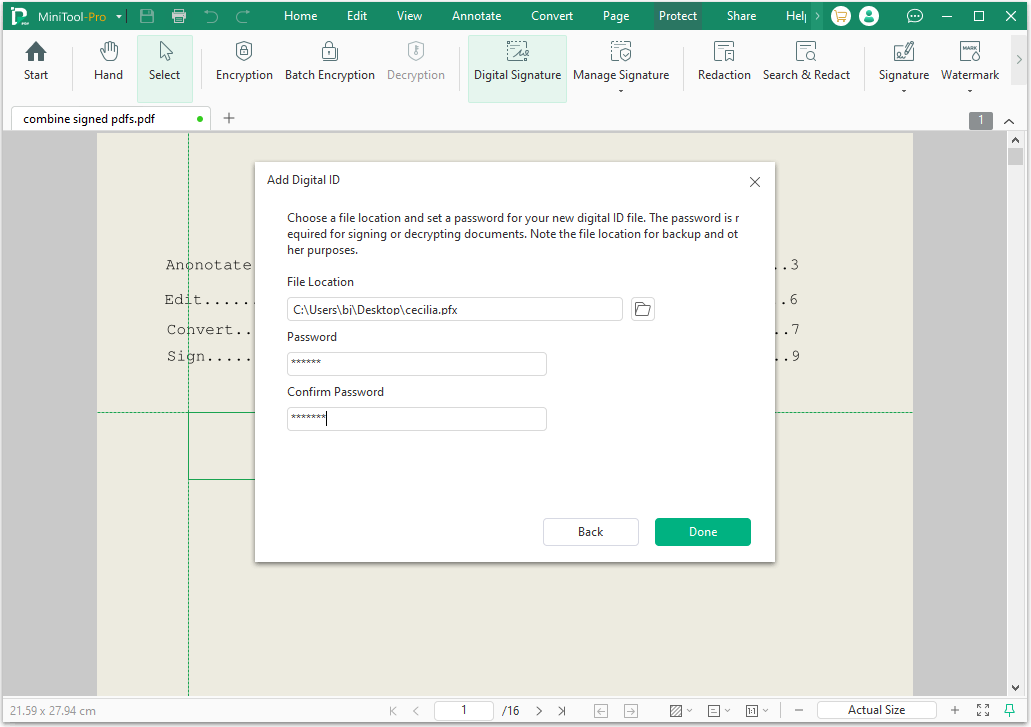
Step 11: Select a location to save your new digital ID file, create a password for it, and then click Done.
Step 12: In the newly opened pop-up window, the default setting is Standard. Then, enter your password and click Sign > Save.
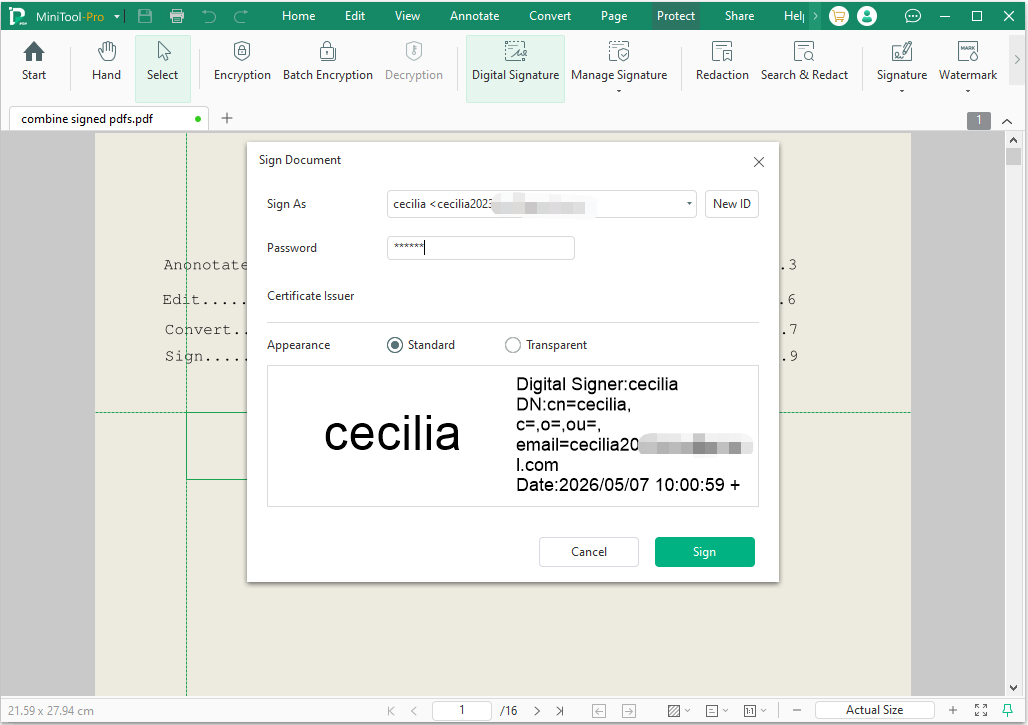
You now have a merged and re-signed PDF document.
Method 2: Combine signed PDFs via Adobe Acrobat
If you prefer a simpler approach, you can use Adobe Acrobat Pro to merge signed PDF documents by creating a PDF file package. This method is suited for preserving personal signatures.
Here are the steps:
Step 1: Open Adobe Acrobat on your PC.
Step 2: Go to File, choose Create, and select PDF Portfolio.
Step 3: Within the Create PDF Portfolio interface, click Add Files to choose all the signed PDFs you wish to merge.
Step 4: You can optionally select a layout for the portfolio. When finished, go to File and choose Save As to save your PDF portfolio.
Combine Signed PDFs FAQ
Bottom Line
By using the methods described above, you can easily merge digitally signed PDFs. If you have any questions or suggestions while using the MiniTool PDF Editor, you can contact us via support@minitool.com to get a quick reply.