

What Is Letter Size and When Do You Need It?
Letter size is the standard paper size measuring 8.5 x 11 inches (215.9 x 279.4 mm). It is widely used for business letters, resumes, reports, academic papers, legal forms, and official government documents in North America.
Portable Document Format (PDF) has become one of the most widely used file formats for sharing, storing, and displaying documents. Its ability to maintain consistent formatting across different devices and operating systems makes it indispensable for users such as businesses and students.
However, resizing a PDF becomes especially important when the pages don't fully fit the print size. You may need to change the PDF page size from Legal, A4, or other sizes to letter size. Doing so makes the content look cleaner and the document more professional.
Most people need to convert PDFs to letter size in specific everyday situations. These include:
- Converting international A4 PDFs (common in academic journals, global business documents, and online resources) to letter size for U.S. printing.
- Resizing legal-size PDFs (8.5" × 14", often used for contracts and legal forms) to letter size for filing, emailing, or standard printing.
- Adjusting custom-sized PDFs (such as flyers, brochures, or scanned documents with irregular dimensions) to fit standard letter paper.
- Preparing resumes, cover letters, and application materials for U.S.-based employers or universities, which mandate letter-size formatting.
How to convert PDF to letter size? This post offers 3 effective methods to do that.
Method 1. Use MiniTool PDF Editor
MiniTool PDF Editor is a versatile, all-in-one PDF management tool to edit, split, and compress PDFs and do more. Its interface is designed to be intuitive, making it accessible for beginners.
This software can help you convert PDF to letter size, resize PDF to A4, make all pages in a PDF the same size, etc.
Now, follow these steps to print and convert A4, Legal, or any size PDF file to letter size.
Step 1. Download and install MiniTool PDF Editor on your computer. Then launch it to its main interface.
MiniTool PDF EditorClick to Download100%Clean & Safe
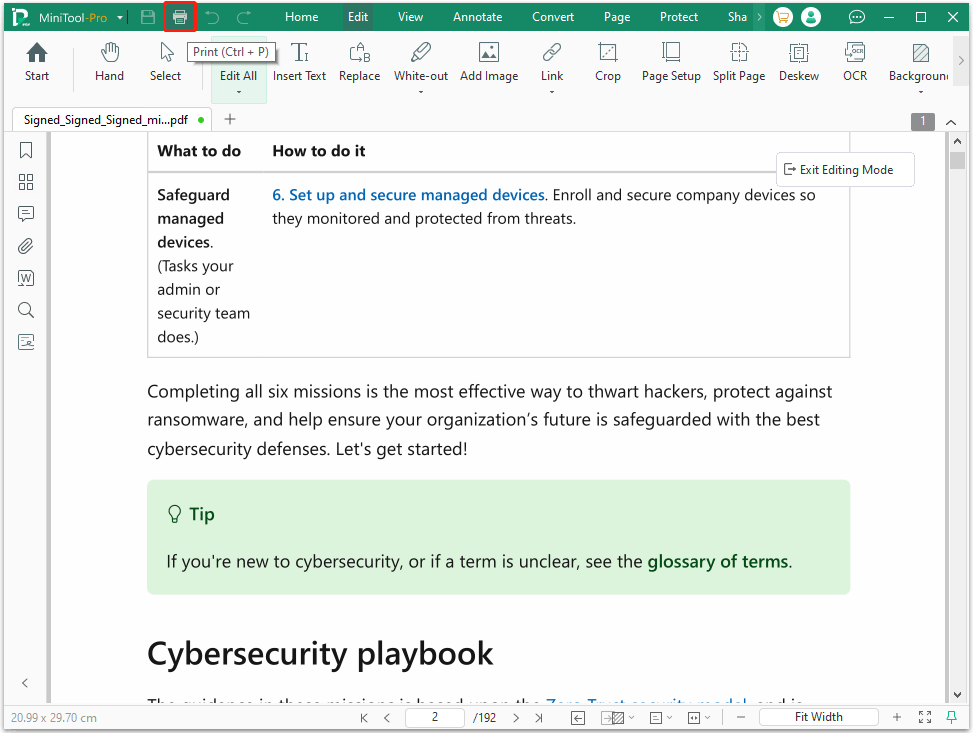
Step 2. Select Open from the left panel, choose the PDF that you want to convert to letter size, and click Open to move on.
Step 3. Once the PDF file opens, click the Print icon in the top-left corner or press Ctrl + P.
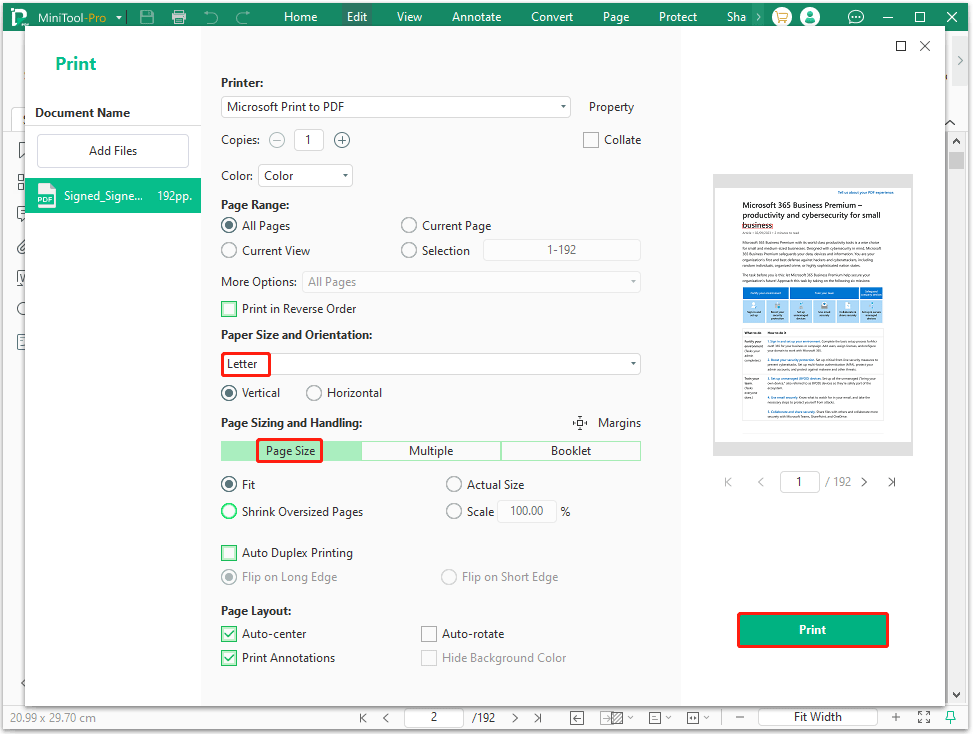
Step 4. In the pop-up window, under the Paper Size and Orientation section, select Letter.
Step 5. Move to the Page Size part, fit or scale the pages to the new size, and change other printing settings. Then click Print to convert A4 PDF to letter size.
You can also crop PDF files to letter size (8.5 x 11 inches). This removes unnecessary white margins, making the document cleaner. Select Edit > Crop > Adjustments, enter the margin values, and then click Apply Changes to crop the PDF pages.
Method 2. Use Adobe Acrobat
Adobe Acrobat is a well-known PDF reader and editor. Popular for its powerful features, it can be used to sign, fill in, view, print, and convert a legal PDF to letter size.
To convert PDF to letter size, here are the steps:
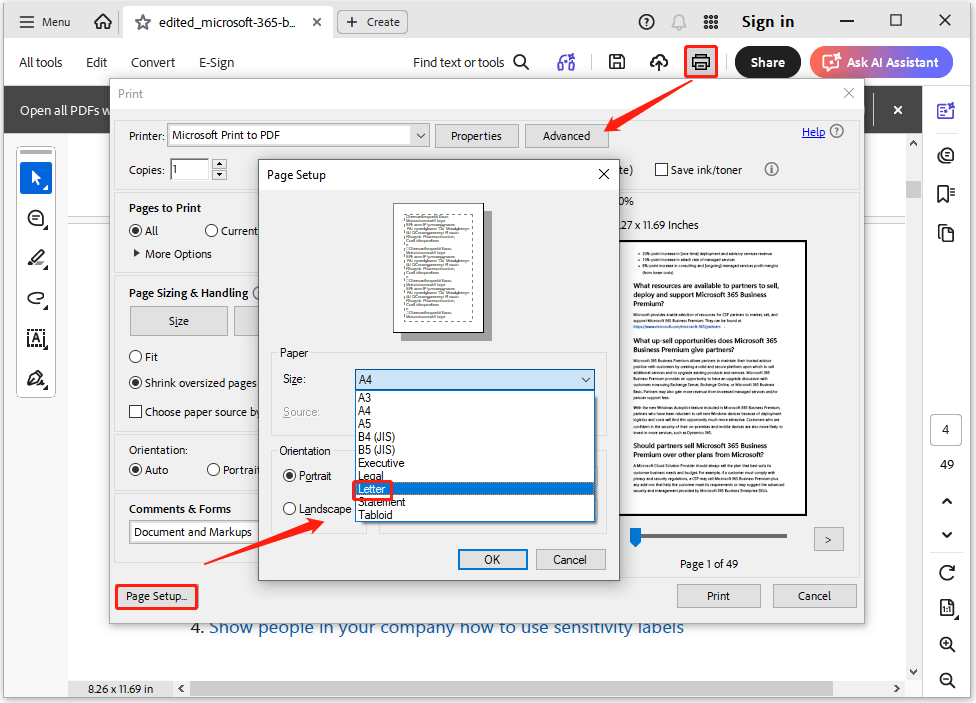
- Open Adobe Acrobat, import the PDF file that needs to be printed.
- Click the Print icon.
- In the pop-up Print window, click Page Setup.
- Click the Size drop-down button to select Letter, and click OK.
- Configure other printing parameters as needed, and then click Print to resize the PDF pages to Letter size.
Method 3. Use the Print Feature in a Web Browser
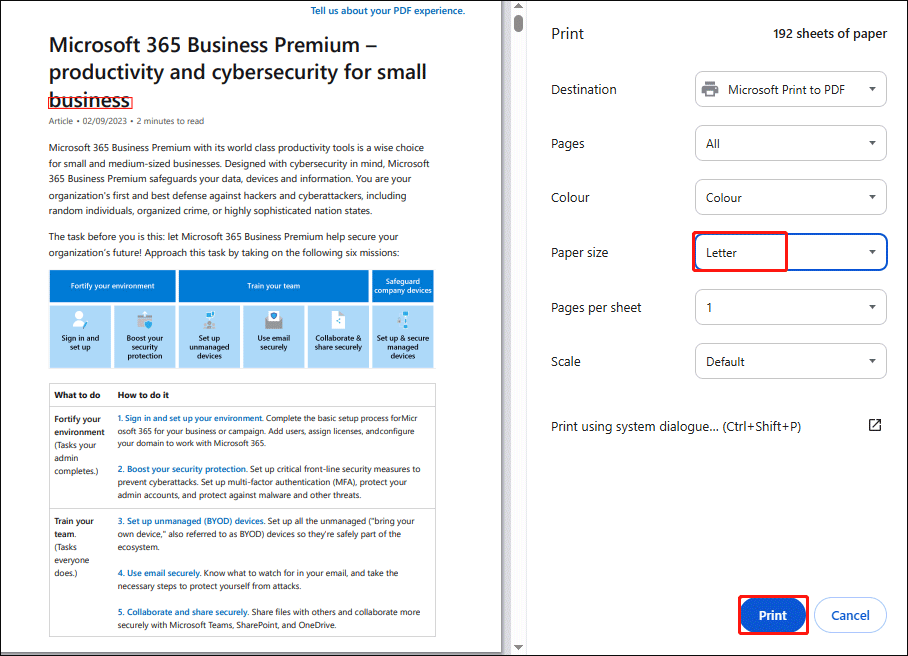
To convert PDF to letter size, you can do that with a web browser. It doesn’t need to download the desktop software. Here is the guide:
- Open the PDF file using any web browser (Microsoft Edge or Google Chrome).
- Press Ctrl + P to open the Print dialog box.
- Next to the Paper size section, select Letter from the dropdown menu.
- Click Print.
Common PDF Paper Size
The most common PDF paper sizes are Letter and A4, which are used globally as the standard for business, academic, and administrative documents.
These two belong to different measurement systems: the North American Measurement System and the international ISO 216 standard.
1. North American Standard Sizes
These sizes are primarily used in the United States and Canada, and are in inches.
- Letter (8.5" x 11"): The absolute standard for everyday office printing, resumes, and school reports.
- Legal Paper (8.5" x 14"): Specifically used for legal contracts and documents where extra space is needed for text.
- Tabloid/Ledger (11" x 17"): A large format often used for newsletters, posters, or architectural plans.
2. International Standard Sizes (ISO A Series)
This size is used in Europe, Asia, and most of the rest of the world, using metric units (millimeters).
- A4 (210 x 297 mm): The international equivalent of Letter size and the most widely used paper size for general documents worldwide.
- A3 (297 x 420 mm): Twice the size of A4, commonly used for posters, charts, and folded diagrams.
- A5 (148 x 210 mm): Half the size of A4, typically used for brochures, flyers, and invitations.
Bottom Line
This post offers 3 different methods to convert PDF to letter size. You can choose one of them to do that.
If you encounter issues when using MiniTool PDF Editor, contact us by sending an email to support@minitool.com. We’ll get back to you as soon as possible.