

PDF and Word are two important document formats. PDF is a static, fixed-layout document where each element (text, lines, and cells) is locked in a precise position to ensure consistent display.
However, Word uses a dynamic, flow-based structure that adjusts content based on page size, margins, and editing operations.
How to copy a table from PDF to Word? Unlike copying tables between Word documents, you cannot directly use the copy and paste command to copy a table from a PDF into a Word document.
If you try to move a PDF table into a Word document with just copy and paste, you will only be able to copy the values in the table, and the table formatting will be lost.
To keep the table format, you need to first convert the PDF to Word and then copy the converted Word to the target Word. Keep reading to know the detailed steps.
Step 1. Convert PDF to Word
As mentioned above, you need to first convert the PDF table to Word. In this part, we will illustrate how to do that with 3 tools.
Tip: Don't worry about the conversion damaging the source PDF file because the original PDF document remains unchanged. The following tools simply create a new Word file based on this PDF.
Tool 1. Microsoft Word
One of the easiest ways to convert PDF (including a table) to Word is to open the PDF file directly in Word.
This method works in Microsoft Word 2013 and newer versions (including Word 2016, 2019, 2021, and Microsoft 365). Just needs a few steps.
- Run Microsoft Word.
- Go to the File tab, select Open, and choose your PDF file.
- Click OK when prompted to convert the PDF to an editable Word document.
- Microsoft Word will open the PDF document.

Tool 2. MiniTool PDF Editor
MiniTool PDF Editor is a powerful and feature-rich PDF editor. It can also help you convert the PDF to Word without losing original formatting, layout, and quality.
As a professional PDF converter, it can:
- Convert PDFs to Word, Excel, PPT, image, TXT, HTML, EPUB, CAD, PDF/A, XPS, markdown, and vice versa.
- Convert PDFs to scanned or searchable copies.
- Convert scanned copies to editable PDFs using OCR.
Now, click the download button to download and install this tool on your computer. Note that this tool has a 7-day free trial. After the trial expires, you need to upgrade to the Pro edition to access all the features.
MiniTool PDF EditorClick to Download100%Clean & Safe
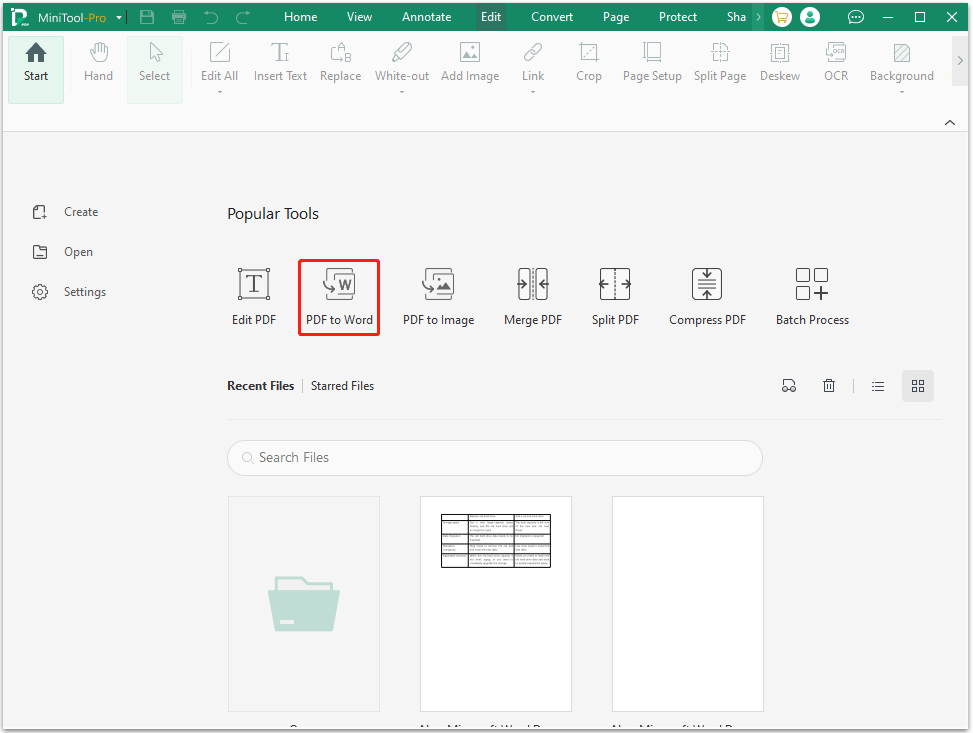
Step 1. Launch MiniTool PDF Editor to enter its main interface. Then click the PDF to Word feature.
Step 2. In the pop-up window, click Add Files to import the target PDF file.
Step 3. Choose a preferred Word format from the Format list.
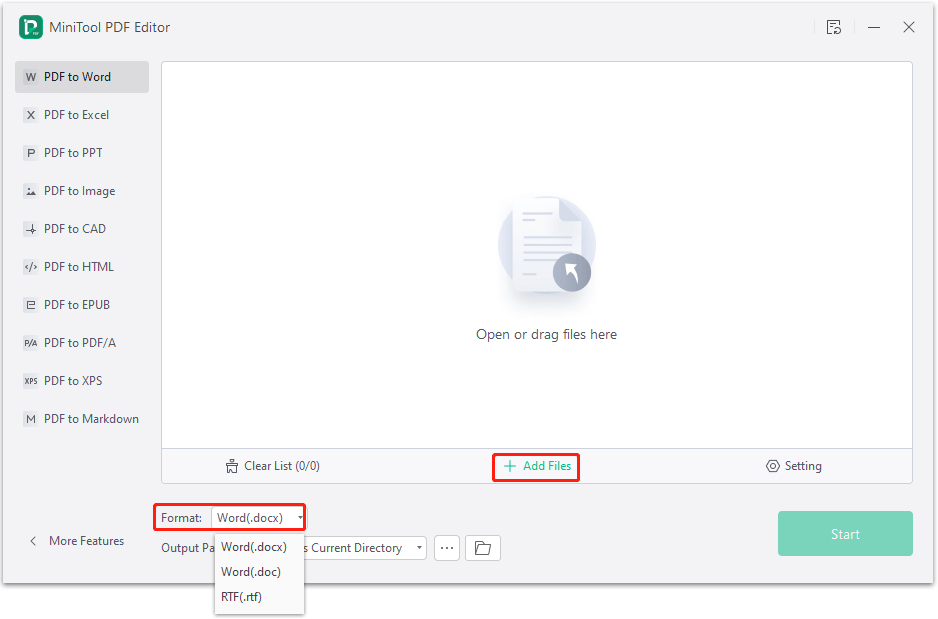
Step 4. Click Start.
Tool 3. Adobe Acrobat
Adobe Acrobat is a leading product in the PDF field because the software is released by the developer of the PDF format. Its main functions are creating, viewing, and editing PDF documents.
To convert a PDF to Word using Adobe Acrobat, follow these steps:
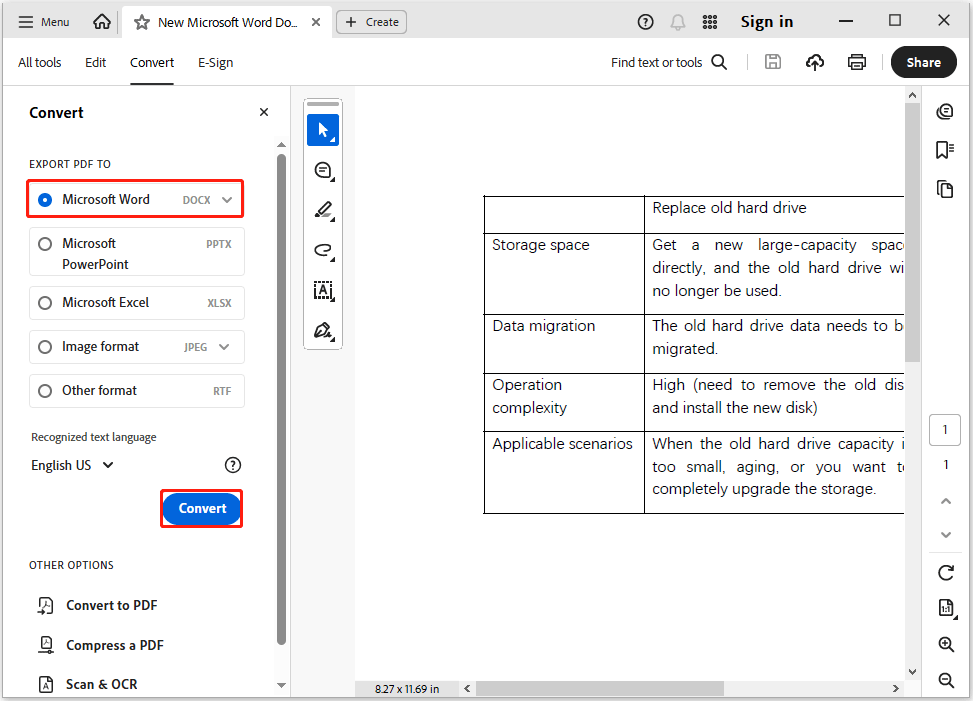
- Right-click the PDF file and choose Open with > Adobe Acrobat.
- Go to the Convert tab, and then select Export PDF to Microsoft Word.
- Click Convert.
Step 2. Copy and Paste the Table to Word
After you convert the PDF table to Word, just copy and paste the table into the target Word.
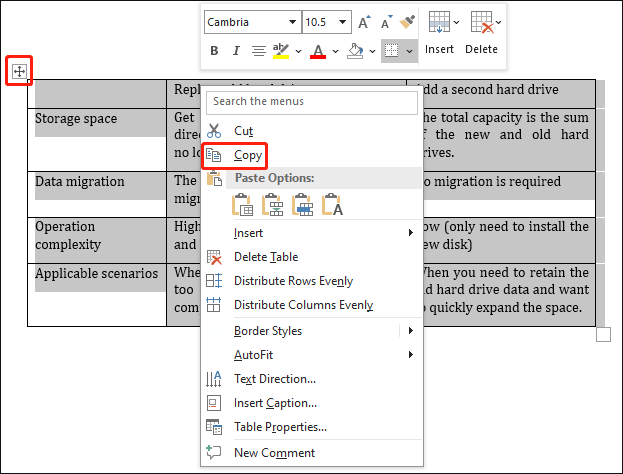
- Use the mouse to select the whole table.
- Right-click the table and select Copy.
- Open the Word document to which you want to paste the table.
- Right-click the blank space on the document and select Paste.
- Now, the copied table should appear.
Copy a Table from PDF to Word FAQ
Bottom Line
How to copy table from PDF to Word? Before that, you need to convert the PDF table to Word using Microsoft Word, MiniTool PDF Editor, and Adobe Acrobat. Then copy and paste into Word.
If you frequently perform PDF and other file format conversions, MiniTool PDF Editor is a tool worth trying.
If you encounter issues when using MiniTool PDF Editor, contact us by sending an email to support@minitool.com. We’ll get back to you as soon as possible.