

A PDF file can be annotated so that extra information can be added without altering the original file content.
A PDF file can be annotated so that extra information can be added without altering the original file content. Proper PDF annotations can help you understand the content better or communicate with others who also read this PDF file.
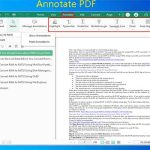
PDF annotation extraction is helpful in finding important information, organizing content, or performing subsequent processing on the annotations. The specific scenarios include the following:
- Quickly identify problematic points when reviewing documents or contracts.
- Find valuable content from learning materials, papers, or teaching materials immediately.
- Rapidly lock on items requiring detailed responses or explanations when collaborating with teams.
Common PDF Annotation Types
Before PDF annotation extraction, you should know the common PDF annotation types, which include the following.
Markup and Text Annotations
- Text Markup: Add underline, strikethrough, squiggly line, or caret to text. Underline and squiggly line can be used to emphasize text, strikethrough can be used to cross out the text, while a caret can point to where the text is added.
- Text or Area Highlight: Highlights text or areas for emphasis.
- Text or Text Box: Add isolated text or a text box with a border. They can be used when you want to add explanations, summaries, or marks.
- Callout: Add a text box with a border and accent bar. The accent bar usually points to specific content of the file. It is usually used to add explanations or questions.
Drawing and Ink Annotations
- Lines: Add straight, horizontal, or vertical lines.
- Shapes: Add rectangle, arrow, oval, or polygon shapes.
- Draw: Draw directly on the PDF.
Other Annotations
- Sticky Note: Add an isolated comment box. Sometimes, the box is free-float, and sometimes it appears only when you hover the cursor over or click its icon. It is used to give feedback or make a to-do list, tip list, summary, etc.
- Stamps: Place a pre-defined image or text like "Approved" or "Draft" on the document. It is often used for document classification or process approval.
- Stickers: Add various stickers to the PDF for emphasis and visual effect.
- File Attachment: Attach a file like documents, images, or media to the PDF. Once embedded, click on them to open or view directly. It can add additional information to explain the content of the article.
![How to Highlight a PDF File Easily on Windows [Ultimate Guide]](https://images.minitool.com/pdf.minitool.com/images/uploads/2023/03/how-to-highlight-a-pdf-thumbnail-150x150.png)
2 Methods to Extract Annotations from PDF
How to extract annotations from PDFs? You can use the following 2 methods.
- Use professional PDF editing software.
- Copy and paste.
Each method includes various tools to help you do that. You can pick one according to your condition.
Method 1. Use a PDF Editor
Some PDF editing programs, such as MiniTool PDF Editor and Adobe Acrobat, can extract PDF annotations easily. Keep reading to get the guides.
Option 1. MiniTool PDF Editor
MiniTool PDF EditorClick to Download100%Clean & Safe
MiniTool PDF Editor is a professional and multifunctional PDF editing and annotating tool. With this software, you can add various types of annotations to PDFs, including text markup, text or area highlight, text box, callout, lines, shapes, drawings, sticky notes, stamps, stickers, attachments, etc.
It also includes a feature called Create Note, allowing you to extract PDF pages that contain certain annotations to create a new PDF file.
Here is how to use this feature:
- Open a PDF containing annotations with MiniTool PDF Editor.
- Go to the Annotate tab and then click the Create Note feature.
- On the pop-up window, determine what types of annotations to extract and the page range to extract annotations from.
- Click OK.

Option 2. Adobe Acrobat
This software can create a visual summary of the PDF comments. Here is the guide:
- Open a PDF file with Adobe Acrobat.
- Choose the Comments icon on the right pane.
- On the comment list display, click the three-dot icon and choose Create Comment Summary.
- In the pop-up window, choose layout, paper size, and other options. Then, click the Create Comment Summary button.
This software also allows you to export the comments to a data file and then import it into another PDF for viewing. To do that, you just need to select the Export All to Data File option after clicking the three-dot icon.
Method 2. Copy and Paste
The PDF software can extract PDF notes easily, but it can’t reorganize the content. If you want to extract PDF annotations and then organize them well, you need to copy and paste them yourself.
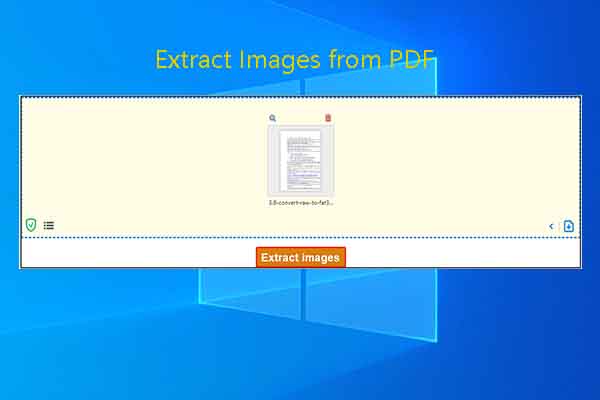
To copy text from a PDF, you can use a browser or MiniTool PDF Editor.
Option 1. Browsers
- Open a PDF file with a browser like Google Chrome, Microsoft Edge, etc.
- Select the annotated text and then copy it.
- Paste it into a new file.
This method has some disadvantages. For example, directly copying PDF text on browsers usually has layout issues, which require manual adjustment after copying.
Option 2. MiniTool PDF Editor
Using this software to copy text from a PDF can avoid the above issue. Here is the guide:
- Open the PDF with this software and click Edit > Edit All.
- Select the annotated text to copy and then paste it into your new file.

How to extract annotations from a PDF? This post offers you 2 methods.Click to Tweet
Bottom Line
This post shows you how to extract PDF notes with 2 methods.
- Use PDF software like MiniTool PDF Editor, Adobe Acrobat, etc.
- Copy and Paste from a PDF.
Pick one option according to your condition. If you encounter issues when using MiniTool PDF Editor, send an email to [email protected]. We will do our best to help you.
About The Author

Position: Columnist
Linda has been an editor at MiniTool for seven years. She continuously learns about computers and puts her knowledge into practice. Moreover, she is particularly knowledgeable in disk management, data recovery, system installation, and PDF editing. Her articles typically reference multiple examples or are based on her own experience, providing users with the most suitable solutions.