

The need for electronic documents to be signed is primarily to simulate and surpass the signature and stamping functions of paper documents in a digital environment.
There are two main forms of electronic document signatures: electronic signatures, which are symbols or processes that express agreement in electronic form, and digital signatures, which are a higher-order form of electronic signatures and can ensure the authenticity, completeness, legality, and non-repudiation of documents.
How to add a signature in Word? This post shows details to you.
How to Add Signature in Word
Microsoft Word allows you to insert an electronic or digital signature in Word easily. Follow the guides below.
#1. How to Electronically Sign a Word Document
If you want to learn how to add handwritten signature in Word, this guide is what you need.
Step 1: Prepare an image of your signature, since an electronic signature in Word is typically an image.
Step 2: Insert signature in Word.
- Open the Word file and click Insert > Pictures > This Device.
- Select your signature picture to insert.
Step 3: Adjust the signature.
- Click the signature picture in Word.
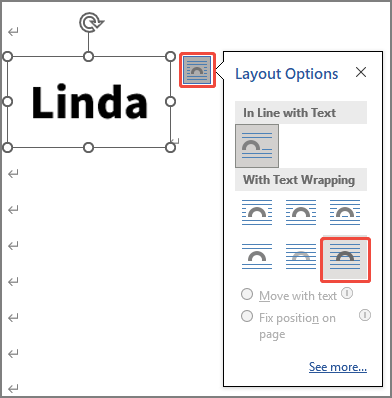
- Click the Layout Options icon that appears in the top right corner of the image.
- Under With Text Wrapping, select In Front of Text.
- Drag the signature image and drop it anywhere you want to place.
#2. How to Digitally Sign a Word Document
This method also requires you to prepare an image of your signature first, if you care about the aesthetics of your signature. Then, follow the steps below:
Step 1: Insert a signature line.
- Open the Word file and click Insert > Signature Line.
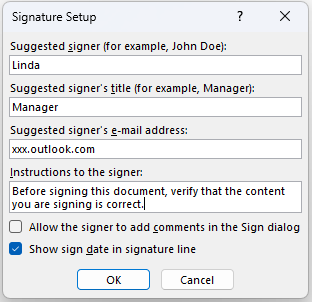
- On the pop-up window, type your name, title, and e-mail address. Then, click OK.
Step 2: Insert the digital signature in Word.
- Double-click the newly-added signature line.
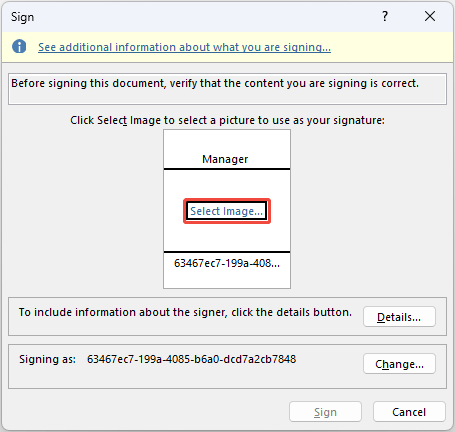
- On the pop-up window, click Select Image > From a File > Browse.
- Select your signature picture and then click Sign.

How to Sign a Word Document Like a PDF
PDF files are commonly used for formal documents such as contracts. Therefore, PDF editing software usually offers a variety of signature tools, allowing users to sign a document more easily.

This section will show you how to insert signature in Word using PDF software. Then, MiniTool PDF Editor is recommended.
MiniTool PDF EditorClick to Download100%Clean & Safe
Before using this software, you need to save the Word file as a PDF file. Just click File > Save As. Then, select the save location, and change the Save as type to PDF. After that, follow the guides below to insert a signature.
#1. Insert an Electronic Signature
- Open the saved PDF file with MiniTool PDF Editor.
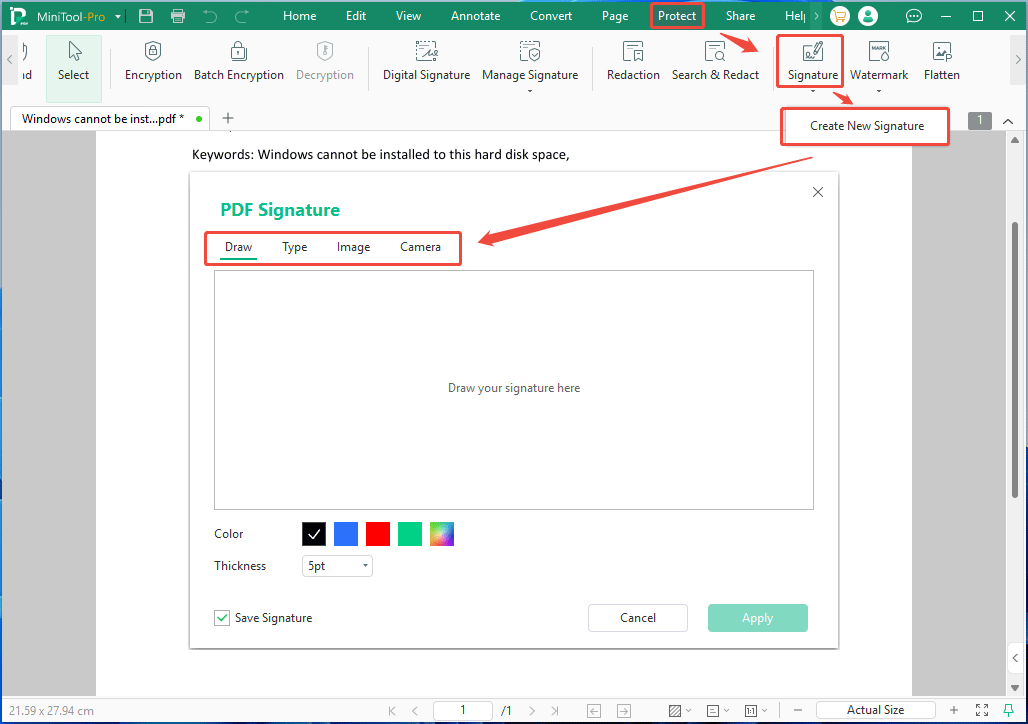
- Go to the Protect tab and click Signature > Create New Signature.
- On the pop-up window, you can draw a signature, type a signature, use an image as a signature, or take a photo using the camera to serve as a signature.
- Click Apply to save the signature.
- The cursor will become the newly-created signature. Move the signature to a proper location and then click the cursor to place it.
- Save the PDF file.
#2. Insert a Digital Signature
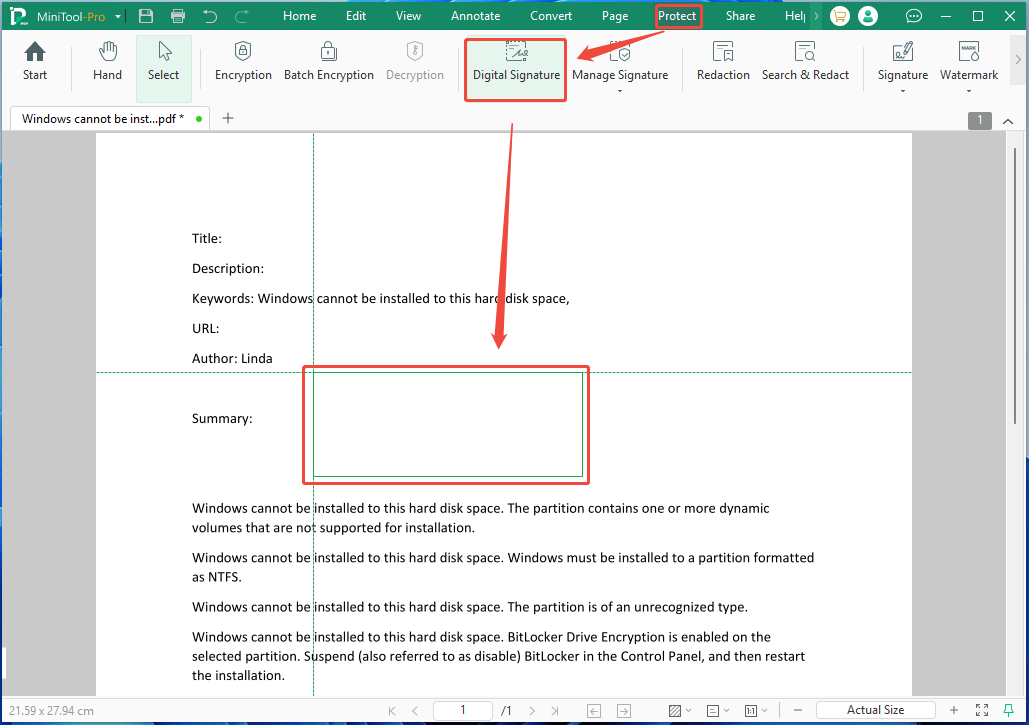
Step 1: Open the saved PDF file with MiniTool PDF Editor. In the Protect tab, click Digital Signature and then use the cursor to draw a box, which is used to place the signature.
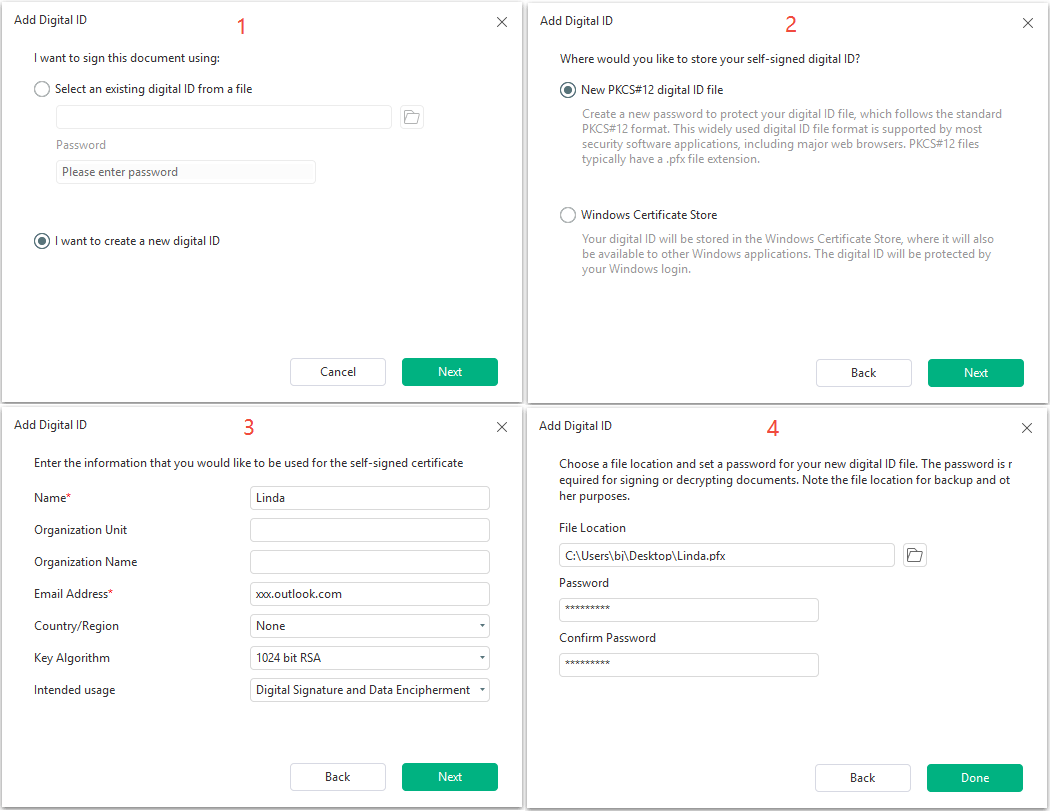
Step 2: On the Add Digital ID window, choose I want to create a new digital ID. Then, select where to store the digital ID. You can read their definitions and then make a choice. After that, type your name, e-mail address, or other information. If you use the PKCS#12 format, you also need to choose the signature file location and set a password for it. Then, click Done.
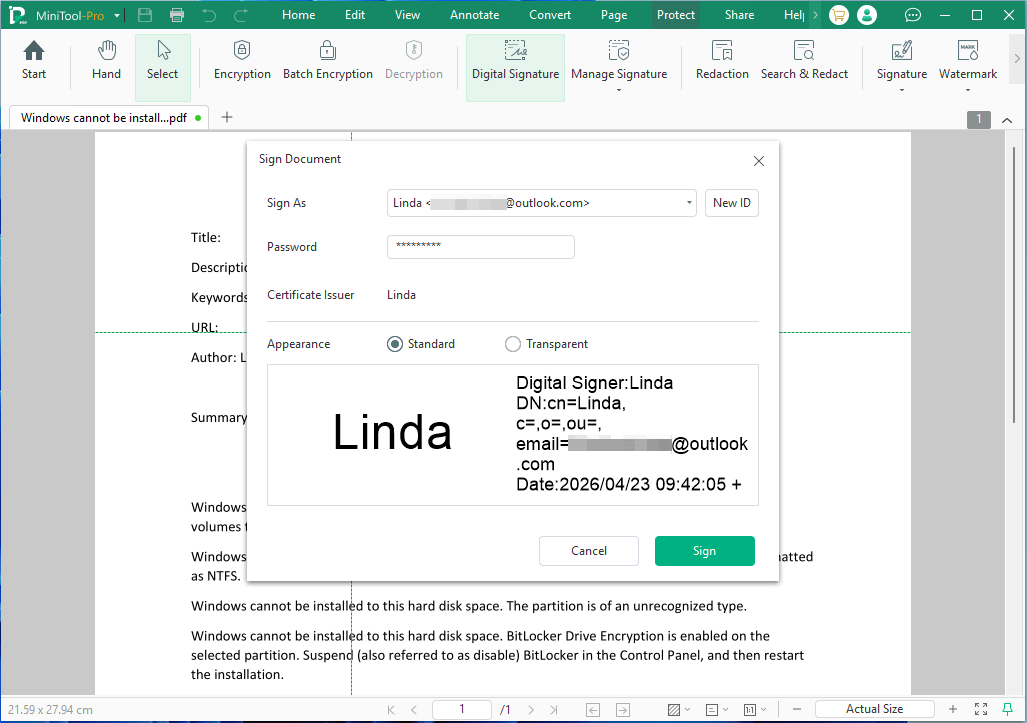
Step 3: The Sign Document window pops up. The newly-created signature will be selected by default. You need to type the password, select Standard or Transparent appearance, and then click Sign.
Bottom Line
This post shows you how to insert an electronic or digital signature in Word. It offers 2 methods: using Word and using MiniTool PDF Editor. Both options have their advantages. You can pick one according to your condition.
If you encounter issues when using MiniTool PDF Editor, send an email to support@minitool.com. We will get back to you as soon as possible.
About The Author

Position: Columnist
Linda has been an editor at MiniTool for seven years. She continuously learns about computers and puts her knowledge into practice. Moreover, she is particularly knowledgeable in disk management, data recovery, system installation, and PDF editing. Her articles typically reference multiple examples or are based on her own experience, providing users with the most suitable solutions.