

Due to platform limitations, you may need to convert images to a PDF file smaller than a certain size, especially for JPG to PDF 100KB, 200KB, 300KB, etc. This post shows you how to do that using MiniTool PDF Editor and online tools.
Why Do You Need to Convert a JPG to a PDF Smaller Than a Certain Size?
Sometimes, you may need to convert images to a PDF while keeping the file size under 100KB, 300KB, 500KB, 1MB, 5MB, or 20MB. The key reasons are as follows:
- Mandatory Application Requirements: Online portals for job applications, educational submissions, bank documents, or government forms often have strict maximum file size constraints. Converting the image to PDF 300KB or another size ensures their systems can process it.
- Email Restrictions: Many email providers limit attachment sizes (often around 20-25MB). Large images can easily exceed this limit, preventing the email from being sent. Therefore, converting JPG to PDF 300KB or another size may be necessary.
- Faster Upload/Download Speeds: Large images may be slow to upload or download over the network. Converting a photo to PDF 100KB or another size and then sharing it over the network can reduce latency in uploads and downloads. This is crucial for mobile users or people on slow, data-constrained networks.
- Storage Optimization: Converting images to a smaller PDF file can conserve space on local devices and in cloud storage, reducing the need for additional, often paid, storage space.
- Document Usability Enhancement: Multiple images can be merged into a single PDF document, which is more organized and easier to share than sending multiple image files. In addition, PDFs are highly compatible, ensuring recipients can open the file on any device without formatting issues.
- Security: PDFs can be password-protected to restrict access, which is not typically possible with standard image formats (JPEG/PNG).
How to Convert a JPG to PDF 100KB/200KB/300KB
To convert a JPG to PDF 200KB or another size, you can try the following 2 methods.
Method 1. Use MiniTool PDF Editor
MiniTool PDF Editor is a professional PDF editing and annotating tool. It can change the text, image, link, and other content in the PDF, crop/split/merge PDF pages, etc.
It can also help you convert JPG files to PDF smaller than 100KB, 200KB, etc., using the conversion and compression features. Here is the guide.
MiniTool PDF EditorClick to Download100%Clean & Safe
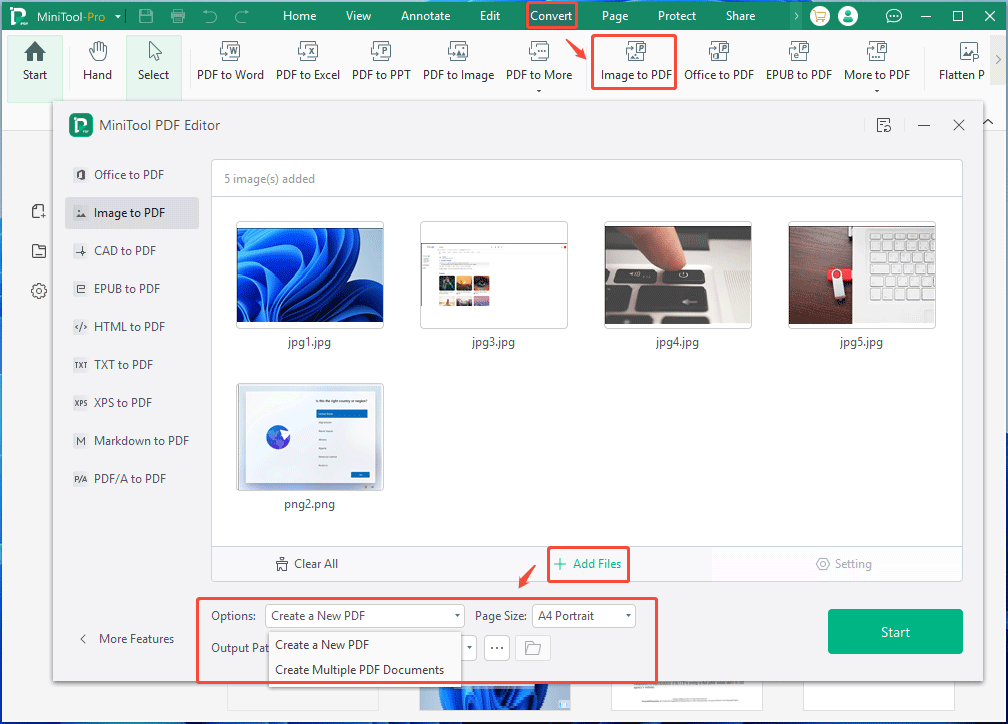
Step 1: Convert images to PDF.
- Launch MiniTool PDF Editor.
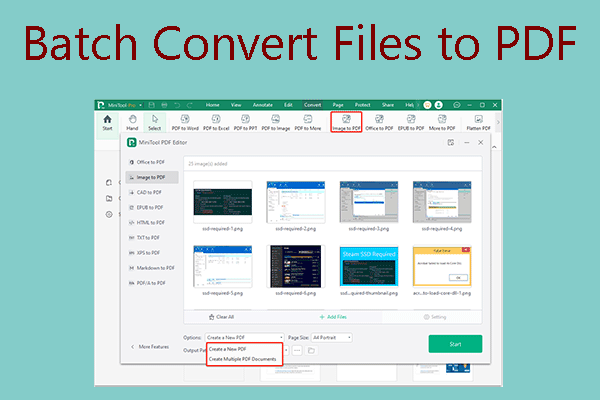
- Click Convert > Image to PDF to open the Image to PDF conversion window.
- In the pop-up window, click Add Files and then select the images (JPG, PNG, and other formats) that you want to convert to PDF. You can select multiple images at once. Then, click Open.
- Make sure Options is set as Create a New PDF, which will merge all these images into one PDF file.
- As for the Page Size, A4 Portrait is recommended. If you have special demands, you can also select Original, A4 Landscape, or Custom.
- Click Start to generate the PDF. In general, each image will take up a PDF page.
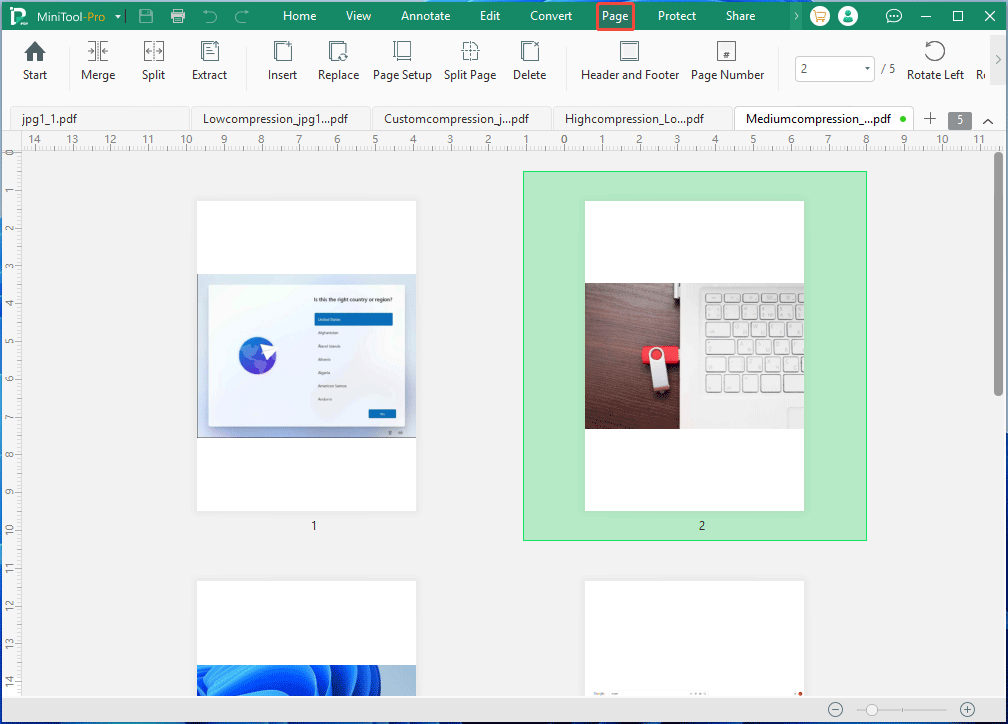
Step 2: Adjust the page order in the PDF file if you find that these images are not arranged correctly in the PDF file.
- Go to the Page tab.
- Drag the page thumbnail and drop it in the correct location.
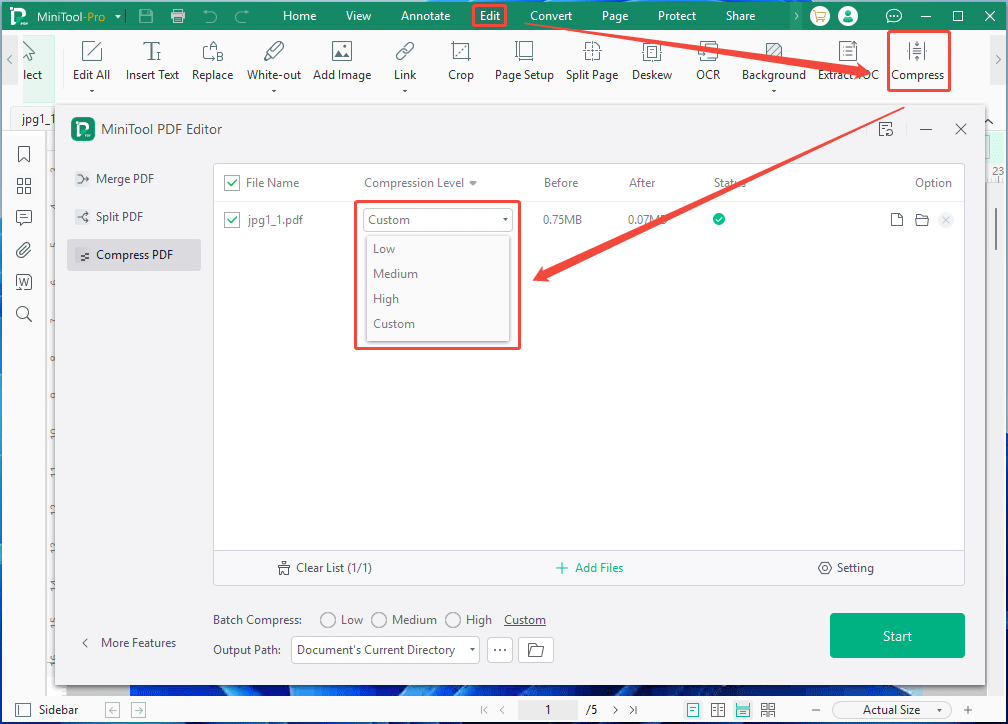
Step 3: Check the PDF file’s size. If the file is too large, follow the steps below to compress it.
- Open the PDF file in MiniTool PDF Editor.
- Click Edit > Compress to open the PDF compression window.
- On the pop-up window, select a Compression Level (Low, Medium, High, or Custom). Then, click Start.
2. If the file size after high compression still does not meet the requirements, you can choose Custom. Then, type a low Quality and Resolution.
Method 2. Use Online Tools
In addition to the above method, you can also use online tools to convert JPG to 100KB PDF or any other size. To convert a JPG to a PDF 100KB online, you can try the following tools.
- Pi7 Image Tool: Upload images, change the image order, choose the PDF size, and then start the conversion. The entire process can be completed on a single page, making it very simple.
- Other Online Tools: Adobe Acrobat, pdfFiller, HiPDF, PDF24, etc. These tools support converting images to PDF and then compressing them online. However, the conversion, page order adjustment, and compression can’t be completed at once. In addition, the PDF file compression size cannot be guaranteed.
Further Reading:
What does compressing a PDF typically affect? Generally, compressing a PDF will reduce image resolution (DPI), lower image quality, remove embedded fonts, delete unnecessary metadata (such as comments, forms, and bookmarks), and clean up redundant information.
This primarily affects image clarity. Excessive compression may cause loss of detail, but text content is usually unaffected.
Bottom Line
This post shows you how to use MiniTool PDF Editor to convert images to a PDF file while keeping it under a certain file size. For example, JPG to PDF 100KB, 150KB, 200KB, 300KB, 500KB, 1MB, etc. It also introduces some online tools to help you do that.
If you encounter issues when using MiniTool PDF Editor, contact our support team via support@minitool.com. We will get back to you as soon as possible.
About The Author

Position: Columnist
Linda has been an editor at MiniTool for seven years. She continuously learns about computers and puts her knowledge into practice. Moreover, she is particularly knowledgeable in disk management, data recovery, system installation, and PDF editing. Her articles typically reference multiple examples or are based on her own experience, providing users with the most suitable solutions.