

Recommended Resume File Formats
A resume is a written document used for job applications. It mainly includes basic personal information, job objective, educational background, practical experience, skills certificates, and awards.
A successful resume is a marketing tool. It demonstrates to potential employers that you can solve their problems or meet their specific needs, thus securing interviews that will lead to your success.
Nowadays, we usually apply for jobs online, so you need to send your electronic resume to the recruiting companies via job search apps or emails.
What file format should I use to send my resume?
In general, the PDF file format is recommended because it can preserve the layout across devices and software, but always check the job posting for specific requests, as some Applicant Tracking Systems (ATS) prefer the Word file format for easier parsing.
Should you save a resume as a PDF or Word document? It’s recommended that you prepare the resumes of both file formats.
2. Resumes of Word version are easy to edit and can be easily scanned by most ATS systems, but their formatting may change on different computers (text overlap or font issues, for example), and their appearance may not be as aesthetically pleasing.
How to Save Resume as PDF
Many resume builders allow you to save the resume as a PDF when creating it. Here are a few examples.
#1. Save Resume as PDF in Microsoft Word
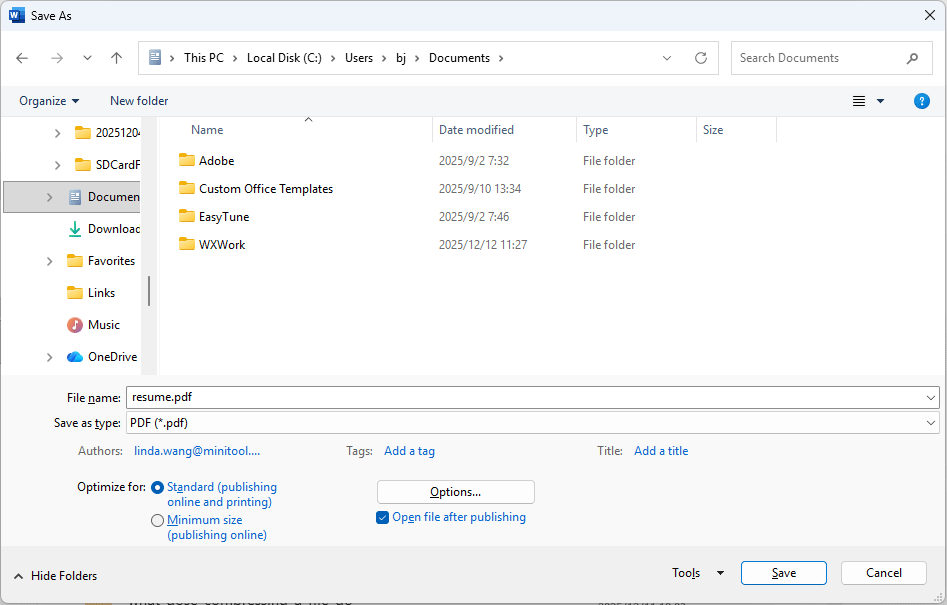
Many people like to edit a resume using Microsoft Word. To save the resume as a PDF, the steps are as follows:
- Click File > Save As.
- Select a place to save the resume.
- On the Save As window, change the Save as type to PDF (*.pdf).
- Click the Save button to export the resume as a PDF.
#2. Save Resume as PDF in Google Docs
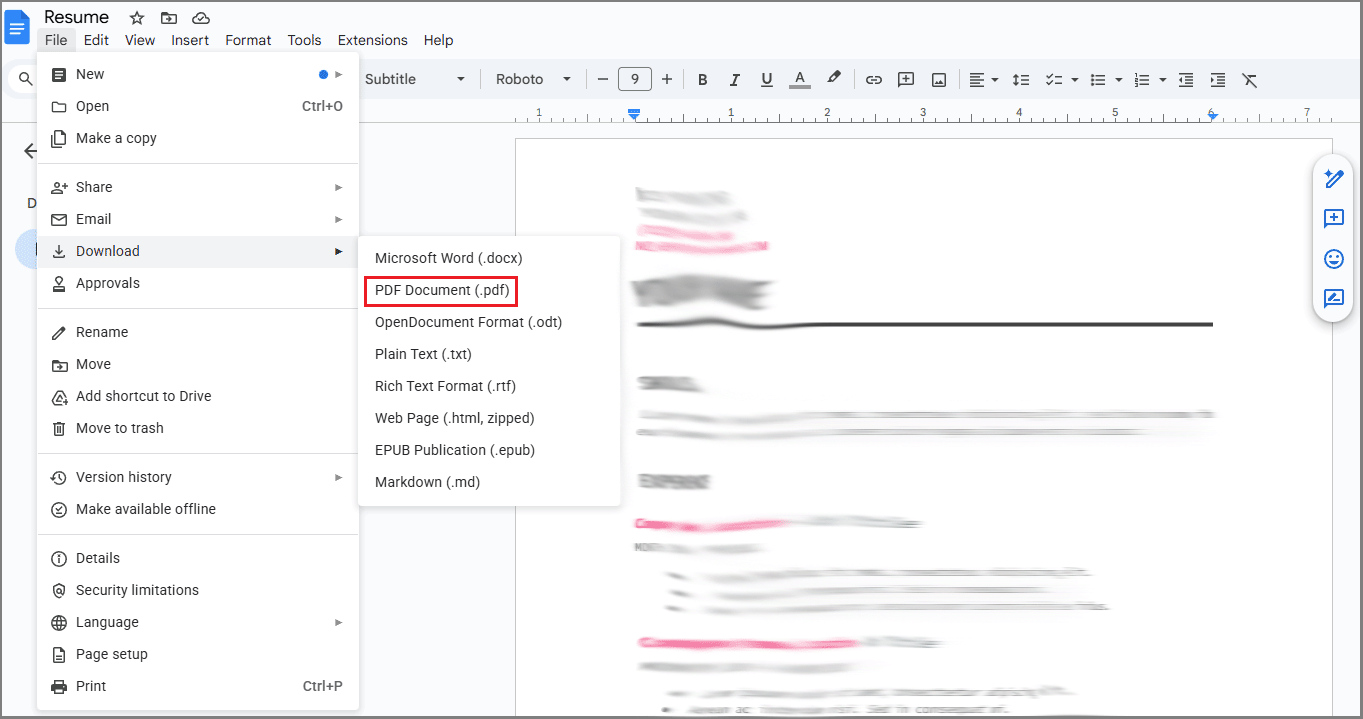
If you are using Google Docs to create a resume, you can save it as a PDF by clicking File > Download > PDF Document (.pdf).
#3. Save Resume as PDF in Canva
Some people may prefer to use Canva to create resumes. This software features hundreds of professionally designed templates and allows for the incorporation of visual elements like charts, graphs, or icons to showcase skills and achievements in an engaging way.
Canva supports exporting files to various formats. However, to ensure compatibility with Applicant Tracking Systems, PDF or Word is recommended.
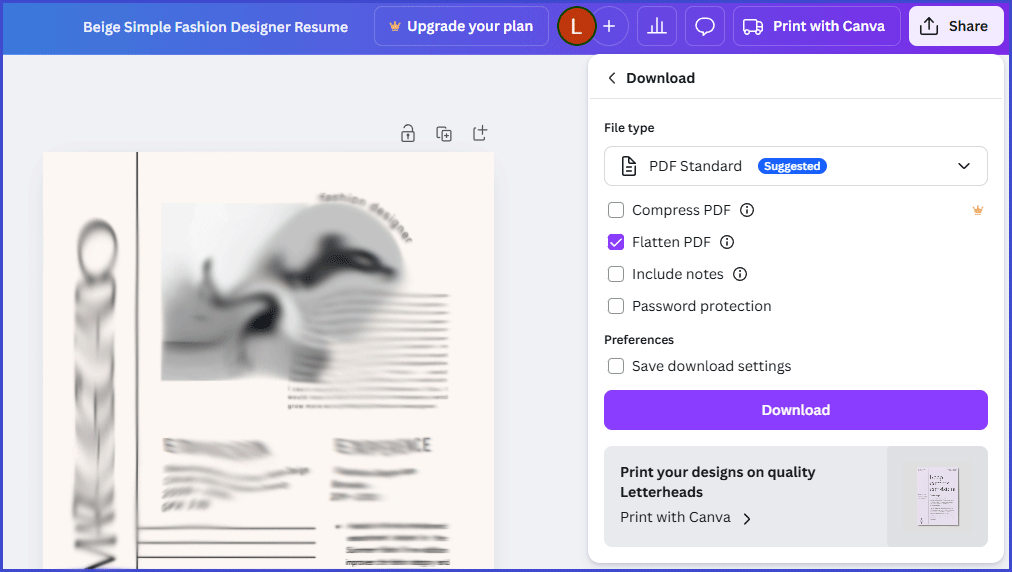
To save the Canva resume as a PDF, follow the steps below:
- Click Share > Download.
- Select PDF Standard or PDF Print from the dropdown.
- Check Flatten PDF to tick the checkbox.
- Select Download. If you used paid elements, select Pay and Download.
How to Convert Resume to PDF
If your resume is not in PDF format, you may want to convert it to PDF. If your computer can open the resume smoothly, try saving it as a PDF. Or, use Google Docs to open it and then save it to PDF.
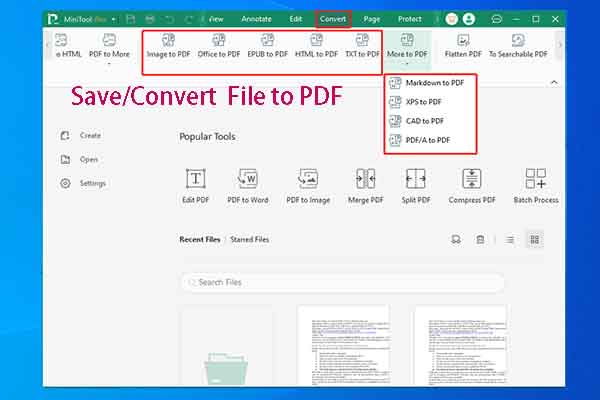
In addition to the above method, you can also use a PDF converter to convert a resume to PDF format. MiniTool PDF Editor is capable of this job. It can convert Word, Excel, PPT, DWG, DXF, EPUB, HTML, TXT, XPS, Markdown, and images (JPG, PNG, BMP, TIFF, and HEIC) to PDF.
Here is the guide:
MiniTool PDF EditorClick to Download100%Clean & Safe
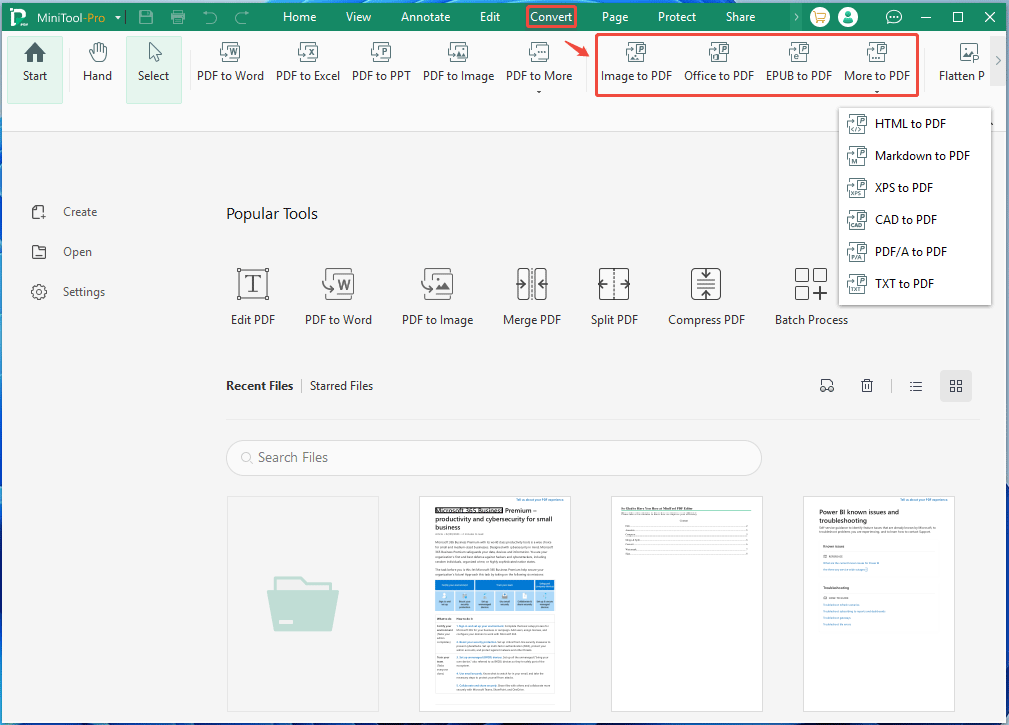
Step 1: Launch MiniTool PDF Editor. Go to the Convert tab. According to the resume’s file format, choose a conversion option (Taking Office to PDF as an example).
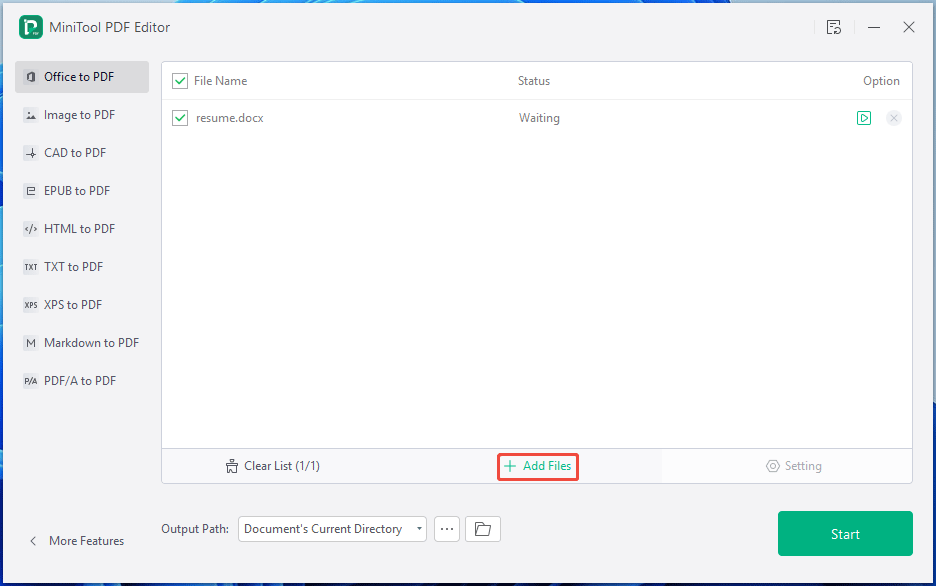
Step 2: On the conversion window, click Add Files and select the resume file to open. Then, click Start and wait for the conversion to complete.
Bonus Tip: How to Save LinkedIn Profile as PDF
LinkedIn is the world's largest professional social network, designed for career development, business connections, and job searching. It requires users to build resume-like profiles.
Some people may want to know how to save a LinkedIn profile as a PDF. The steps are as follows:
- Navigate to your LinkedIn home page using a browser.
- Click the Me icon at the top of the page to open a dropdown menu.
- Choose View Profile.
- Below the profile photo and cover photo area, click the More button.
- Choose Save To PDF, and LinkedIn creates the PDF for you.
- Save the PDF to a location that you want.
Bottom Line
This post introduces the recommended resume file formats and shows you how to save a resume to PDF, convert a resume to PDF, and save a LinkedIn profile to PDF.
PDF is a commonly used file format on formal occasions, and its ability to stably present content will help you when you look for a job.
When converting a resume to PDF, MiniTool PDF Editor is a nice tool. If you encounter issues when using it, send an email to support@minitool.com. We will get back to you as soon as possible.
About The Author

Position: Columnist
Linda has been an editor at MiniTool for seven years. She continuously learns about computers and puts her knowledge into practice. Moreover, she is particularly knowledgeable in disk management, data recovery, system installation, and PDF editing. Her articles typically reference multiple examples or are based on her own experience, providing users with the most suitable solutions.