

Whether you’re a student or teacher, you may need to print PDF flashcards during your studies or exam preparation. How to print flashcards front and back PDF? This article will introduce three practical methods, including using tools such as MiniTool PDF Editor, Adobe Acrobat, and Google Chrome.
Flashcards can be printed double-sided from PDF files. Generally, you can choose between automatic duplex printing or manual duplex printing.
If your printer supports automatic duplex printing, you can print directly. If not, you can print the odd-numbered pages first, then flip the paper and print the even-numbered pages.
Before actually printing, you need to complete the following basic preparations:
- PDF file: Flashcard content needs to be formatted in a PDF file.
- Printer: Ideally, it should support double-sided printing.
- Paper: Thicker cardstock is recommended for printing. Standard A4 paper can also be used, but it is more prone to wear and tear.
- Software: MiniTool PDF Editor or other PDF editing tools.
How to Print Flashcards Front and Back PDF via MiniTool PDF Editor
MiniTool PDF Editor is a powerful PDF tool with features such as viewing, editing, annotating, converting, protecting, and printing. It supports duplex printing, making it ideal for printing quizlets or Anki flashcards.
Furthermore, you can customize print settings to your needs, such as border printing or even formatting PDF files into booklets.
Next, the following content will guide you step-by-step through using this tool to print flashcards front and back PDF.
MiniTool PDF EditorClick to Download100%Clean & Safe
Step 1: Right-click the flashcards in PDF format you want to print, and then choose Open with > MiniTool PDF Editor.
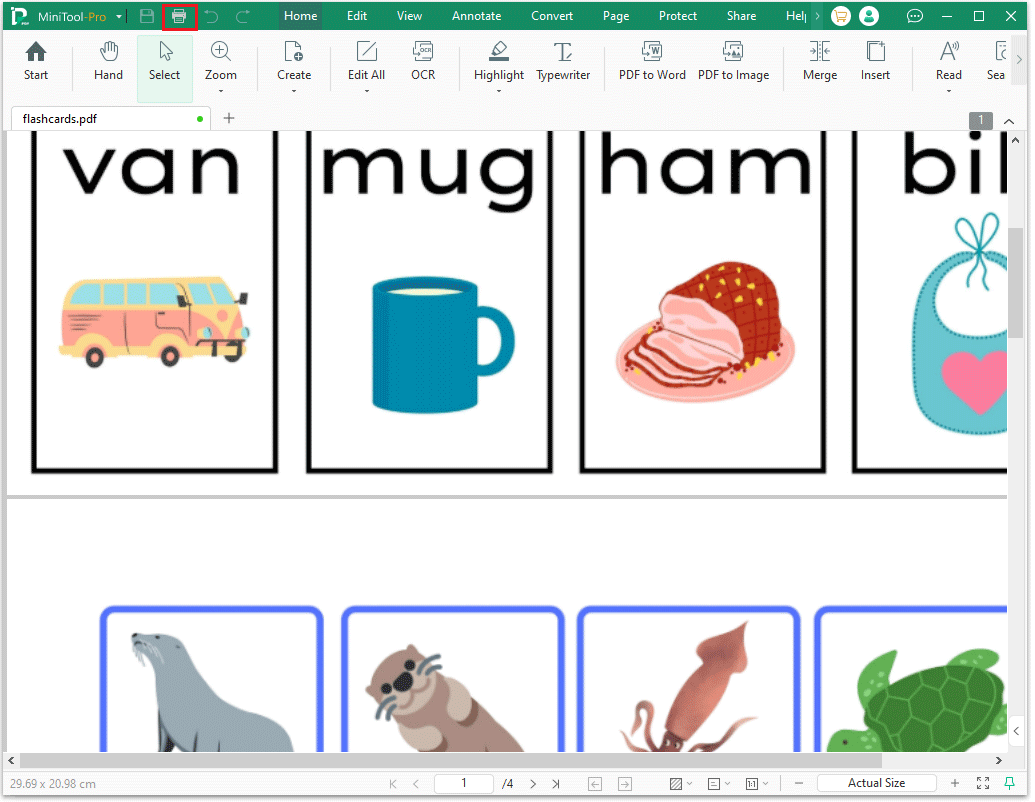
Step 2: Once the PDF file opens, click the Print icon in the top-left corner or press Ctrl + P.
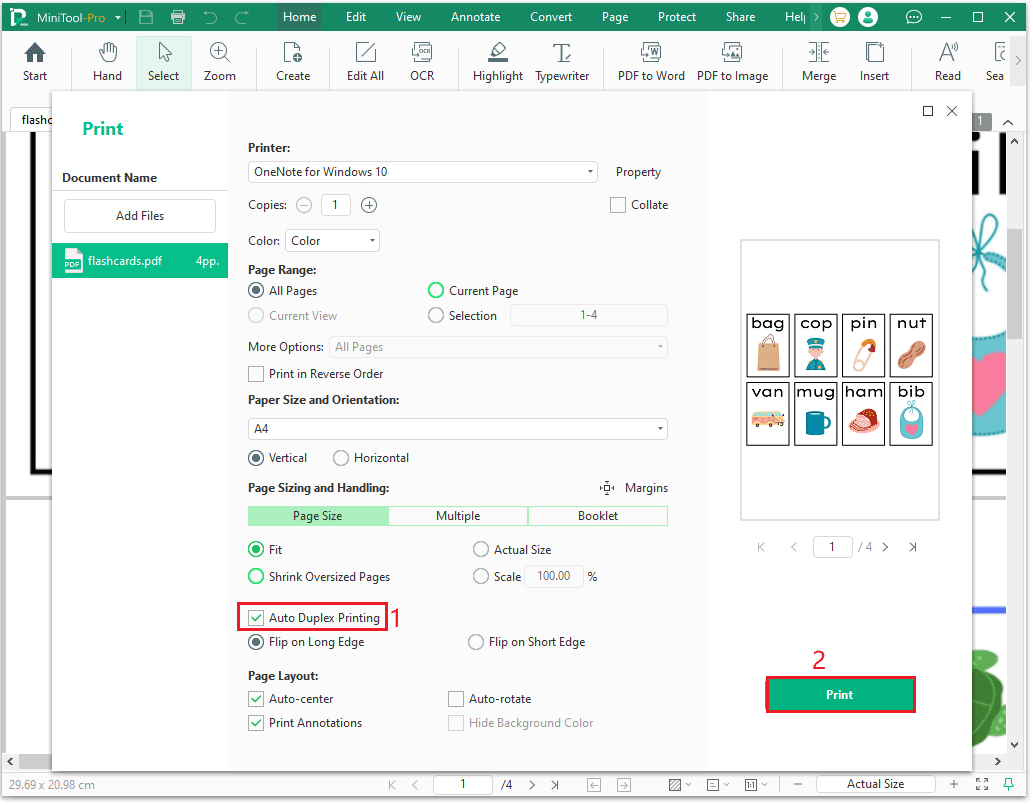
Step 3: In the Page Sizing and Handling area, turn on Auto Duplex Printing and choose the appropriate flip option (Flip on Long Edge or Flip on Short Edge). After that, customize the remaining print settings according to your preferences. Then, click Next.
- Flip along the long side: Flip pages horizontally like turning the pages of a book. It suitable for portrait orientation pages.
- Flip along the short side: Flip pages vertically like flipping through a calendar. It suitable for landscape orientation pages.
How to Print Flashcards Front and Back PDF via Adobe Acrobat
Adobe Acrobat is a powerful PDF editor that supports conversion, editing, watermarking, printing, and more.
With Adobe Acrobat Reader, you can print memory cards double-sided for free. Below are detailed steps on how to print both sides of a memory card in Adobe Acrobat Reader.
Step 1: Launch Adobe Acrobat Reader and open the flashcards in PDF format.
Step 2: Click the Print icon in the top right or press Ctrl + P to open the Print menu.
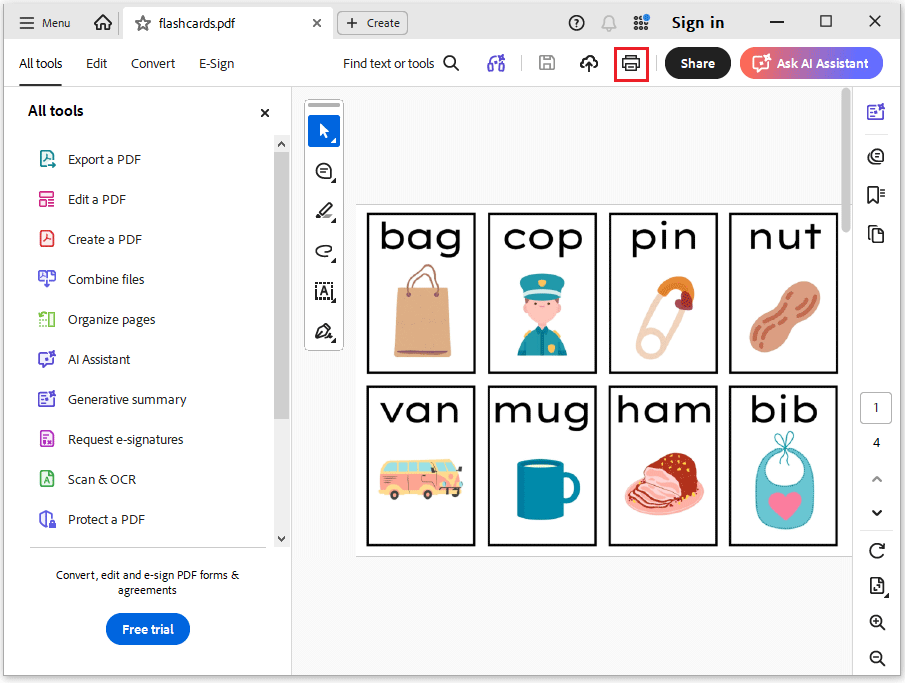
Step 3: Select the Print on both sides of paper option, and then adjust other printing settings as needed. Then, click Print.
How to Print Flashcards Front and Back PDF via Google Chrome
Google Chrome is also a highly practical tool. It features a built-in PDF printer that allows you to configure duplex printing settings without the need to install any third-party software.
By simply configuring the print options correctly, you can easily print flashcards with the front and back sides perfectly aligned.
Next, I will walk you through the specific steps on how to print double-sided flashcards.
Step 1: Right-click the flashcard PDF, choose Open With, and select Google Chrome.
Step 2: Press Ctrl + P to open the Print window.
Step 3: Select your target printer, expand More settings, and choose the Print on both sides or the Duplex option. Then, click Print.
How to Print Flashcards Front and Back PDF FAQ
2. Avoid large areas of background color.
3. Combine multiple cards onto one page.
Print one or two pages as a test to confirm that the front and back are aligned and the flip direction is correct before starting the full print job.
In addition, ensure that the paper in the printer's paper tray is neatly arranged and that there is enough ink or toner available to avoid quality problems during printing.
Bottom Line
This article shows you how to print flashcards front and back PDF using MiniTool PDF Editor and Adobe Acrobat. Alternatively, you can use online tools like Google Chrome.
If you have any questions or suggestions while using the MiniTool PDF Editor, you can contact us via support@minitool.com to get a quick reply.