

Combining multiple scanned pages into one PDF improves document organization and reduces file clutter. This post explains how to scan multiple pages into one PDF using a scanner or a mobile phone, and how to merge scanned files into one PDF with MiniTool PDF Editor.
Scanning paper documents to PDF digitizes them for easy storage, sharing, and access. In addition, it can preserve original formatting across devices and add searchability (with OCR).
When multiple pages are scanned into a single PDF, additional benefits can be achieved. For example:
- Keeps all related pages (like case files and financial documents) together in the correct sequence. This avoids the mess of many separate files, benefits file search, review, management, and storage.
- Reduces attachment clutter and size. Recipients get one file instead of many, lowering the chance of missing pages.
- A single document is easier to read on any device (phone, tablet, computer) and simpler to print.
How to scan multiple pages into one PDF? Keep reading to get the specific guides.
Scan Multiple Pages into One PDF with a Scanner
Most modern scanners and multifunction printers come with accompanying drivers and software, capable of scanning multiple pages into one PDF.
For example, HP, Brother, and Epson provide their own scanning apps, such as HP App, Brother iPrint&Scan, and Epson Scan-related tools.
Use HP App to Scan and Combine PDFs
How to scan multiple pages into one PDF using a scanner or printer? Taking HP printers as an example, the guide is as follows:
- Go to HP’s official website and search for your HP printer. Download and install the print app. The HP app is recommended because it replaces HP Smart. In addition, this app is available for PC and mobile devices.
- Open the HP app and then click your printer. Place the paper on the scanner glass or into the automatic document feeder (ADF) (documents only), and then click Scan or Printer Scan on the app.
- Set the Advance Presets menu to Document or Photo.
- Adjust other settings like Paper Size, Input Source, Resolution, Color, etc.
- Click Scan.
- Follow the wizard to complete the scanning.
- Click + Add to scan or import additional files until you have added all the files you would like to include. These files will be combined into a single file.
- Once done, click an option to share, save, or fax the single file.
Use Windows Fax & Scan to Scan and Combine PDFs
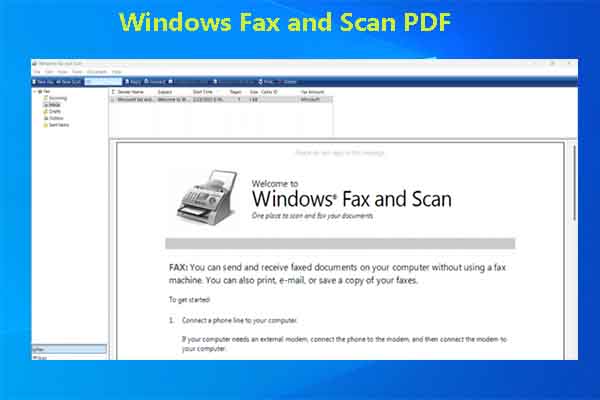
If your scanner does not have accompanying software or the software is not working, you can use the Windows Fax and Scan app to scan multiple pages to PDF. Here is the guide:
Step 1: Scan the multiple files into a TIF file.
- Open the Windows Fax and Scan app from Windows search.
- Click New Scan and then adjust the scan settings as needed.
- Change the File type to TIF. This is important.
- Click Scan.
Step 2: Print the TIF file to a PDF file.
- Once the scanning finishes, open the TIF file with the Windows Photo app.
- Click the Print icon in the upper left corner.
- On the pop-up window, change the printer to Microsoft Print to PDF.
- Review other settings and then click Print.
- Choose a location to save the PDF file.
Scan Multiple Pages into One PDF with a Mobile Phone
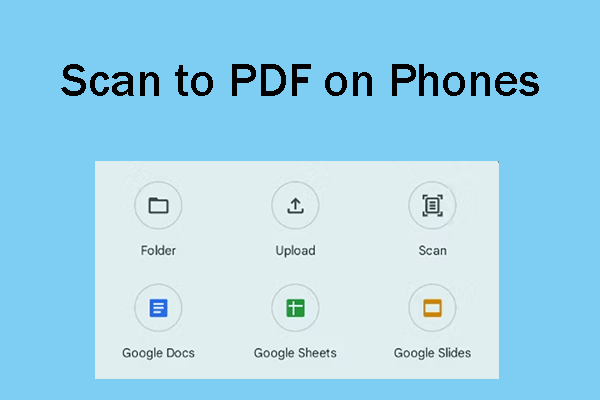
If you don’t have a scanner, a mobile phone can be used to scan files. To do that, use apps like Google Drive, Adobe Scan, Microsoft Lens/Office, or CamScanner.
Taking Google Drive as an example, the steps are as follows:
- Install the Google Drive app and open it.
- At the bottom right, tap Camera.
- Point your device’s camera at a document.
- A blue line outlines the document, indicating where the picture will be cropped.
- Take a photo of the document that you'd like to scan.
- If needed, adjust your scanned document. For example, Crop & Rotate can adjust the scan area, Filter can adjust the colors, and Clean can erase stains and fingers. You can also Retake the photo or Delete a page.
- Then, tap Add to scan another page.
- Once all files are scanned, tap Done and save it as a PDF file.
Merge Multiple PDFs into One PDF
Sometimes, you are unable to scan multiple pages into a PDF. For example, your scanner doesn’t have a feeder, the scanner's accompanying software is not working, you want to use the flatted option, etc.
In a word, each scanned sheet of paper becomes a single PDF file. Then, you need to merge these PDFs into one PDF file. Fortunately, MiniTool PDF Editor can help you do that easily. In addition, it has a 7-day free trial.
How to combine scanned documents into one using this software? Here is the guide.
MiniTool PDF EditorClick to Download100%Clean & Safe
Step 1: Store these PDF files in one folder and make sure they are listed in the correct order.
Step 2: Install and launch MiniTool PDF Editor. From Popular Tools, select Merge PDF.
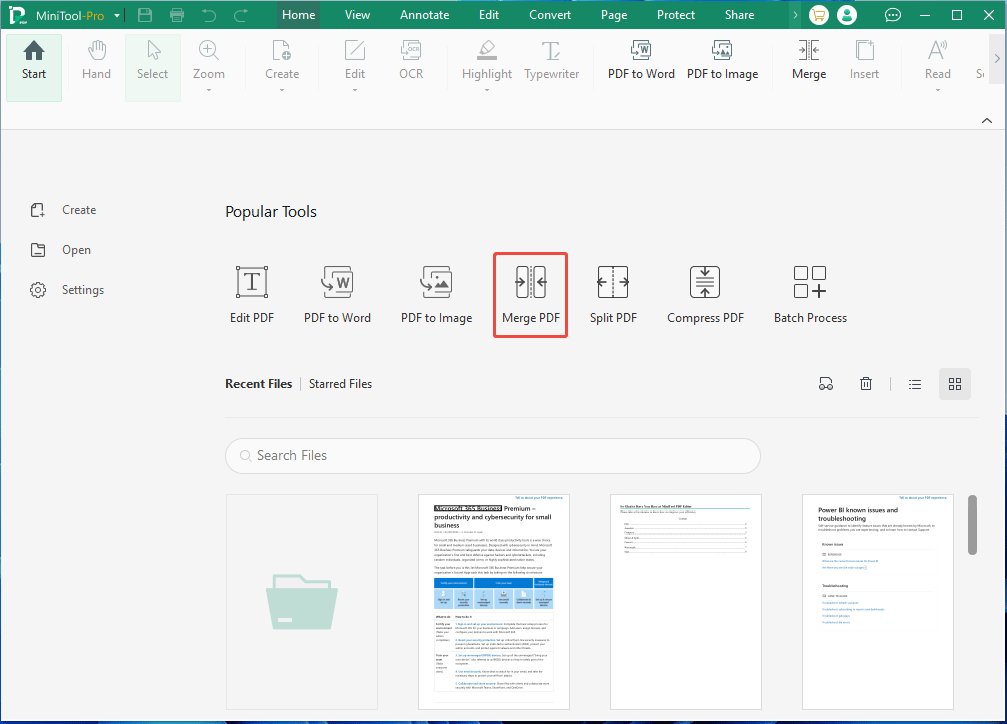
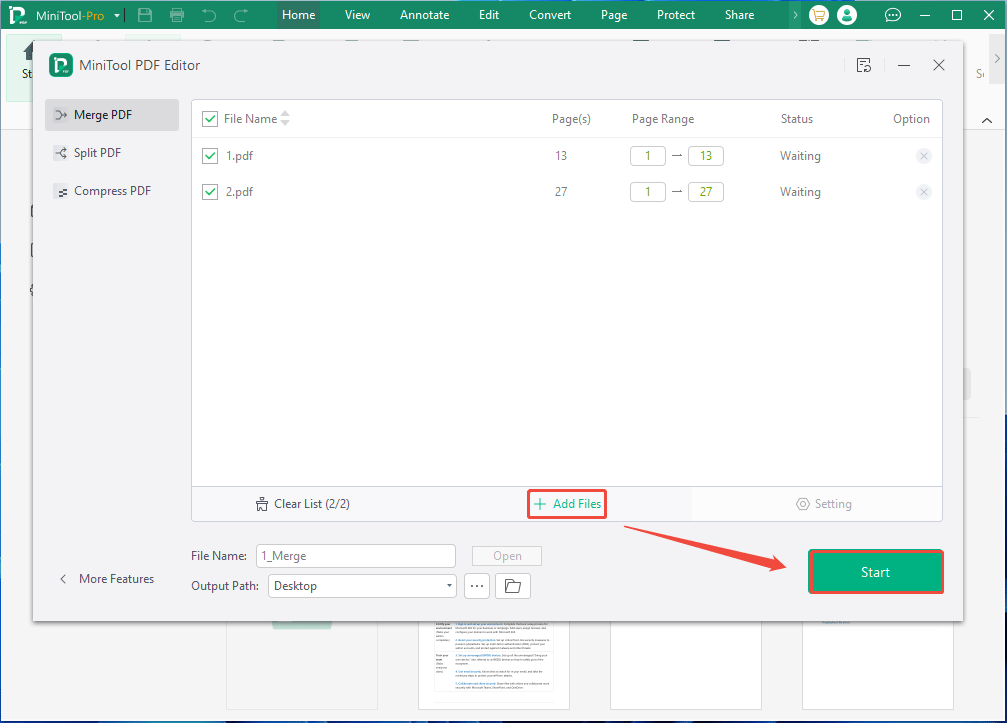
Step 3: On the pop-up window, click Add Files. Select these PDF files and click Open. Once they are added, click Start to merge them.
Bottom Line
This post shows you how to scan multiple pages into one PDF with a scanner or a mobile phone. It also offers an alternative method: scan files to multiple PDFs and then merge them into a PDF file.
If you encounter issues when using this PDF editing tool, contact us via support@minitool.com for help.
About The Author

Position: Columnist
Linda has been an editor at MiniTool for seven years. She continuously learns about computers and puts her knowledge into practice. Moreover, she is particularly knowledgeable in disk management, data recovery, system installation, and PDF editing. Her articles typically reference multiple examples or are based on her own experience, providing users with the most suitable solutions.