

PDF is the most commonly used file format when using a scanner to convert paper documents into electronic formats in high definition. Sometimes, you may need to translate scanned PDFs to make them easier to read. Then, the following 3 methods are worth trying.
| Methods | How to Translate Scanned PDF | Best for |
| Use MiniTool PDF Editor | Apply OCR and then translate the selected text. | Personal reading comprehension |
| Use Google Translate | Take a screenshot of the PDF file and then translate the image. | Personal reading comprehension |
| Use Adobe Acrobat | Apply OCR and then translate the entire PDF file. | File sharing and dissemination |
Method 1. Use MiniTool PDF Editor
PDF files are designed for read-only access, high-fidelity presentation, and a lack of structured data. Therefore, PDFs lock fonts, images, and positions as vectors or bitmaps, unlike Word, which has flowing paragraphs, requiring reformatting for any changes.
To edit or modify a PDF file, a professional PDF editing tool is needed. MiniTool PDF Editor is such a program.
It can add text/images/notes/attachments to PDFs, highlight/split/merge/crop/rotate/deskew PDFs, encrypt/compress/sign PDFs, and so on. In addition, it offers the OCR and translation feature, helping you translate a scanned PDF.
Here is how to translate a scanned PDF via MiniTool PDF Editor.
MiniTool PDF EditorClick to Download100%Clean & Safe
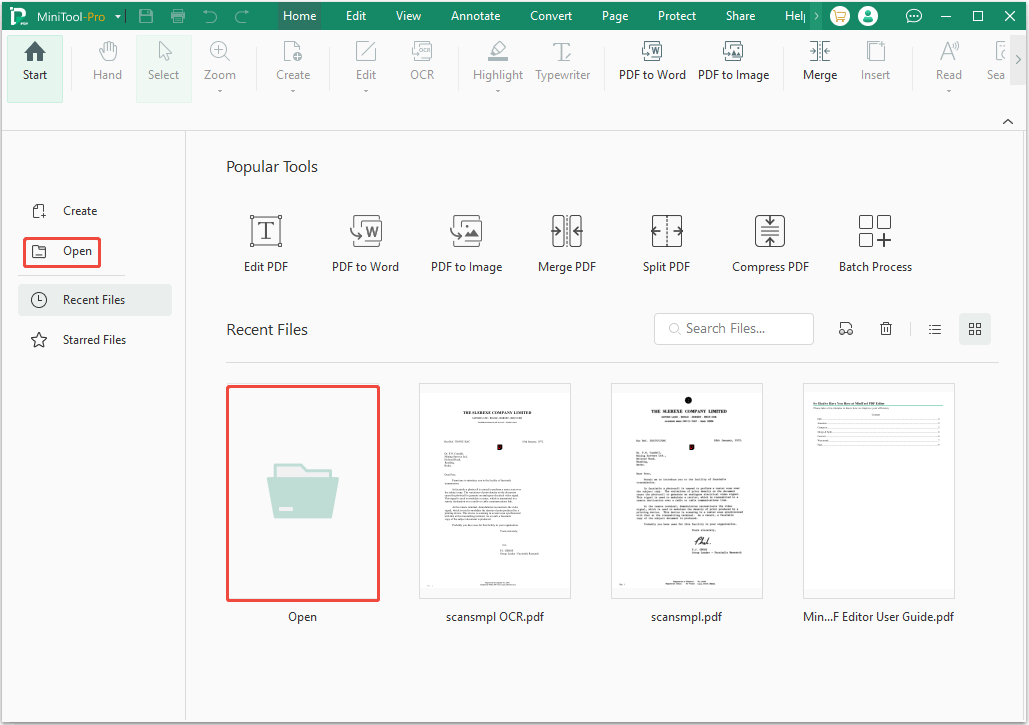
Step 1: Install and launch MiniTool PDF Editor. Click Open and then select the scanned PDF.
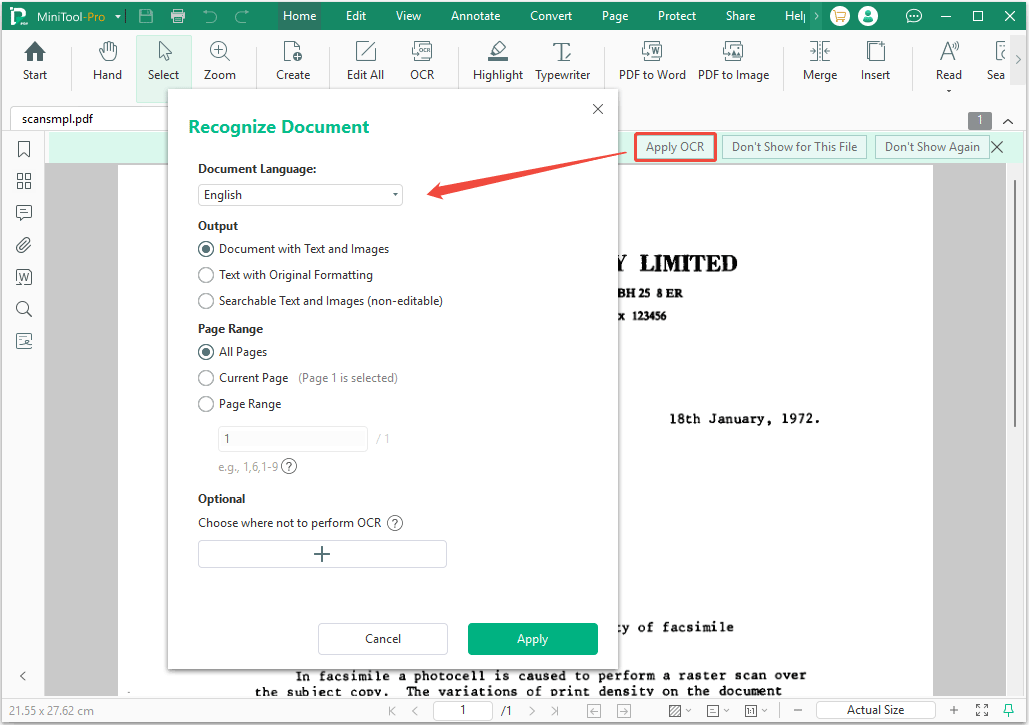
Step 2: Click Apply OCR. Then, on the pop-up window, select the Document Language, Output effect, and OCR Page Range. After that, click Apply.
Step 3: Once the OCR PDF opens, go to the Home tab and then click Quick Translation. Use the cursor to select the text you want to translate. A Quick Translation window will appear, in which you choose the language you want the text translated into.
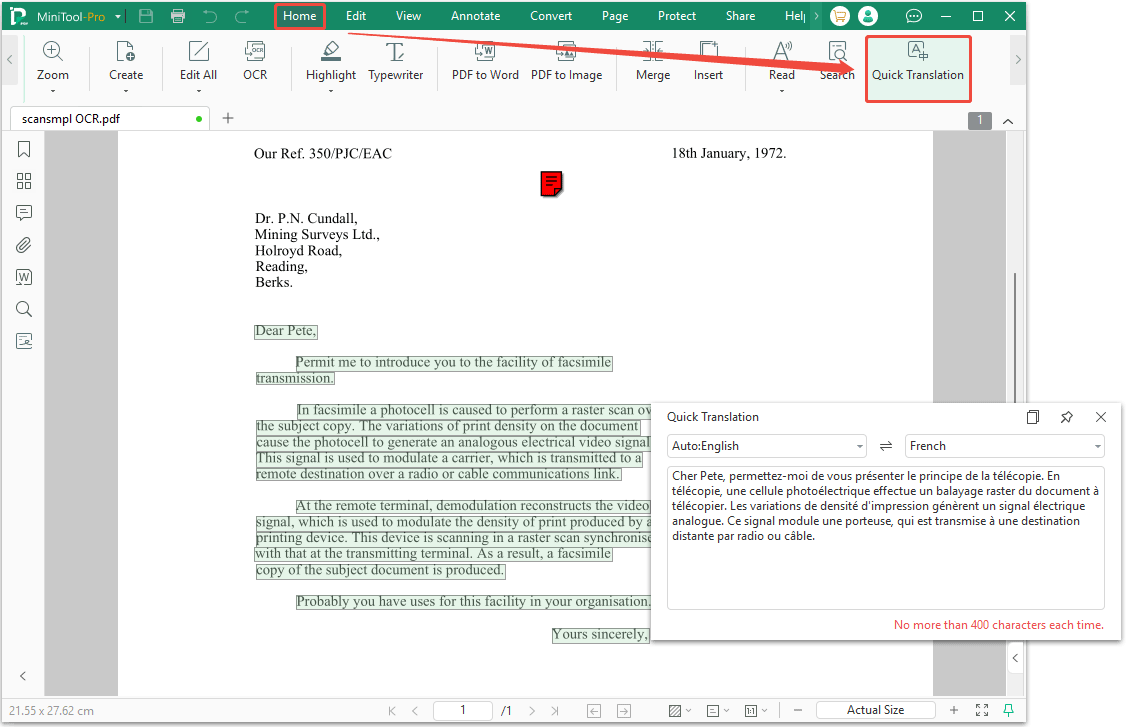
If you want to convert the translated text into a file, you can copy the translated content into a Word document and re-edit and format it.
![How to Convert Scanned PDF to Text on Windows [Ultimate Guide]](https://images.minitool.com/pdf.minitool.com/images/uploads/2024/12/scanned-pdf-to-text-thumbnail.jpg)
Method 2. Use Google Translate
Google Translate is a commonly used translation tool. It can translate text, images, documents, and web pages.
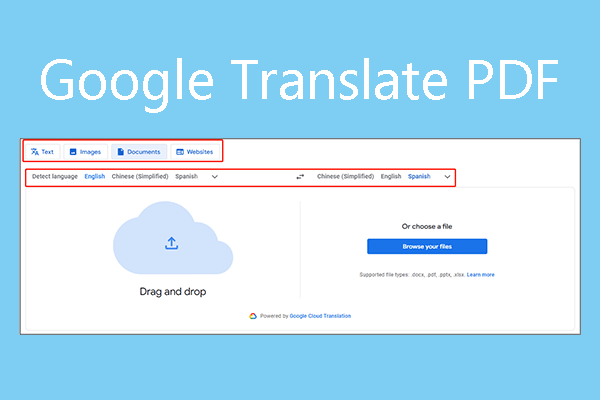
If you want to translate a text-based PDF file, simply select the Documents tab. Drag the file into the box on the left, select the source and target languages, and you can begin translating. Then, download the translated file.
Unfortunately, Google Translate can’t translate scanned PDFs, which are based on images. To translate a scanned PDF using this tool, you need to take a screenshot of the PDF file and then translate the image. Open the Images tab, set the language options, drag the image to the left box, and then you will get a translated image in the right box. You can download it to your desktop.
Of course, you can also use a compromise. Convert the scanned PDF to an editable one using MiniTool PDF Editor or similar tools. Then, translate the PDF file using Google Translate.
Method 3. Use Adobe Acrobat
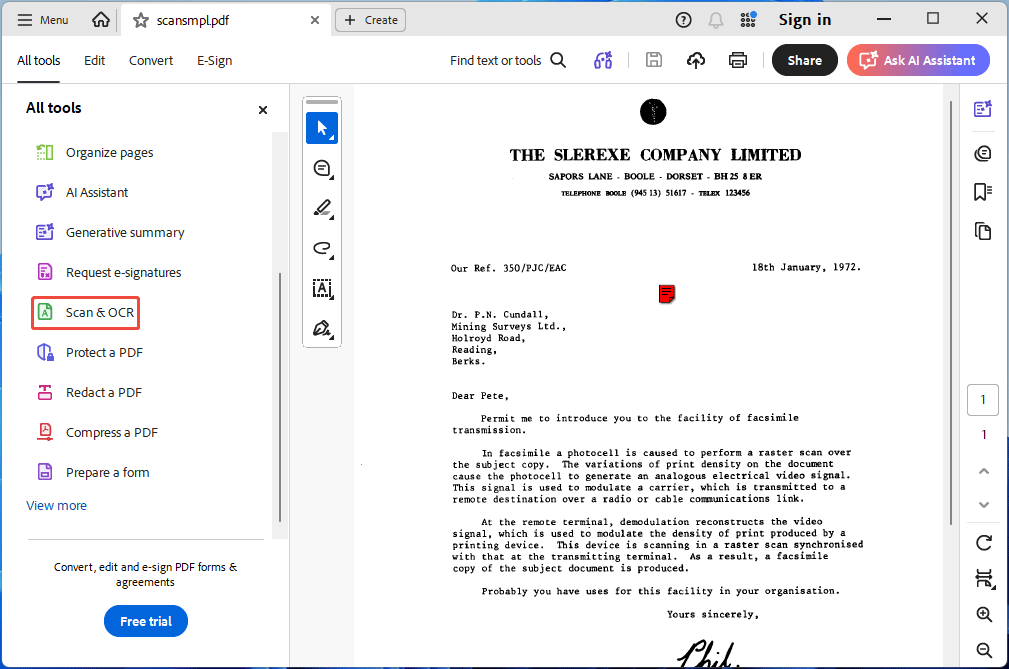
To translate scanned PDFs, the best approach is to find software that combines OCR and document translation functions. Then, you can try Adobe Acrobat. Here is how to use it to translate a scanned PDF:
Step 1: Apply OCR.
- Open the scanned PDF in Adobe Acrobat.
- Go to the All Tools tab and select Scan & OCR.
- Click In This File.
- On the pop-up window, click the Gear icon.
- Select the Pages and Document Language.
- Change the Output to Editable Text and Images.
- Click OK and then Recognize text.
- Save the document.
Step 2: Translate the PDF.
- Open the editable PDF in Adobe Acrobat.
- Go to the Convert tab.
- Select Translate this PDF. Your document opens in Adobe Express.
- The source language will be automatically recognized.
- You only need to select the target languages from the Translate to dropdown menu and choose the translation page range.
- Click Translate. The translated document will be saved in Your stuff or Recent in Adobe Express.
- Preview the translated text and then export it.
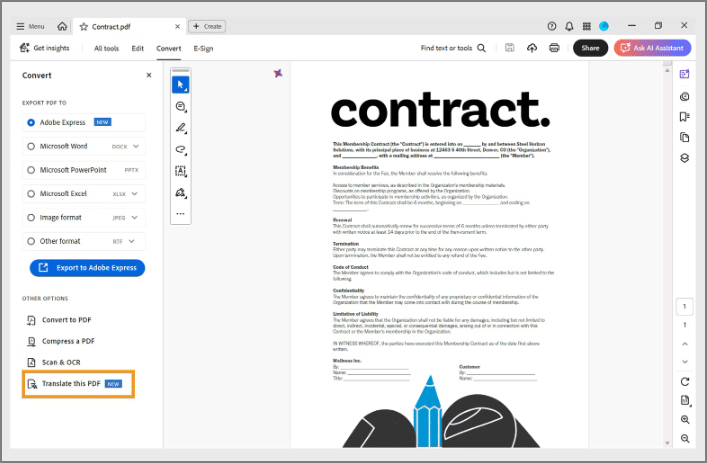
Image from Adobe Acrobat.
Scanned Document Translation Tips
Scanned document translation often fails because files are image-based, not text-based, requiring Optical Character Recognition (OCR) to convert images into editable text. Key issues include poor scan quality (low DPI), complex layouts, handwriting, and file size limits, which cause garbled text or errors.
To avoid these issues, you can try the following measures:
- Scan the document at 300 DPI or higher resolution. Ensure high contrast and straight text.
- Use a dedicated translation tool with powerful OCR capabilities and support for layout preservation (tables, multi-column reports, or graphs).
- Manually remove handwritten annotations, signatures, stamps, or watermarks to avoid errors by the OCR engine.
- For large, high-resolution scanned PDF files, use a PDF splitting tool to divide the document into smaller parts before translating.
- Non-horizontal text may cause errors in the translation tool. Then, rotate the page before translating to ensure all text is horizontal.
- When using online translation tools, please ensure that the tools are safe.
Bottom Line
This post introduces 3 methods to help you translate a scanned PDF. Each of them has its applicable scenarios. You can pick one according to your condition.
If you encounter issues when using MiniTool PDF Editor, send an email to support@minitool.com for assistance.
About The Author

Position: Columnist
Linda has been an editor at MiniTool for seven years. She continuously learns about computers and puts her knowledge into practice. Moreover, she is particularly knowledgeable in disk management, data recovery, system installation, and PDF editing. Her articles typically reference multiple examples or are based on her own experience, providing users with the most suitable solutions.