

If you want to know how to make a fillable PDF form without Acrobat, you come to the right place. In this post, MiniTool PDF Editor shows you how to do that in 6 approaches. Select the method that best fits your needs.
A fillable PDF form can streamline data collection, improve efficiency, and reduce errors with validation. It is suitable for applications, surveys, and contracts, enabling instant data extraction and better workflow management.
Here are some common types of fillable fields.
- Push Button: It is an interactive form element that initiates certain predefined actions, such as opening a file, submitting data to a web server, or resetting a form.
- Check Box: It presents yes-or-no choices for individual items, allowing users to select multiple options or negate multiple options.
- Radio Button: It presents a group of choices from which the user can select only one item.
- Combo Box: It offers a drop menu, letting users choose an item or type in a value.
- List Box: It offers a slide menu, displaying a list of options the user can select.
- Text Field: It offers a text bar allowing the user to type in text, such as name, address, phone number, etc.
- Signature Field: It is a blank field for reviewers to add a digital signature to the document.
- Image Field: It is a blank area to let the user browse and select an image to add.
- Date Field: Lets the user choose a date from the calendar.
- Barcode Field: Represents a user’s form entries in a visual pattern that can be scanned, interpreted, and incorporated into a database.
With Adobe Acrobat, you can easily add interactive fields (text boxes, checkboxes, dropdowns) to documents. However, you may want to find an alternative to Adobe Acrobat due to this software’s high cost, mandatory subscription model, frustrating performance issues, and complex and unintuitive user interface.
Here are 6 methods to help you create a fillable PDF without Adobe Acrobat.
Method 1. Use Foxit
Foxit PDF Editor is a professional PDF tool that can create, view, edit, digitally sign, password-protect, and print PDF files. It also features form creation/filling, and AI tools for summarizing, translating, and extracting insights.
It is available on Windows, macOS, web, and mobile, ensuring flexibility across platforms. Here is how to make a PDF fillable in Foxit:
- Open a PDF file in Foxit PDF Editor.
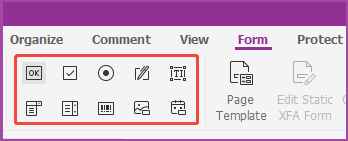
- Go to the Form tab and select a type of form field button (Push Button, Check Box, Radio Button, Combo Box, List Box, Text Field, Signature Field, Image Field, Date Field, and Barcode Field).
- The cursor will change to a crosshair. Drag an area in the desired position to add the form field.
Method 2. Use Nitro PDF
Nitro PDF is a comprehensive software suite for creating, editing, converting, signing, and securing PDF documents. It also comes with features like OCR, cloud integration, and AI tools.
Here is how to create a fillable PDF with this software:
- Open a PDF file in Nitro PDF.
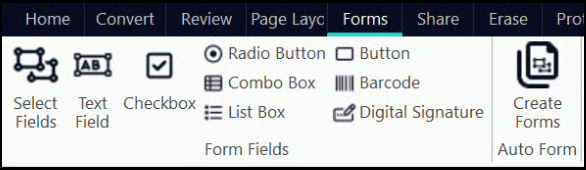
- Go to the Forms tab and then select a type of form button (Select Fields, Text Field, Checkbox, Radio Button, Combo Box, List Box, Push Button, etc.).
- Draw a box with your mouse on the PDF to place the form field.
Method 3. Use PDFgear
PDFgear is an all-in-one PDF software suite for Windows, Mac, iOS, and Android, offering tools to edit, convert, annotate, sign, and organize PDF documents. It also offers an AI Copilot for chatting with PDFs, summarizing, and extracting information.
However, the PDFgear software doesn’t offer the feature to add form fields. Instead, it offers a web fillable PDF form creator. Here is the guide:
- Go to the PDFgear fillable PDF form creator.
- Select a PDF file to upload or start with a blank PDF.
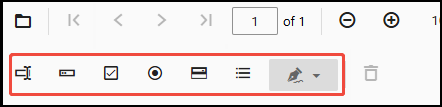
- In the top left corner, a few tools are offered to you to create form fields, including textbox, checkbox, radio button, drop down menu, list box, and signature field.
- After adding the form fields, click the Download file button in the top right corner to get the fillable PDF file.
Method 4. Use UPDF
UPDF is a PDF editor for Windows, Mac, iOS, and Android, offering features to view, edit, annotate, convert, and manage PDFs. Its integrated AI feature can summarize, translate, and explain documents.
To use it to add form fields in PDF, follow the guide below:
- Open a PDF file in UPDF.
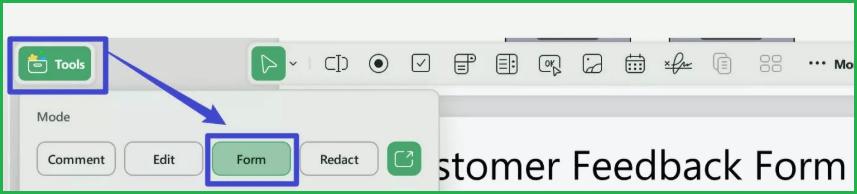
- Click Tools in the top left corner and then select Form.
- Use the tools in the top section to add form fields, including text field, check box, radio box, drop down menu, and list box.
![How to Fix PDF Fillable Form Not Showing Field Data? [7 Ways]](https://images.minitool.com/pdf.minitool.com/images/uploads/2025/02/pdf-fillable-form-not-showing-field-data-thumbnail.jpg)
Method 5. Use InDesign
Adobe InDesign is a professional desktop publishing and page layout software. It is usually used to create multi-page, complex documents like magazines, brochures, books, posters, and interactive digital publications (e-books, apps).
How to make a fillable PDF in InDesign? Follow the guide below:
- Open InDesign, click File > Open PDF, and then select a PDF. You can also drag and drop PDFs into InDesign.
- Place a frame at the location where you want to place the form field.
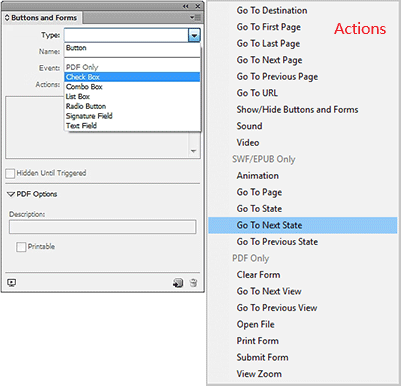
- Click Window > Interactive > Buttons and Forms to open the panel.
- Select the frame and choose a form element type from the Type list (Button, PDF Only, Check Box, Combo Box, List Box, Radio Button, Signature Field, and Text Field).
- Enter a name for the form field. To create a radio button group, all the individual buttons must have the same name.
- Choose an event like On Release or Tap, On Click, On Roll Over, On Roll Off, On Focus (PDF), and On Blur (PDF).
- Add actions to associate with the event. The actions include Go To Destination, Go To URL, Clear Form, Open File, Print Form, Submit Form, etc.
- For a radio button, check box, or buttons, set appearance attributes for different states.
- For a list box, combo box, or text field, select font family, font type, and font size.
- Specify PDF options. Description serves as the tool tip and is used for creating accessible forms. Button Value corresponds to the export value in Acrobat and can also be used to identify a radio button in a group in an accessible form.
- Once all settings are configured, click the convert button to generate the form field.
- Export the file to PDF. Go to File > Export > PDF (Interactive) to save it as a PDF file while keeping the interactive elements.
Method 6. Use Bluebeam
Bluebeam is industry-standard construction software. Its core product Bluebeam Revu is used by Architecture, Engineering, and Construction (AEC) professionals for PDF creation, markup, and collaboration.
Its powerful markup, measurement, and cloud-based collaboration tools streamline tasks like quantity takeoffs, design reviews, and quality control.
Revu also has the ability to create forms. Here is how to make a PDF fillable in Bluebeam:
- Open a PDF in Revu.
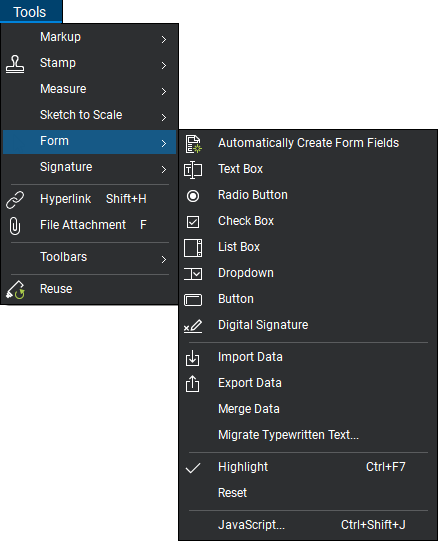
- Go to Tools > Form and select the form field to be added to the PDF (Text Box, Radio Button, Check Box, List Box, Dropdown, Button, and Digital Signature).
- Place the form field on the PDF.
![How to Fix PDF Fillable Form Won’t Save Content? [4 Ways]](https://images.minitool.com/pdf.minitool.com/images/uploads/2025/03/pdf-fillable-form-wont-save-content-thumbnail.jpg)
How to Make a Fillable PDF Form Without Acrobat FAQ
Bottom Line
This post shows you how to make a fillable PDF form without Acrobat. It introduces 6 tools, including Foxit, Nitro PDF, PDFgear, UPDF, InDesign, and Bluebeam. You can pick one according to your needs.
About The Author

Position: Columnist
Linda has been an editor at MiniTool for seven years. She continuously learns about computers and puts her knowledge into practice. Moreover, she is particularly knowledgeable in disk management, data recovery, system installation, and PDF editing. Her articles typically reference multiple examples or are based on her own experience, providing users with the most suitable solutions.