

Why Do You Need to Enlarge a PDF for Printing?
Portable Document Format (PDF) is a very popular file format. Many people use this format to showcase their content or designs. Printing a PDF is necessary when you need a physical copy of a document for official documents, contracts, or reports.
Sometimes, you may need to enlarge a PDF file for printing to make the content clearer. PDFs typically contain vector data (fonts and paths), which can be enlarged significantly without loss of quality or pixelation, unlike standard image files.
Here are additional benefits that can be achieved:
- Improve readability: Increasing the scaling makes it easier for visually impaired people to read small print and fine details.
- Accommodate larger paper sizes: If your original document was designed for Letter or A4 paper, but you need to print it on A3 or Tabloid paper, you must enlarge the document to fill a larger area.
- Create posters: To print large posters using a standard home printer, you can use the "Poster" or "Tile" mode to enlarge the PDF across multiple sheets of paper that are later assembled.
- Correct printing errors: Sometimes, PDF files print too small due to the software's default settings. Manually enlarging can resolve these layout issues.
How to enlarge a PDF for printing? Keep reading to get the effective approaches.
Method 1. Use MiniTool PDF Editor
MiniTool PDF Editor is a professional PDF editing tool that allows you to edit, annotate, convert, merge, compress, and print PDF files. For printing, it offers a variety of options to help you adjust PDF files to the optimal size.
- It allows you to scale PDF files to your desired size manually.
- It offers a variety of paper sizes to choose from: Letter, Tabular, Legal, A3, A4, A5, etc.
- It can also help you adjust orientation, margins, paper color, print order, page layout, and more.
In short, with MiniTool PDF Editor, you can easily enlarge PDF files and adjust other options. What’s more, this software can help you print multiple pictures on one page, print double-sided PDFs, print odd or even pages in PDF, print PDF without margins, and more.
Next, let's see how to use MiniTool PDF Editor to enlarge PDF files for printing.
MiniTool PDF EditorClick to Download100%Clean & Safe
Step 1. Download and install MiniTool PDF Editor. After that, right-click the PDF file you want to print, and then choose Open with > MiniTool PDF Editor.
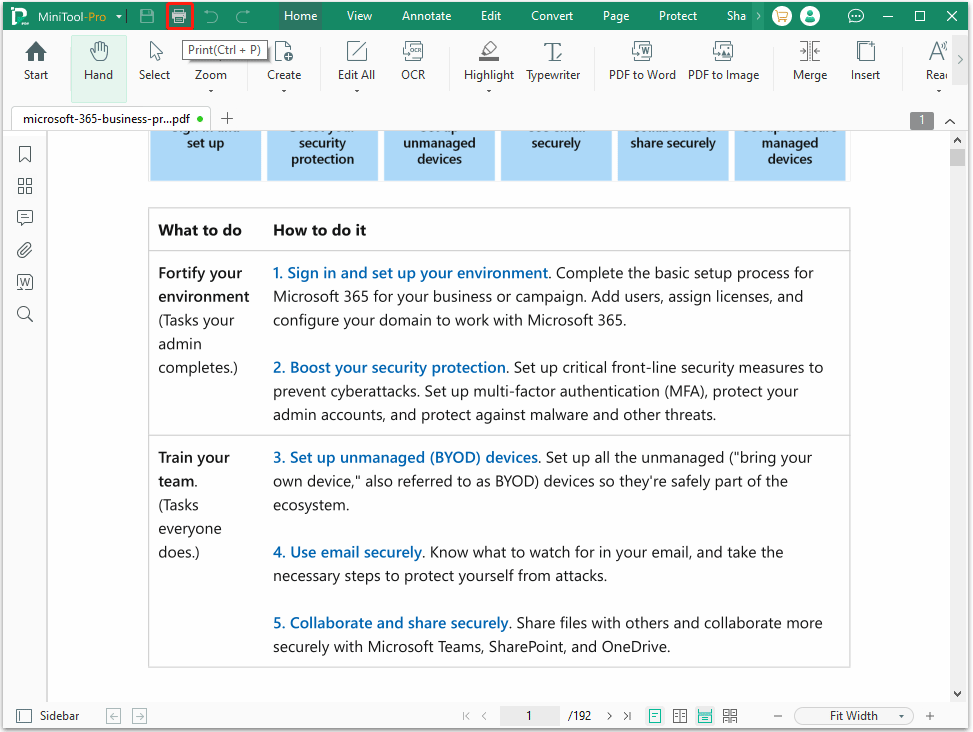
Step 2. Once the PDF file opens, click the Print icon in the top-left corner or press Ctrl + P.
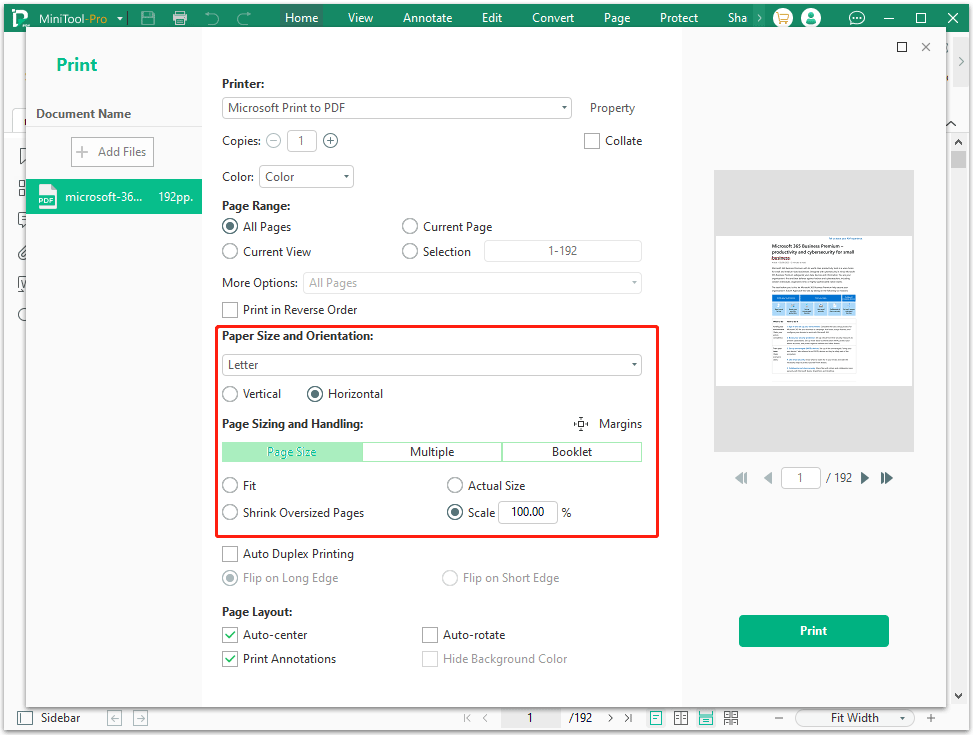
Step 3. In the pop-up window, to make PDF printing larger, go to Paper Size and Orientation/Paper Sizing and Handling and adjust the option according to your needs.
- Under Paper Size and Orientation, choose a large size like A3.
- Under Page Sizing and Handling, in the Page Size section, select Scale and enter a number to scale the PDF.
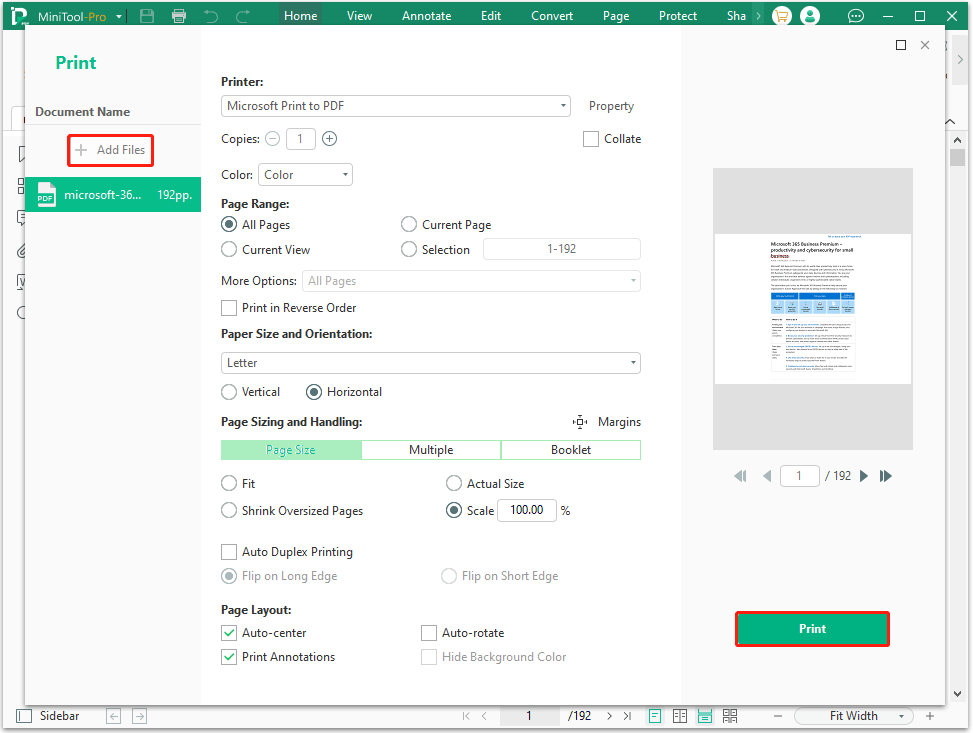
Step 4. Adjust other settings if needed. Once done, click the Print button. If you want to print multiple PDFs, click the Add Files option to add other PDFs.
Method 2. Use Adobe Acrobat
Adobe Acrobat is a famous PDF editor. It is released by the designer of the PDF file format. It can also enlarge a PDF for printing. Here are the specific steps:
- Open the PDF file with Adobe Acrobat.
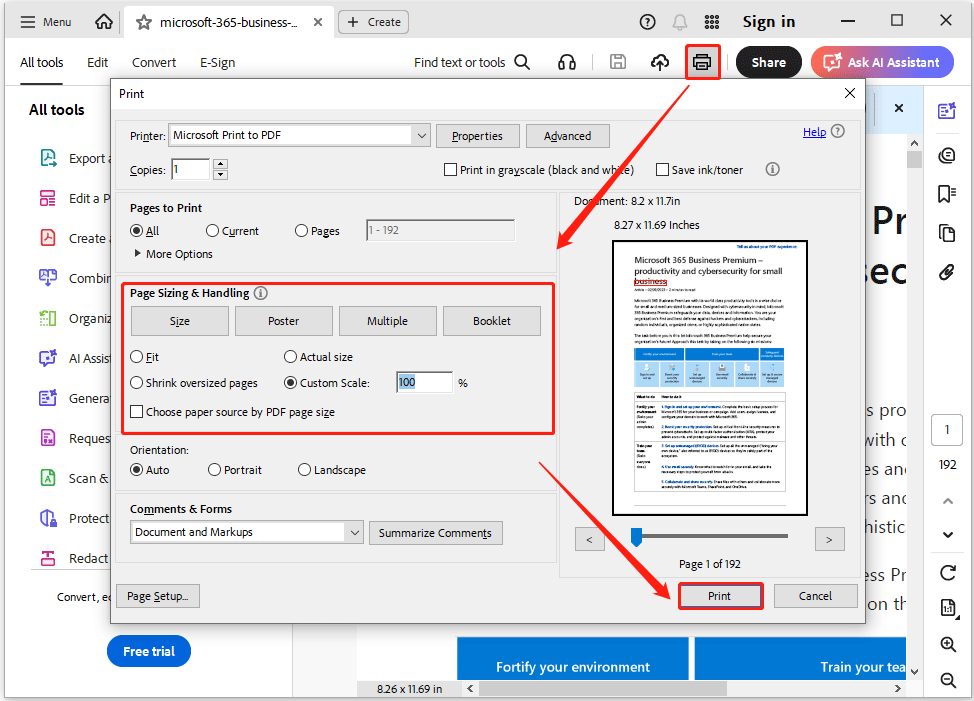
- Click the Print icon.
- In the pop-up Print window, under Page Size & Handling, select Custom Scale and enter a percentage higher than 100%.
- If you want to print a poster size, choose Poster, and adjust the Tile Scale to enlarge the file.
- When it’s OK, click Print.
Method 3. Use Google Chrome
Google Chrome has a built-in PDF viewer. Besides viewing PDF files, it can also help you easily adjust PDF files for printing.
However, if you need more advanced features or need to handle large documents, professional PDF software is a better choice.
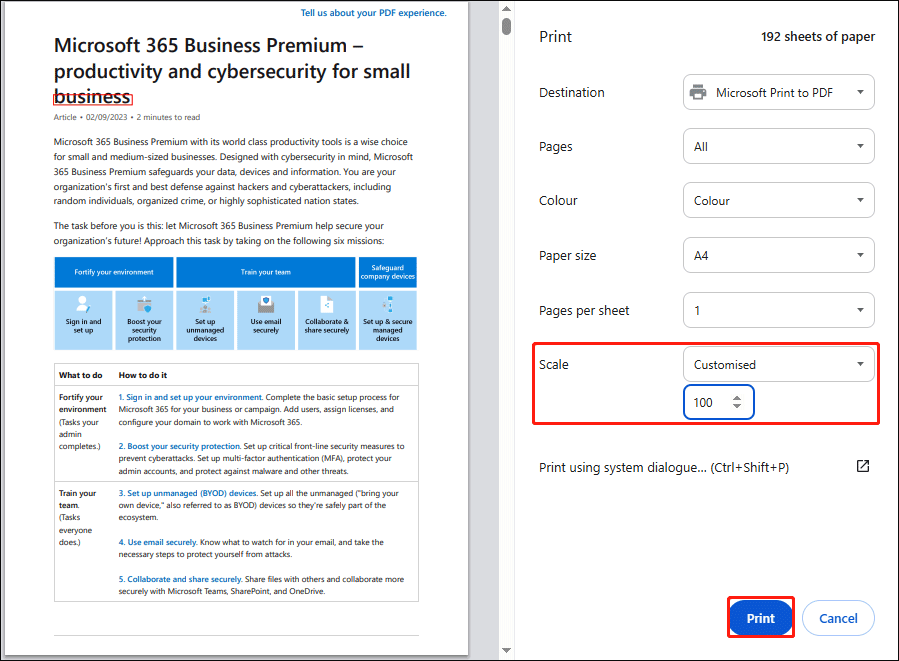
Here are the steps to enlarge a PDF for printing using Google Chrome:
- Right-click the PDF file, and then choose Open with > Google Chrome.
- Click the Print icon.
- Go to Scale. Then choose Custom and enter a large number.
- Finally, click Print.
How to enlarge a PDF for printing? This post offers 3 methods to help you.Click to Tweet
How to Enlarge a PDF for Printing FAQ
Vector text and graphics remain sharp at any zoom level. However, scanned documents or image-based PDF files will become pixelated and blurry because they are composed of pixels of a fixed resolution.
2. Choose Edit and select Edit All.
3. Select the text, and then choose a desired size.
4. Finally, click Print.
1. The printer is not connected to the device correctly.
2. No printer detected.
3. The printer is not working.
4. The PDF file is corrupted.
5. The PDF file is locked.
6. The printer driver is outdated.
Bottom Line
This post shows you how to enlarge PDF for printing with different methods. MiniTool PDF Editor is the better choice.
If you encounter issues when using MiniTool PDF Editor, contact us by sending an email to support@minitool.com. We’ll get back to you as soon as possible.