

Introduce to Link to Page in PDF
Portable Document Format (PDF) has become one of the most widely used document-sharing formats. From academic papers and ebooks to official reports and user manuals, PDFs are favored for their consistent formatting across different devices and operating systems.
One of the key features enhancing the usability of PDF documents is "link to page in PDF”. This feature allows you to create hyperlinks that directly guide readers to specific pages within the PDF file, significantly improving navigation, readability, and the overall user experience.
"Link to page in PDF" is a clickable hyperlink embedded within a PDF document. Clicking them will take the reader directly to the specified page.
These links can be internal links (pointing to other locations within the same document) or external links (directing you to other PDFs or online resources).
Internal page links are especially useful in long or complex documents where readers may need to quickly jump between different sections, such as from the table of contents to a specific chapter, or from a reference in the text to a reference chart or appendix.
In the following part, this post offers several approaches to creating an internal link to a specific page in a PDF. Continue to know the detailed steps.
How to Link to a Page in a PDF?
To create a link to a specific page in a PDF, here are 3 tools:
- MiniTool PDF Editor: A PDF editing tool with a user-friendly interface and powerful features.
- Adobe Acrobat: A professional and well-known PDF editor.
- Soda PDF: A PDF editor that excels in usability and balanced functionality.
You can pick one according to your preference.
Method 1. Use MiniTool PDF Editor
MiniTool PDF Editor lets you easily add page links to PDF documents. It helps you add hyperlinks to jump to selected pages, specific locations within the PDF document, web pages, or other files.
This software is both a PDF link adder and a PDF link editor for Windows PC. You can set the appearance, line style, thickness, and color of the links. You can edit and delete links in PDF documents at any time.
It also supports all other PDF tasks, including editing, annotating, converting, translating, and protecting PDF files.
To link to specific page in PDF, follow the steps below:
Step 1. Download and install MiniTool PDF Editor on your computer. Then launch this software to its main interface.
MiniTool PDF EditorClick to Download100%Clean & Safe
Step 2. Select Open from the left panel, choose the PDF that you want to add links to, and click Open to move on.
Step 3. Go to the Edit tab, click the Link option, and choose Add or edit link.
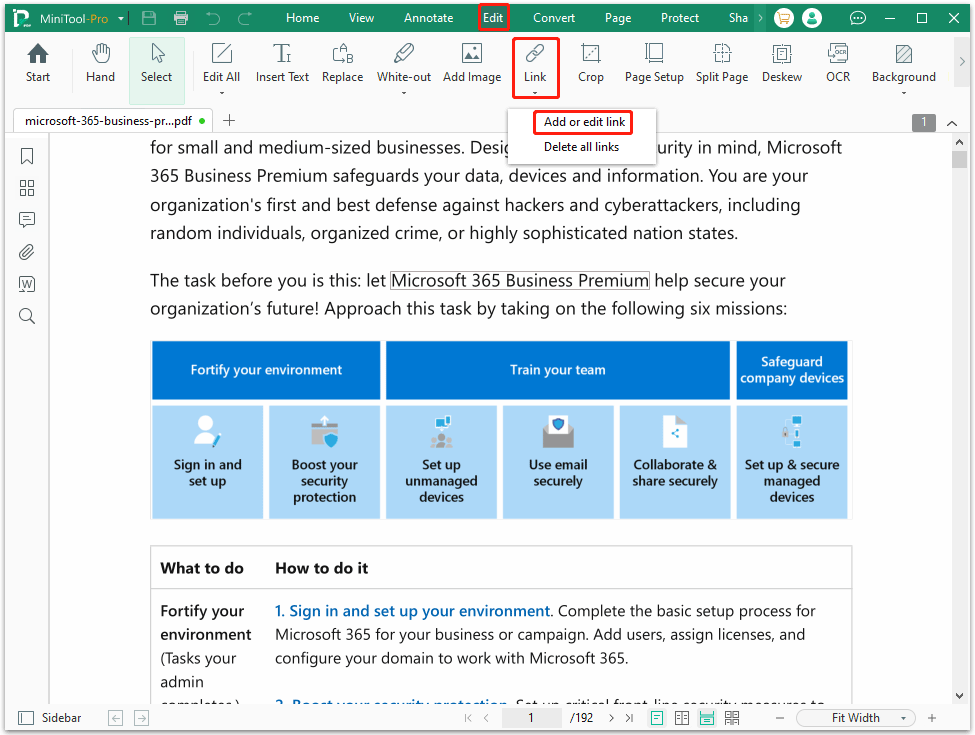
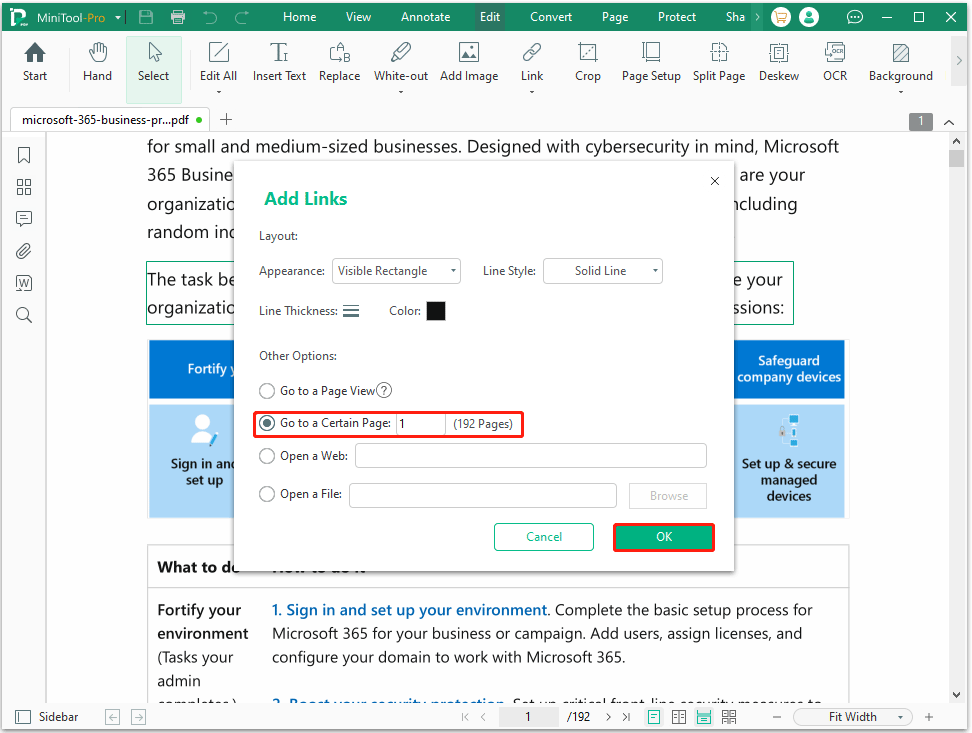
Step 4. Move your cursor to select the words/phrase/paragraphs that you want to add a page link to. Then, the Add Links window will pop up.
Step 5. Select the Go to a certain page option and enter a page number. Here, you can set the link layout, including Appearance (Visible/Invisible Rectangle), Line Style (Solid/Dotted/Underline), Line Thickness (1pt/2pt/3pt), and Color. Then click OK to link to page in PDF.
In addition to using the "Go to a Certain Page" option, you can also use the "Go to a Page View" option to link to page in PDF. This option allows you to link to a more precise part of the PDF page. For example, you can link to the top or bottom half of the page by scrolling to the appropriate location.
To do this, select the "Go to a Page View" option, click Next, scroll to the page you want to link to, and then click OK.
Method 2. Use Adobe Acrobat
Adobe Acrobat Pro is the professional PDF editor. It offers the most comprehensive set of tools for creating, editing, and managing PDF links, making it the top choice for professionals.
Here’s a step-by-step guide on how to link to a specific page in a PDF:
- Open your PDF in Adobe Acrobat Pro.
- Go to Tools > Edit PDF > Link > Add or Edit.
- Scroll through your PDF to find the area you want to create a hyperlink, then drag a rectangle to select it.
- Then, a Create Link dialog box will appear, and select the Go to a page view option.
- Once selected, click Next to set the page number and view the PDF, then click Set Link.
Method 3. Use Soda PDF
Soda PDF is an all-in-one application for creating, editing, converting, and managing PDF files. It is another tool to link to specific page in PDF. Here is the guide:
- Open your PDF file with Soda PDF.
- Click the Edit tab in the top toolbar.
- Select the Link tool, and then click and drag to draw a rectangle where you want the link to appear on your page.
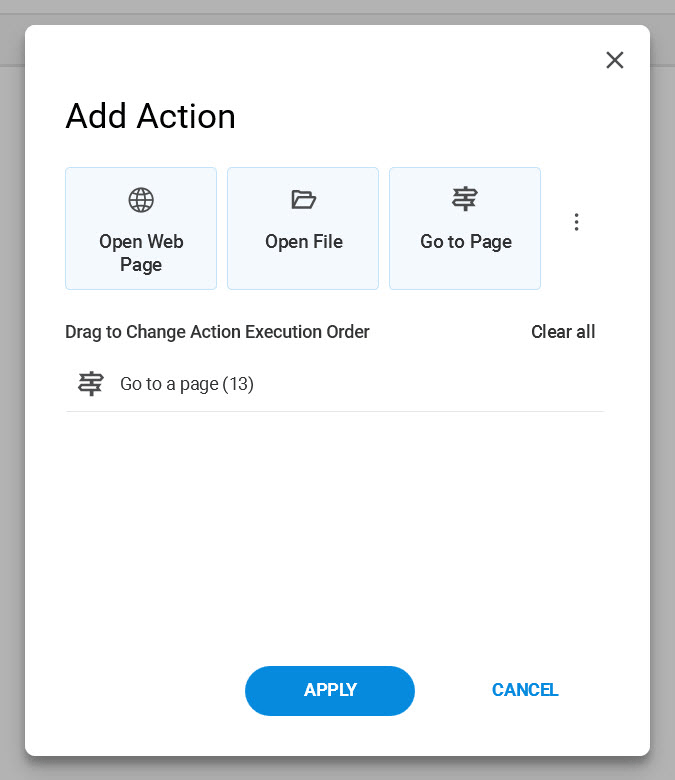
- The Add Action window will open. Then select the Go to Page option.
- Use the page navigation tools to go to your desired target page.
- Click on the target page to set it as the destination.
- Click Apply.
--image from https://www.sodapdf.com/
How to link to a page in a PDF? This post offers 3 approaches.Click to Tweet
Further reading: If you want to create a link to open a specific page of a PDF file in HTML format (external link), you need to get the full web address of the PDF file (e.g., https://www.example.com/document.pdf).
To open a PDF file and go to a specific page, simply add "#page=[page number]" to the end of the link URL. For example, if you want to link to page 5 of the PDF file, the URL would look like this: https://www.example.com/document.pdf#page=5.
Bottom Line
Link to page in PDF is a simple and effective way to allow readers to quickly find the information they need. This post provides 3 effective methods to do that.
If you encounter issues when using MiniTool PDF Editor, contact us by sending an email to support@minitool.com. We’ll get back to you as soon as possible.