

Why Do You Need to Increase PDF Brightness?
PDFs have become a popular shared digital document format. However, insufficient brightness can make PDFs difficult to read and cause eye strain after prolonged reading.
Therefore, adjusting PDF brightness is crucial. Increasing brightness makes text and graphics clearer and more prominent, significantly improving readability and the overall reading experience. For example:
- PDFs scanned from inherently dark paper documents have poor contrast or contain shadows. Brightness increase makes text clear and easy to read without causing eye strain.
- For those reading documents in low-light environments, higher brightness and contrast are essential for comfortable reading.
- Adjusting contrast is crucial for some people with visual impairments, making documents easier to access.
In the following part, this guide will provide a step-by-step tutorial about PDF brightness increase.
How to Increase PDF Brightness?
To increase brightness of PDF, here are 4 approaches. You can pick one according to your needs.
Method 1. MiniTool PDF Editor
MiniTool PDF Editor, a desktop software, can help you adjust the brightness of PDF files. This powerful PDF editor allows you to adjust brightness by setting text color and page background color.
Moreover, this software is a feature-rich PDF Editor that can add/remove passwords, text, links, images, pages, backgrounds, and signatures to PDFs. It can also resize PDFs, merge PDFs, and translate PDFs.
Now, click the button below to download MiniTool PDF Editor. Then, run the download setup file and follow the prompted instructions to complete the installation.
MiniTool PDF EditorClick to Download100%Clean & Safe
Step 1. Right-click your PDF file and choose Open with > MiniTool PDF Editor.
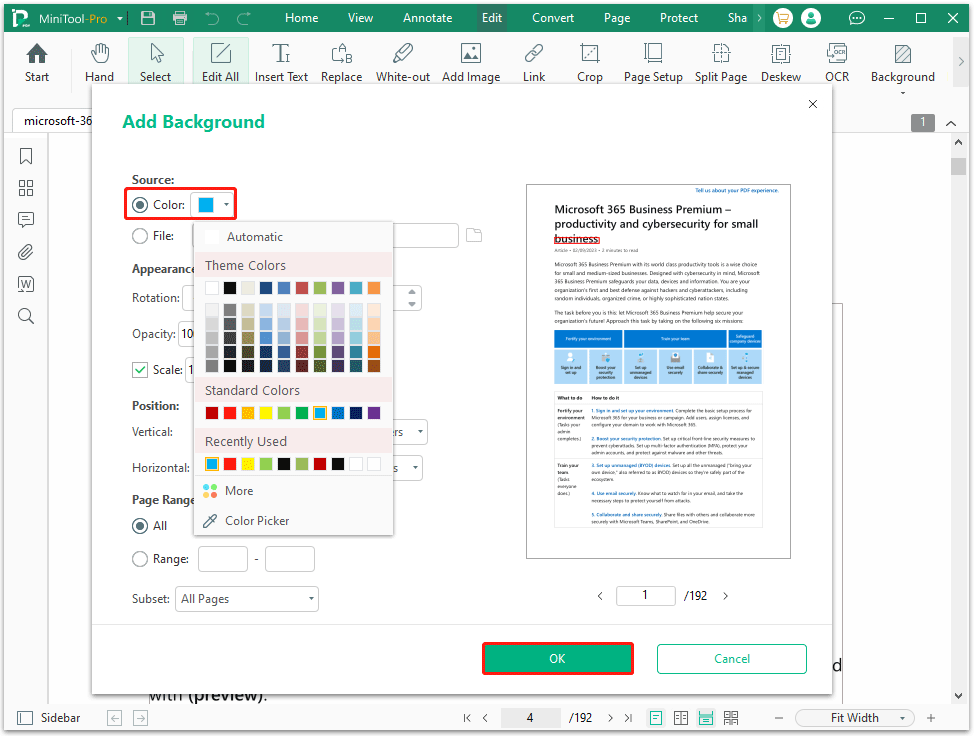
Step 2. To adjust the PDF background color, click Edit > Background > Add Background, and then choose a bright background color. If there is background, choose Update Background. Then click OK.
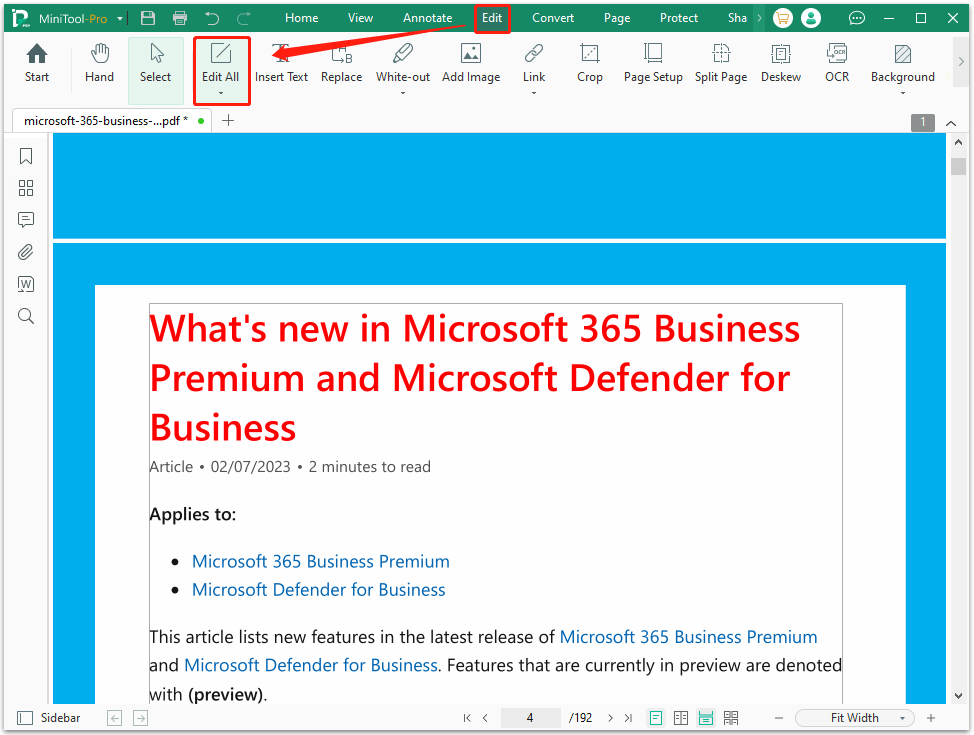
Step 3. To increase the contrast between text and background, click Edit, Edit All, select text, and choose a dark color.
Method 2. Adobe Acrobat
Adobe Acrobat is primarily a tool for viewing, creating, and editing PDF documents. It also offers features to adjust the brightness of images in PDFs.
To do that with Adobe Acrobat, here are the steps:
- Open your PDF file with Adobe Acrobat.
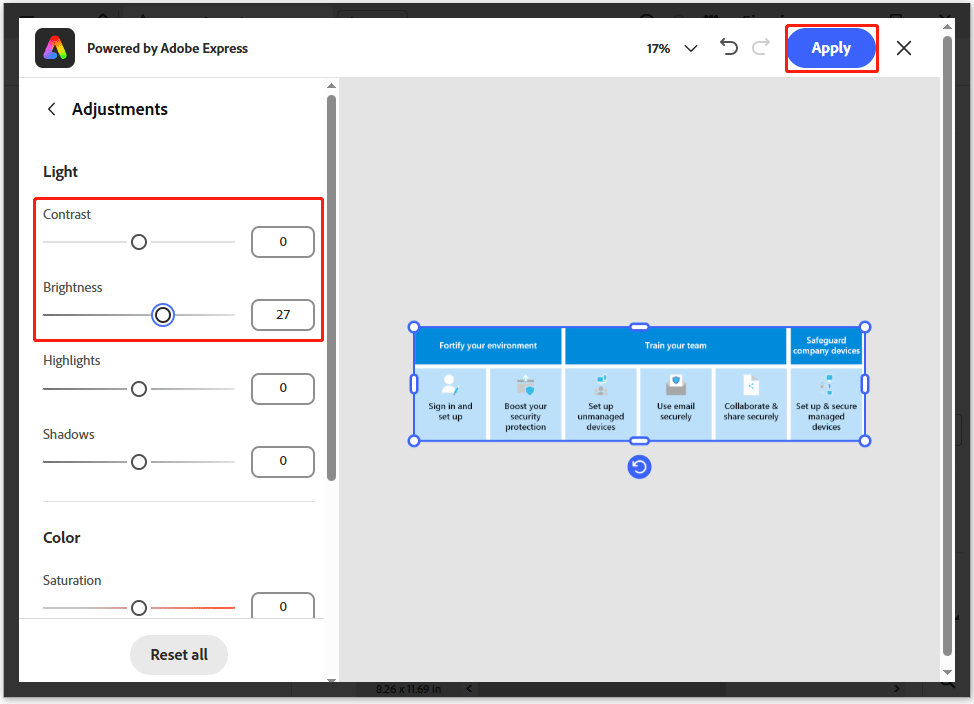
- Right-click the image of the PDF, and then select Edit image.
- A new window will pop up. Click Adjust, and then drag the sliders for Contrast and Brightness.
- Finally, click Apply.
Method 3. Konfuzio PDF Tool
Konfuzio PDF Tool is a PDF brightness increase online tool. You can quickly increase PDF brightness using the brightness/contrast slider.
In addition, this PDF editor provides a range of basic tools for organizing, viewing, editing, signing, and converting files to PDF or other formats.
Now, follow the steps below to adjust PDF brightness:
- Go to the Konfuzio PDF Tool website on your web browser.
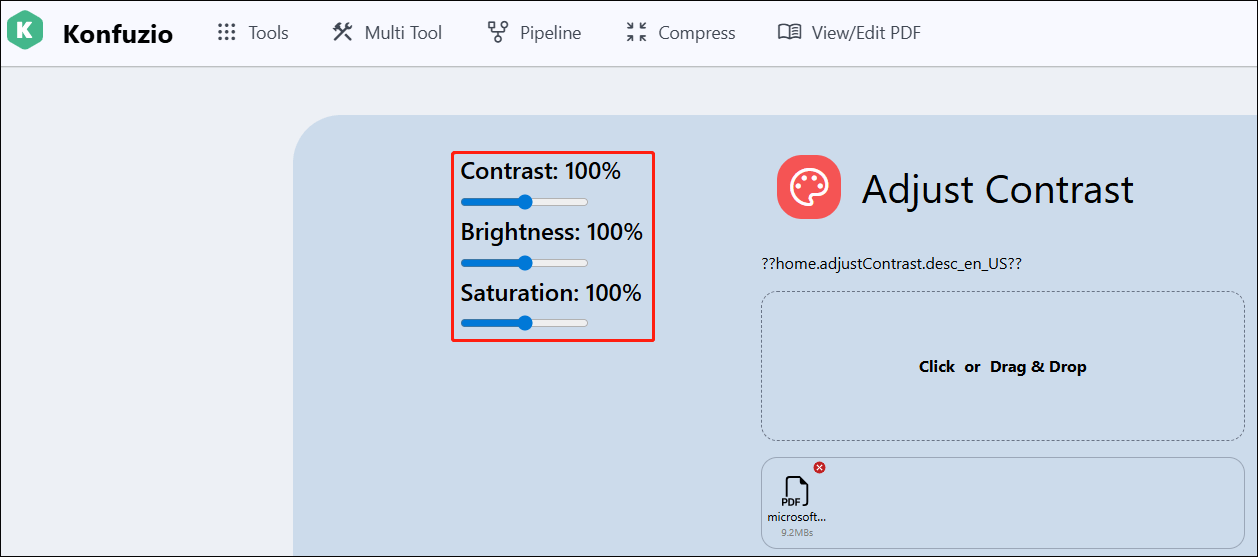
- Click Tools, and choose Adjust Colors/Contrast under Advanced.
- Select Click or Drag & Drop to upload your PDF file.
- Adjust the sliders for Contrast, Brightness, and Saturation as required.
- Click Download to save the file to your local storage.
Method 4. i2PDF
The online tool i2pdf.com offers a dedicated Contrast PDF feature that improves the display and readability of scanned documents by allowing you to adjust the brightness and contrast.
Here is the guide:
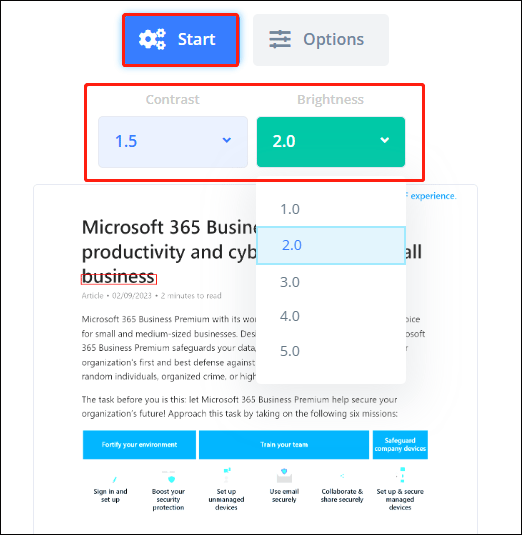
- Open the i2PDF website (https://www.i2pdf.com/contrast-pdf).
- Click Choose Files to upload your PDF file.
- Once the file loads, adjust the Brightness and Contrast values (such as 1.5, 2.0, etc.).
- Then click Start.
- Once done, click Download to save the brightened PDF file.
PDF Brightness Increase FAQ
Bottom Line
Adjusting the brightness of a PDF is a simple and effective method to make dimly lit and hard-to-read documents clear and readable. This post offers 4 effective methods for you. You can choose one according to your preference.
If you encounter issues when using MiniTool PDF Editor, contact us by sending an email to support@minitool.com. We’ll get back to you as soon as possible.