

Why Do You Rotate a Scanned PDF
A scanned PDF is a file generated by converting a paper document or image into PDF format using a scanner or other scanning application.
When paper documents are scanned as PDFs, the page orientation is not always correct. Then, you need to rotate the scanned PDF files. In general, rotating the scanned PDF files has the following benefits.
- Improve document readability and user experience: If scanned pages are landscape or inverted, reading becomes inconvenient. Rotating the scanned PDF to the correct orientation ensures the document functions correctly for reading and printing.
- Avoid frequent device orientation adjustments: If keeping the orientation of PDF pages inconsistent, users may need to constantly rotate their devices to view documents, impacting reading efficiency.
- Ensure print quality: Incorrect PDF page orientation can lead to messy layouts or display errors when printing. Rotating the scanned PDF files can eliminate the issues.
- Make documents look more professional and standardized: Correctly oriented scanned PDFs look more formal when sending work documents or sharing materials.
After understanding why it’s necessary to rotate scanned PDFs, the following content will show you how to rotate a scanned PDF on Windows.
How Do You Rotate a Scanned PDF?
When scanned PDF pages are horizontal or upside down, it can negatively impact the reading experience.
But don’t worry, you can easily correct the PDF’s orientation by rotating the scanned PDF files.
To do that, try using MiniTool PDF Editor or Adobe Acrobat.
Method 1. Use MiniTool PDF Editor
MiniTool PDF Editor, a professional PDF editor, can help you rotate a PDF file quickly.
The software comes with a clean and user-friendly interface, allowing you to use it without difficulty.
Moreover, it is a feature-rich PDF editor that can help you create/edit/convert/split/translate/merge/encrypt PDFs, and add/remove links, text, images, and backgrounds to PDFs.
MiniTool PDF EditorClick to Download100%Clean & Safe
Step 1: Download and install MiniTool PDF Editor on your computer.
Step 2: Right-click the scanned PDF file you want to rotate, click Open with, and choose MiniTool PDF Editor.
Step 3: In the main interface, click the Page > Rotate Pages. In the new pop-up window, choose Orientation, Page Range according your needs. Finally, click OK to rotate your scanned PDF.
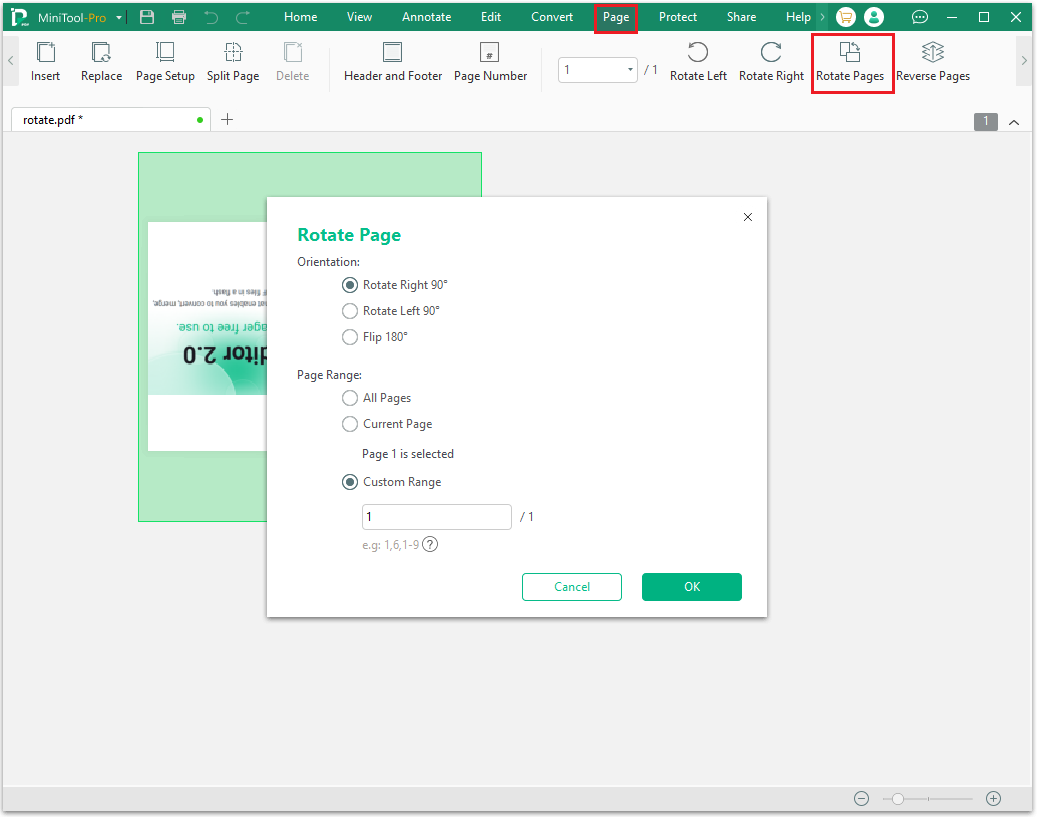
Step 4: Once the rotation is complete, save the PDF document.
Further Reading:
When you scan a document with a scanner or your phone, the page content may sometimes be slightly tilted.
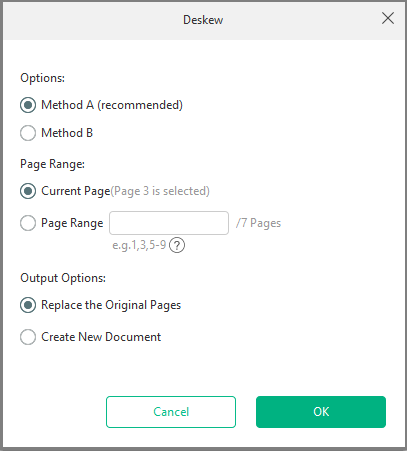
In this case, you can use the Deskew function in MiniTool PDF Editor, which can automatically correct tilted text and images in scanned documents or pictures.
Here are the steps:
- Launch MiniTool PDF Editor and then click Open to upload the scanned PDF.
- Go to the Edit tab and then select Deskew.
- In the prompted window, you can select a deskewing option, page range, and output option according to your needs.
- After that, click OK. MiniTool PDF Editor will then begin correcting the tilt in the scanned PDF.
Method 2. Use Adobe Acrobat
Adobe Acrobat is a powerful PDF management tool that can be used to edit and manage PDF files.
With this software, you can easily edit text and images, rotate scanned PDF pages, merge or split PDFs, compress file sizes, and convert PDFs to common formats such as Word and Excel.
Below are the specific steps for rotating scanned PDFs using Adobe Acrobat.
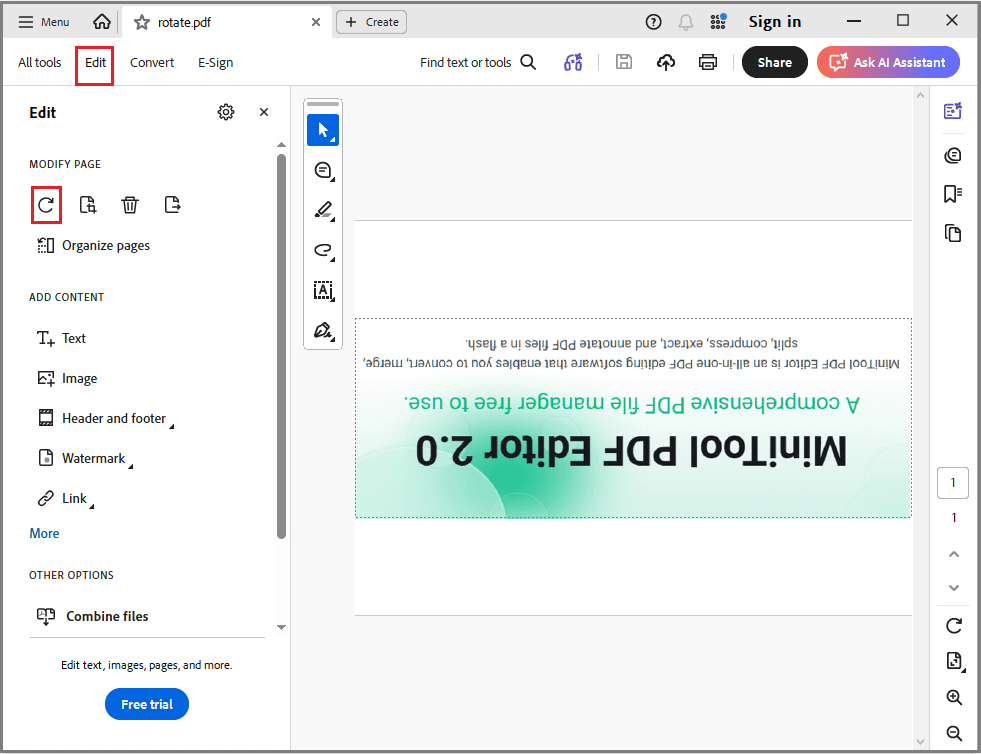
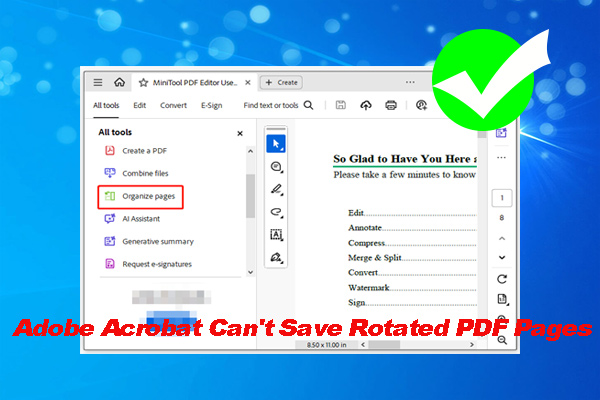
Step 1: Launch Adobe Acrobat, click Open File, select and upload the scanned PDF you want to rotate.
Step 2: On the main interface, click Edit on the left, find the rotate icon, and click it to rotate the scanned page to the correct orientation. Note that this feature is only available in the paid version.
How Do You Rotate a Scanned PDF FAQ
However, if the scanned PDF document is compressed after rotation, the file size may change.
Bottom line
How do you rotate a scanned PDF file? You can rotate scanned PDF files using professional tools such as MiniTool PDF Editor. It also allows you to perform OCR on scanned PDF files and quickly edit PDF content on Windows systems.
If you have any questions or suggestions while using the MiniTool PDF Editor, you can contact us via support@minitool.com to get a quick reply.