

What Is a PDF Portfolio?
A PDF portfolio is a single PDF file that acts as a container for multiple files in various formats. Unlike a standard merged PDF where documents are flattened into consecutive pages, a portfolio keeps each file independent in its native format (e.g., Word, Excel, CAD, or Video).
Key benefits of using a PDF portfolio include:
- Multi-format compatibility: Cover many common file types in one document.
- Original file preservation: No format conversion or data loss.
- Simplified distribution: Can share dozens of related files as one file while maintaining an organized structure.
A high-quality PDF portfolio not only simplifies file management but also enhances your professional image. It ensures that recipients can easily browse, preview, and download individual files without the need to unzip a folder.
To help you create a PDF portfolio, this guide provides a comprehensive overview of two reliable tools:
- MiniTool PDF Editor: With its simple operations and rich features, it is suitable for beginners, freelancers, and personal use.
- Adobe Acrobat: With its premium templates, advanced customization, brand styling, and security features, it is suitable for enterprises, designers, and commercial professionals.
How to create a PDF portfolio? Please keep reading.
Method 1. Create a PDF Portfolio Using MiniTool PDF Editor
MiniTool PDF Editor is a powerful, all-in-one PDF solution designed for both beginners and casual professional users.
While MiniTool PDF Editor does not have a dedicated "Create Portfolio" button, you can achieve the same result by using its Add Attachment feature. This allows you to use a main PDF as a container for other files (Word, Excel, images, videos, PPT, etc.) in their original formats.
In addition, MiniTool PDF Editor also enables you to convert, merge, split, compress, extract, redact, digitally sign, and annotate PDF files in a flash.
Now, let’s see how to create a PDF portfolio using MiniTool PDF Editor.
MiniTool PDF EditorClick to Download100%Clean & Safe
Step 1. Download and install MiniTool PDF Editor on your computer. After that, right-click the PDF file you want to create, and then choose Open with > MiniTool PDF Editor.
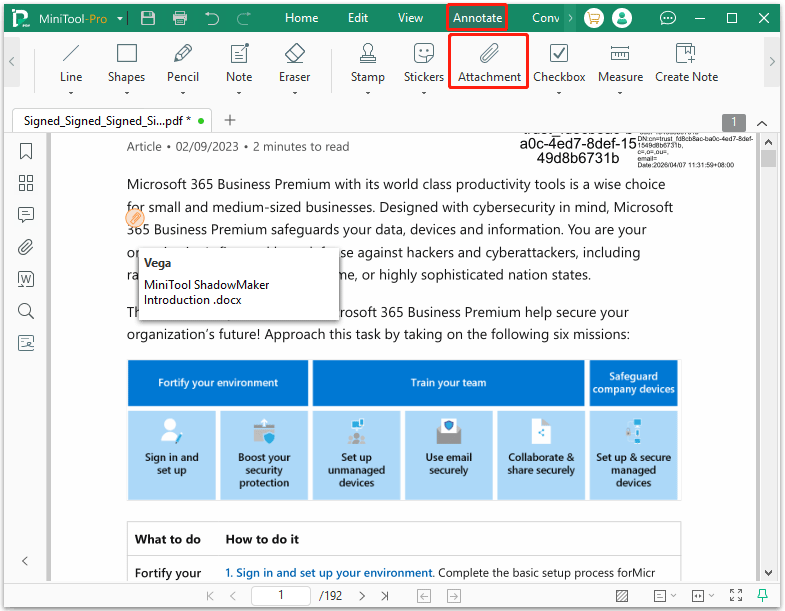
Step 2. Once the PDF file opens, click the Annotate tab in the top toolbar and select the Attachment tool from the menu. Then, click on a specific spot on your PDF page where you want the file icon to appear.
A browser window will open. Choose the file you want to add to the PDF and click Open. You will see a paperclip icon on the page.
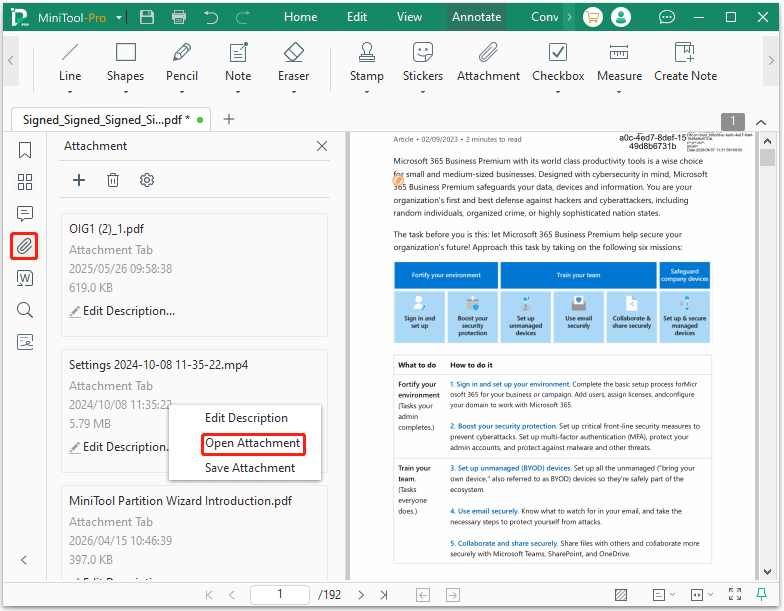
Step 3. To see a list of all files embedded in the document, go to the Attachment panel on the left-hand sidebar. To open the attachment, right-click it and choose Open Attachment in the original format.
Method 2. Create a PDF Portfolio Using Adobe Acrobat
In Adobe Acrobat Pro, creating a PDF Portfolio is the professional way to attach files while keeping them independent. It is essentially a high-end version of the attachment method, acting as a navigable container for various file types.
Here are the steps to create a PDF portfolio in Adobe Acrobat Pro:
- Open Adobe Acrobat and select the Hamburger menu, then choose Create > PDF Portfolio.
- Click the Add Files menu in the top left. You can select individual files, entire folders, or even content from a scanner or your clipboard.
- Click Create to bundle the files into a new portfolio window.
- You can create internal folders to categorize your files (e.g., one folder for "Budgets" and another for "Images"). Or, drag and drop files to rearrange them into your preferred sequence.
- Go to File > Save PDF Portfolio to finalize your container.
If you already have a portfolio open, you can add more attachments easily. Here are the steps:
- Drag & drop: Simply drag any file from your computer directly into the portfolio workspace.
- Context menu: Right-click anywhere in the portfolio window and select Add Files, Add Folder, or even Add Web Content to link to a live website or embed video tags.
PDF Portfolio FAQ
PDF portfolio: Acts like a container. Each document remains in its native format, allowing you to open and edit it in its original software.
Bottom Line
This post explains what a PDF portfolio is and offers a guide to help you create a PDF portfolio using MiniTool PDF Editor and Adobe Acrobat.
If you encounter issues when using MiniTool PDF Editor, contact us by sending an email to support@minitool.com. We’ll get back to you as soon as possible.