

What Is Redlining in Contracts?
Redlining of contracts refers to marking a contract to indicate modifications, changes, or suggestions, much like marking printed documents with a red pen.
In fact, the term originates from this practice. When contracts were mostly in paper form, lawyers would actually use red pens to cross out clauses, add annotations, or mark wording they disagreed with.
In modern business scenarios, most contracts are shared as PDF (finalized or circulated official draft) or Word (editable original draft) documents, meaning annotation is also done electronically.
Redlining is a crucial part of the contract review process. They help both parties understand what has changed and why, without having to compare multiple versions.
Essentially, it's a clearer and faster way to manage contracts, facilitating smoother contract negotiations.
Now, follow the step-by-step tutorial for redlining contracts in PDF and Word.
How to Redline a Contract in PDF?
To redline a PDF contract, you can use a dedicated PDF annotator to change text color to red, apply strikethrough or underline text, add comments, or make any other changes to show revisions or provide suggestions.
MiniTool PDF Editor is a professional PDF tool that provides various annotation tools to help you redline a PDF contrast easily.
Its Annotate feature can help you:
- Change text color, strikethrough, highlight, and underline text.
- Add notes, callouts, stamps, shapes, freehand drawings, and attachments.
- Manage all annotations in a sidebar and can set a status tag, such as Accepted, Reject, or Complete.
Here is how to redline a contract in PDF with MiniTool PDF Editor.
Step 1. Click the download button to get the MiniTool PDF Editor. Then launch this contract redlining tool and open the PDF contract you want to redline.
MiniTool PDF EditorClick to Download100%Clean & Safe
Step 2. Click the Annotate tab, and you will see many annotation tools. You can choose a tool to redline the contract. For example, to strikethrough in a PDF, choose Text Markup and select Strikethrough. Then, you can use the Note tool to type your explanation.
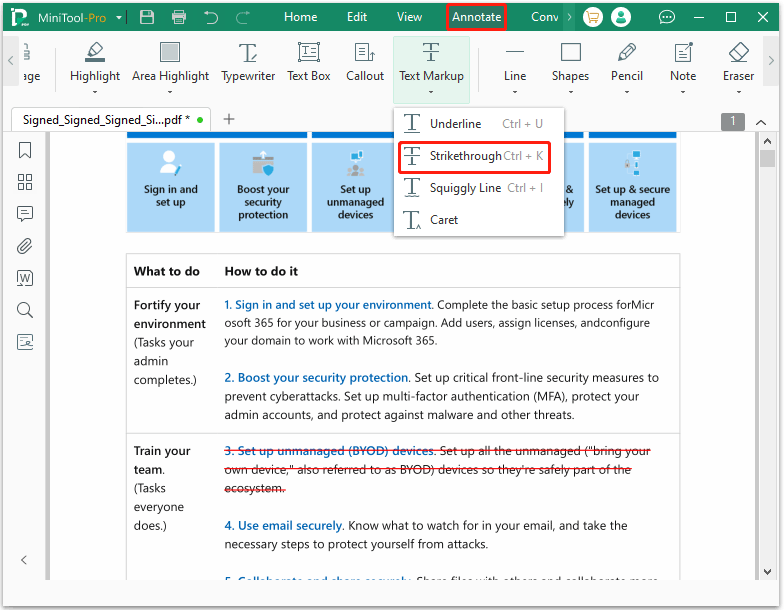
Step 3. When it’s OK, click the Save button to save the changes.
In addition to PDF annotation features, MiniTool PDF Editor can help you edit, convert, merge, split, compress, and sign PDF files. It's the perfect choice for users who want a fully functional yet easy-to-use PDF tool.
How to Redline a Contract in Word?
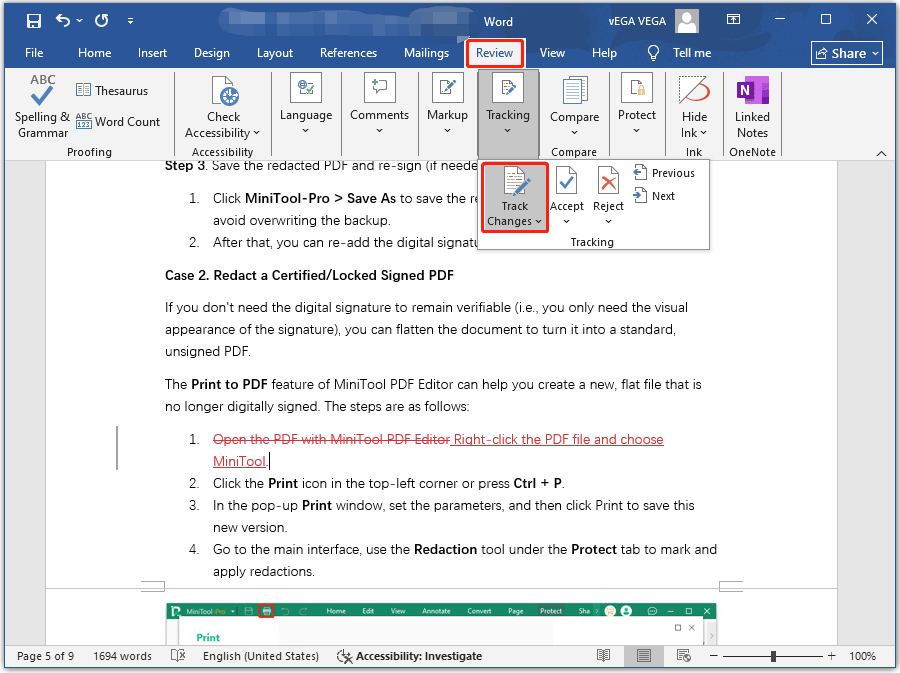
To redline a Word contract effectively, you use the Track Changes feature located under the Review tab. This tool automatically records every edit and appears as strikethroughs.
To redline a contract in Word, here are the steps:
- Open your Word document, go to the Review tab, and click Track Changes.
- Select All Markup from the dropdown menu to see exactly what is being added (underlined) or removed (strikethrough).
- Type new text, delete old text, or move sections. You will see the words marked with a red strikethrough and the added words in red font color.
- Select text, click New Comment to clarify reasons for changes.
- Save the document.
Alternatively, you can redline in Microsoft Word manually. Here is the step:
- In MS Word, open the document you want to redline.
- Make any necessary changes.
- You can change the text color and add a strikethrough or underline. For example, under Font, select Strikethrough and apply it to the text.
- If needed, you can add comments by going to Review > New Comment.
- Repeat the steps to redline all sections.
- Save the document.
If you receive a document without tracked changes, use the Microsoft Word Compare tool:
- Go to Review > Compare > Compare Documents.
- Select your Original document (earlier version) and the Revised document (newer version).
- Click OK to generate a new document that automatically marks all differences as tracked changes.
How to Redline a Contract FAQ
Bottom Line
Contract redlining is a crucial part of the contract negotiation process. Revisions ensure effective collaboration among all parties. This post provides 2 tools to redline a contract in PDF/Word.
If you encounter issues when using MiniTool PDF Editor, contact us by sending an email to support@minitool.com. We’ll get back to you as soon as possible.