

Redacting a signed PDF can hide sensitive information. This post explains what a signed PDF is and offers a guide on how to redact a signed PDF using MiniTool PDF Editor and Adobe Acrobat.
What Is a Signed PDF?
In the digital age, Portable Document Format (PDF) files have become the gold standard for sharing official, legal, financial, and confidential documents.
A signed PDF file is a document that has been electronically or digitally sealed to verify the signatory's identity and ensure that the content has not been tampered with. For more important documents, digital signatures are required for enhanced security.
From contracts and tax forms to business reports, digitally signed PDF files have significant legal and operational validity because the digital signature verifies the authenticity and integrity of the content.
The signature is embedded in the PDF file and typically locks the content to prevent any alterations to its content, format, or metadata. This feature is crucial for contracts and legal documents, as it prevents undetected tampering.
Can You Redact a Signed PDF?
In many cases, sensitive information in digitally signed PDF files may need to be permanently removed or obscured. This process is called redaction.
Whether you need to hide proprietary financial data for a company or personal contact information, redacting a signed PDF file is a good option.
Redaction is a permanent modification to a PDF. It involves masking sensitive text, images, or data, making it inaccessible, uncopyable, or unrecoverable.
Can you redact a signed PDF? Yes, you can redact a PDF that has been signed, but doing so will usually invalidate the digital signature, as signatures are designed to lock the document against changes. To redact, you must either remove the signature or use software to flatten the document using the print-to-PDF function.
Furthermore, it is crucial to note that only authorized users, typically the original signer, document owner, or someone with explicit written permission to modify the document, may attempt to redact a signed PDF.
How to Redact a Signed PDF?
To redact a signed PDF, the process varies slightly depending on whether the digital signature is removable (self-signed or non-certified) or certified/locked.
Below are the two most reliable tools for redacting signed PDFs: MiniTool PDF Editor and Adobe Acrobat.
Method 1. Use MiniTool PDF Editor
MiniTool PDF Editor is an all-in-one PDF editing software that offers a suite of PDF tools for masking text in PDF documents, including signed ones. It boasts advanced PDF protection features that manage digital and electronic signatures.
The Redaction feature allows you to customize how sensitive information is hidden with a few clicks.
This software also supports other operations, like converting, merging, splitting, password-protecting, extracting, compressing, and annotating PDF files.
MiniTool PDF EditorClick to Download100%Clean & Safe
Case 1. Redact a Non-Certified Signed PDF
If you are the PDF signatory or have authority, you can redact a signed PDF by first removing the signature and then redacting the PDF. That’s because a PDF owner can easily remove applied signatures without affecting formatting or content.
This is the most common and recommended method for legitimate redaction.
Now, follow the steps on how to redact a digitally signed PDF file with this tool.
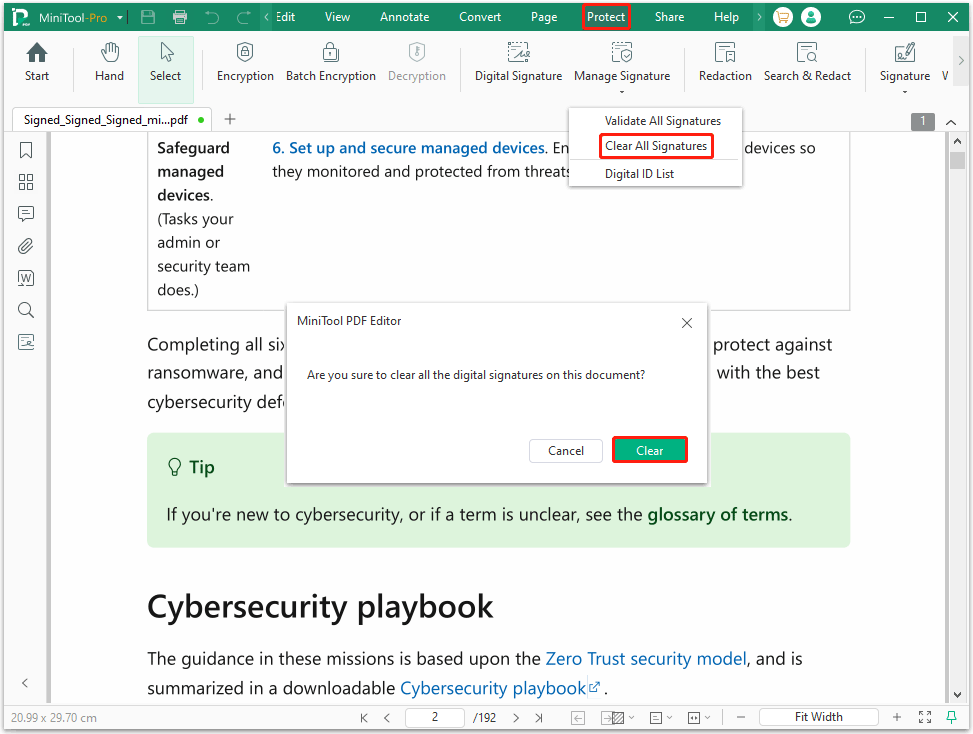
Step 1. Remove the signature.
- Right-click on the PDF and select Open with > MiniTool PDF Editor.
- Once the PDF file opens, click the Protect tab in the top toolbar, and then click Manage Signature.
- Click the Clear All Signatures button and click Clear to remove the signature.
Step 2. Redact the PDF after removing the signature.
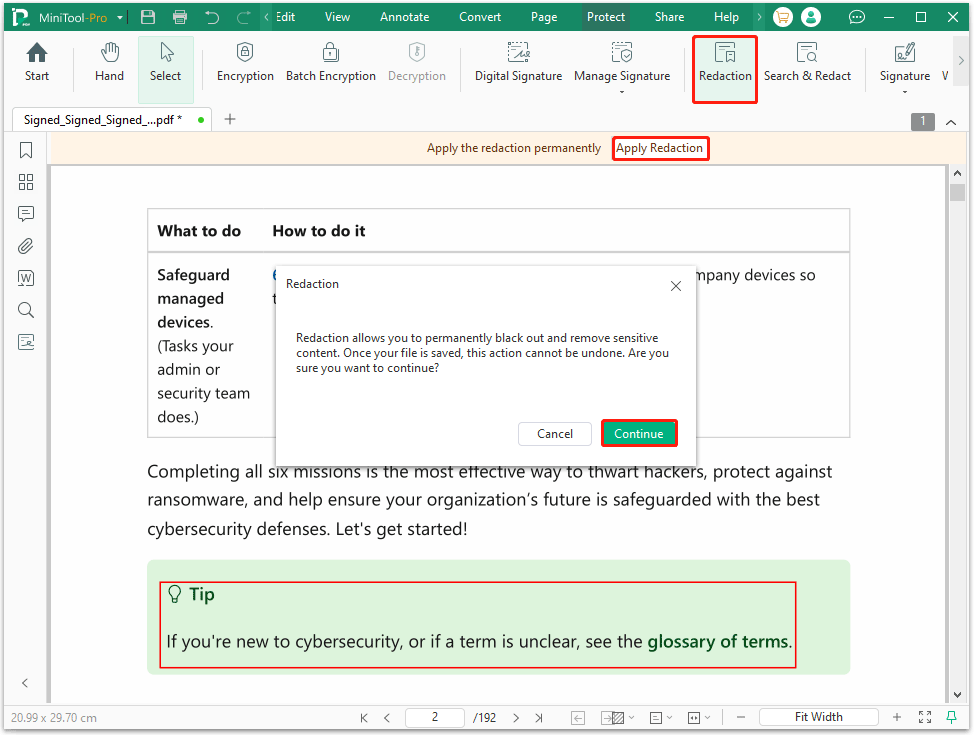
- Under the Protect tab, click the Redaction feature. Then click OK to confirm the redaction note.
- Drag the mouse and select the information you want to redact. Once done, click the Apply Redaction button at the top. Then click Continue.
- Once finished, your sensitive information is covered by a black box.
Step 3. Save the redacted PDF and re-sign (if needed).
- Click MiniTool-Pro > Save As to save the redacted document with a new name to avoid overwriting the backup.
- After that, you can re-add the digital signature to the PDF.
Case 2. Redact a Certified/Locked Signed PDF
If you don't need the digital signature to remain verifiable (i.e., you only need the visual appearance of the signature), you can flatten the document to turn it into a standard, unsigned PDF.
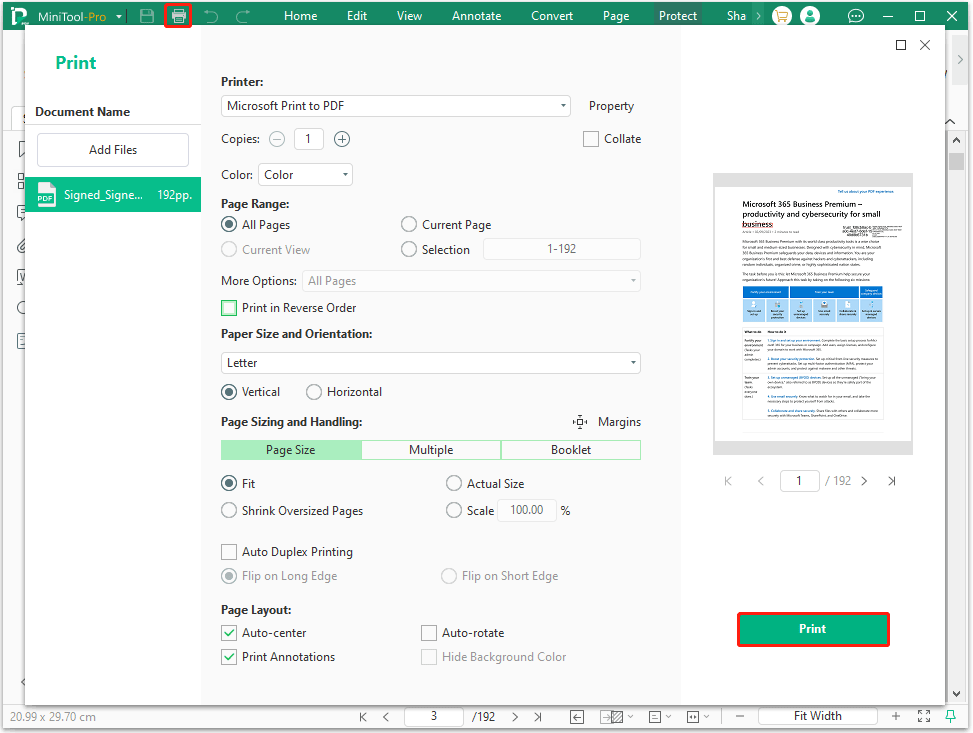
The Print to PDF feature of MiniTool PDF Editor can help you create a new, flat file that is no longer digitally signed. The steps are as follows:
- Open the PDF with MiniTool PDF Editor.
- Click the Print icon in the top-left corner or press Ctrl + P.
- In the pop-up Print window, set the parameters, and then click Print to save this new version.
- Go to the main interface, use the Redaction tool under the Protect tab to mark and apply redactions.
Method 2. Use Adobe Acrobat
Adobe Acrobat is another tool to redact a signed PDF. It is a well-known PDF editor that offers the Redact tool.
Case 1. Redact a Non-Certified Signed PDF
Step 1. Clear the digital signature.
- Open the PDF file with Adobe Acrobat.
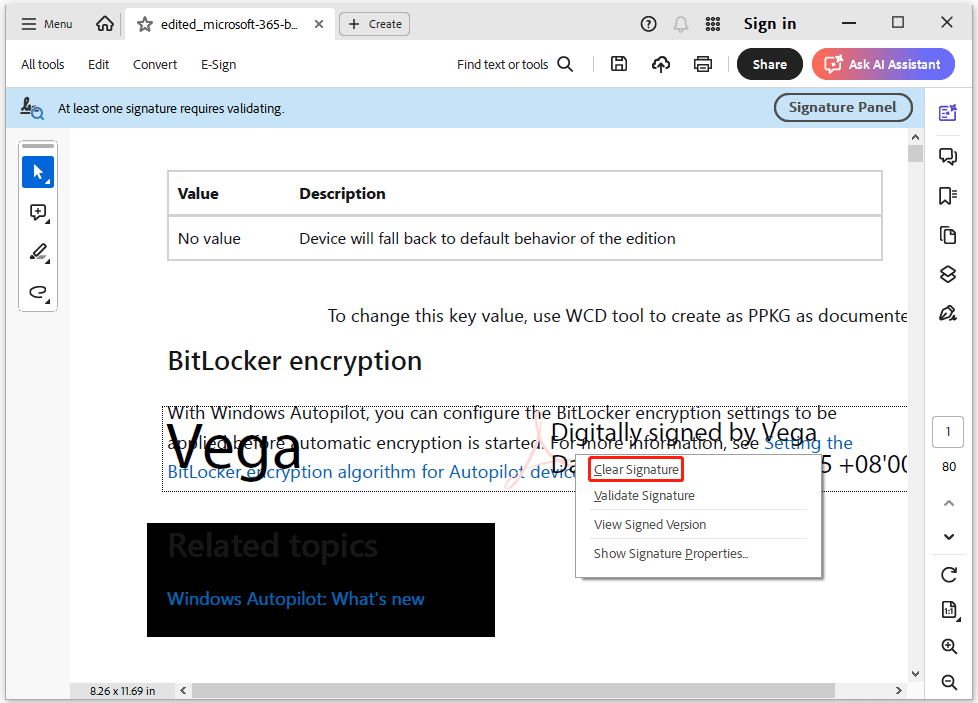
- Locate the digital signature field on the document. Right-click on the signature and select Clear Signature from the dropdown menu.
- If the document has multiple signatures, you may need to clear all of them to unlock the PDF fully.
Step 2. Redact the PDF.
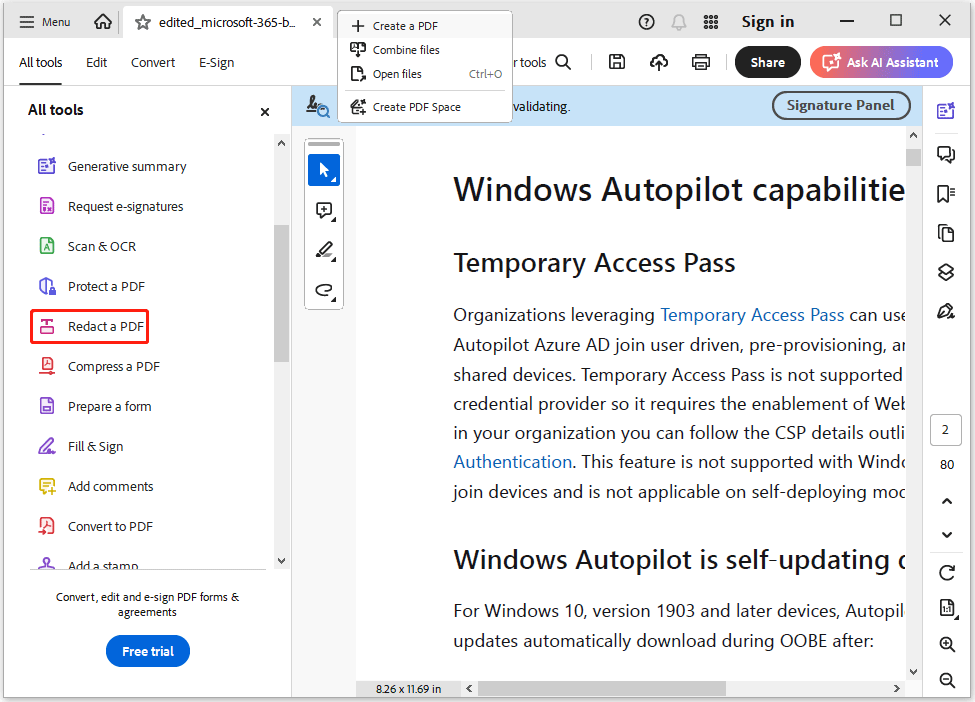
- Once the signature is removed, go to the top menu bar and select All tools > Redact a PDF. This will open the redaction window.
- Click Redact Text & Images from the left-hand pane. Use your cursor to drag a box over the text, images, or data you want to redact. You can also use the Find Text & Redact feature to search for specific sensitive information and mark all instances at once.
- Once all sensitive content is marked, click the Apply button in the redaction toolbar. A pop-up window will appear, warning you that redaction is permanent and cannot be undone. Click OK to confirm.
- After applying redactions, Acrobat will ask if you want to Sanitize and remove hidden information. Click Yes to remove metadata, hidden layers, overlapping objects, and comments that might still contain sensitive data.
- Save the document. Acrobat will typically add "_Redacted" to the end of the filename so you don't accidentally overwrite your original, unredacted file.
If the document requires a valid signature for legal use, the original signer can reapply their digital signature to the redacted PDF.
Case 2. Redact a Certified/Locked Signed PDF
- Open the signed PDF in Adobe Acrobat.
- Go to File > Print or press Ctrl + P.
- Select Microsoft Print to PDF as your printer.
- Click Print and save the new file with a different name. This new version will contain the visual signatures but will no longer be cryptographically locked.
- After that, you can redact the PDF using the Redact a PDF tool.
How to Redact a Signed PDF FAQ
1. Open the PDF file with this tool.
2. Go to the Protect tab, and then select Digital Signature.
3. Locate the place to add the signature.
4. In the pop-up window, create a new ID to Sign.
Bottom Line
Redacting a signed PDF is helpful to hide sensitive information when checking the content with others. This post shows you how to redact a signed PDF with 2 tools. MiniTool PDF Editor is the better choice with its simple interface.
If you encounter issues when using MiniTool PDF Editor, contact us by sending an email to support@minitool.com. We’ll get back to you as soon as possible.