

Highlighting a scanned PDF visually draws attention to important data and improves retention.
Scanned PDFs are essentially image files of documents, which means the text within them is not editable or selectable in the traditional sense.
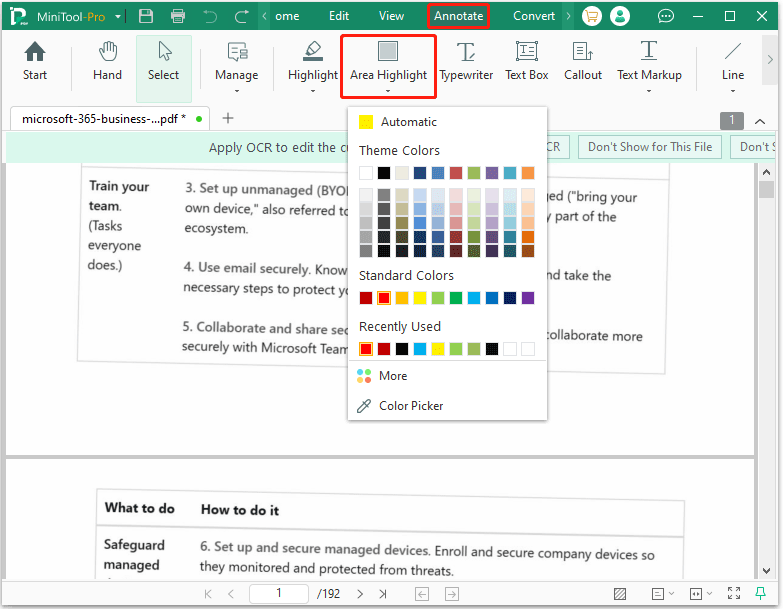
To highlight it, you need to either convert the image to text using Optical Character Recognition (OCR) or use a specialized tool (like Area Highlight), which places a transparent layer of color over the text, exactly like a physical marker.
- Area Highlight: It enables you to highlight specific regions within a scanned PDF document.
- OCR: It can help you convert a scanned PDF’s static images into editable, searchable text and then highlight it.
The core difference between these two methods is that "Area Highlight" simply draws a box over the text, whereas "OCR" actually converts the scanned text into editable text.
Here are 3 tools to help you highlight a scanned PDF:
- MiniTool PDF Editor: With its built-in OCR, Area Highlight features, and simple interface, it is suitable for beginners and personal use.
- Adobe Acrobat: With its OCR, Area Highlight, advanced customization, and security features, it is suitable for designers and professional use.
- Online tool: With its Area Highlight, no setup and costing nothing, it is suitable for a single-use task.
How to Highlight a Scanned PDF with MiniTool PDF Editor
MiniTool PDF Editor is a powerful and lightweight PDF tool available for Windows.
Download and install this PDF editor on your computer. Then, you can highlight a scanned PDF with it.
MiniTool PDF EditorClick to Download100%Clean & Safe
Option 1. Use Area Highlight
Step 1. Right-click the target scanned PDF file and choose MiniTool PDF Editor.
Step 2. Click the Annotate tab, and go to Area Highlight. Change highlight color as needed.
Step 3. Drag the cursor to highlight the text, image, or anything else.
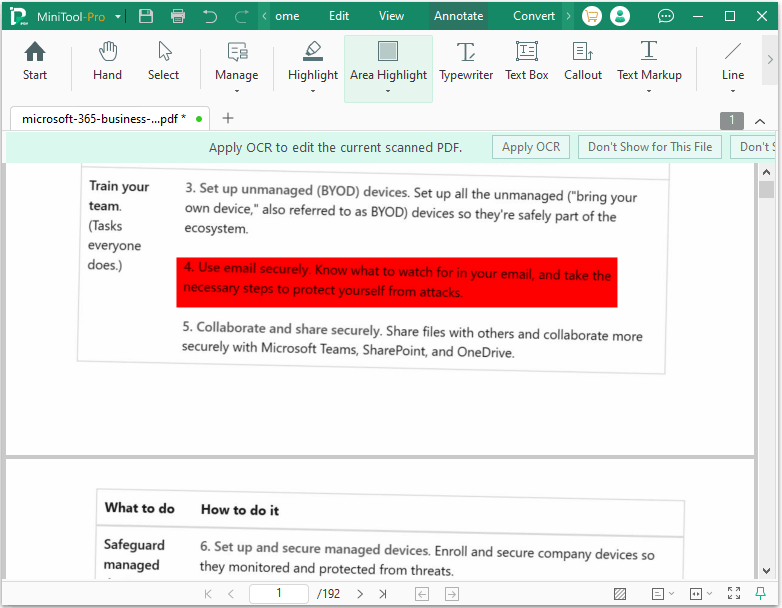
Step 4. Finally, click the MiniTool-Pro button to save the highlighted PDF.
Option 2. Use OCR
Step 1. Open the scanned PDF file with MiniTool PDF Editor.
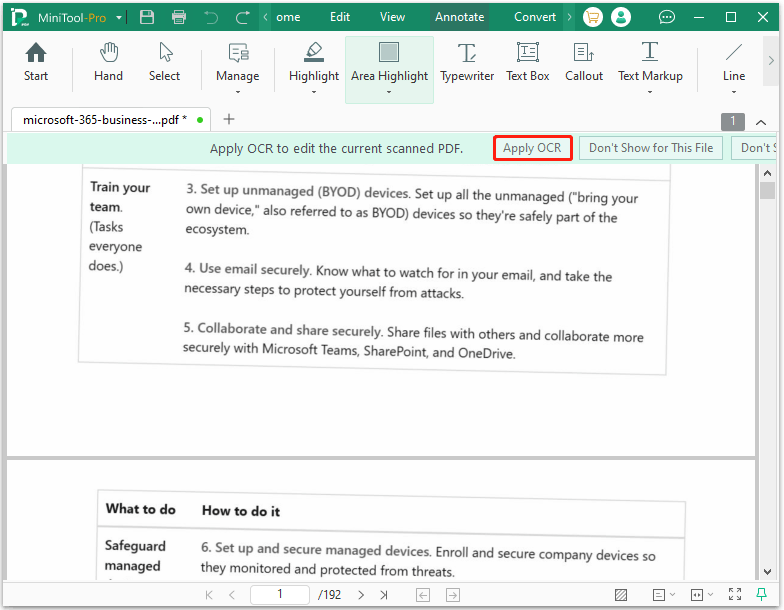
Step 2. Once it opens, you can see a tip showing “Apply OCR to edit the current scanned PDF”. Then click on Apply OCR.
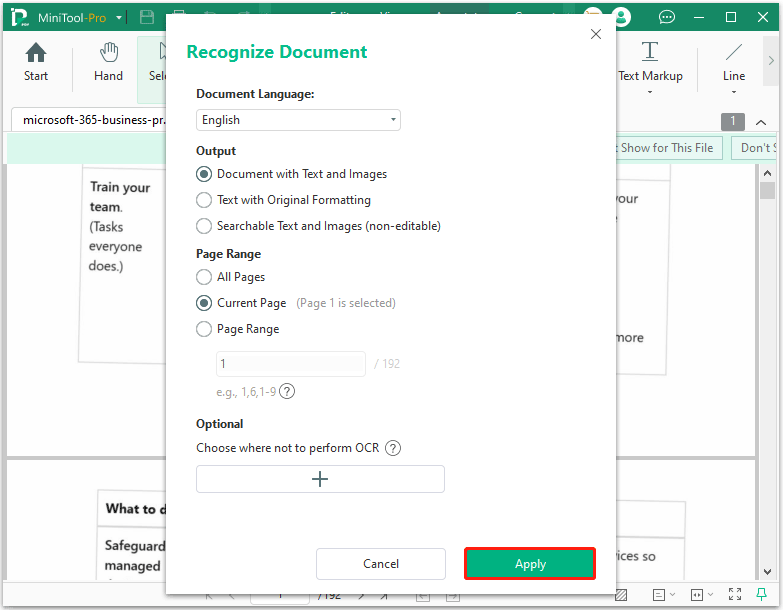
Step 3. In the Recognized Document window, you can modify some settings. Once done, click Apply.
- Document Language: Select the language that matches the text in your scanned PDF.
- Output: Choose Document with Text and Images when you need to edit, delete, or rewrite text directly in the PDF while keeping the original images and layout.
- Page Range: Select All Pages, Current Page, or Page Range to decide which pages you want to OCR.
- Optional: Draw areas where not to perform OCR.
Step 4. When the process is complete, this software opens the editable page in a new tab. Then, you can go to Annotate > Highlight to highlight the text.
How to Highlight a Scanned PDF with Adobe Acrobat
Adobe Acrobat is a professional PDF editor that can help you highlight a scanned PDF. It also offers two methods to choose from:
- Run OCR to recognize the text within the PDF, and use the highlighting tool to highlight the text.
- Draw a rectangle over the text and fill it with color for visual marking (no OCR required).
Learn how to highlight a scanned PDF file in Adobe Acrobat:
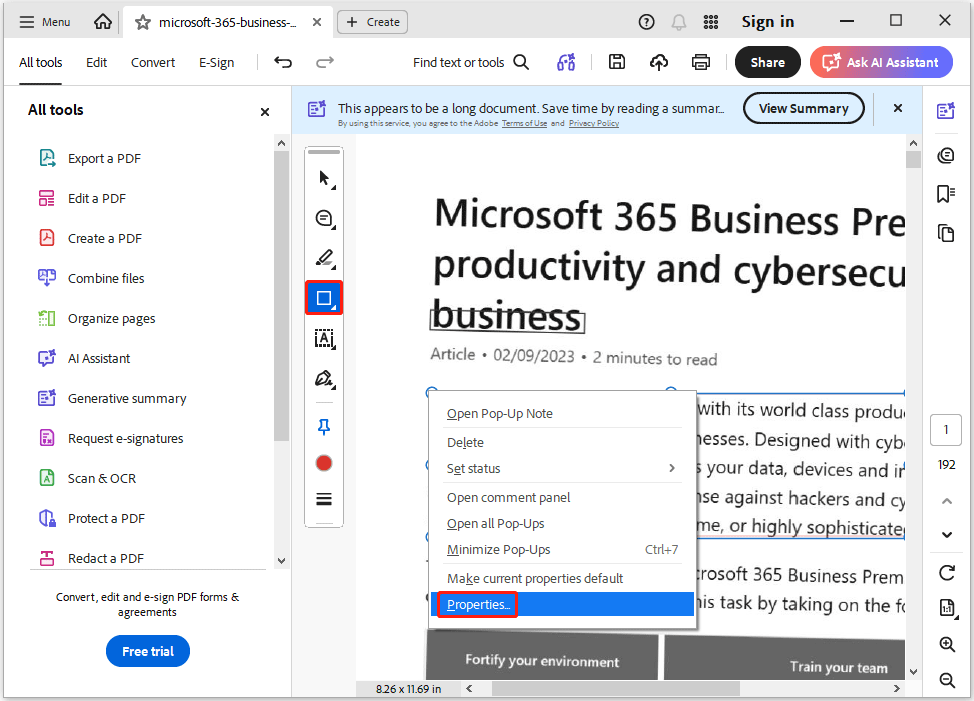
Step 1. Open the PDF file in Adobe Acrobat. Click the Draw Freehand tool, then select Rectangle.
Step 2. Select a color and draw a box over the area you wish to highlight. Right-click the box, then select Properties.
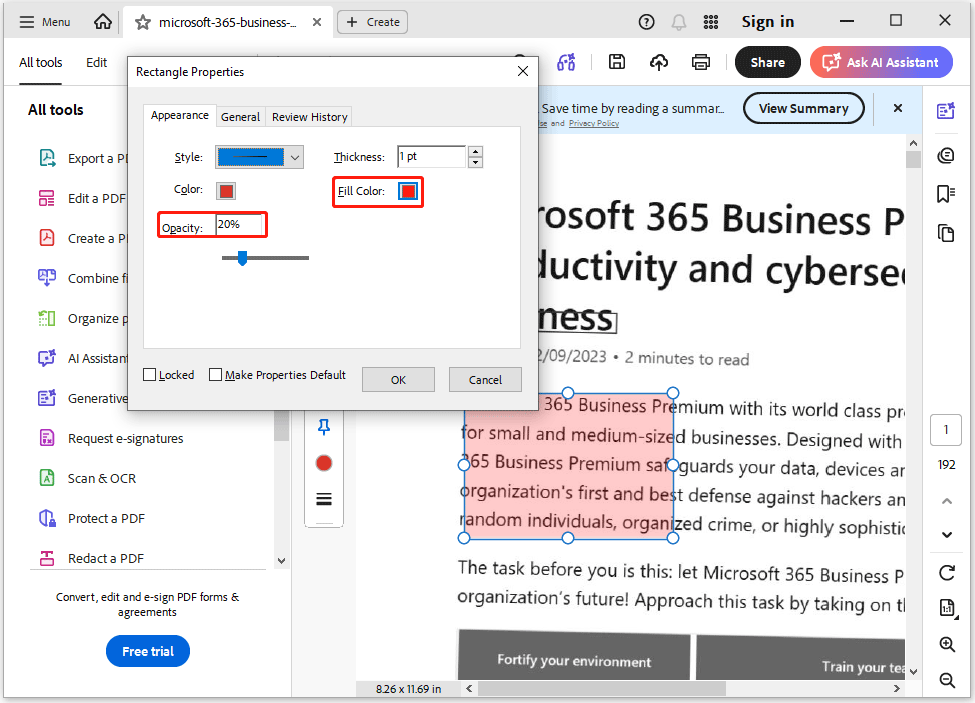
Step 3. Choose a Fill Color and adjust Opacity to simulate a highlighting effect. Then click OK.
If you want to perform OCR on the scanned PDF file, click Scan & OCR > Recognize Text > In This File. Then, select the page range and language, and click Start. Afterward, you can use the Highlight Text tool to highlight the actual text.
How to Highlight a Scanned PDF with an Online Tool
DocHub is a free online PDF editor that supports area highlighting for scanned PDFs. The steps are as follows:
- Open your browser and go to the DocHub website.
- Upload your scanned PDF from your computer or cloud storage (Google Drive, Dropbox).
- Once the PDF loads, click the Highlight tool in the left toolbar.
- Choose a color and drag to highlight the desired area.
- Click Download to save the highlighted PDF to your Windows PC.
How to highlight a scanned PDF? This post offers 3 methods to do that.Click to Tweet
Highlight a Scanned PDF FAQ
Running OCR creates an invisible, interactive text layer directly behind the scanned image. This layer allows your PDF reader to select, copy, search, and precisely highlight text lines.
Bottom Line
This post offers a guide to help you highlight in scanned PDFs using MiniTool PDF Editor, Adobe Acrobat, and an online tool.
If you encounter issues when using MiniTool PDF Editor, contact us by sending an email to support@minitool.com. We’ll get back to you as soon as possible.