

When working with and editing PDF files, you sometimes encounter situations where you need to precisely align, measure, or draw lines.
To address these issues, you can use a PDF ruler tool. It’s a feature used for accurately drawing lines, making markings, or taking measurements within a PDF document.
Next, I will explain why you might use a ruler tool in a PDF document and how to use it.
Why Is It Necessary to Use Ruler in PDF?
Here are several reasons why using the ruler tool in PDFs is necessary:
- Precise measurement: You can easily obtain the precise dimensions of objects in a PDF document, such as height and width, without having to estimate manually.
- Meeting printing requirements: The ruler tool helps ensure that all elements are within the printable area, preventing cropping or improper scaling. It helps adjust content size to meet printing requirements.
- Precise alignment: Using the ruler tool allows for precise alignment of form fields, ensuring that text boxes and images do not overlap, which helps maintain a clean and professional document appearance.
- Improved document review efficiency: During document review, the ruler tool can help you make consistent modifications without disrupting the overall layout.
How to Use PDF Ruler to Draw Lines
How to draw lines using a PDF ruler? You can try MiniTool PDF Editor, Adobe Acrobat, and online tools. Pick one according to your condition.
Method 1: MiniTool PDF Editor
MiniTool PDF Editor is a professional and multifunctional PDF editing tool and a versatile measuring tool. It allows you to measure the area, scale, and perimeter of each design.
In addition, it can also split/merge/compress/crop/encrypt, insert/replace/split/extract PDF pages, add links/stickers/watermarks/signatures to PDF, convert PDF to other file formats and vice versa, etc.
MiniTool PDF EditorClick to Download100%Clean & Safe
How to use ruler in PDF to draw lines in MiniTool PDF Editor? Here is the guide.
Step 1: Right-click the PDF file and select Open with, and choose MiniTool PDF Editor.
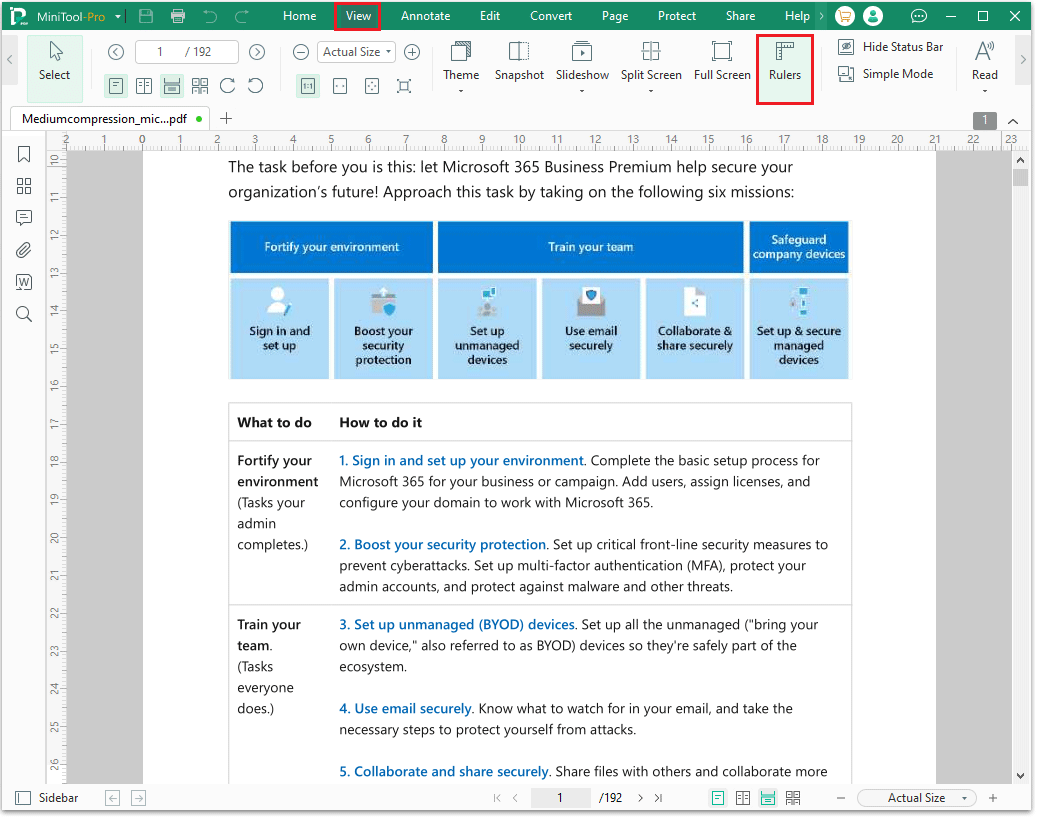
Step 2: Select the View tab and click Rulers below it. Then, the ruler scale will appear at the top.
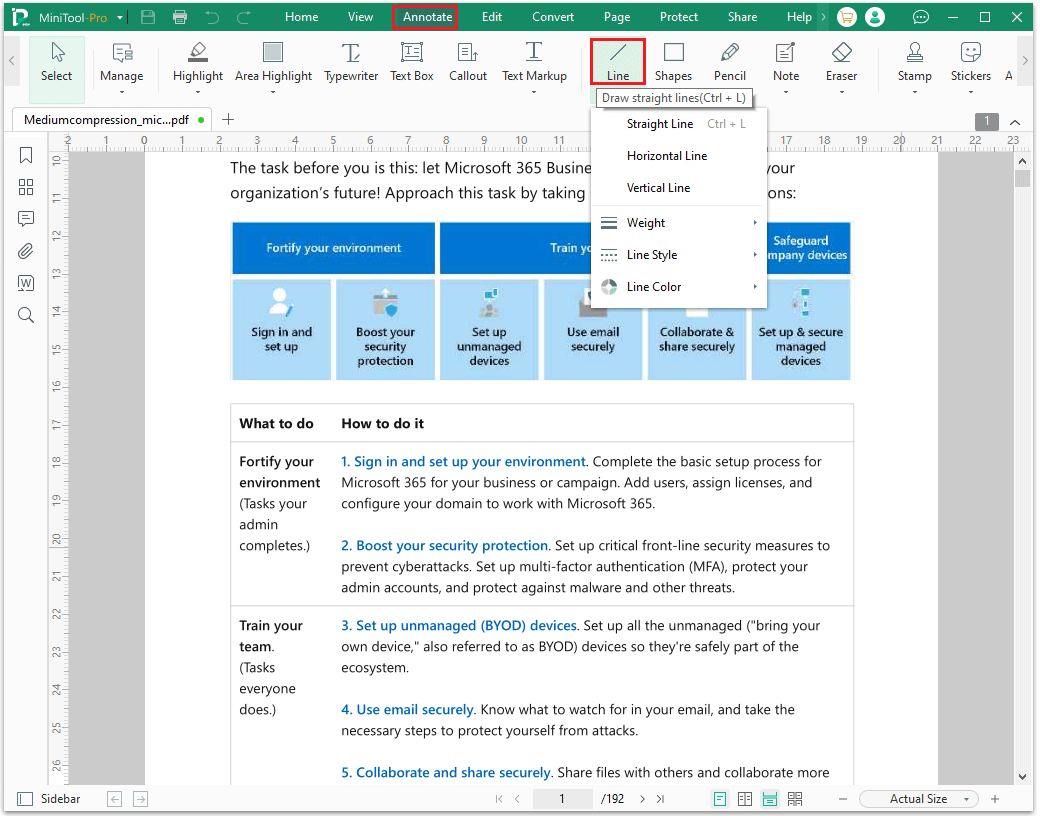
Step 3: Go to Annotate and click on the Line option. You can choose between straight, horizontal, or vertical lines, and you can also set the line weight, color, and style.
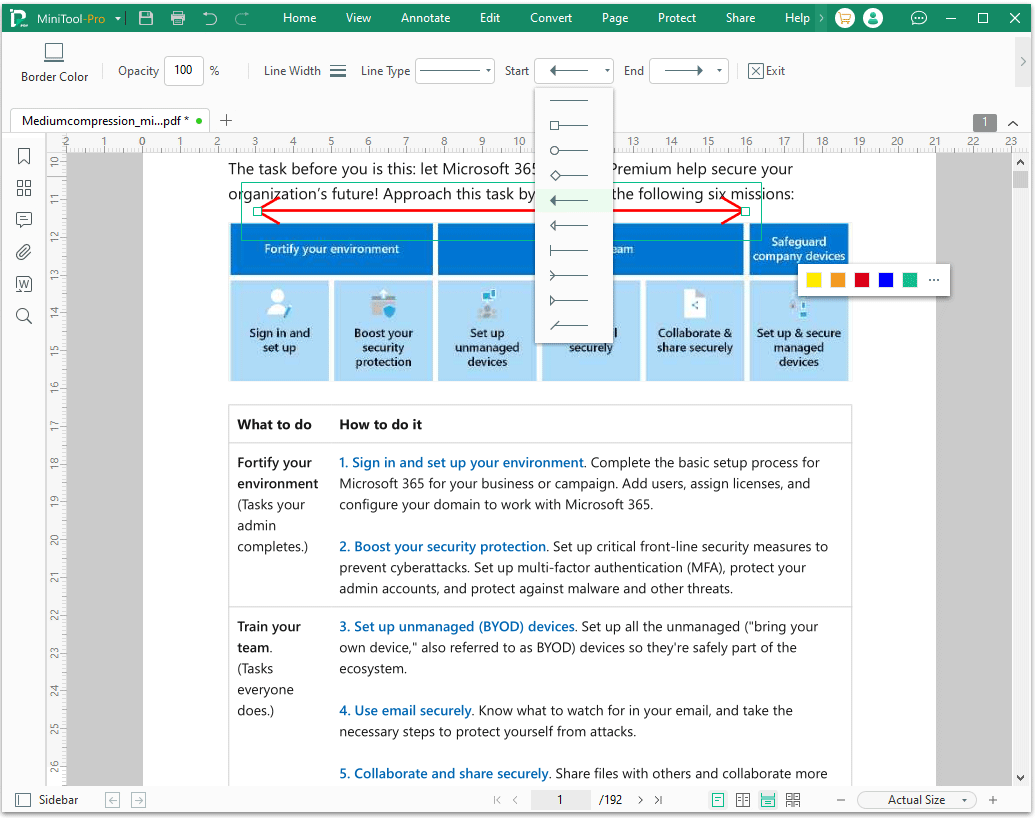
Step 4: Ensure the cursor is aligned with the desired starting point on the ruler scale, then press and hold the left mouse button to drag and draw the line, and finally release the left mouse button at the endpoint.
In this interface, you can customize some settings.
- Border Color: Sets the color of the line. You can choose any color you like to change the visual effect of the line.
- Opacity: Adjusts the transparency of the line, controlling its clarity and the visibility of the background content. Lower opacity makes the line more transparent while higher opacity makes the line more visible.
- Line Width: Controls the thickness of the line by adjusting its width.
- Line Type: Offers different types of lines, such as solid lines, dashed lines, dotted lines, etc.
- Start: Sets the shape of the starting point, such as a circle, square, arrow, etc.
- End: Sets the shape of the ending point, such as a square, rhombus, etc.
- Exit: It lets you exit the customization interface.
Method 2: Adobe Acrobat
Adobe Acrobat is a PDF utility software developed by Adobe for creating, editing, viewing, and converting PDF files. It boasts a rich set of features suitable for individual, team, and enterprise users.
Here are the steps to use PDF ruler to draw lines with Adobe Acrobat.
Step 1: Open Adobe Acrobat to its main interface.
Step 2: Click Open File and choose a PDF file to open.
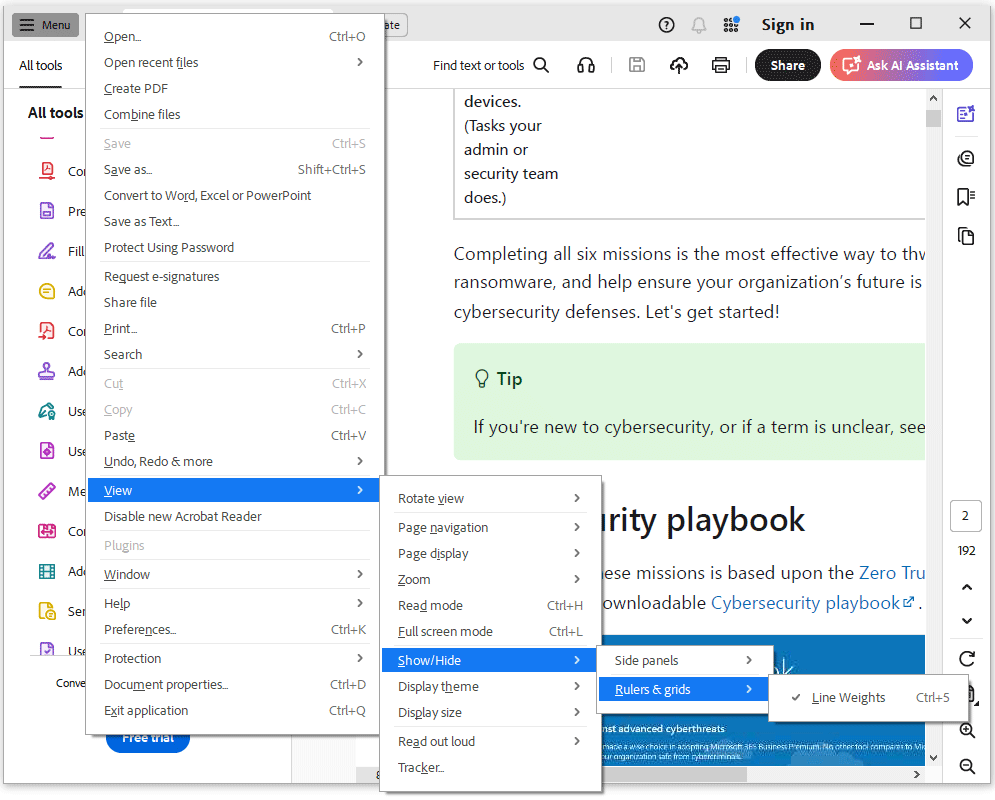
Step 3: Click the Menu tab at the top, then select View > Show/Hide > Rulers & grids.
Step 4: Click the All Tools > Add Comment from the tools pane.
Step 5: In the Comment toolbar that appears, find and click the drawing tools icon, and then click the Line tool from the dropdown menu. Click and drag your mouse on the PDF page where you want the line to start and end.
Use PDF Ruler to Draw Lines FAQ
Bottom Line
This article introduces desktop tools to help you easily use PDF ruler to draw lines. If you have any questions while using the MiniTool PDF Editor, contact us via support@minitool.com.