

PDF files are widely used for business documents, contracts, reports, resumes, eBooks, and academic papers because they preserve formatting across different devices and operating systems.
Whether you're trying to increase font size in PDF for better readability or decrease font size in PDF to fit more content on a page, knowing how to change font size in a PDF is essential.
Unlike Word documents, most PDF files use a fixed-layout format, meaning every text element is positioned precisely on the page.
In this guide, we'll introduce several reliable tools that make the process easier, including MiniTool PDF Editor, Adobe Acrobat, and pdfFiller.
How to Change Font Size in PDF with MiniTool PDF Editor
MiniTool PDF Editor is an all-in-one PDF editor that allows you to edit, convert, merge, split, compress, annotate, and manage PDF files efficiently.
One of its most useful features is the ability to edit existing text and adjust font properties, including font size.
It is important to note that to change the font size in a PDF, the document should be a standard PDF. Scanned PDFs or image-only PDFs cannot be edited, let alone have their font size altered. You should make PDF editable.
Its key features:
- Edit text and images in PDFs
- Change font size, font style, and font color
- Convert PDFs to Word, Excel, PPT, and images
- Merge and split PDF files
- Compress PDF documents
- OCR scanned PDFs
- Add annotations, comments, and signatures
MiniTool PDF EditorClick to Download100%Clean & Safe
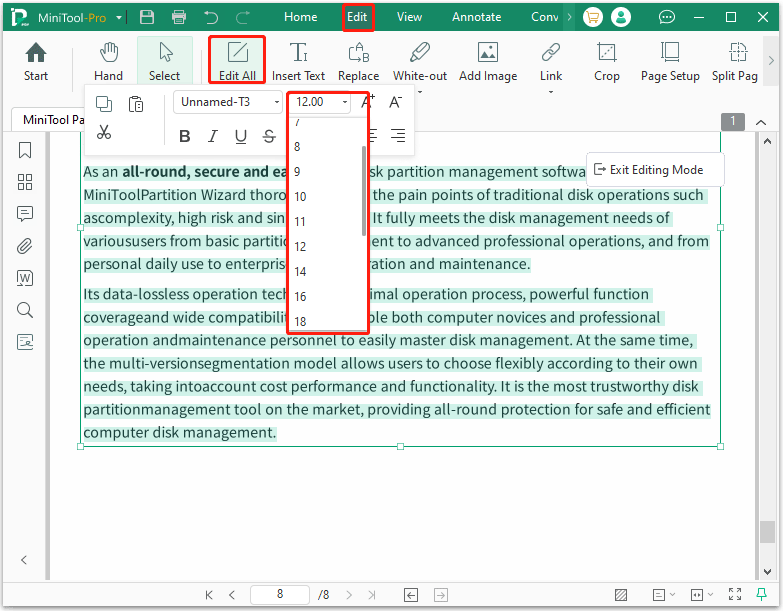
Here is how to change font size in PDF using MiniTool PDF Editor:
- Download and install MiniTool PDF Editor. Open your PDF file with this software.
- Click Edit on the toolbar and click Edit All.
- Now, the PDF file is in the Editing mode. Then you can select the text whose font size needs to be changed.
- Go to the menu bar and adjust the PDF font size within the text box. Meanwhile, you can change the font style and color.
Alternatively, there is another method for changing the font size in a PDF: converting the PDF into an editable Word document and then changing the font size.
How to Change Font Size in PDF with Adobe Acrobat
Adobe Acrobat Pro is one of the most popular PDF editing tools available today. As the creator of the PDF format, Adobe provides extensive editing capabilities.
Now, learn how to change font size in Adobe Acrobat:
- Open your PDF in Adobe Acrobat Pro.
- Click Edit (or go to Tools > Edit PDF) to enter editing mode.
- Highlight the text you want to change. A blue text box will appear around it.
- Locate the Format panel on the left or right side of the screen.
- Select a new size from the Font Size drop-down menu.
How to Change Font Size in PDF Online
If you only need to edit a PDF occasionally, online PDF editors can be convenient.
Popular online PDF editing services include:
- pdfFiller
- PDFescape
- Sejda PDF
- iLovePDF
How to increase font size in PDF? Here, we take pdfFiller as an example:
- Log into your pdfFiller account and upload the PDF file.
- Click directly on the existing text you wish to edit, or click the Text tool in the top panel to place a new text box.
- Once you click a text box, a floating formatting toolbar will appear directly above it or at the top of the page.
- Locate the Font Size dropdown menu (usually displaying a number like 12pt) and select or type your desired size.
- Click outside the text box or hit Apply to save your edits.
How to change font size in PDF? This post offers 3 methods to do that.Click to Tweet
How to Change Font Size in PDF FAQ
Adjusting font sizes triggers specific layout shifts, with the severity depending on whether you are editing the document or just viewing it.
Bottom Line
Changing font size in a PDF is a simple operation. This post offers 3 approaches to do that. Among them, MiniTool PDF Editor is often recommended for beginners because of its simple interface and comprehensive PDF management features.
If you encounter issues when using MiniTool PDF Editor, contact us by sending an email to support@minitool.com. We’ll get back to you as soon as possible.